
Rangliste
-

dorkisbored
Globaler Moderator9Punkte27.158Gesamte Inhalte -

Champ
Moderator a.D.5Punkte13.944Gesamte Inhalte -

krankerfrank
Members5Punkte2.578Gesamte Inhalte -
-=SkReeK=-
GSF Support5Punkte3.753Gesamte Inhalte



Beliebte Inhalte
Inhalte mit der höchsten Reputation am 03.01.2022 in allen Bereichen anzeigen
-
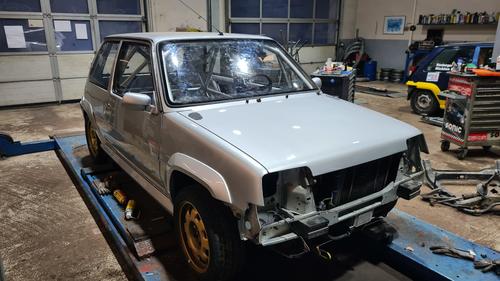
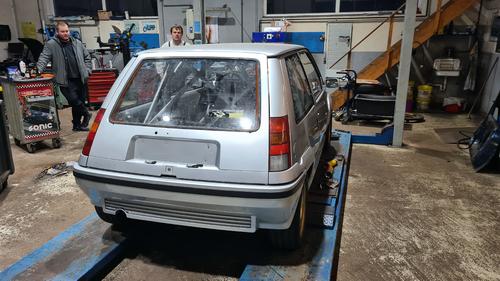
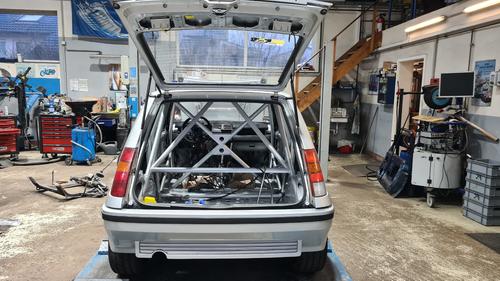
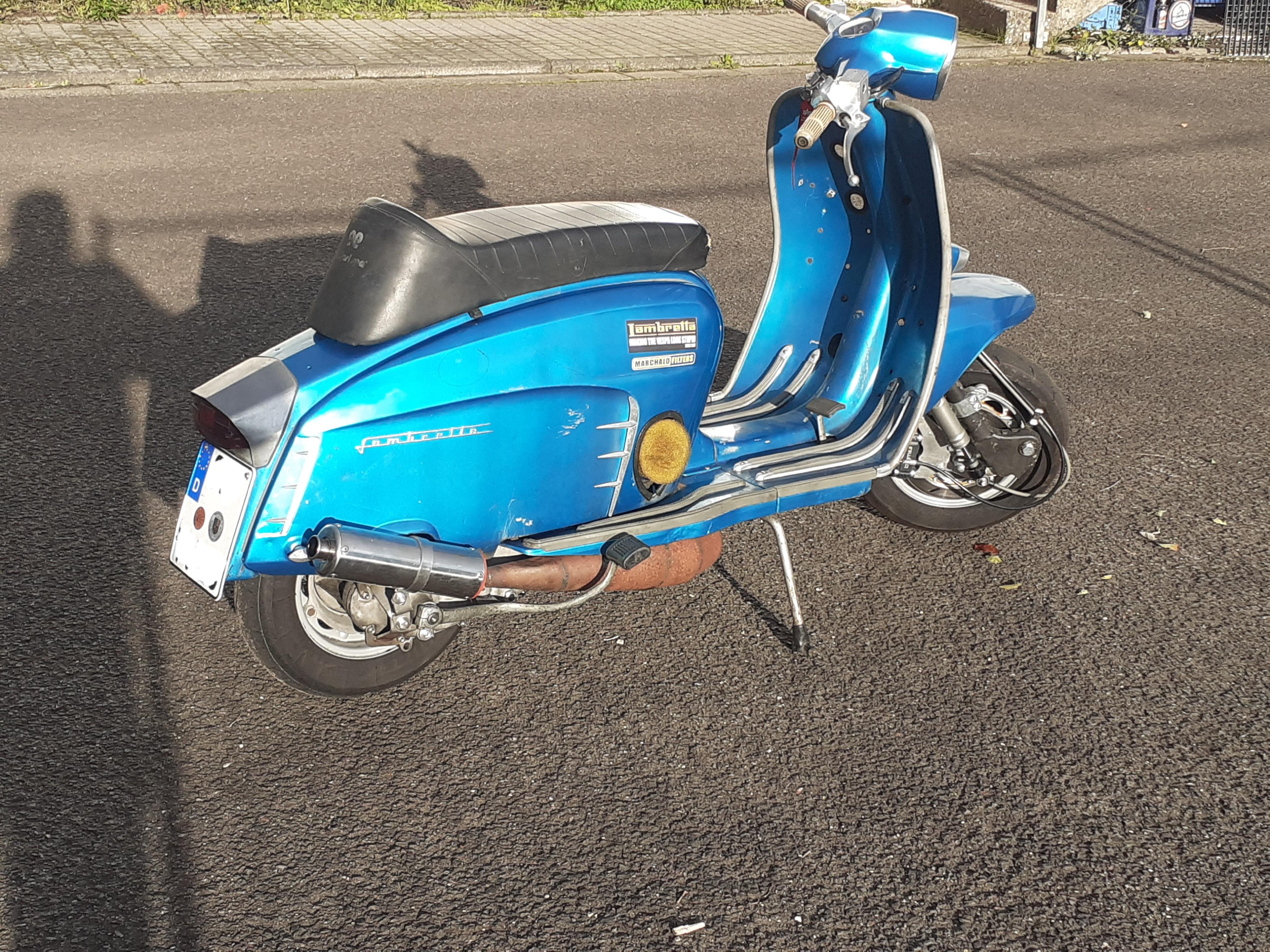
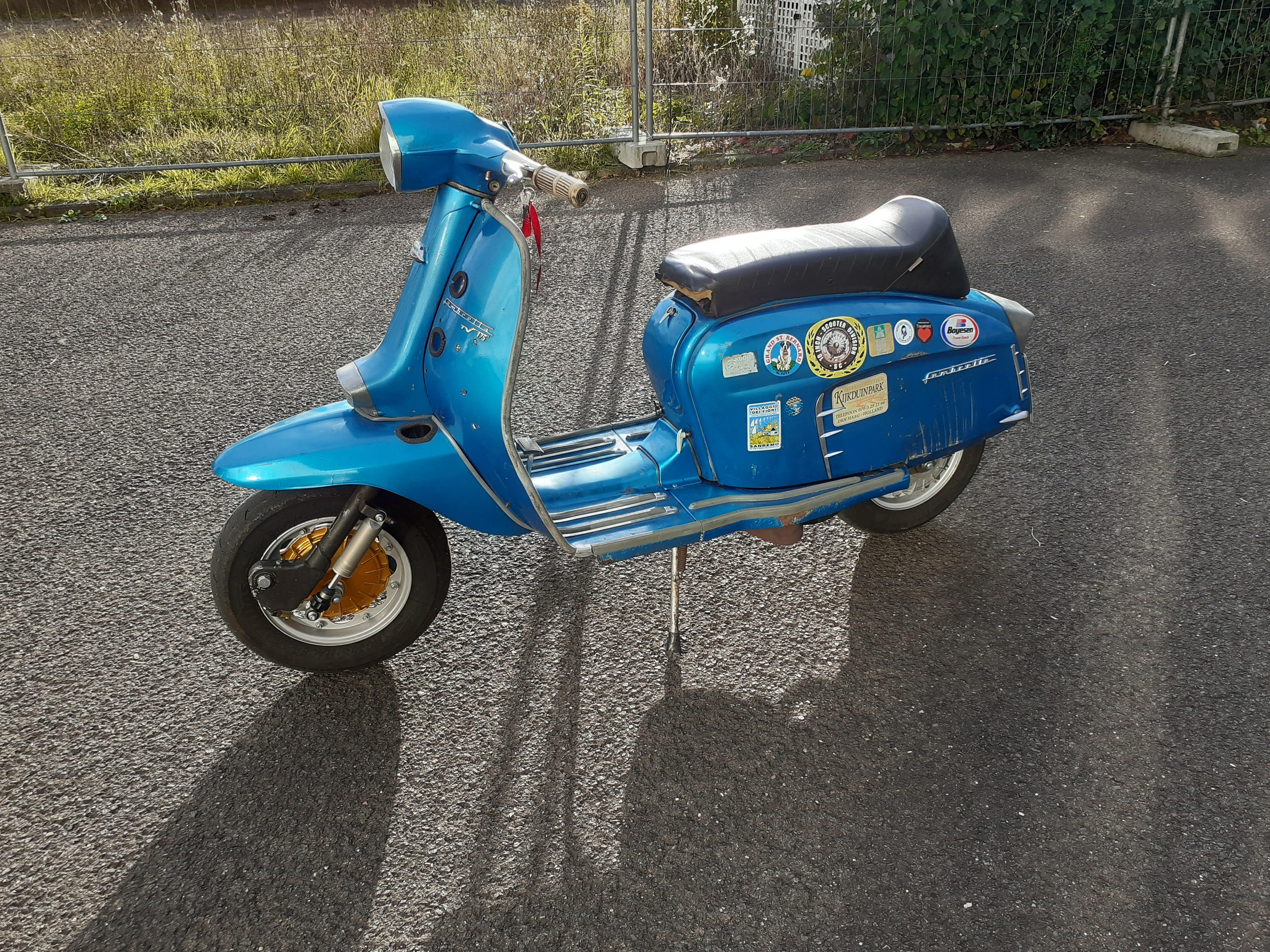
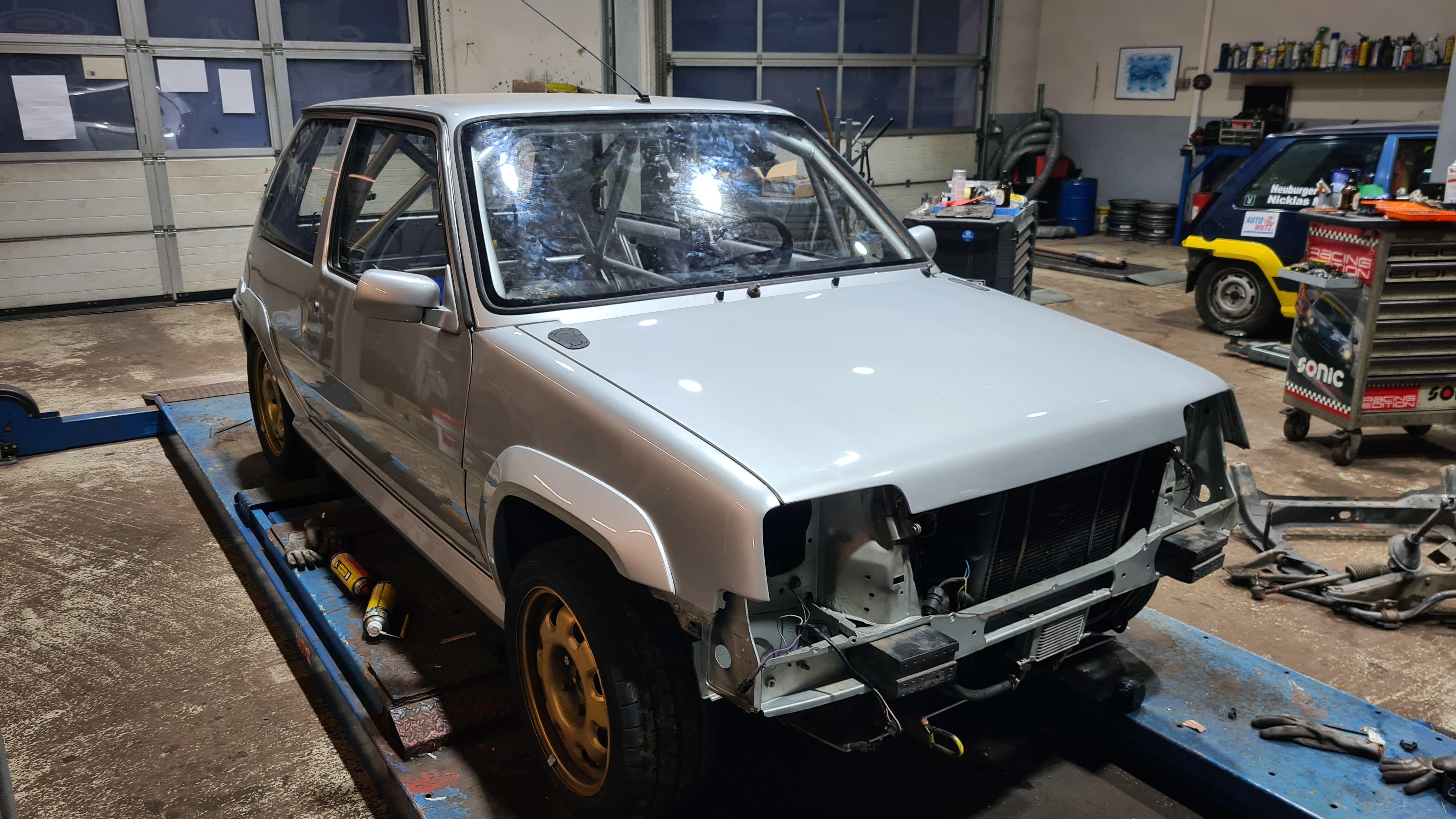
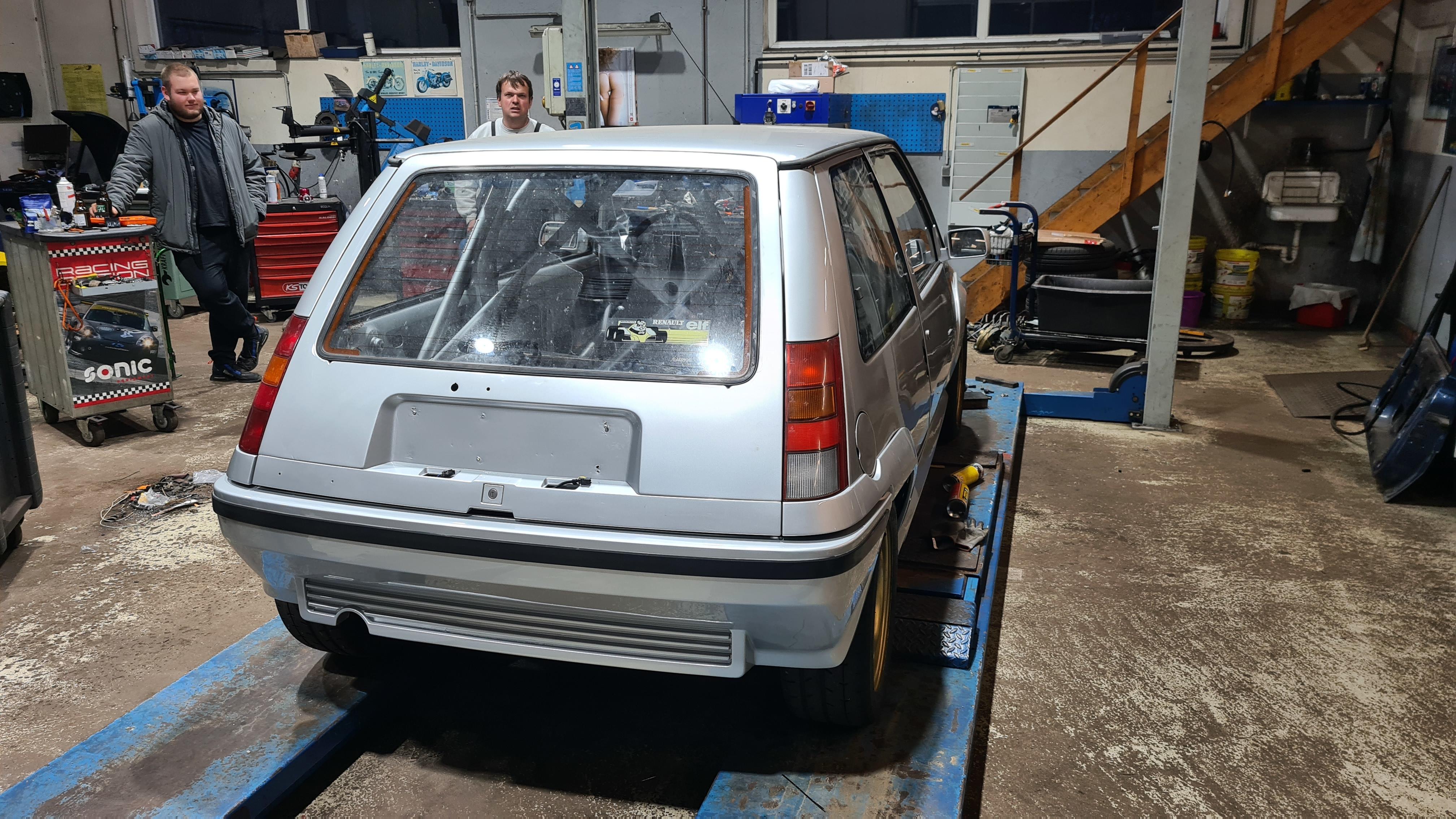
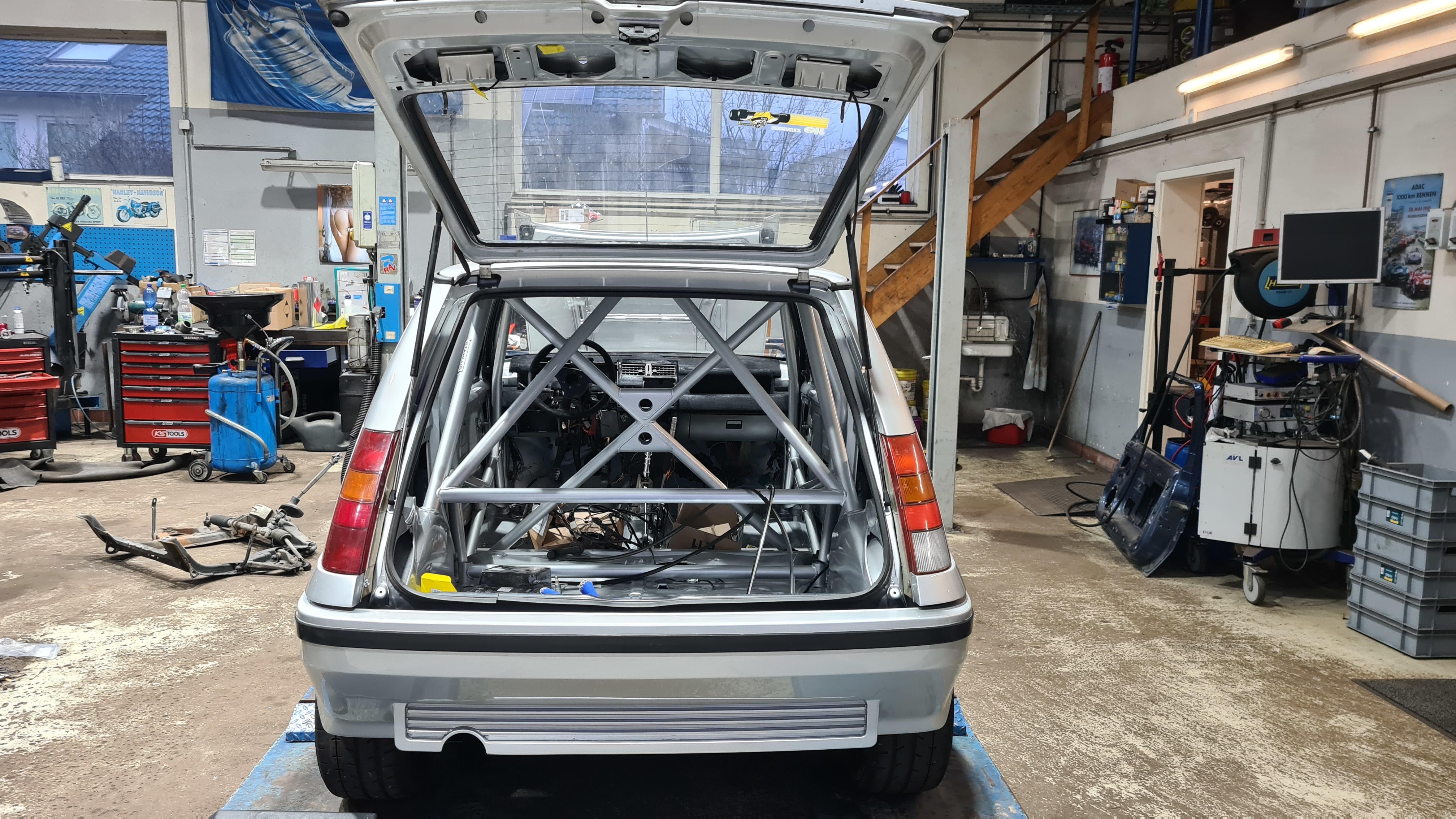
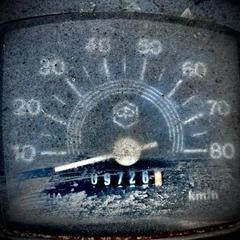
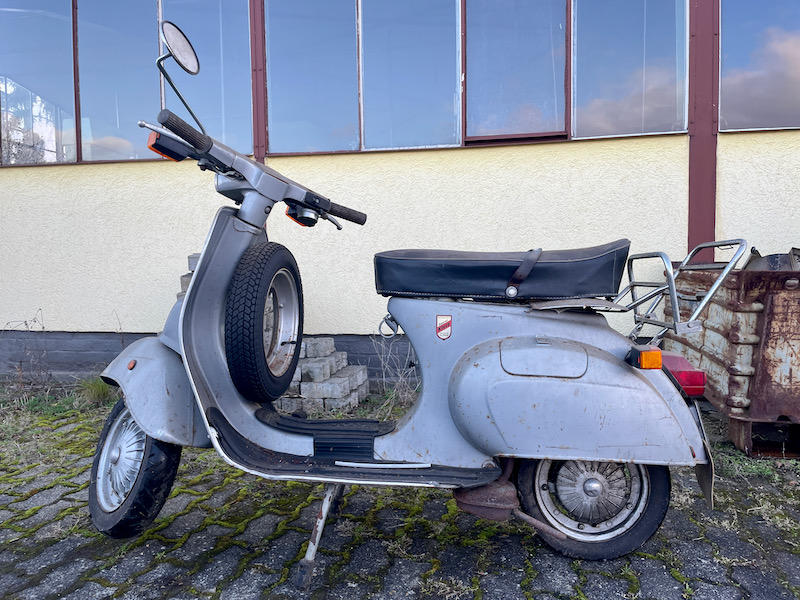
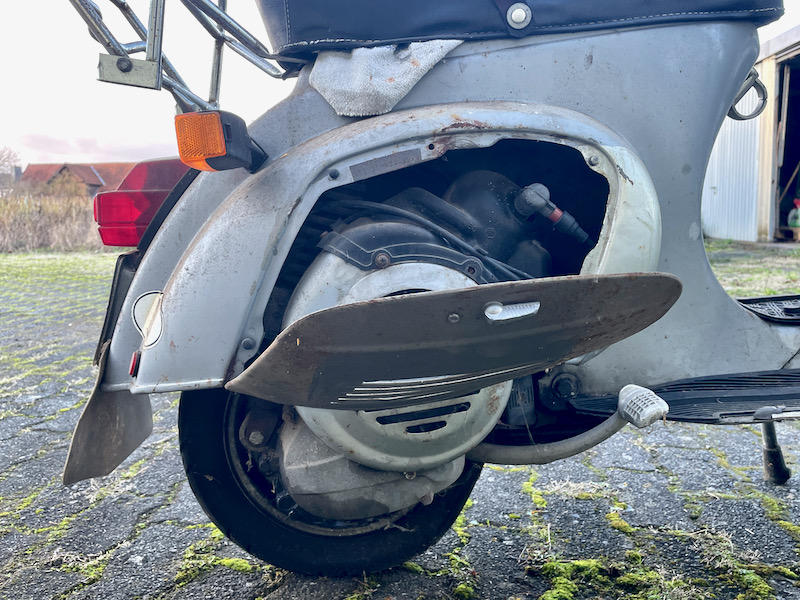
5 Punkte5 Punkte1963 Ford Econoline - ich muss nicht mal aussteigen um grad die Leuchtmittel zu wechseln. Fahrt halt nicht so modernes Zeug.5 Punkte4 PunkteMoin Hier mal meine aktuelle Baustelle. Eine 1970er Rundlicht. Wurde mal mit 2K Maschinenlack (laut eines alten Industrielackierers) ubergelackt. Darunter saß noch der originale Verde Paraggi 315 Lack. Sie wurde damals abgeschliffen,gespachtelt,grundiert (zum Glück) und dann rot lackiert. Ich konnte mit einen scharfen stecheisen zwischen Ü Lack und Grundierung her gehen und so den Ü Lack entfernen. Die Grundierung ließ sich mit Aceton abwischen. Dauer gute 70 Std. Der Rahmen wurde dann poliert,2 mal Keramik versiegelt und anschließend noch gewax. Damit kein Wasser an die blanken Stellen gelangt. Je nachdem wie oft man sie wäscht hält das 2-3 Jahre. Dann muss man das erneuern. Isses mir wert die Arbeit. Kotflügel wurde leider sandgestrahlt. Ist mit owatrol behandelt. Zur Zeit noch im Aufbau4 Punkte4 PunkteHIer seht Ihr drei Bedienungsvideos wie mit meinen Werkzeugen die Kurbelwelle Ein und Ausgebaut wird.Sowie die Funktionsweise des Antriebswellen Einzugs.3 Punkte3 PunkteFrohes Neues in die Runde (oder besser auf die lange Gerade)! Das sind super Neuigkeiten, die wir da aus dem Norden vernehmen! Wir freuen uns drauf und sind hoffentlich als DBM mit von der Partie. Auch wir haben uns in den letzten Wochen Gedanken gemacht, wie wir die DBM möglichst attraktiv aus dem Corona-Schlaf aufwecken. Im Anhang mal eine Zusammenfassung der Änderungen im Rennablauf, die wir in 2022 umsetzten werden. Auch interessante Neuerungen für Veranstalter sind aufgeführt. Über all diese Änderungen haben wir ausgiebig und kontrovers diskutiert. Aber natürlich ist uns auch Eure Meinung sehr wichtig. Deshalb meldet Euch gerne mit Fragen oder konstruktiven Vorschlägen bei uns! C U on track! 904583175_dbmneu4_2.pdf3 Punktekann mal einer das Diagramm wieder raus nehmen. Seitdem das gezeigt wurde, ist das Topic nur noch halb so witzig.... "Trau keinem Diagramm, das Du nicht selbst gefälscht hast"3 Punkte3 Punkte3 PunkteAuktion vorbei - 150€ zugunsten der Spendenvespa! Danke nochmal an die Bietenden3 Punkte3 PunkteMatte weg, sauber machen, aufpolieren, Technik machen, fahren Steht doch tip top da die Reuse....3 Punkte3 PunkteDu musst denen Geld schicken, damit du ihren Katalog bekommst? Da hätt ich als Kunde schon keinen Bock mehr.3 PunkteFür die Montage der Bremsleitung einfach die beiden Schrauben, die das Segment am Lenker halten, lösen, Segment etwas verdrehen, Hohlschrauben montieren, Segment festschrauben und danach die Hohlschraube festziehen. So hat es bei meiner DL funktioniert.3 Punkte3 PunkteBald ist er fertig Ist der neue R5 von einem Freund, zum Retro Rally fahren. Muss die tage noch folie ordern, er wird im klassichen DIAC Design gehalten.
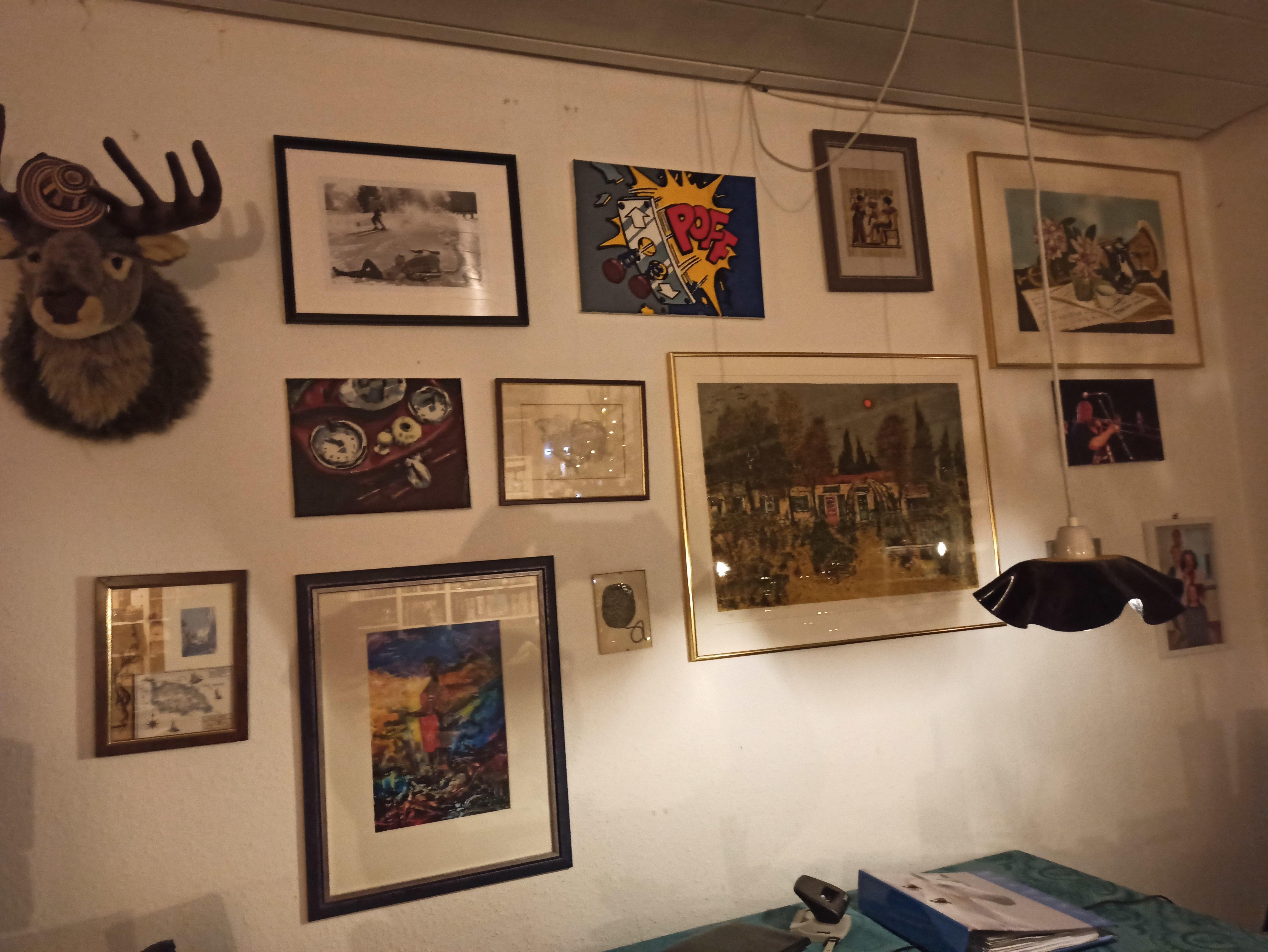
 3 PunkteIch falle gerade vollends vom Glauben ab. Seit vielen Jahren kann die einfachste Arbeit = der Wechsel der Scheinwerferbirnen am Auto einer gynäkologischen Meisterleistung gleichgesetzt werden. Zuletzt regte ich mich schon wahnsinnig auf, dass beim Audi B8 8K der Birnenwechsel nur erfolgen kann nach Demontage desselben per Torxbit und zwei ineinandergesteckten Verlängerungen auf kleiner Ratsche. Weil das Ganze mega verfickt ausgeführt ist, setzt Audi sog. long life Birnen ein, die ein Autoleben lang halten sollen, was nur erreicht wird durch Schonung des Glühfadens. Resultat: keine Lichtleistung und Blindflug. Neues Auto - NOCH beschissenere Aktion notwendig. BMW F20 Man muss das Auto aufbocken, Rad abnehmen und eine Serviceklappe im Radhaus entfernen, um dann angeblich die Birne tauschen zu können. Danach wieder alles retour und die Räder per Drehmomentschlüssel wieder ordnungsgemäß montieren. Dann das Gleiche auf der anderen Seite. Wie sollen das meine Eltern mit 77 und 81 Jahren leisten? Ohne Torx und großen Drehmomentschlüssel samt der Möglichkeit, nachts am Straßenrand/Gehweg das Auto aufzubocken? Wie kann so eine unbeschreibliche ausgewachsene Minderleistung der Designer, Techniker und Ingenieure bei Audi und BMW durchgehen? Das ist doch schon Methode und Vorsatz und keine gedankenlose Fahrlässigkeit mehr. Sind mehr solcher Fauxpas bekannt? Hilft zwar keinem, aber das Ärgernis ist ja wohl mega.2 PunkteSagt wer? Hat bei mir wunderbar funktioniert, hab damit einen sehr schönen Kreuzschliff hinbekommen Jetzt warte ich nur noch auf die Kolbenringe und dann kanns wieder losgehen2 Punkte2 Punkte2 PunkteSodele. Endlich bin ich in letzter Zeit dazugekommen, eines meiner zwei kürzlich bekommenen Bilder aufzuhängen. Für das zweite muß ich noch umräumen. Der Name : "Schwangere Landschaft" Das Bild ist nicht angeleuchtet. Das "Kind im Stroh" hängt jetzt bei meiner Mutter im Schlafzimmer. Da war noch Platz an der Wand
.thumb.jpg.60d56e2003e78604710ee09ac2039957.jpg) 2 PunkteAber es gibt doch inzwischen auch Dienstleister, die defekte Steuergeräte reparieren, Nachbauten anbieten oder universelle Steuergeräte passend programmieren. Von daher denke ich nicht, das ein defektes Stuergerät bei einem älteren Fahrzeug, welches ansonsten in gutem Zustand ist, das Aus bedeutet. Dürfte halt ein paar Tage dauern, von daher nicht gut, wenn man die Karre täglich benötigt. Bei einem "Zweitwagen" sehe ich da kein Problem, wenn der mal ein paar Tage nicht läuft.2 Punkte2 Punkteschon seltsam, bei Dir muss es aber immer günstig sein wenn Du was brauchst! Du lebst anscheinend in einer Parallelgesellschaft!2 Punkte2 PunkteOldtimer fahren ist eine Zeitreise auf die man sich einlassen muß, sonst ist man enttäuscht. Denk an die Zeit zurück in der damals die Vespa gefahren wurde, die Strassen , die Verkehrssituation , die Spritpreise, die Mode einfach die Geschichte und laß dich darauf ein , dann klappt es auch mit der Zufriedenheit und der Wahl deines Rollers.2 Punkte2 Punkte2 Punkte2 PunkteIst mir nie aufgefallen. Gestern beim Dortmunder Tatort wurde es stark übertrieben. Die Polizei fährt Manta B und BMW E30 und der Bösewicht einen alten Ford Mustang, ohne H-Kennzeichen in der Umweltzone (kommst du hier genau 500m weit mit). Als Alternative stand noch ein Ami Pick Up vor der Verbrecherbehausung.2 Punkte2 PunkteEs gibt elektrische Punzierwerkzeuge, ganz ähnlich einer Tattoo Maschine, ein Handgriff mit 3-4 ratternden Stiften vorne dran, kenne ich aus YouTube Videos. Ich habe leider gerade kein passendes Video gefunden, und weiß auch nicht, wie das Werkzeug auf deutsch oder englisch korrekt heißt. Aber: das gibt es, einfach mit Handstück Metall ‚stippen‘ oder ‚ stibbeln‘ oder so, sieht total easy aus.2 Punkte2006er Touran: 3min 90er Jahre Delta HF Turbo: kleine Hände sind Pflicht es wird manches auch besser eben. Beim Delta war dafür rostbedingt nach 10 Jahren überall gute Zugänglichkeit2 Punktewas ich an neuen Karren übrigens vollkommen daneben finde, ist der sich ausschaltende Scheinwerfer, wenn geblinkt wird. Also optisch ist das für mich der Supergau, dicht gefolgt von dem "nach außen laufenden" Blinker was ist denn am guten alten Blinken falsch?2 Punkteja reicht. musst aber schon genauer einstellen. und der flaschenzug muss super eng gebaut sein, sonst geht dir der weg zwischeb kuluarm und seilzugabstützung aus. => selber bauen
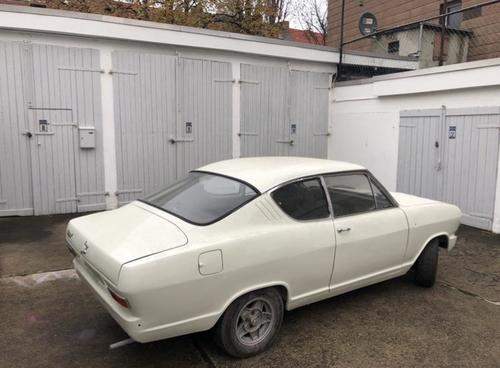
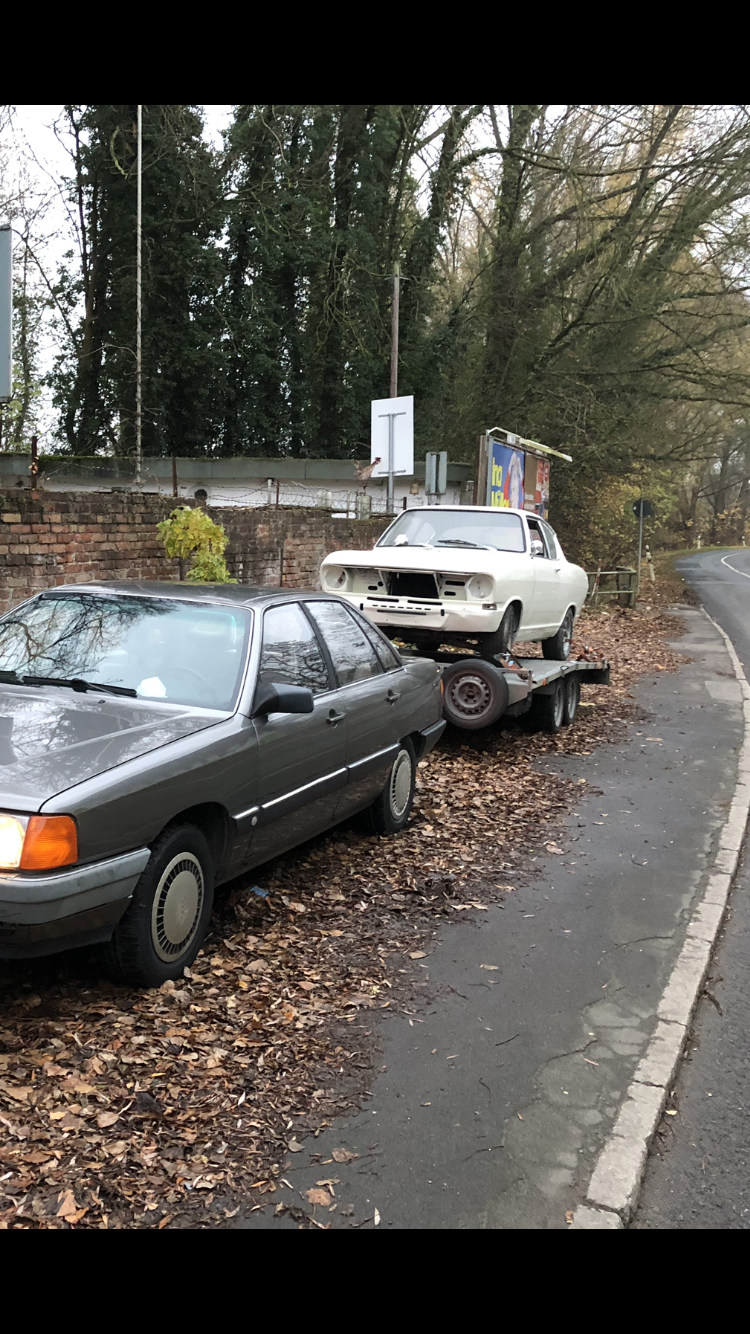
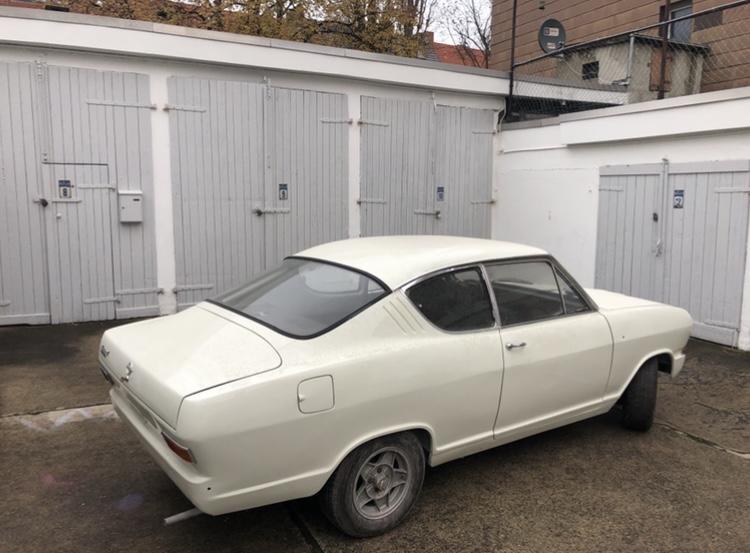
2 PunkteAber es gibt doch inzwischen auch Dienstleister, die defekte Steuergeräte reparieren, Nachbauten anbieten oder universelle Steuergeräte passend programmieren. Von daher denke ich nicht, das ein defektes Stuergerät bei einem älteren Fahrzeug, welches ansonsten in gutem Zustand ist, das Aus bedeutet. Dürfte halt ein paar Tage dauern, von daher nicht gut, wenn man die Karre täglich benötigt. Bei einem "Zweitwagen" sehe ich da kein Problem, wenn der mal ein paar Tage nicht läuft.2 Punkte2 Punkteschon seltsam, bei Dir muss es aber immer günstig sein wenn Du was brauchst! Du lebst anscheinend in einer Parallelgesellschaft!2 Punkte2 PunkteOldtimer fahren ist eine Zeitreise auf die man sich einlassen muß, sonst ist man enttäuscht. Denk an die Zeit zurück in der damals die Vespa gefahren wurde, die Strassen , die Verkehrssituation , die Spritpreise, die Mode einfach die Geschichte und laß dich darauf ein , dann klappt es auch mit der Zufriedenheit und der Wahl deines Rollers.2 Punkte2 Punkte2 Punkte2 PunkteIst mir nie aufgefallen. Gestern beim Dortmunder Tatort wurde es stark übertrieben. Die Polizei fährt Manta B und BMW E30 und der Bösewicht einen alten Ford Mustang, ohne H-Kennzeichen in der Umweltzone (kommst du hier genau 500m weit mit). Als Alternative stand noch ein Ami Pick Up vor der Verbrecherbehausung.2 Punkte2 PunkteEs gibt elektrische Punzierwerkzeuge, ganz ähnlich einer Tattoo Maschine, ein Handgriff mit 3-4 ratternden Stiften vorne dran, kenne ich aus YouTube Videos. Ich habe leider gerade kein passendes Video gefunden, und weiß auch nicht, wie das Werkzeug auf deutsch oder englisch korrekt heißt. Aber: das gibt es, einfach mit Handstück Metall ‚stippen‘ oder ‚ stibbeln‘ oder so, sieht total easy aus.2 Punkte2006er Touran: 3min 90er Jahre Delta HF Turbo: kleine Hände sind Pflicht es wird manches auch besser eben. Beim Delta war dafür rostbedingt nach 10 Jahren überall gute Zugänglichkeit2 Punktewas ich an neuen Karren übrigens vollkommen daneben finde, ist der sich ausschaltende Scheinwerfer, wenn geblinkt wird. Also optisch ist das für mich der Supergau, dicht gefolgt von dem "nach außen laufenden" Blinker was ist denn am guten alten Blinken falsch?2 Punkteja reicht. musst aber schon genauer einstellen. und der flaschenzug muss super eng gebaut sein, sonst geht dir der weg zwischeb kuluarm und seilzugabstützung aus. => selber bauen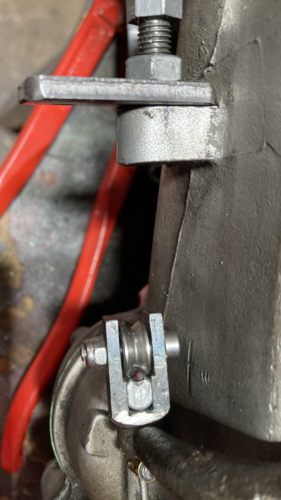 2 Punktehttps://www.lambretta-teile.de/Kupplungszug-oder-Bremszug-v-komplett-LTH-Teflon-schwarz-mit-gefl-Seil-Lambretta-Vespa Sind super. Unterschied einfach testbar: halt ein 18cm Ende des Innenzugs in der Waagerechten, der normale Bowdenzug steht halberigiert fast waagerecht, der geflochtene hängt direkt runter wie ein Dödel nach 1h finnischer Sauna... Dadurch dass die Züge "weicher" sind, passen sie sich Radien der Hülle auf dem Weg vom Lenkkopf zum Motor besser an und haben weniger Reibung. Sehr wirkungsvoll ist aber auch das richtige Ablängen der Hülle, kurzer Weg gleich weniger Radien gleuch weniger Reibung. Richtuge Länge bei neinen Kisten ist einen Hauch länger als zu kurz im eingefederten Roller...2 Punkte2 PunkteZumindest der Teil mit Getriebe killen scheint noch zu funktionieren...2 Punkte2 PunkteC3 Aber ja, korrekt. Hier der Lolli Und übrigens sogar ein besonderer B-Kadett: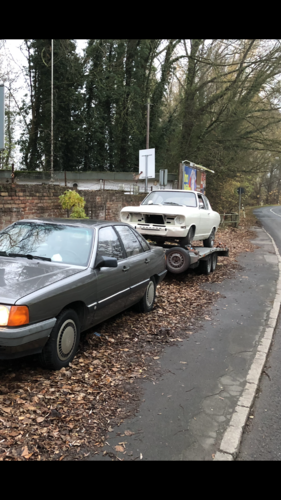
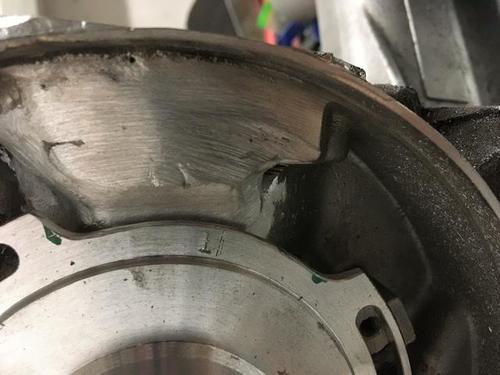
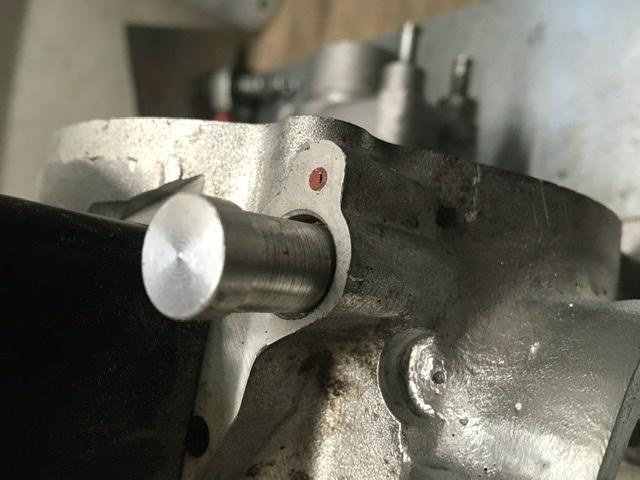
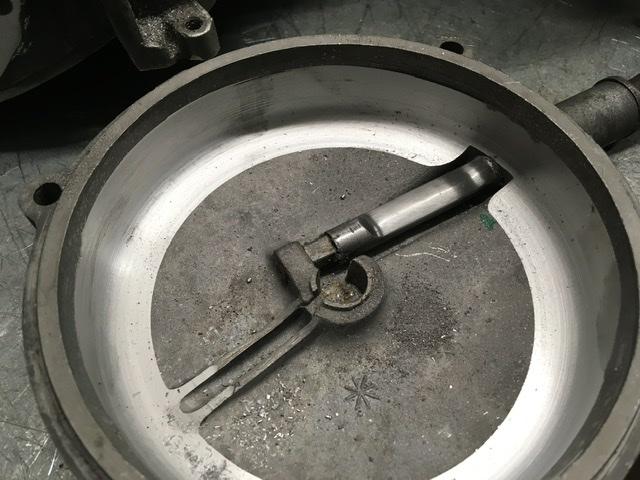
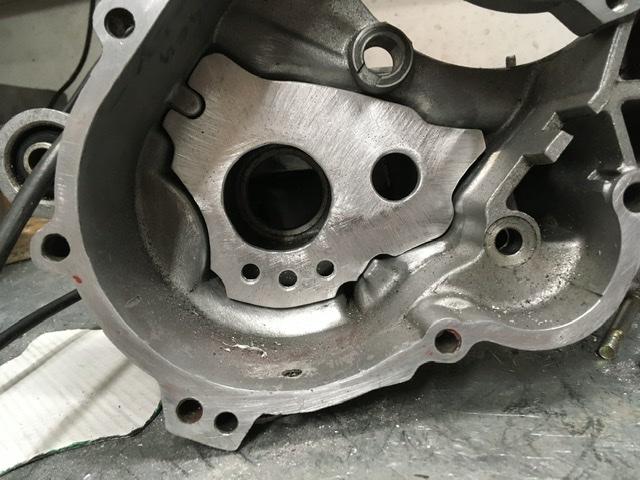
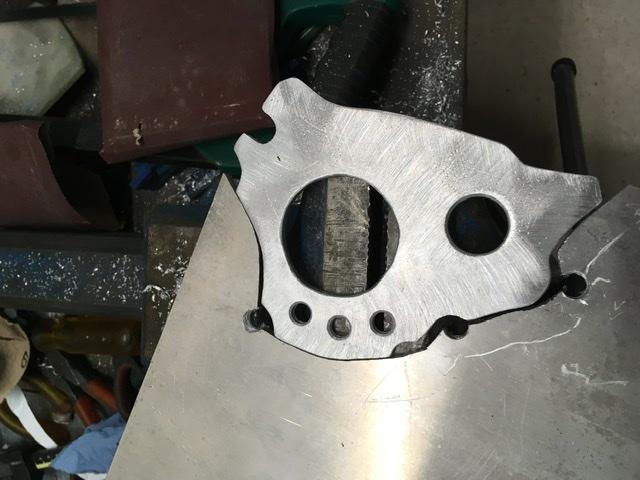
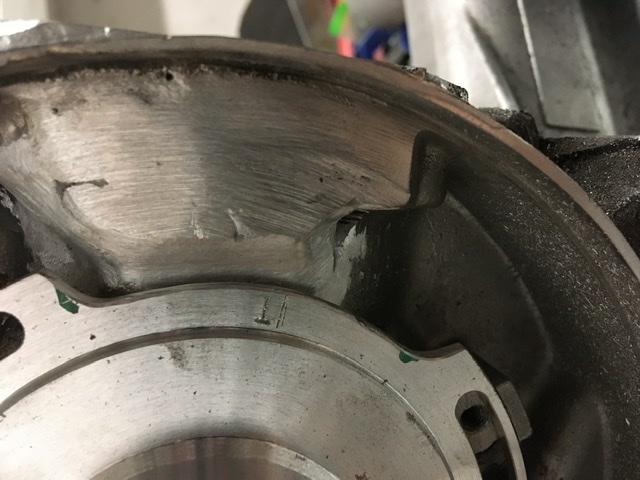
 2 Punkte2 Punkte2 Punkte1 PunktServus Nikko kannst du mal die reso Länge mal messen ? Also Gesamtlänge der Anlagen plus Länge Auslass vom Kolben bis zum anschraub Flunsch ? Und ein paar onarnier Bilder vom Zylinder für später wen ich alleine bin1 Punktvielen Dank … das cmd Staubschutzblech mit Nebenwellenverstärkung kenn ich… für die Nebenwelle macht das Knotenblech in deinen Leistungsregionen sicherlich Sinn…1 PunktEndlich… Elektrik erledigt Gabel heut beim pulverer rausgeworfen, jetzt fehlt noch der breitreifenversatz und das fräsen auf den Zylinder sowie Spindeln. zündgrundplatte noch ausgespart für die überströmer und kupplungsarm und Deckel bearbeitet sowie einen Stöpsel für die ölpumpe gedreht… bissl größere Aktion war wieder das Thema gehäuseknotenblech, da hat es mich nun selber erwischt und ich hatte keines vorrätig und beim laserfuzzi vergessen zu ordern…. Also was macht man dann an einem 2. Sonntag nach Sylvester? Genau in den Keller gehen, bohren und feilen und Sägen und so eine Platte aus einer Platte schnitzen … einschließen und fertig fürs erste.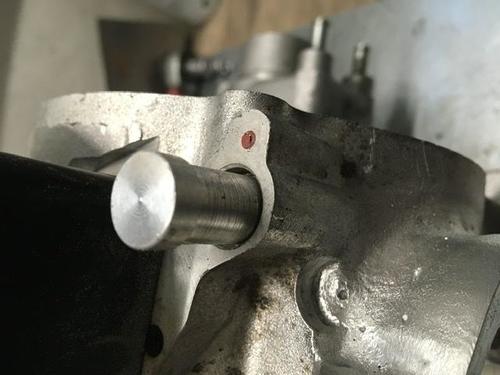
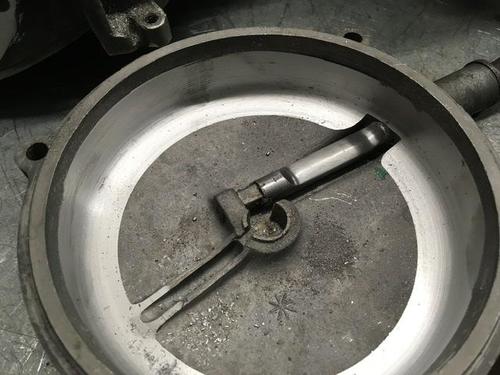
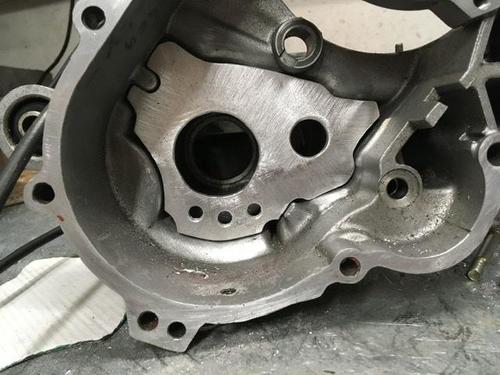
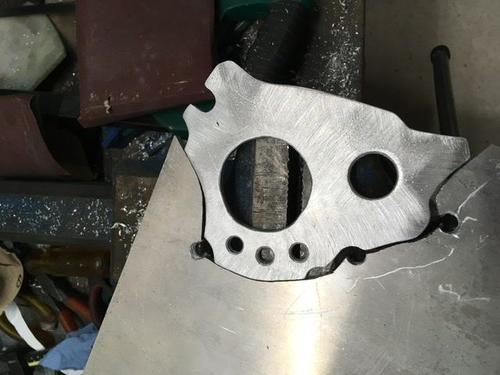
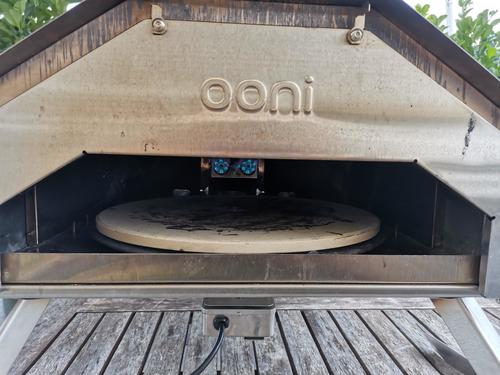
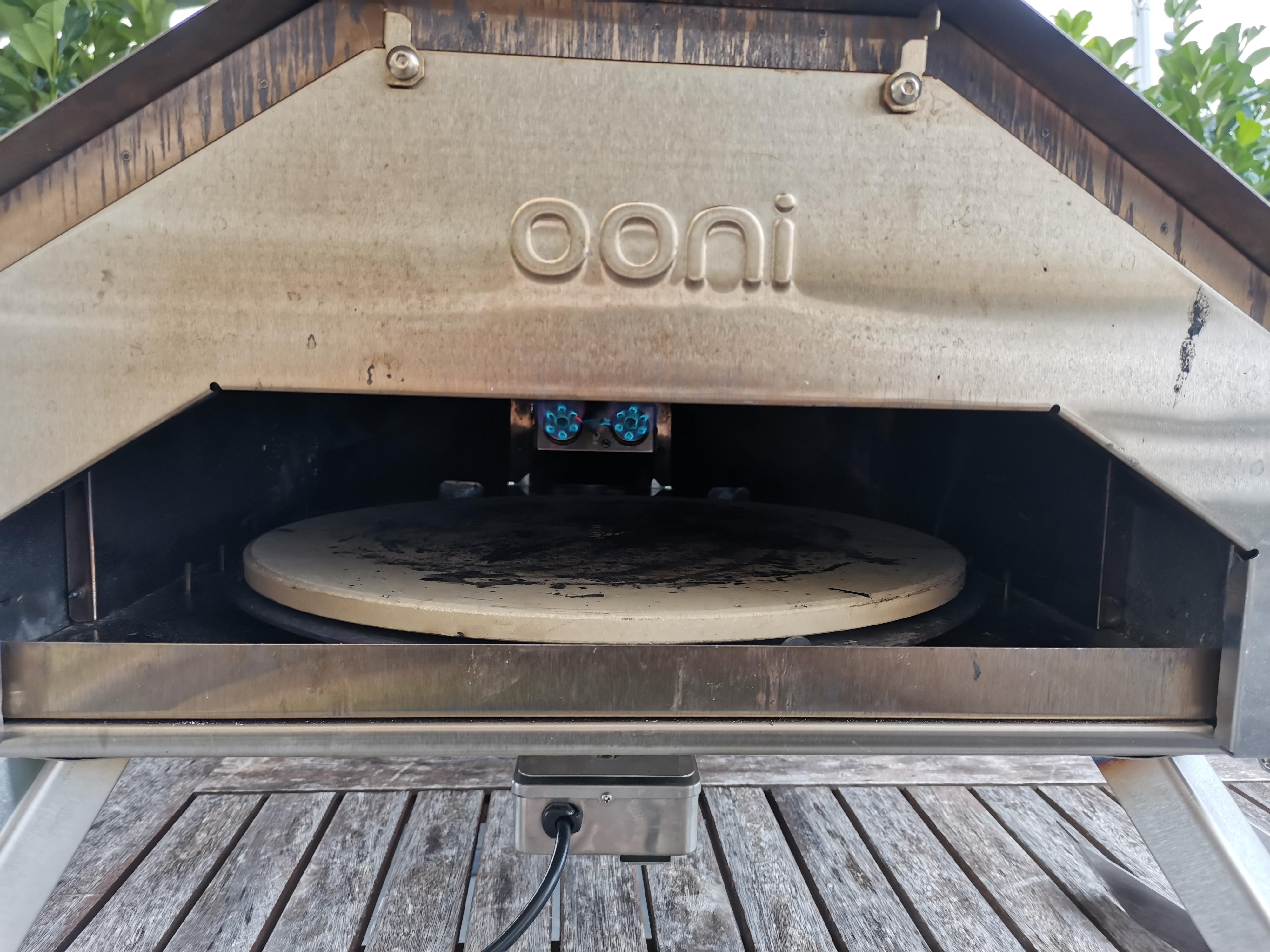
 1 Punktsollte weder pro android, noch contra iphone sein, einfach ein beispiel. beides kacke, und sollte so nicht sein.1 PunktDiese Statistik ist ja gut und schön, leider sagt sie über die Nutzungsdauer der PKW überhaupt nichts aus. Der Fahrzeugbestand hat in Deutschland kontinuierlich zugenommen. Gerade in den 60er Jahren sehr stark. In ein Phase, in der die Zulassungzahlen besonders stark gestiegen sind hat man also deutlich mehr neue / sehr junge Fahrzeuge, wodurch der Altersdurchschnitt deutlich unter der durchschnittlichen Nutzungsdauer liegt. Die Aussage, die unter dieser Statisktik steht, das neue Autos immer länger halten, ist schlichtweg falsch. Die Lebensdauer der Fahrzeuge kann aus dieser Statistik überhaupt nicht abgeleitet werden. Jeder, der in Mathe ein wenig aufgepaßt hat, sollte sich schämen so etwas zu veröffentlichen.1 Punkt1 PunktAnscheinend bekomme ich vom Hersteller, gegen eine kleine Paypal Gebühr, eine Rod Tabelle. Falls es so ist, wird sie hier natürlich zur Veranschaulichung und Diskussion geteilt1 PunktIch hab den ooni Pro seit über nem Jahr im Einsatz, die erste Umbau war ein automatischer Drehteller.. Das ganze mit Gas befeuert ca. 60 90 Sekunden je nach Wetter und windlage. Drehteller hat den mega Vorteil, daß ich in der Zeit eine andere Pizza herrichten kann und somit ordentlich Durchsatz bekommen kann....
 1 Punkt1 PunktScheinbar hat den OEMS das noch keiner erzählt. Unsere Kunden verlangen in jedem neuen Projekt mehr Tests und härtere Anforderungen, als für das Vorgängerprojekt. Mein Job im Testing ist noch sicher.1 Punkt1 PunktHier ist eine Übersicht bezgl. der Intensivbettbelegung in den einzelnen Landkreisen. https://www.intensivregister.de/#/aktuelle-lage/kartenansichten1 Punkt1 PunktNaja, von 4-6 PS sind schon mal 50% Unterschied, während so eine V98 schon abartig langsam ist, ist eine VL in meinen Augen durchaus fahrbar. Ich denke also das kann so pauschal nicht sagen. Eine GS 3 ist auch eine Wideframe aus den 50er-60ern und die ist Standfest gemacht definitiv ausreichend flott.1 Punkt1 Punkt1 PunktDem @Oerge allet Jute! Ich hab' den Wetterausrutscher (trocken und sogar etwas Sonne!) genutzt, um die Heckklappe am Auto schonmal nackig zu machen. Wird Montag weggegeben.1 PunktHallo die Rohre sehen „nett“ aus aber bringen wenig , effektiver ist es das Blech in der originalen Form auf zu doppeln und einen zweiten Rahmen im Rahmen zu bauen . Diesen Punktverschweißen mit dem Original Rahmen . Quasi ein U bauen , Deckel drauf und dann Beinschild . Das macht richtig stabil weil es die Kräfte anders aufnimmt . Das Rohr kannst du einfach verbiegen . Versuch das mal mit einem 1.5mm Stahlblech was die Form vom Rahmen hat …… Grüße Dominic1 Punkt1 Punkt1 Punkt1 PunktWir haben uns mit 12, 13 Jahren unsere Mofas und Mopeds auf`m Sperrmüll geholt (ja, damals gabs nen "Abfuhrtag", da wurde alles vor die Tür gestellt und die Müllmänner holten den Kram ab). Das war für uns Buben besser wie Bescherung, da gab`s alles mögliche zum kostenlosen abholen. Manche Möfs wurden "instandgesetzt", ein, zwei Wochen geritten und standen dann beim nächsten Termin wieder vor der Tür. Natürlich hatte von uns keiner einen Führerschein, glücklicherweise gab`s auch keine gröberen Unfälle. Was wir in der Zeit an 2-Takt-Technik gelernt haben war schon ne ganze Menge. Diese zeit war schon schön, hätten sie uns aber erwischt, dann hätte es wohl auch hinter die Löffel gegeben.1 PunktMimimi... Nix wird geschlossen hier und Preiseinschätzungen wirst Du so auch nicht mehr bekommen.1 Punkt1 PunktLambretta LiS 125 conservata Anfang der 90er für 300 DM in Malcesine gekauft.. :-)1 Punkt
Wichtige Information
Diese Website nutzt Cookies und vergleichbare Funktionen zur Verarbeitung von Endgeräteinformationen und personenbezogenen Daten. Die Verarbeitung dient der Einbindung von Inhalten, externen Diensten und Elementen Dritter. Je nach Funktion werden dabei Daten an Dritte weitergegeben. Einige dieser Verfahren sind technisch unerlässlich, andere kommen nur mit Ihrer Zustimmung zum Einsatz, eine Anpassung ist in den die Cookie-Einstellungen möglich. Für Details siehe die Datenschutzerklärung









.jpg.03833b0e610c22a2e7ba5fe6b902fea9.jpg)



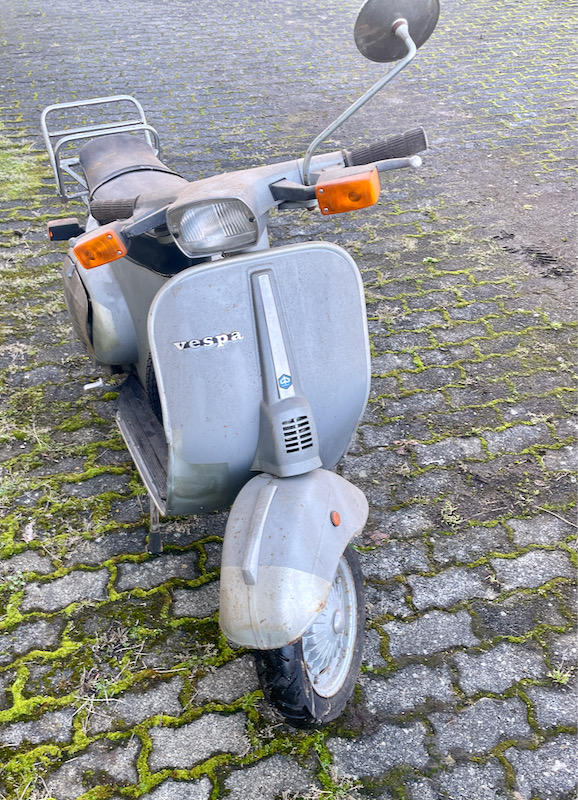
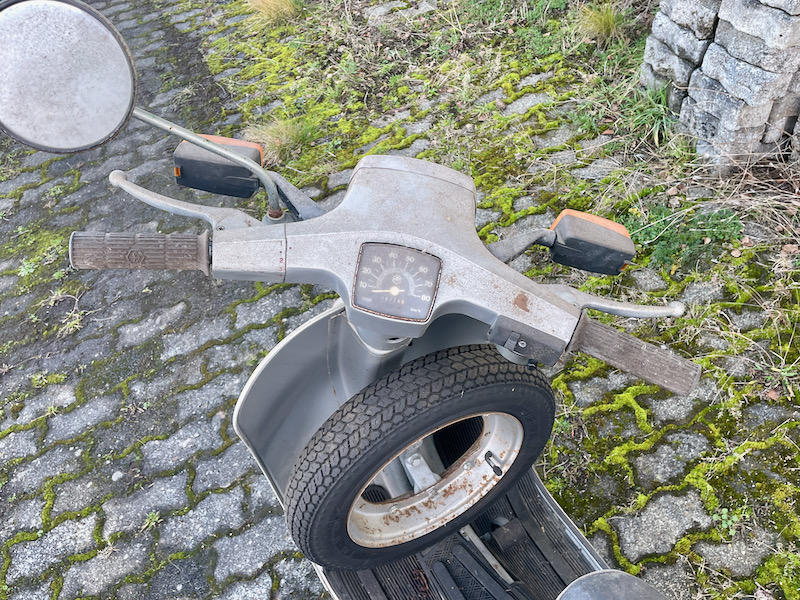
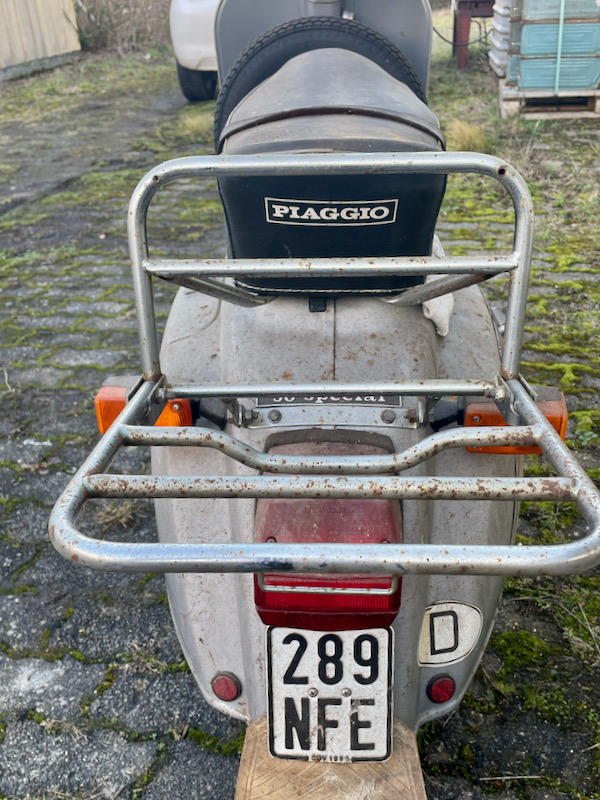
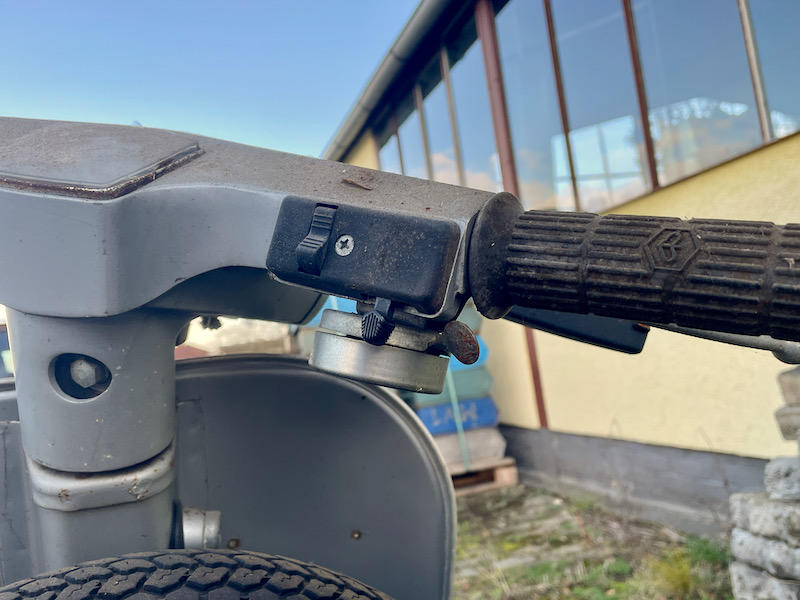








.thumb.jpg.9b066c8bf7cde81e084ce88643f48ef7.jpg)







Account
Navigation
Suche
Configure browser push notifications
Chrome (Android)
- Tap the lock icon next to the address bar.
- Tap Permissions → Notifications.
- Adjust your preference.
Chrome (Desktop)
- Click the padlock icon in the address bar.
- Select Site settings.
- Find Notifications and adjust your preference.
Safari (iOS 16.4+)
- Ensure the site is installed via Add to Home Screen.
- Open Settings App → Notifications.
- Find your app name and adjust your preference.
Safari (macOS)
- Go to Safari → Preferences.
- Click the Websites tab.
- Select Notifications in the sidebar.
- Find this website and adjust your preference.
Edge (Android)
- Tap the lock icon next to the address bar.
- Tap Permissions.
- Find Notifications and adjust your preference.
Edge (Desktop)
- Click the padlock icon in the address bar.
- Click Permissions for this site.
- Find Notifications and adjust your preference.
Firefox (Android)
- Go to Settings → Site permissions.
- Tap Notifications.
- Find this site in the list and adjust your preference.
Firefox (Desktop)
- Open Firefox Settings.
- Search for Notifications.
- Find this site in the list and adjust your preference.