
Rangliste
-
klausio
GSF Support10Punkte927Gesamte Inhalte -
Trenck1
Members7Punkte2.865Gesamte Inhalte -
Humma Kavula
Globaler Moderator6Punkte10.072Gesamte Inhalte -
t4.
Moderator a.D.5Punkte29.315Gesamte Inhalte


Beliebte Inhalte
Inhalte mit der höchsten Reputation am 02.02.2024 in allen Bereichen anzeigen
-
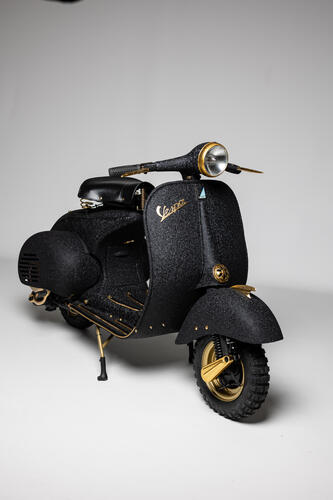
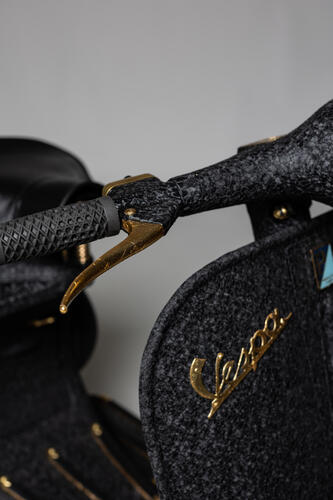
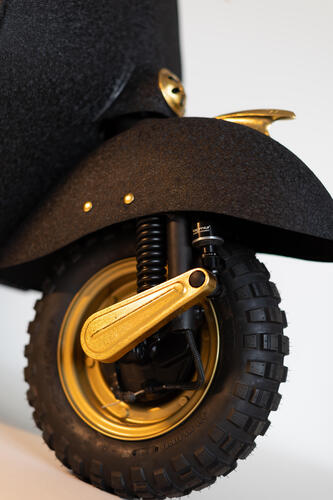
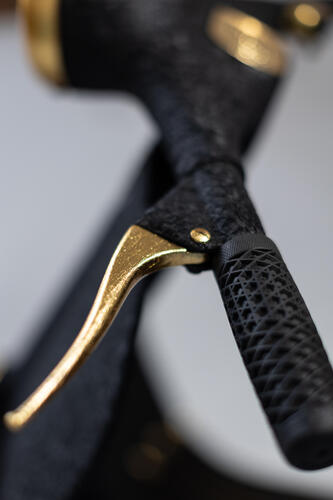
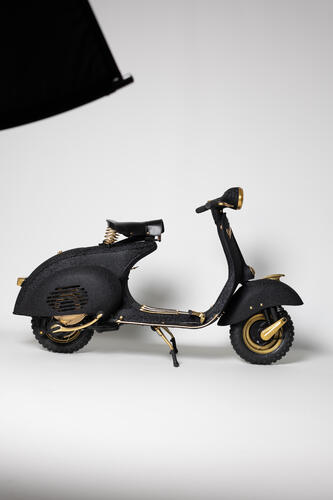
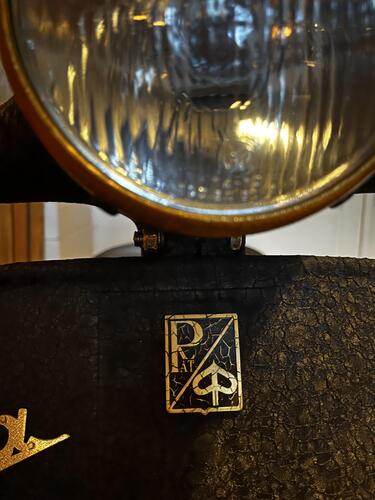
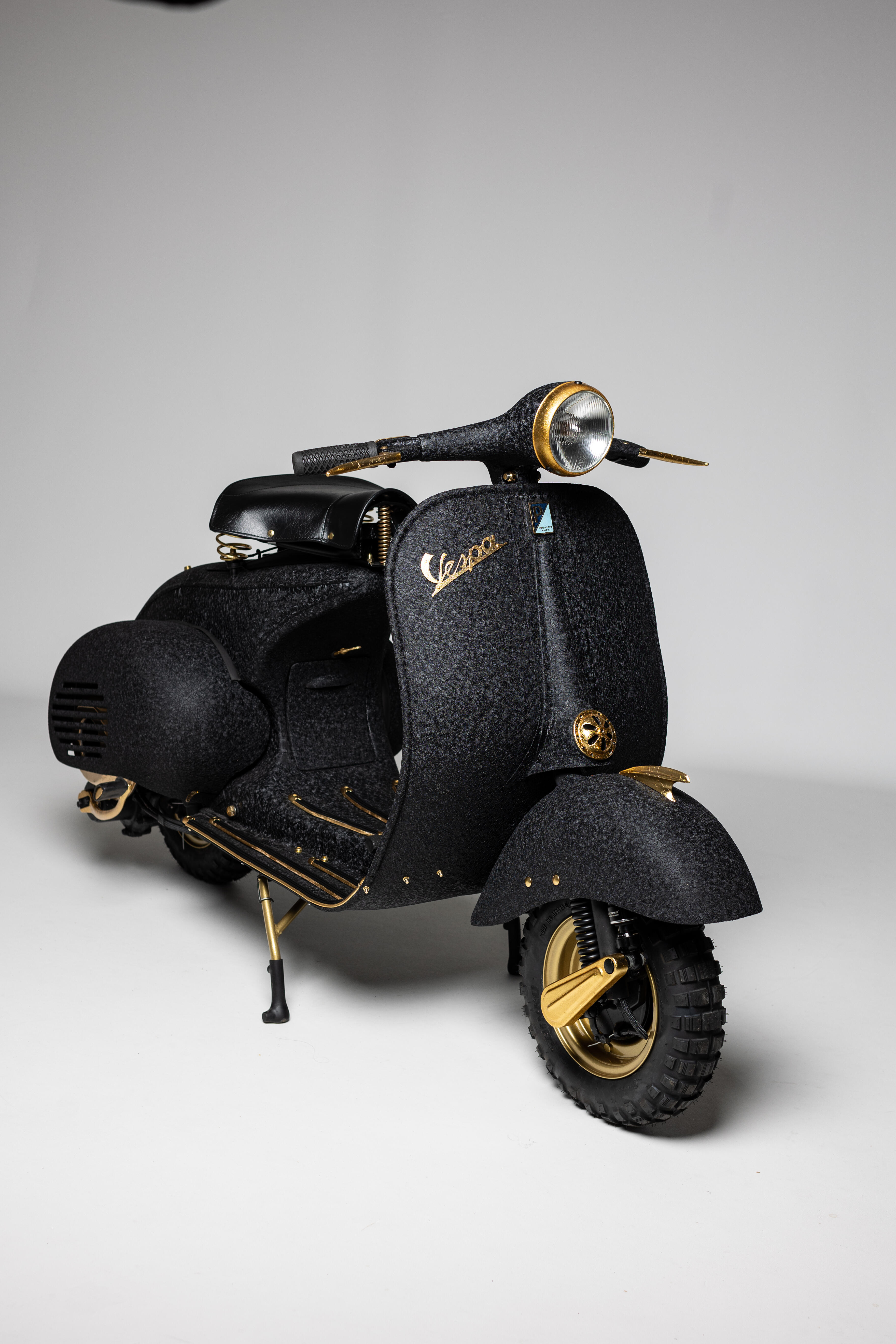
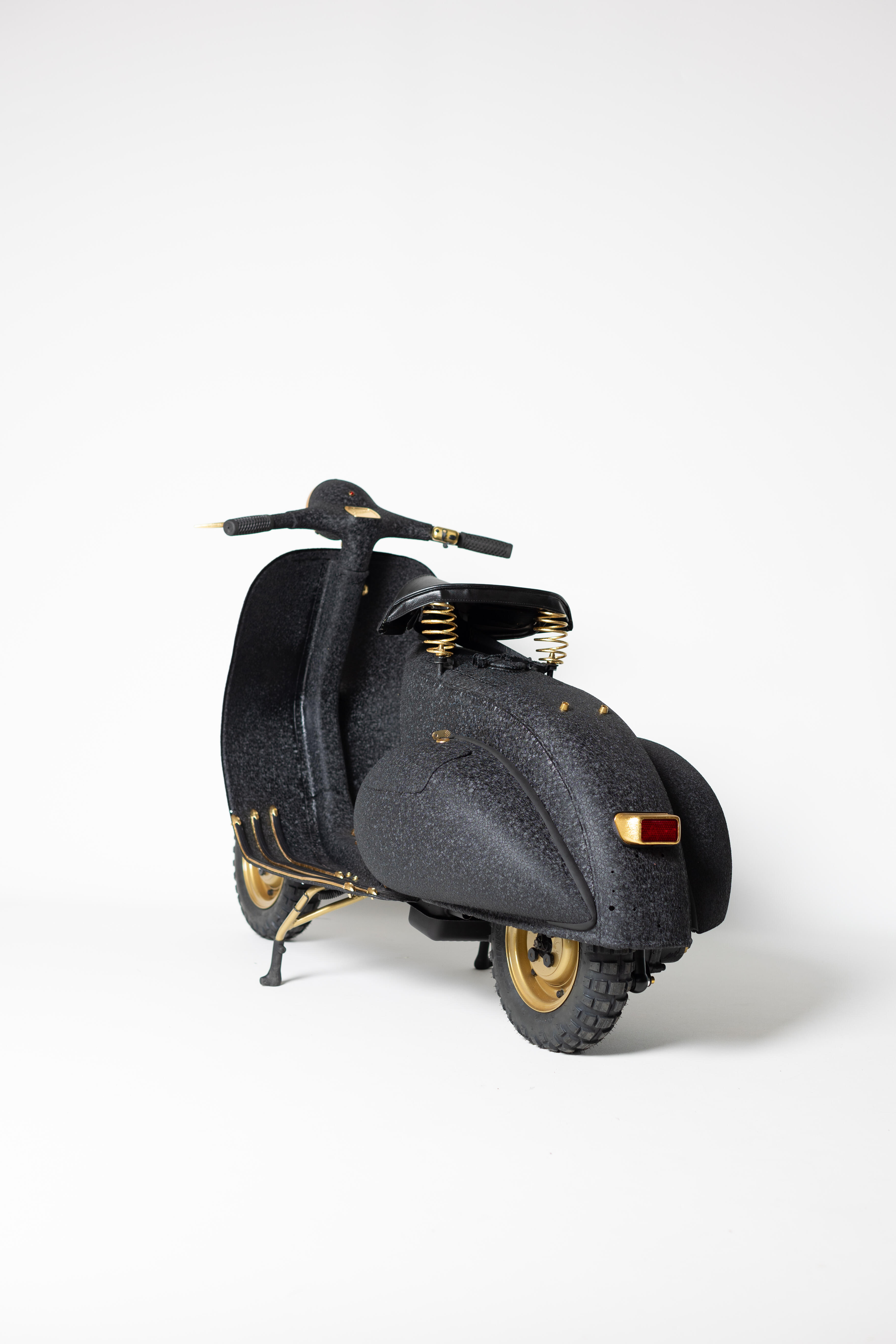
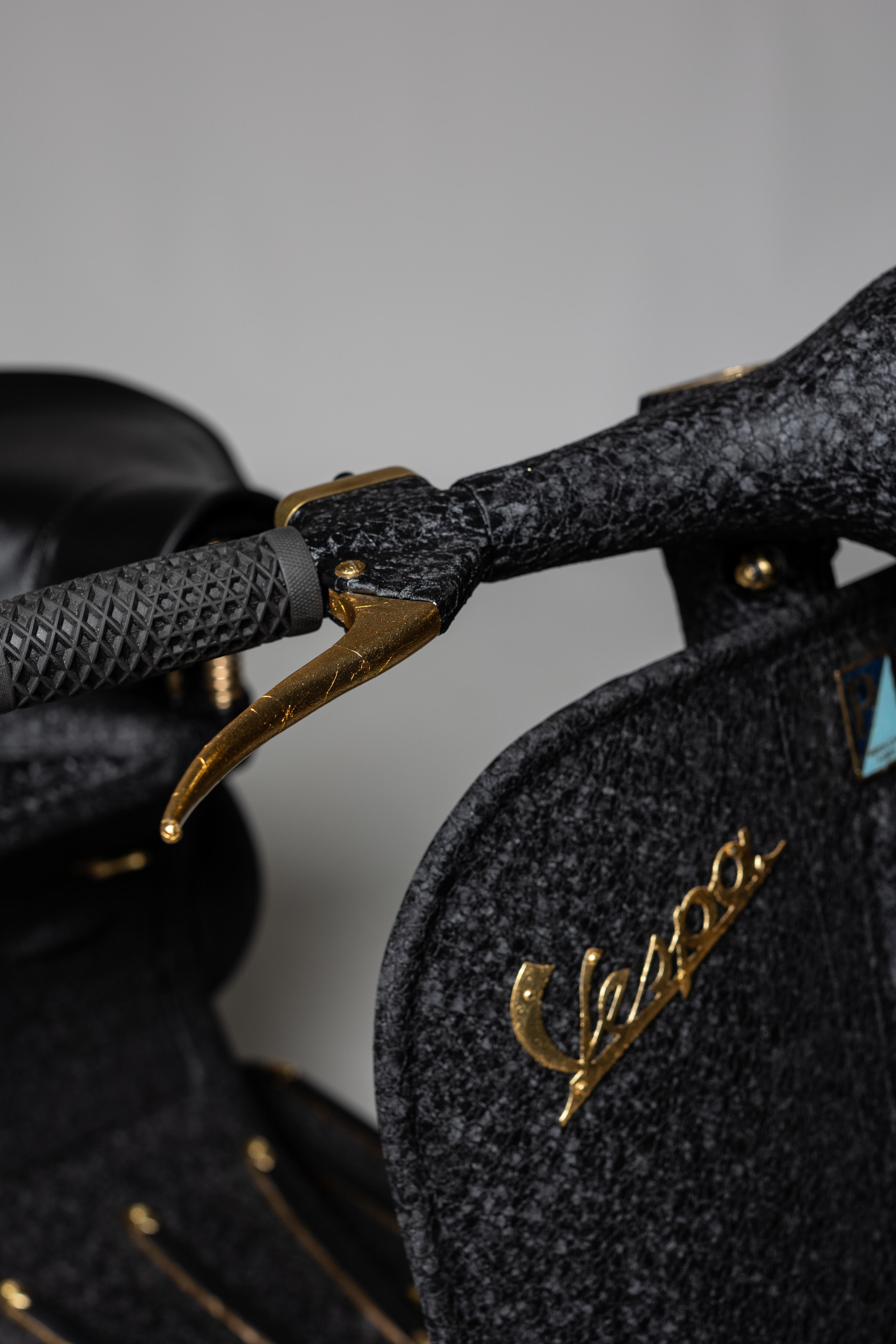
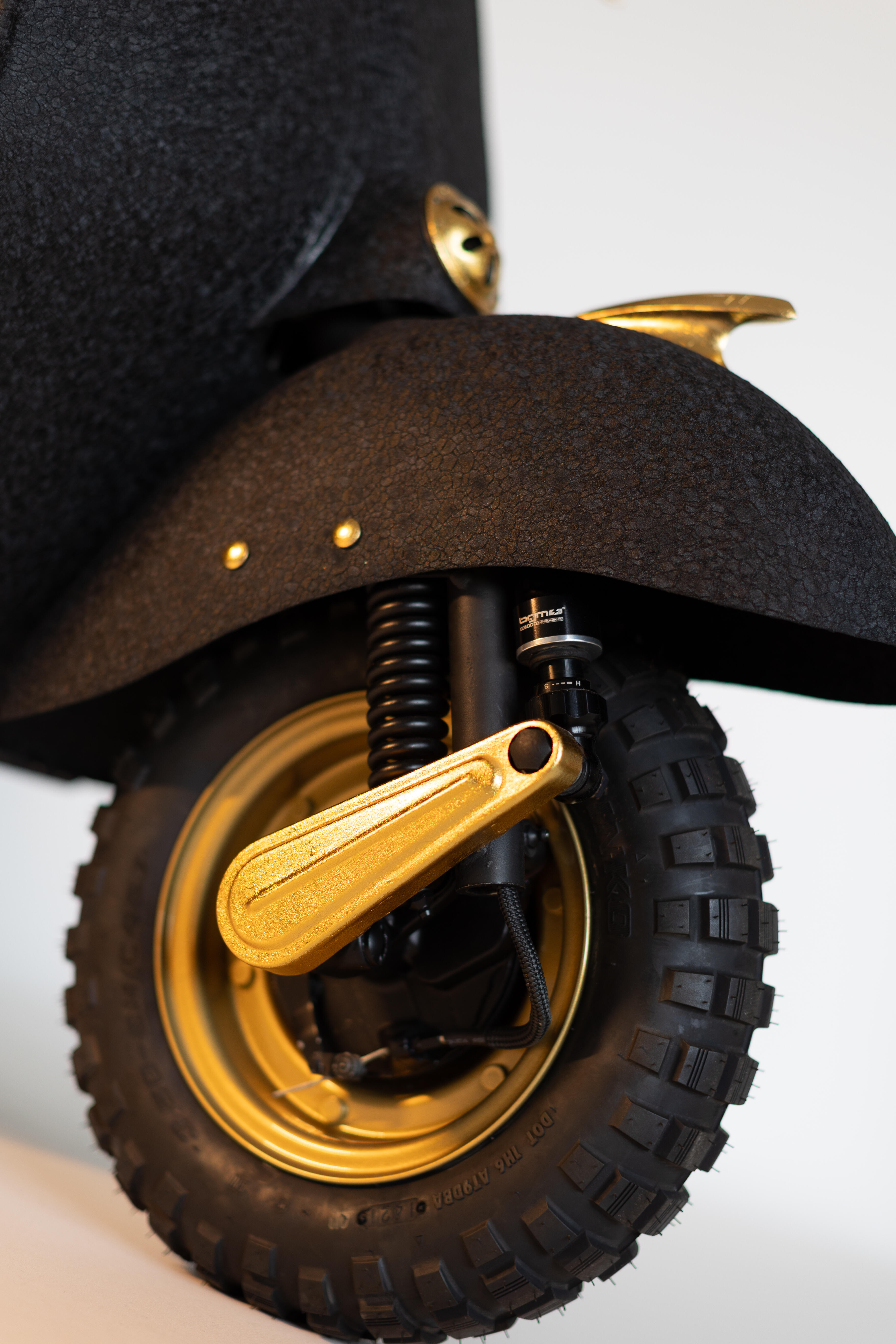
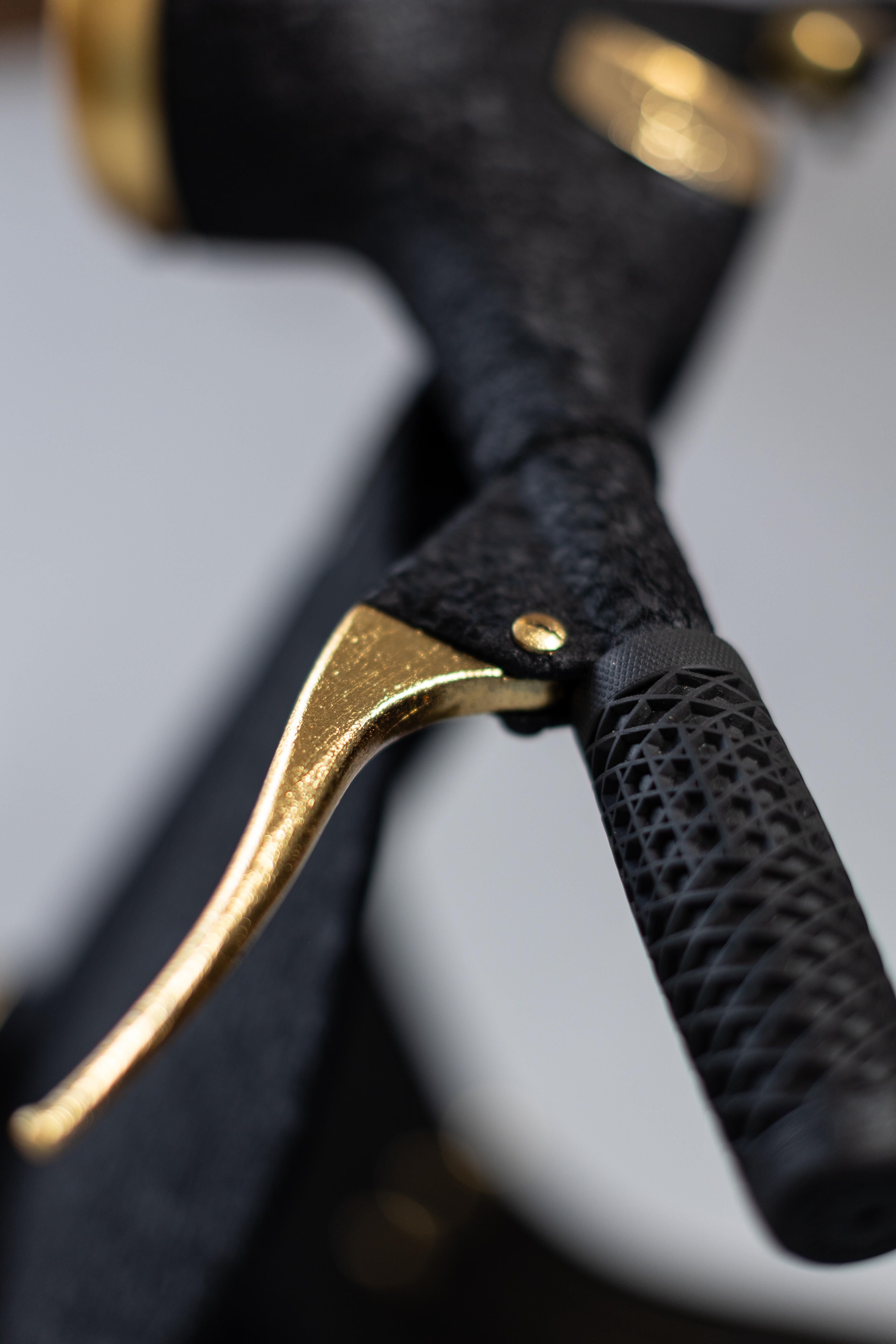
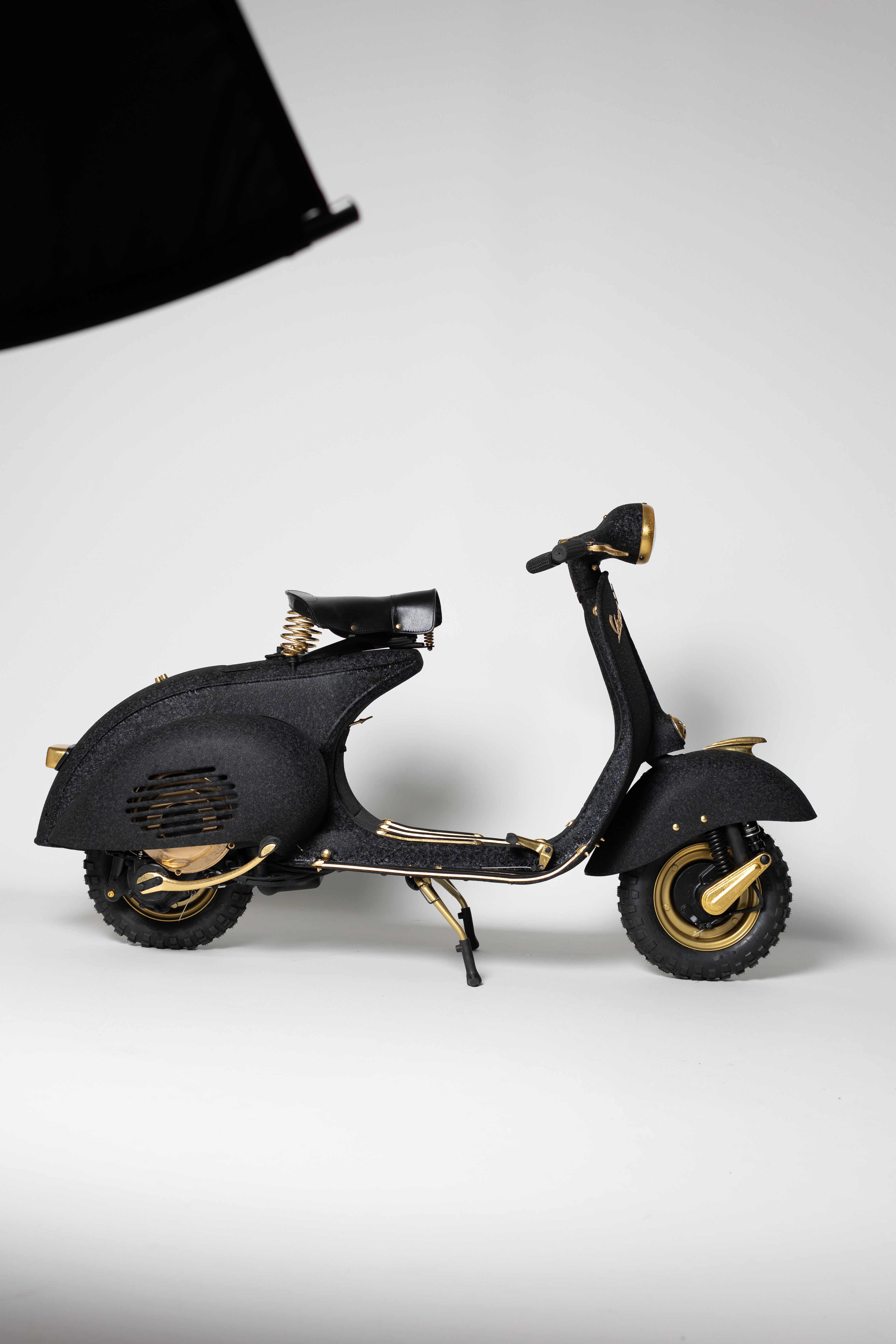
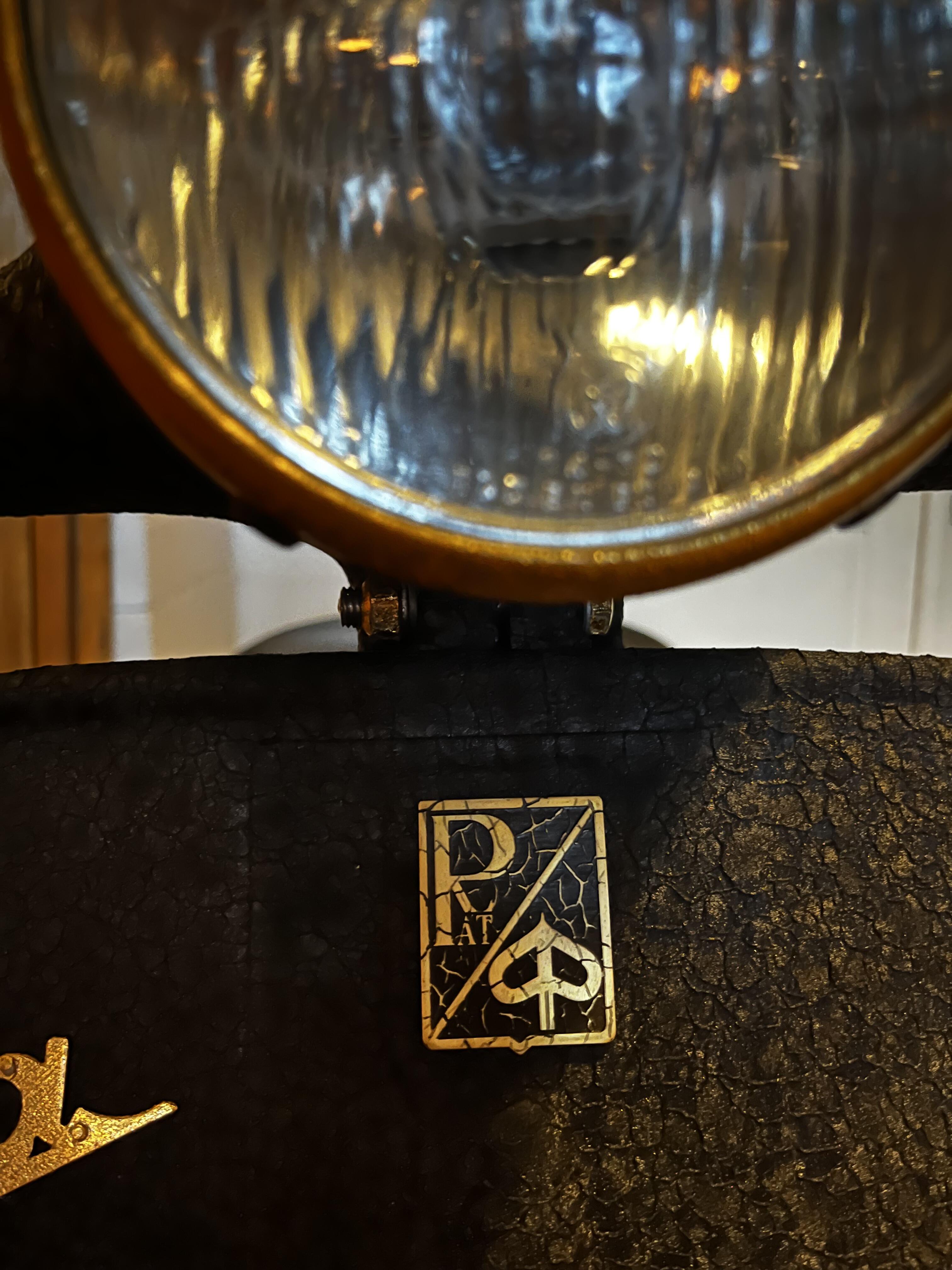
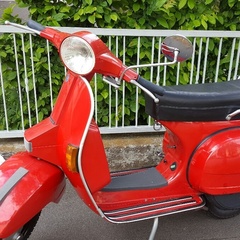
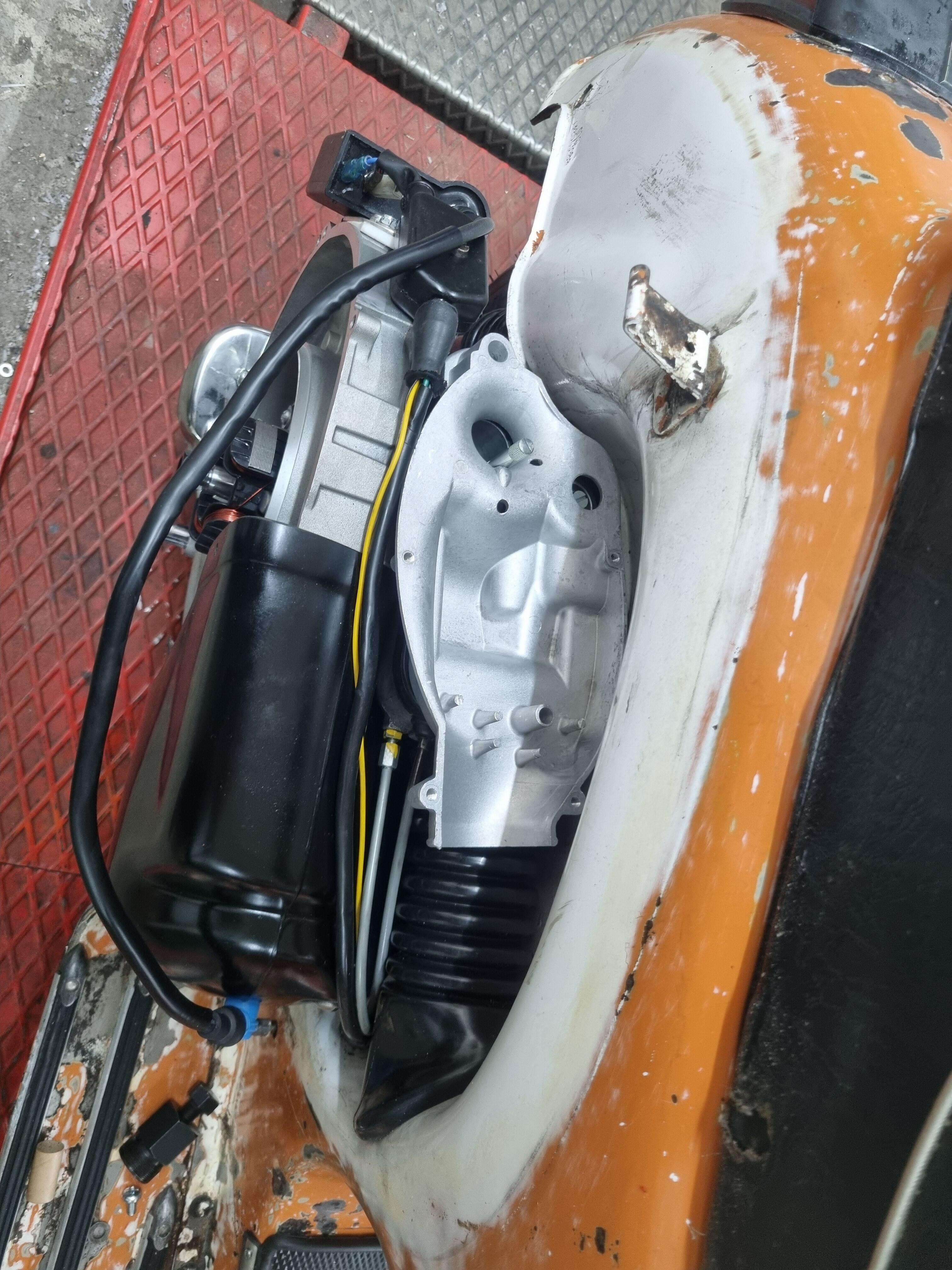
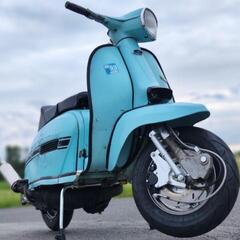
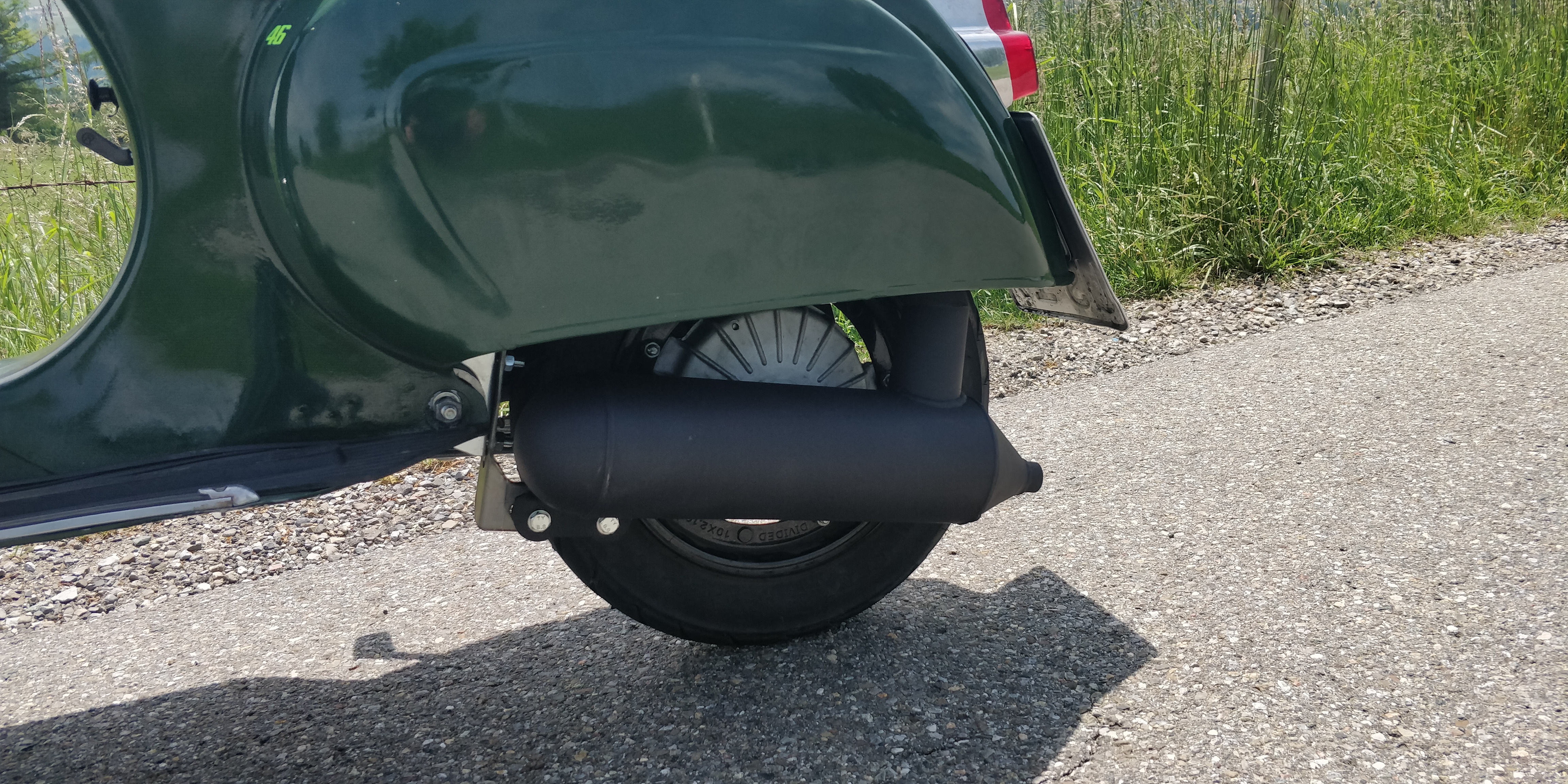
10 Punkte10 Punkte7 Punkte7 PunkteMöchte hier mein aktuelles Projekt mit einer Motovespa 125N (Sickenrahmen) aus 1958 vorstellen welches nun „fertig“, ist. Natürlich hat man immer wieder Ideen, welche dann auch umgesetzt werden sollen. O-Lack war nicht mehr zu retten und irgendwie war mir der Look eines freigelegten O-Lacks auch zu ausgelutscht. Darum sollte es bei diesem besonderen Rahmen auch ein besonderer Look sein, der einerseits Puristen in stottern bringt aber dennoch den gesamten Roller edel erscheinen lässt. Ergebnis ist ein Rahmen mit einer Polyurethan-Pulverbeschichtung mit Moiré Effekt. Die Anbauteile sind mit 24 Karat Blattgold belegt. - Stossdämpfer vorne sowie hinten BGM Pro. - Bowdenzüge mit Gewebeschlauch überzogen. - Motor noch der originale V58M mit 125ccm 3-Gang, welcher sicher nochmal ein Update bekommen wird. Wer Bock hat die Karre (die noch einen Namen braucht) live zu sehen, kann das vom 02.-04.02. bei der Bremen Classic Motorshow machen. Wir sind mit dem Vesbeachi Stand in Halle 1 auf dem Oberdeck zu finden.

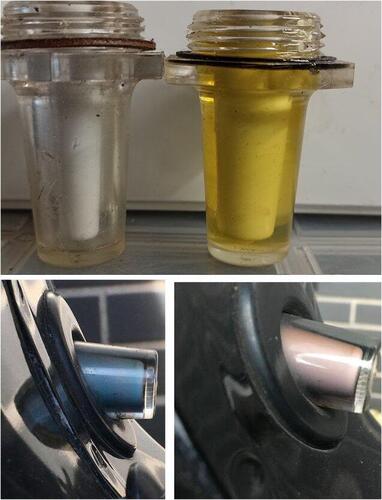
 4 Punkte3 Punktehuch - seit dem letzten Beitrag sind ja schon mehr als 2 Jahre vergangen UPDATE 2.2.2024: - die MV steht noch immer hier - mittlerweile flogen aber mal der 160er Pinasco samt Polini-Vergaser raus weil in meiner Struzzo ein CC-Corsa werkelt und der einfach viel mehr drückt, grad auch untenraus was bei 3-Gang ja nicht unwesentlich ist. Dazu füttert nun ein 25er Dello das Ganze. Läuft bombig mit 15/16PS. - komme leider nicht viel zum Fahren aber wenn dann gabs/gibts KEINE Probleme. Startet und läuft einfach immer wie man es sich wünscht! - hoffe letzteres wird auch 2024 der Fall sein. CHEERS!!3 PunkteDein Schauglas war übrigens auf deinen beiden Bildern jeweils voll. Der innere "Zapfen" des Schauglases erscheint dünner, wenn kein Öl drin ist. Ein leeres Schauglas sieht anders aus. Hab hier extra für dich mal einen Versuchsaufbau (allerdings mit gelblichem Öl; blau und rosa waren bei mir aus) installiert:
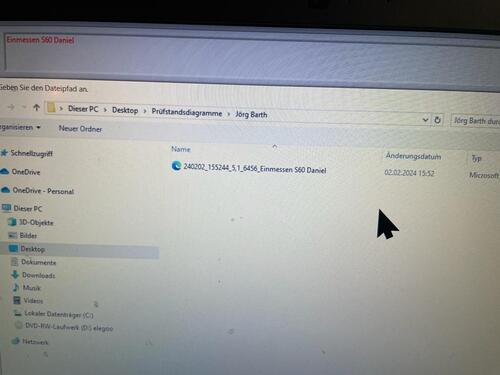
 3 Punkte2 Punkte"zuerst im GSF, dann bei SIP im Shop" Selten war ein thread Titel so passend gewählt2 Punktev2.0.12, zu finden wie immer auf https://github.com/gruaGit/WildBugChilGru/releases Viel Spaß damit!2 Punkte2 Punktesuper cool. werde es Anfang nächster Woche selbst mal probieren. @enketuning hat es schon installiert und es scheint super zu funktionieren vielen Dank schonmal fürs kümmern und umsetzen. Foto ist von @enketuning Mit freundlichen Grüßen
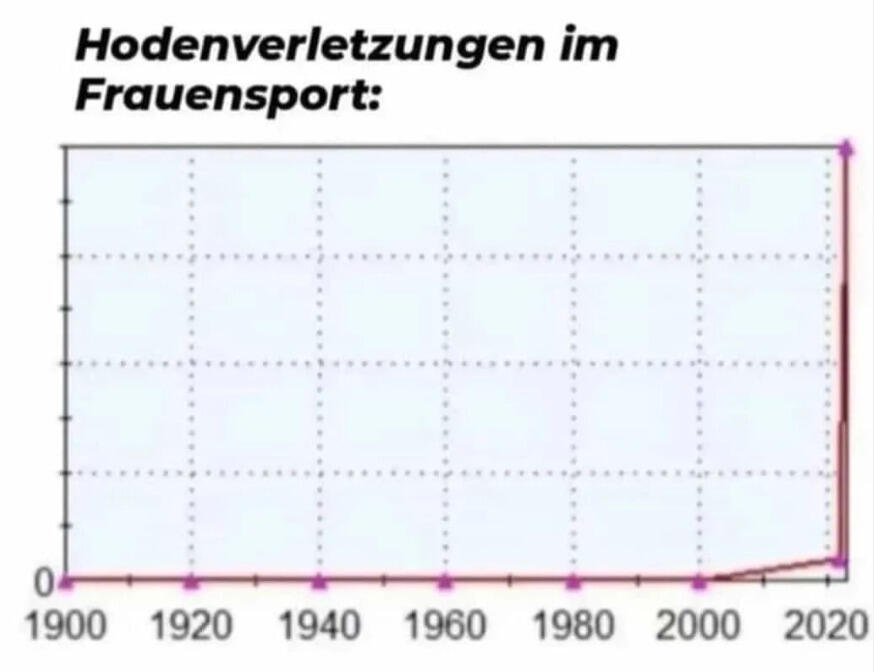
 2 Punkte2 PunkteIch bin ja nicht ungeduldig, aber der Monat für die Bananen Style Reso Anlagen wäre rum 😁🥳🤙2 PunkteHi Danke für die Rückmeldungen! Ich muss sagen das ich die BGM Box gar nicht auf dem Schirm hatte, dachte Sito+ oder BGM: "Sieht gleich aus, ist also auch gleich". Danke für die Belehrung :) . Dann werde ich ihn mal testen. Jetzt mache ich erstmal den Motor fertig, Züge müssen auch mal alle neu und dann geh ich den Auspuff an. Wenn alles fertig ist (wird ein paar Wochen dauern) melde ich mich und berichte vom Ergebnis und wie der Wechsel von Sito auf BGM für mich ist. Grüße und danke an die Runde für die zahlreichen Tipps!2 PunkteHab mich eh gefragt, was der Karli den ganzen Tag das volle Jahr lang so macht. Danke dafür, damit dürfte er dann voll ausgelastet sein.2 PunkteHilft jetzt zwar nicht auf die schnelle... Stahlbus Entlüftungsventil. Ich tu mir das mit diesen Nebenluft ziehenden Standartteilen nicht mehr an. Verbau Stahlbus nur noch an allen Fahrzeugen. Preis schreckt zwar etwas ab aber dafür weder beim Befüllen noch beim Wechsel Schmaddereien und echt easy in der Handhabung. Mit dem dazu erhältlichen Balg drück ich bei der Neubefüllung von unten nach oben durch. Und nein, Arbeite nicht bei denen und bekomme keine Provision. Nur begeisterter Nutzer.2 PunkteIch arbeite in einem anderen Bereich, aber allgemein gilt, dass vor allem Personal- und Versicherungskosten sehr hoch sind. Es muss ein mindest Betreuungsschlüssel gewährleistet sein und es muss pro Gruppe mindestens eine Fachkraft sein. Das kostet. Fortbildungen müssen auch regelmäßig absolviert werden, um den Qualitätsstandard zu halten oder zu verbessern. Das finde ich auch sehr wichtig. Was richtig doof ist, ist, dass der bürokratische Aufwand enorm viel teure Arbeitszeit kostet. Dokumentation, Entwicklungsberichte, Korrespondenz mit Ämtern etc. Das ärgert mich auch an meiner Arbeit.2 Punkte2 PunkteDie Reparaturanleitung ist nicht auffindbar. Welche ist Eurer Meinung nach die beste?2 Punkteda schmeiß ich "Unter Ulmen" direkt in den Ring! Was ein geiles Format! Dazu sein (ich feier es noch heute) "mein neuer Freund" Format!2 Punkte2 PunkteErstaunlich wie es immer wieder manchmal im GSF läuft. Einer/eine schreibt "Morgen kaufe ich Bier" oder "Ich liebe dich" oder "2024 wird es einen neuen Club geben" und einige Beiträge später zimmert man sich gegenseitig derart wundervoll auf die Kauleiste, dass es eine Freude ist. Das geschriebene Wort ist viel komplizierter als das gesprochene Wort. Denn beim Sprechen kann man zusätzlich lächeln, mit den Augen zwinkern, mit den Händen Gesten formen und mit dem Hintern wackeln (mache ich oft). Das geht trotz emojis in der Schriftform nicht (so gut). Daher werfe ich jetzt mal allen bildlich gesprochen Luftküsse zu, ohne übergriffig sein zu wollen und ohne ein emoji dafür zu haben. Ansonsten super, dass in Berlin dieser Club aus der Taufe gehoben wurde, denn mich freut jeder/jede, der/die das identische Hobby wie ich hat. So viele sind es leider gar nicht mehr.2 Punkte2 Punkte..erster Arbeitstag und alle waren voll nett ...hoffe das bleibt so2 Punkte2 PunkteWenn sich das so Ende der 90er IRL auf einem X-beliebigen Run irgendwo in (D) zugetragen hat, hätte das wohl so geklungen: "Ladies, herzlich willkommen hier auf dem Run des Flying Testicles RK! Schön dass ihr euch für die alten Roller begeistert und mal persönlich vorbeischaut! Damit ihr hier gut aufgenommen werdet weise ich lieber kurz auf ein Ritual hin, welches sich in den letzten Jahren etabliert hat: es gehört quasi zum guten Ton, sich hier mal nackt in Unterwäsche auf seinem Roller zu räkeln und ablichten zu lassen. Ich will nur sicher gehen dass ihr euch hier gut zurecht findet. Wenn ihr wollt, helfe ich euch dabei und kümmere mich persönlich." Das ganze mit Bierflasche in der Hand, verwaschener Aussprache und glasigem Blick. Ist irgendwie nicht so das, was man (oder Frau) lesen möchte, wenn man hier versucht, nur etwas Reklame für seine Schaltroller-Interessengruppe zu machen. Die Topiceröffnerin ist nicht erst seit gestern hier unterwegs, ist lt. GSF-Steckbrief im Flensburger Rollerclub und scheint somit nicht irgendjemand zu sein, der "German Scooter Forum" völlig falsch verstanden hat und sich mit seinem Hercules CV50 hierher verirrt hat. Und das hat auch heutzutage nix mit übertriebener Wokeness zu tun; einige Verhaltensweisen gehen auch nicht mehr am Stammtisch. Und das extrakleine Wort "SATIRE" ist echt sehr schwach geschrieben, so dass man sich erst einam über den Text ereifern könnte, bis man das dann entdeckt. Tja, es sind ja nun hier schon einige Leute mit denselben abgedroschenen Witzchen auf das Thema angesprungen - und es gibt durchaus User, die Prosa dieser Art unpassend finden. Es ist immer noch was Anderes, wenn man solche Begrüßungen Auge in Auge rauslässt. Würde man heute auch als rüpeliger Kuttenträger des genannen RK wohl eher nicht machen. Bergfick zerlegt hier u. A. aus solchen Gründen auch nix mehr. Zum Schluß: mir ist das persönlich wirklich sehr egal, wie ihr hier Leute begrüßt oder neue Kontakte knüpft. Müsst ihr wissen, ob das noch zeitgemäß ist oder ob das bereits unter "das GSF ist überaltert" fällt. Noch gehört es aber zu meinem unglaublich hoch dotierten Job, auf etwaige möglicherweise unpassende Beiträge und Meldungen zu reagieren. Da erwischt man auch nicht immer die Mitte des oft sehr schmalen Grates und manchmal stellt sich das vermeintliche große Problem nur als lauer Wind vor der Hoftür raus. Aus diesem Grund: bitte etwas Contenance. Wenn ihr also Smartphone oder Tastatur des PC benutzt, bitte immer dran denken: Gerne mit rauem Ton, aber bitte mit Hirn. Danke.
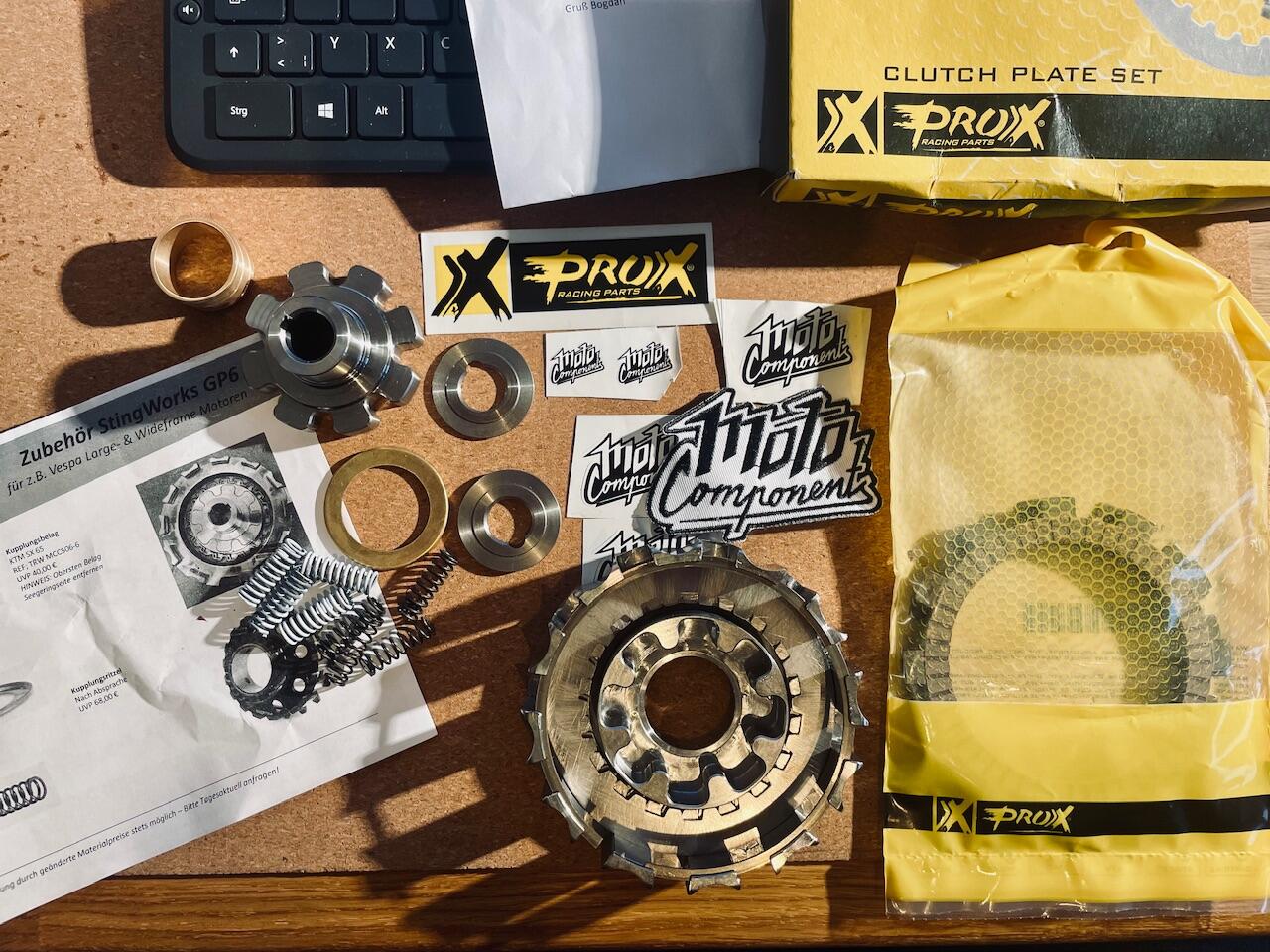
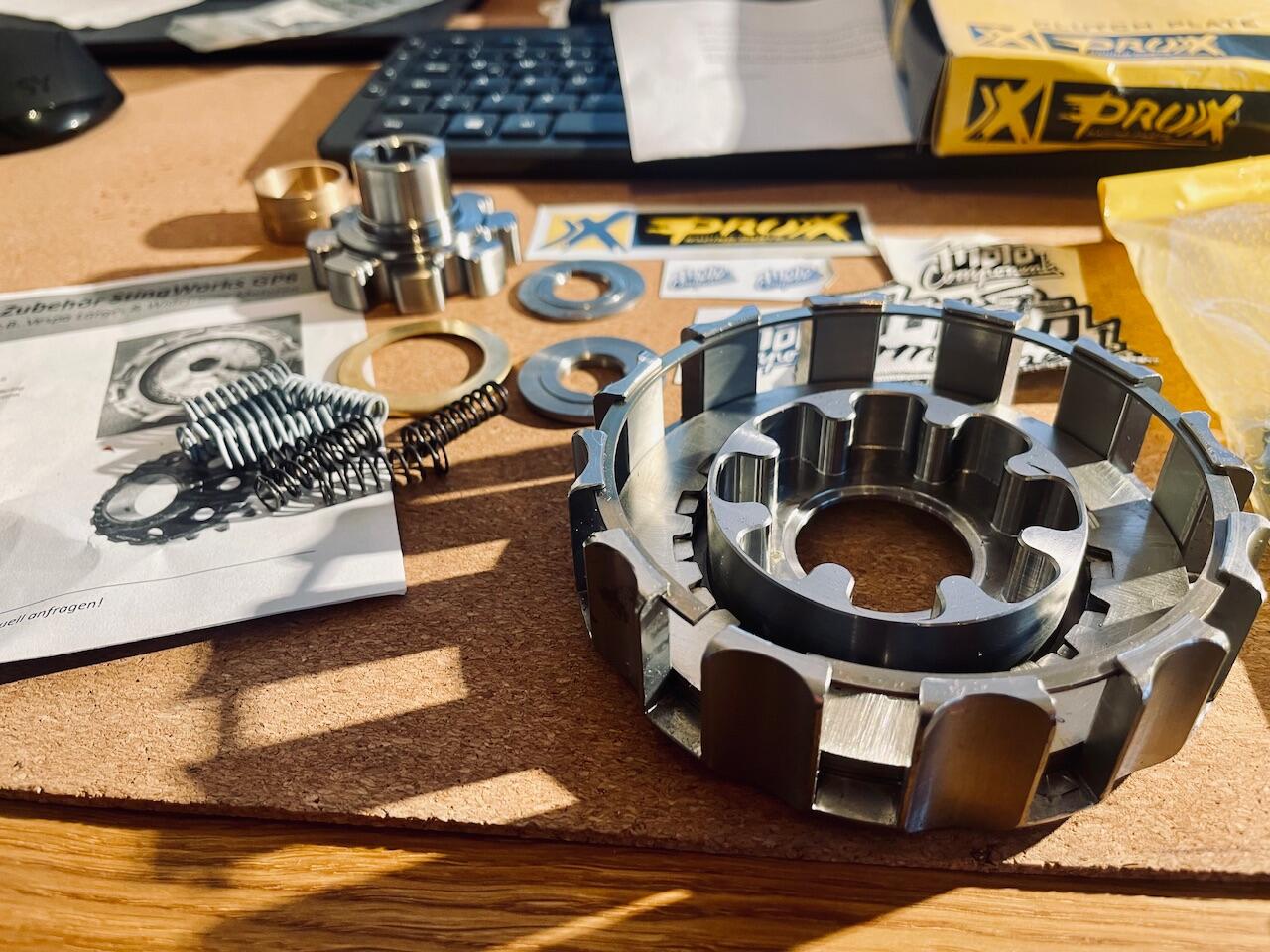
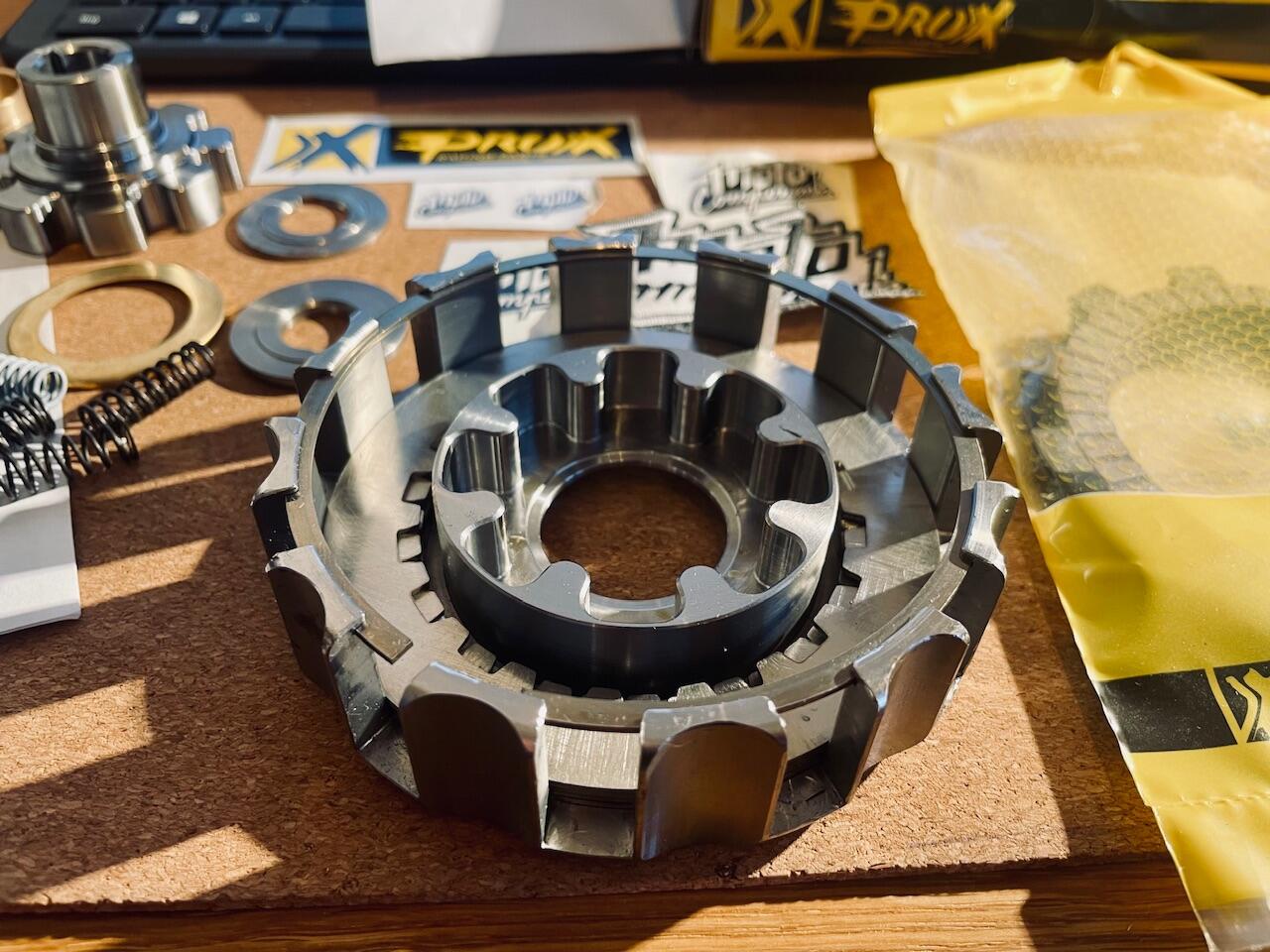
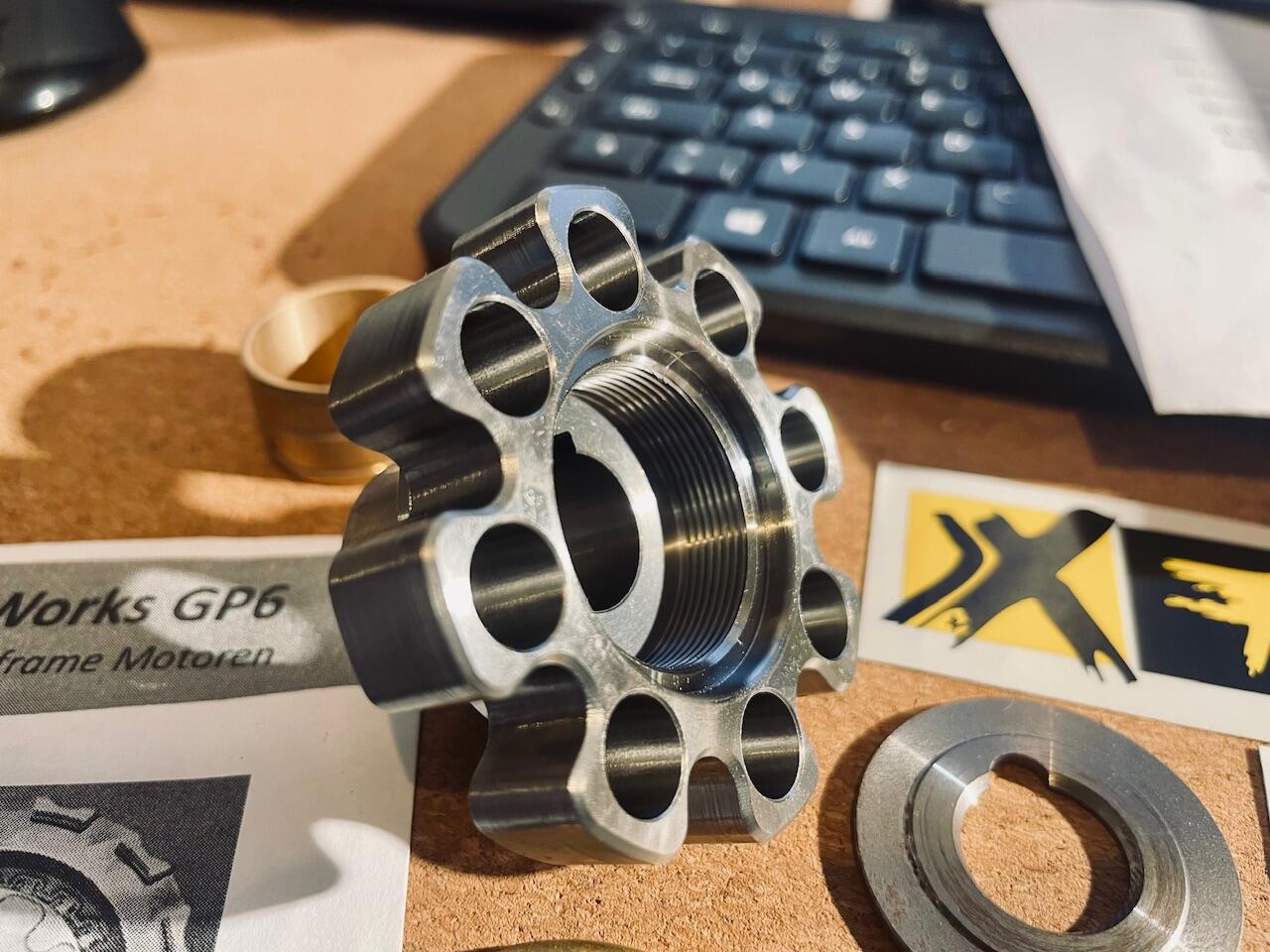
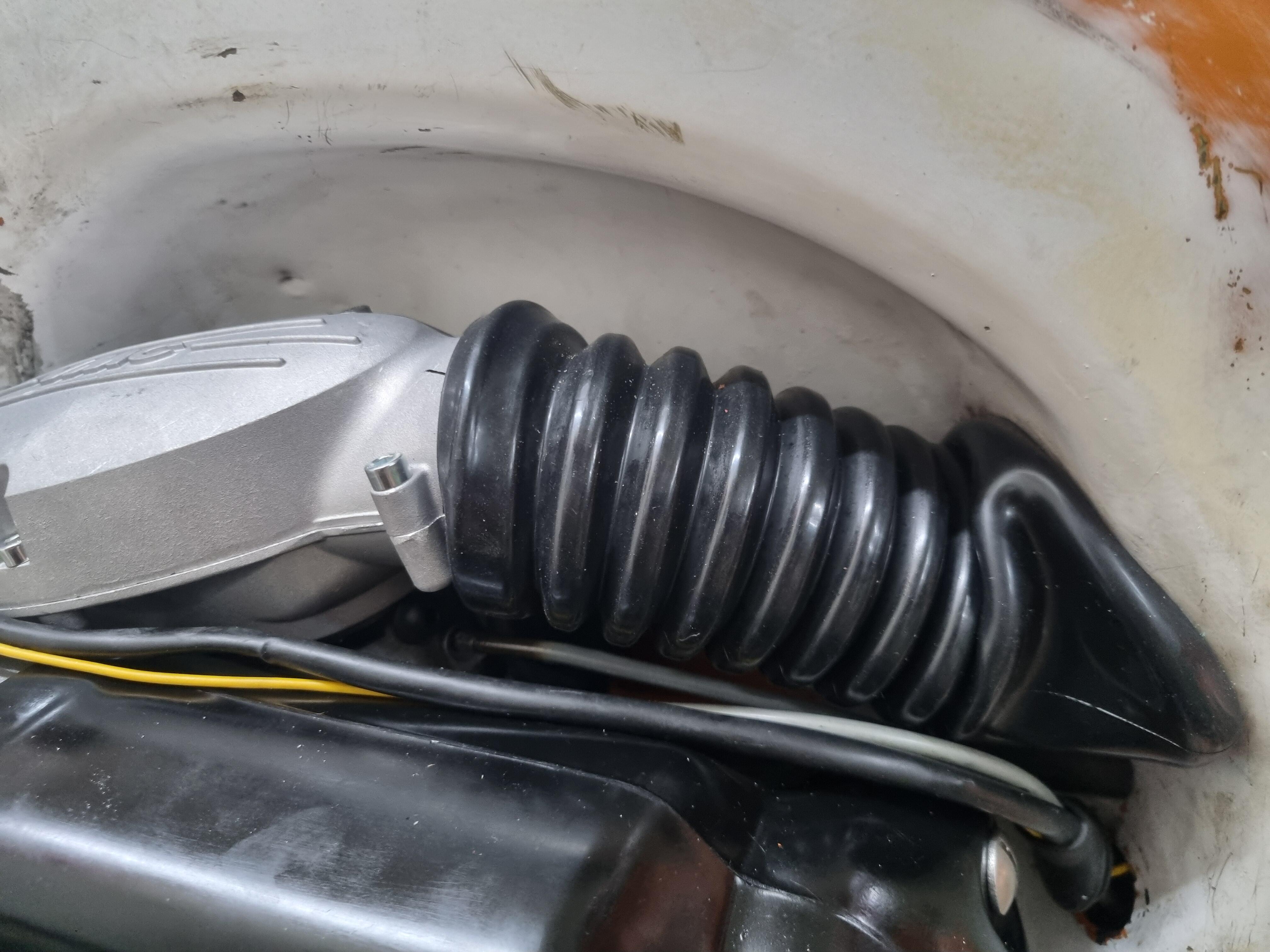
 2 Punkte1 PunktVielleicht ist auch da dieses „System“ komplexer als es den Anschein hat? Der Bus muss evtl. noch andere Schulen, Altenheime, was auch immer anfahren und um alle wichtigen Stationen im Tagesablauf im Rahen des komplexen Schichtsystems koordinieren zu können, ist es dann halt 12.55 bei dieser Schule? Ich bin (fast) überzeugt, es wird einen halbwegs vertretbaren Grund geben. Wobei ich das Problem nicht verstehe. Meine Schule fing früher 7.50 Uhr an. Die Wirtschaftsschule gegenüber 7.45 Uhr. Eine andere Schule um die Ecke 7.30 Uhr. So what? 8.15 soll es in der Realschule auch gegeben haben. Wo ist das Problem? Ich vermute sogar, das war vom „System“ so gewollt, damit wir uns nicht über den Weg laufen und uns aufgrund der damals üblichen Zugehörigkeitsgefühle gegenseitig die Fresse polieren. „The Wanderers“ waren in unseren Köpfen verankert. Oder die Busse wären bei gleichzeitigem Beginn einfach zu voll gewesen (bei uns fuhren damals mehrere)? Muss ich mich aus meiner persönlichen Perspektive heraus wirklich über alles aufregen? Ja gut, dein zu erwartender Einwand, @MyS11, man muss auch nicht jeden Murx zu rechtfertigen versuchen, ist auch nicht ganz falsch. Ist wahrscheinlich einfach eine Typfrage.1 PunktSuper, freut mich sehr, wenn alles so wie erwartet funktioniert! Sorry nochmal, dass ihr solange warten musstet, aber gut Ding braucht halt manchmal Weile Werde dann gleich mal das neue offizielle Release veröffentlichen!1 PunktSehe ich bei der BGM Kulu nicht so. Da sind meine persönlichen Erfahrungen eher negativ. Die Pinasco kann auch 50Ps halten mit eben den stärkeren Federn. Aber soll jeder entscheiden was er für gut hält und bei Ihm taugt.1 PunktOk, ich würde reservieren. Waren wir schon bei Tenshi? Soll gut sein hab ich gehört. Wer ist dabei? kann gerade leider keine Links anfügen.1 PunktIm Grundsatz 100%ig deiner Meinung, was du geschrieben hast. Es sind aber schon Systeme und sie arbeiten und funktionieren nach bestimmten Gesichtspunkten. Und es sind riesige schwerfällige und extrem komplexe Systeme. Und es gibt wie in jedem System verschiedene Parteien und Lobbyisten, die alle mit "ihrer Brille" Einfluss ausüben. Aber natürlich stellt sich das für den Bürger durchaus manchmal so dar, dass kein System erkennbar zu sein scheint. Jedoch fehlt den allermeisten Menschen (inklusive mir) der Überblick, die Details und alle Hintergrundinformationen die nötig wären, um die komplexen Zusammenhänge zu durchschauen und objektiv bewerten zu können. Ich weiß nur, dass vieles nicht so einfach ist, wie man oft glaubt und wie auch ich manchmal glaube. Das allerdings erschließt sich auch mir nicht.1 PunktMesh geht doch nur per w-lan! Also das erweitern. Kabelgebunden sollte doch kein Problem sein. Ruf halt mal die Fritzboxseite auf und dann siehste wie wo was verbunden ist (unter Mesh )1 PunktDas entlüfterventil samt Kugel1 Punkt....Schaden tut es auf keinen Fall, auch zukünftig nicht.1 PunktWar das hier schon? Sehr schön @sck was kann man denn aus der ollen bull clutch noch machen? Ne Nabe für normale LF Wellen wäre schön, dass man sie wenigstens noch in nem 0815 Motor einsetzen kann mit weichen Federn und sie nicht in der Ecke oxidieren muss, oder kann jemand günstig eine neue gebrauchen? -> PM https://www.scooter-center.com/de/kupplung-bgm-pro-superstrong-2.0-cr80-ultralube-sport-alu-vespa-largeframe-typ-cosa2/fl-fuer-primaerrad-bgm-pro-62/63z-geradeverzahnt-typ-mit-verzahnung-fuer-kurbelwelle-pinasco-250/251-25-zaehne-bgm8625pi1 PunktWeil er einschnürt... ich würde sowas wie den dumbo-schlauch nehmen oder mal den BGM probieren (falls es der nicht schon ist?), der ist stabiler als der Zubehörschlauch. Wird wohl aber das Problem nicht lösen, dass der in die falsche Richtung schaut. Ausserdem würde ich versuchen den " kantigen" Übergang zum Trichter zu egalisieren. Die Idee eines Trichters ist ein strömungsgünstiger Einlass, so macht das für mich wenig Sinn. Wenn man jetzt eine Düse wechseln will, wie viele Schrauben muss man dann jedes mal lösen?1 Punktund hier noch eine weitere erFAHRung zur Benelli-Welle, gab grad mal eine auf Kleinanzeigen und der Verkäufer hat mir auf Anfrage hin das geschrieben:
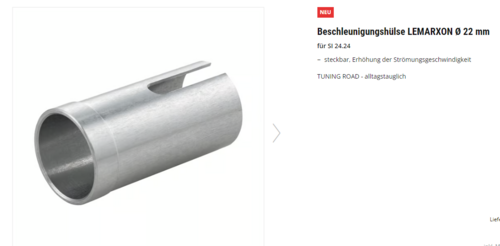
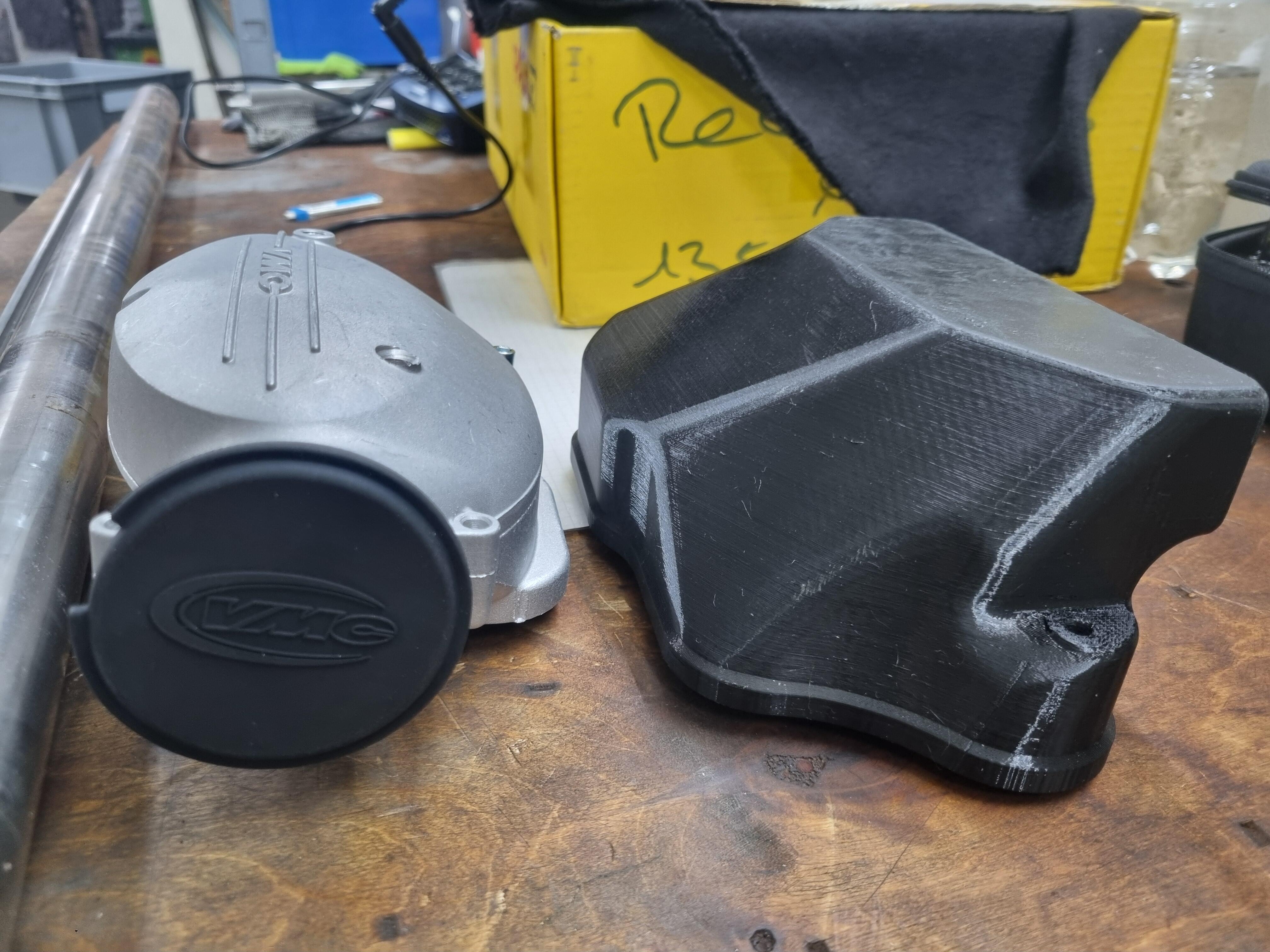
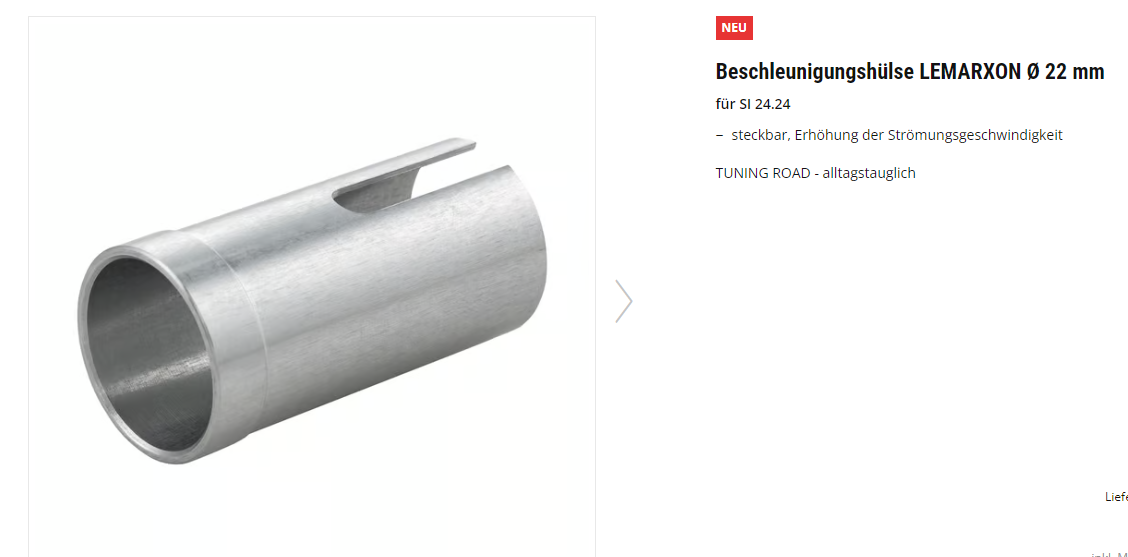
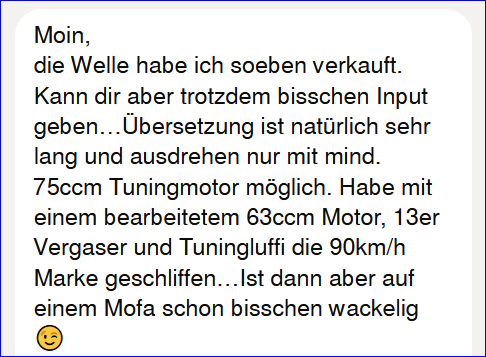 1 PunktJe weniger Hubraum, desto schlechter ist es, den Raum übermäßig unterhalb des Kolbens bzw. der Kanäle zu vergrößern. Spülung kann nur durch das bisschen Frischgas, welches vorverdichtet wird, funktionieren. Größerer Raum, weniger Druck, weniger Spülung. Daher hat sich auch ganz klar der Unsinn der 90er Jahre mit riesigen ÜS als total Contra geklärt. Oft ist weniger mehr. Ich würde da nur soft angleichen und mehr nicht. Grad bei diesen Schnapsglas-Motörchen.1 PunktVergaser aufbohren ist bei solch einem Setup völlig unnötig. Das scheint mittlerweile Allerheilmittel zu sein. Solange da nicht übergroße Düsen (aufgrund von gebohrten Filtern, Trichter) gefahren wird, kann der Vergaser bleiben wie er ist. Ich fahre sogar meinen Malossi mit über 20PS mit unmodifizierten Vergaser. Das stottern deutet auf eine leicht zu fettes Setup hin. Probier mal eine HD110. Alternativ kannst du auch die Hauptfluftkorrekturdüse auf 160 umstellen. Dann aber nicht parallel die HD verkleinern. Wir sind das damals auch mit 160 BE3 HD110-112 gefahren. Filter nicht gebohrt und Sito Plus.1 Punkt1 PunktHabe heute meinem Sohn erzählt was ich in seinem Alter so gespielt habe.. Da lächelt die Playstation-Generation natürlich nur ungläubig... https://m.youtube.com/watch?v=q7w_0yP5RwU&pp=ygUVc3R1bnQgY2FyIHJhY2VyIGFtaWdh1 PunktDie Frage ist berechtigt und zwingt mich dazu, zuzugeben, dass ich doch mal reingeschaut habe. Fand ich aber doof und hab' recht bald weitergezappt.1 Punkt1 Punkt1 PunktSeite 3 und es wurde noch nicht empfohlen die Ölpumpe stilllegen..... Da wäre im ölschauglas Platz für ein minidiorama. Vielleicht ein kleines Männchen was seinen Roller putzt oder so1 PunktJa, denke auch...🤦 Dann den Sip Performance 6 traversi und vorher BGM Big Box.1 Punkt1 Punktwird nur rein gesteckt in den SI Vergaser, habe das Teil vor ner Zeit nachkonstruiert inkl. Venturi für den 3d Drucker....wenns nur um einen test geht, ist das eine nahezu kostenlose Option
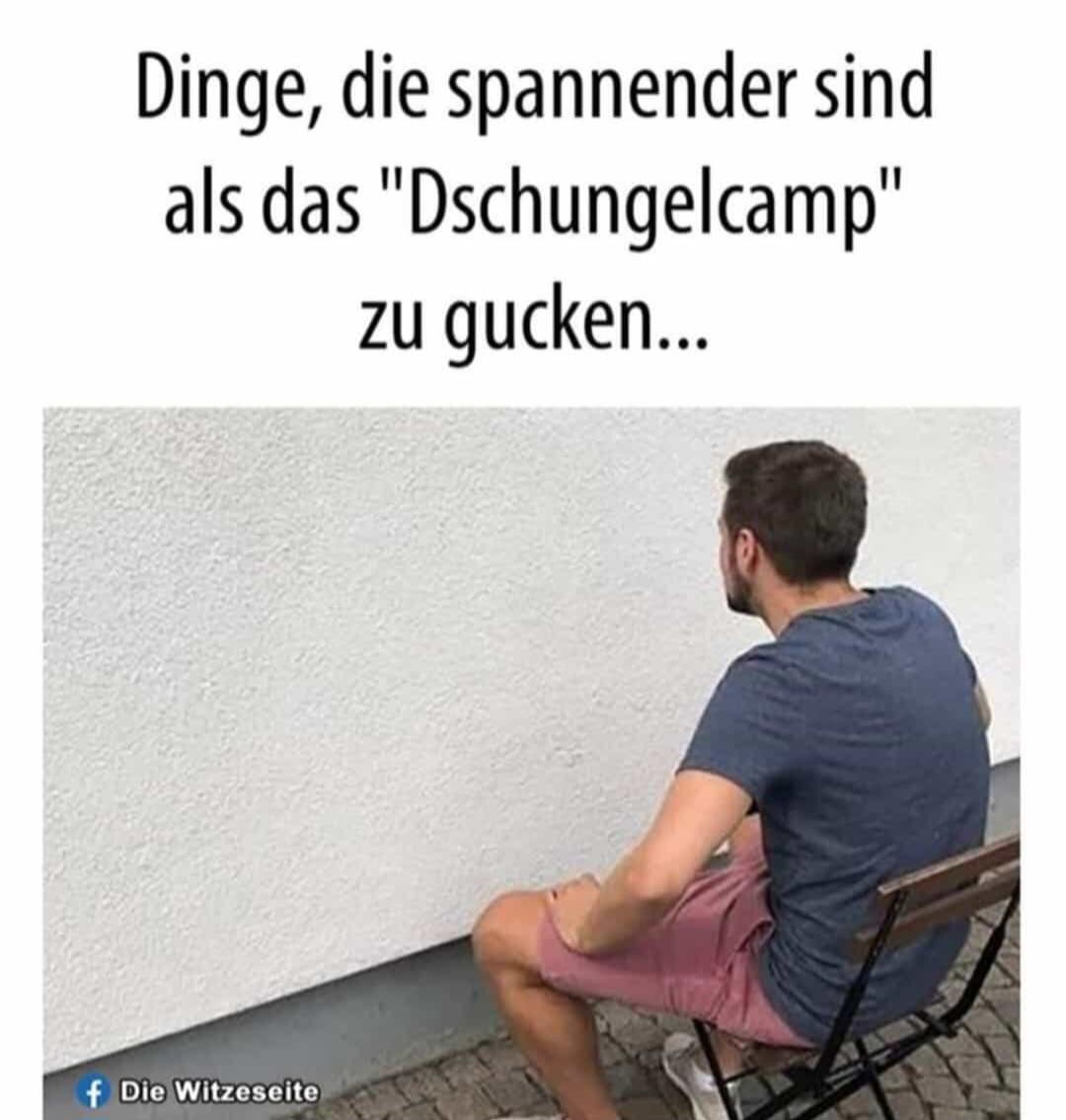
 1 Punkt1 PunktGeht glaub ich nur in Pfalz und BaWü: Kommt n Pferd in den Blumenladen: "Hammse Margerite?" (Wie komm ich da jetzt drauf?) Zwei US-Piloten stürzen über Kaiserslautern ab. In der Klinik versucht sich die Krankenschwester gleich in der Muttersprache und fragt "Mister Mopisse?"1 PunktIch nehme gern 5x Raab, der zumindest mit "Schlag den Raab" die letzte echte Samstag Abend Spielshow im deutschen Fernsehen abgeliefert hat, als sämtlichen Reality-Script-ZProminenten-Dschungel-Bachelor-Wirkönnennixundsindscheiße-Sendungen, die mittlerweile auf ALLEN privaten Kanälen rauf und runter gesendet werden....1 PunktNächstes jahr komme ich dann mit einen Zirri MR 2000 😜🤘1 Punkt1 Punkt1 PunktEtwas teurer als gewünscht, aber wirklich genial - mit Rücklicht im Paket - und keine Chinaware. https://www.magicshine.de/kauf-monteer-8500-und-seemee180/MJ-906-OP-Version-verbesserte-Optik-mit-6-7-Ah-oder-als-upgrade-mit-10-0-Ah-Powerbank-Akku-Helmset-inklusive-p206985220 Gibt auch eine Variante für denn E-Bike-Akku. https://www.magicshine.de/mj-906s Hab den Tipp vor paar Jahren von einem Bekannten bekommen, der im Testbereich einer MTB-Zeitschrift arbeitet. Im Freundeskreis fahren inzwischen fast alle eine Magicshine. Auf dem Helm oder wahlweise am Lenker - inkl. Remote-Schalter am Lenker. Bei dieser Leuchtkraft natürlich nicht für den öffentlichen Straßenverkehr gedacht, aber abseits der Straße wirklich genial. Gruß Christian1 Punkt1 PunktBin seit Jahren mit einer Lupine Lampe am Lenker unterwegs, einfach vollkommen krass was die Teile an Licht raushauen. Ja, sie liegt deutlich über deinem Budget aber schau sie dir mal an. Ich habe die SL A mit eigenem Akkupack, gibt es aber auch mit Anschlusskabel für alle gängigen Motoren. Mittlerweile sind Varianten mit Fernlicht verfügbar, das ist einfach nur krank wie hell es damit vor einem wird. Arbeitskollege hat so eine SL AF am Bosch Motor, Abblendlicht ist gleich zu meiner und mit Fernlicht kannst du Flugzeuge einweisen... Vielleicht schreibst du Lupine mal an, die haben regelmäßig Lampen da, die eingetauscht wurden gegen neuere Modelle oder ähnliches.1 Punkt1 PunktSonntag bestellt, Donnerstag angekommen und gleich lackiert und gestern verbaut. Verzieht den originalen 4ten meiner 2.65 (mit DRT Ritzel),in meinem Recht leistungsschwachen Setup (geschätzte 13-16PS) ohne Probleme und hat ein schönes Band. Hatte ein wenig Bammel, dass mein Setup zu schwachbrüstig ist. Bananencharakteristik mit Drehfreude vereint...super Sache. Ein schönes Zwischending zwischen LTH Road und Sip Banane. Ein bisschen weniger Resokick dafür liegt mehr Drehmoment in den unteren Drehzahlen an. Danke und weiter so!!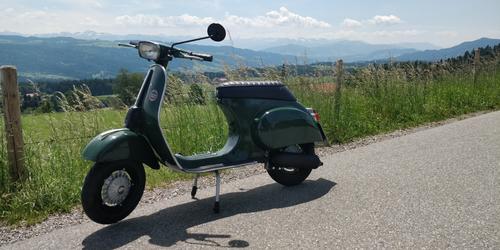
 1 Punkt




































Wichtige Information
Diese Website nutzt Cookies und vergleichbare Funktionen zur Verarbeitung von Endgeräteinformationen und personenbezogenen Daten. Die Verarbeitung dient der Einbindung von Inhalten, externen Diensten und Elementen Dritter. Je nach Funktion werden dabei Daten an Dritte weitergegeben. Einige dieser Verfahren sind technisch unerlässlich, andere kommen nur mit Ihrer Zustimmung zum Einsatz, eine Anpassung ist in den die Cookie-Einstellungen möglich. Für Details siehe die Datenschutzerklärung
Account
Navigation
Suche
Configure browser push notifications
Chrome (Android)
- Tap the lock icon next to the address bar.
- Tap Permissions → Notifications.
- Adjust your preference.
Chrome (Desktop)
- Click the padlock icon in the address bar.
- Select Site settings.
- Find Notifications and adjust your preference.
Safari (iOS 16.4+)
- Ensure the site is installed via Add to Home Screen.
- Open Settings App → Notifications.
- Find your app name and adjust your preference.
Safari (macOS)
- Go to Safari → Preferences.
- Click the Websites tab.
- Select Notifications in the sidebar.
- Find this website and adjust your preference.
Edge (Android)
- Tap the lock icon next to the address bar.
- Tap Permissions.
- Find Notifications and adjust your preference.
Edge (Desktop)
- Click the padlock icon in the address bar.
- Click Permissions for this site.
- Find Notifications and adjust your preference.
Firefox (Android)
- Go to Settings → Site permissions.
- Tap Notifications.
- Find this site in the list and adjust your preference.
Firefox (Desktop)
- Open Firefox Settings.
- Search for Notifications.
- Find this site in the list and adjust your preference.