
Rangliste
-
FalkR
Members23Punkte3.795Gesamte Inhalte -
krankerfrank
Members16Punkte2.578Gesamte Inhalte -
lukulus
Members9Punkte4.738Gesamte Inhalte -
collyn
GSF Support6Punkte1.262Gesamte Inhalte


Beliebte Inhalte
Inhalte mit der höchsten Reputation am 06.02.2022 in allen Bereichen anzeigen
-
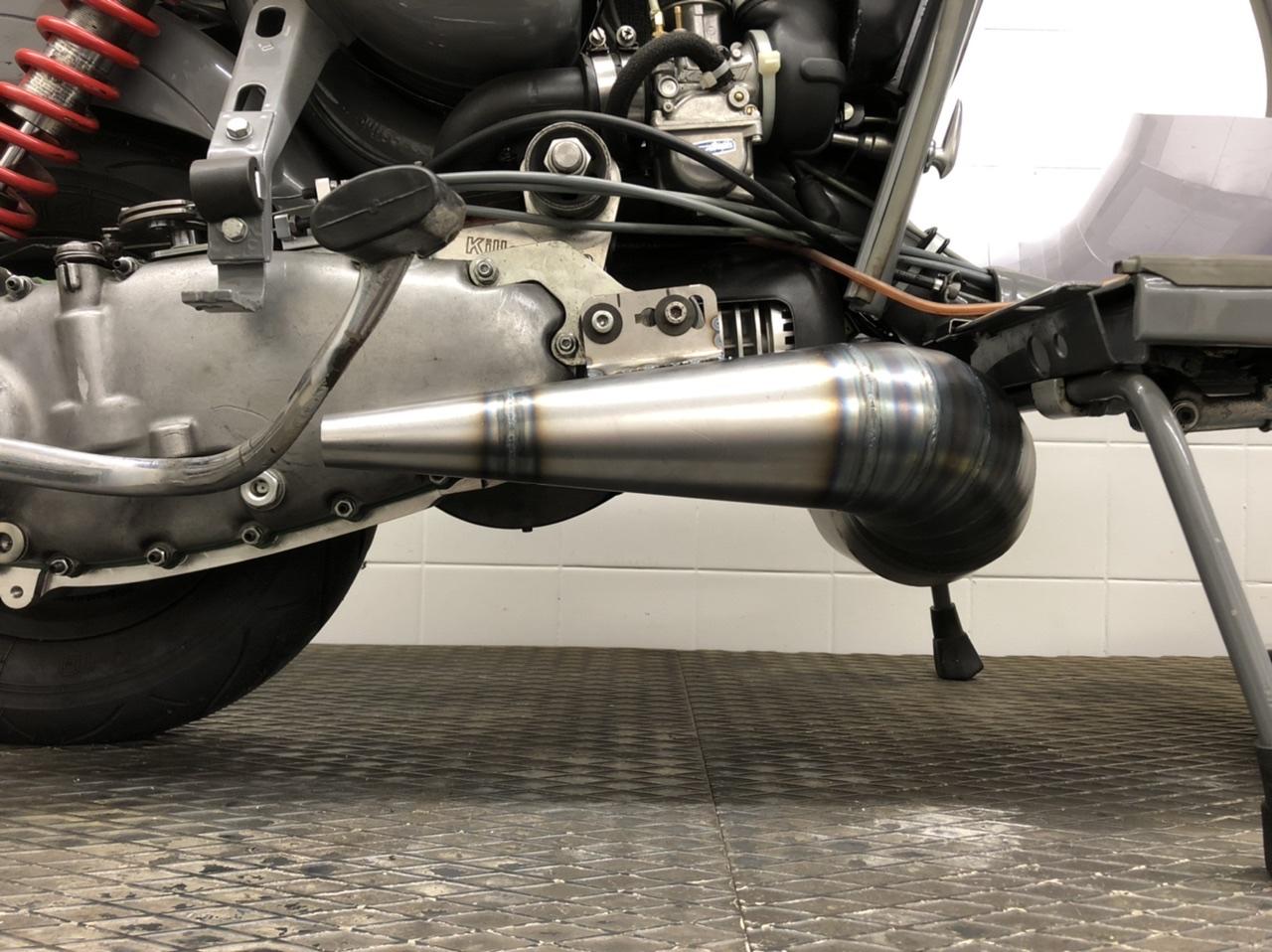
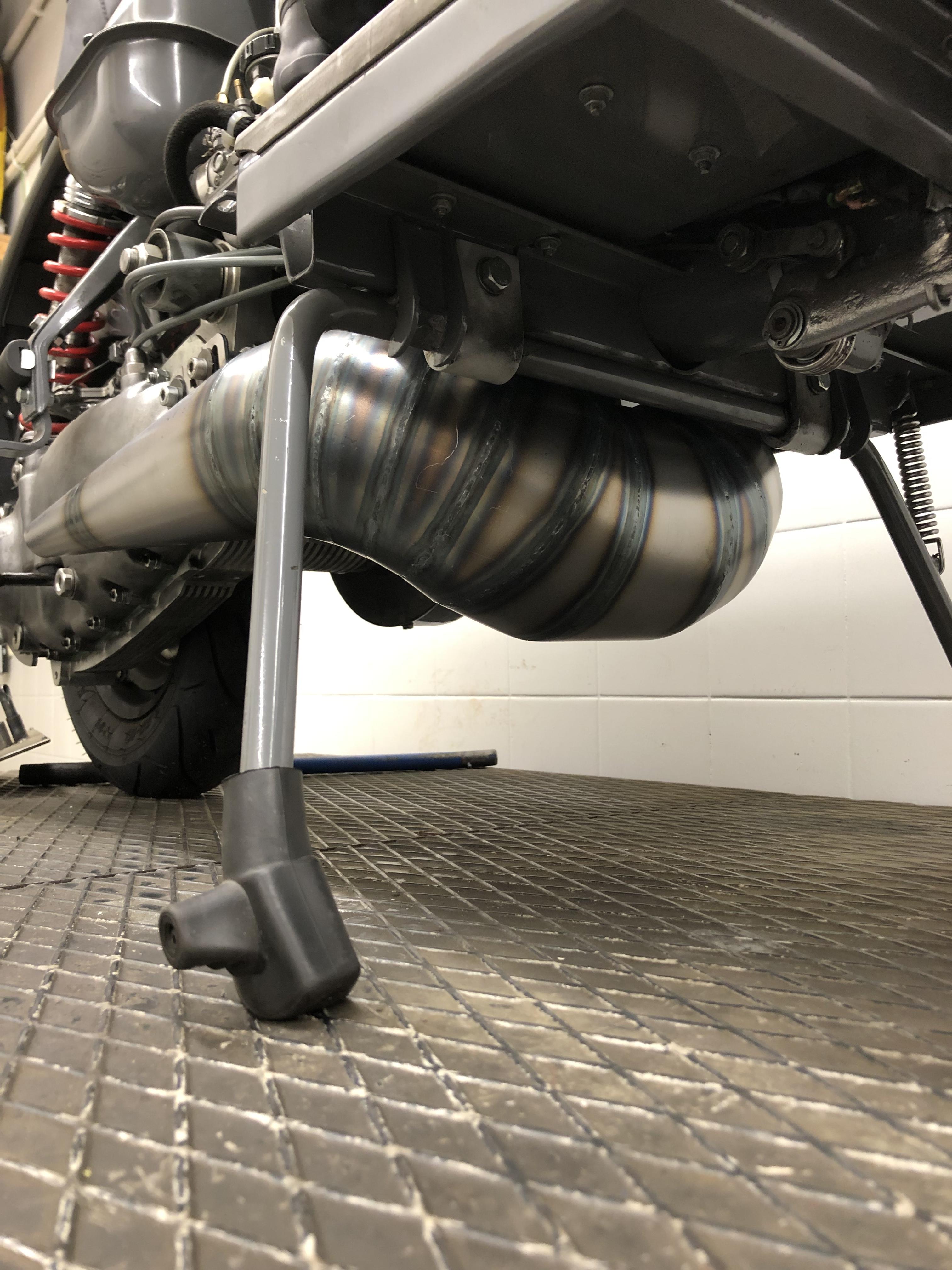
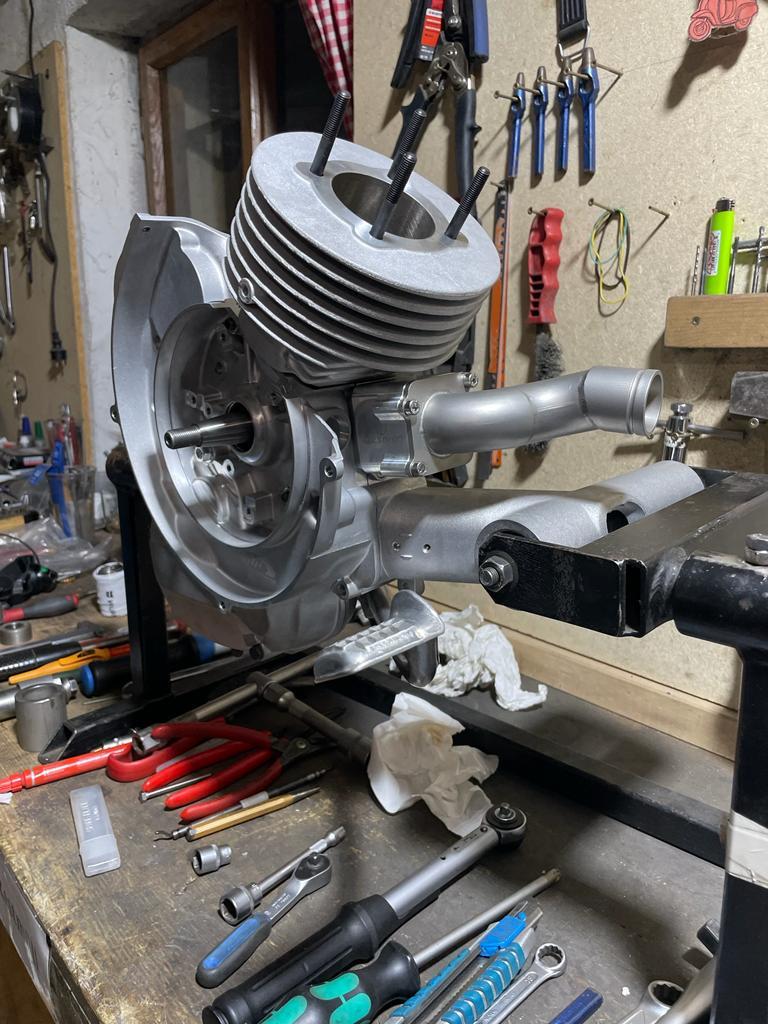
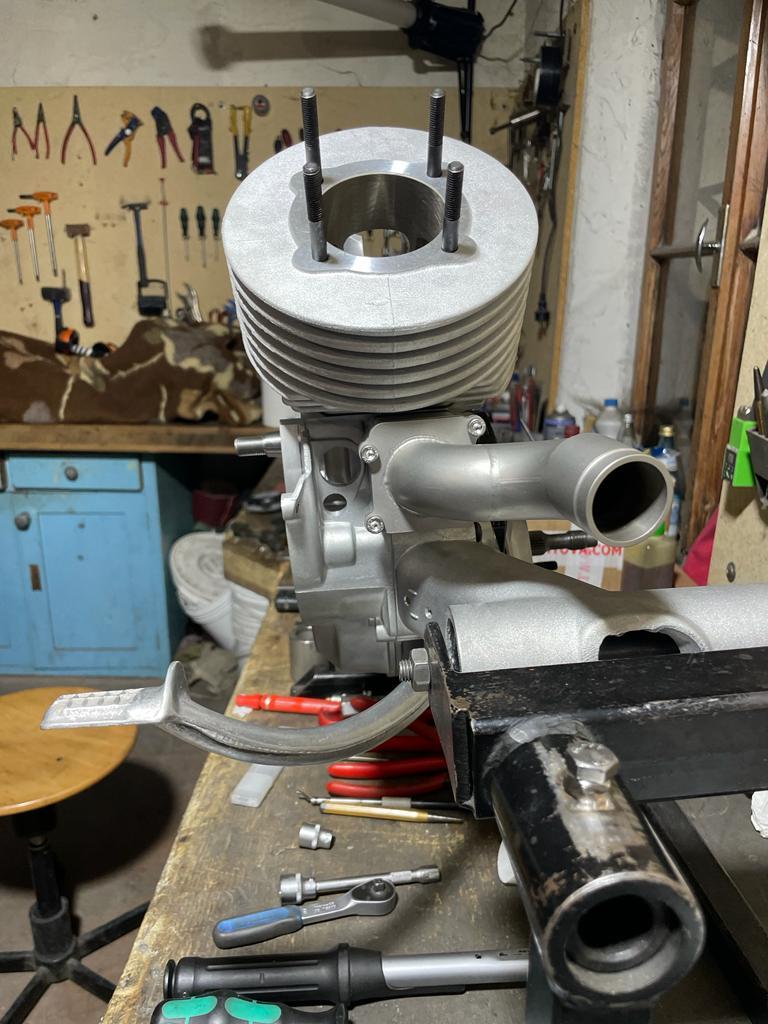
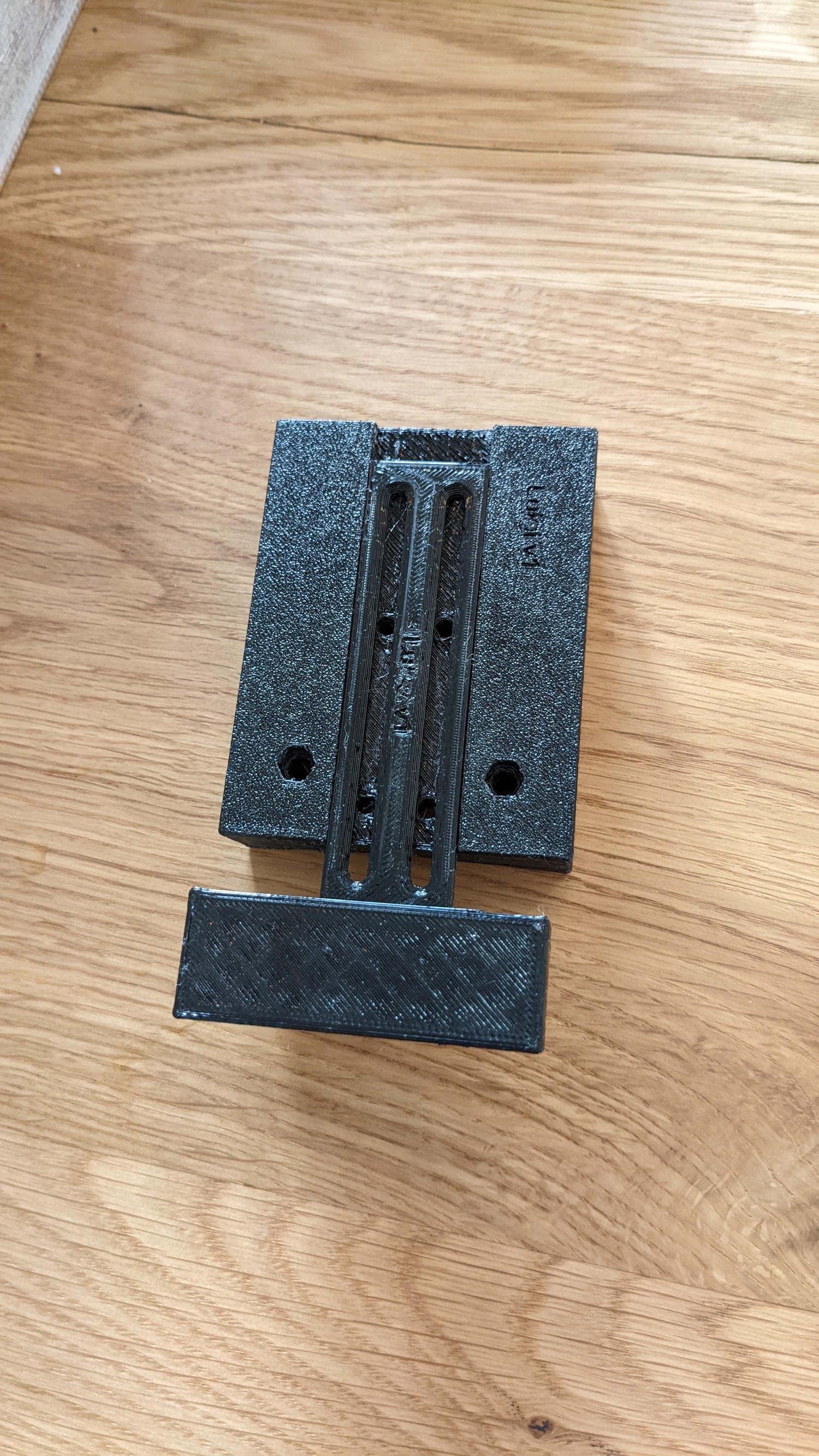
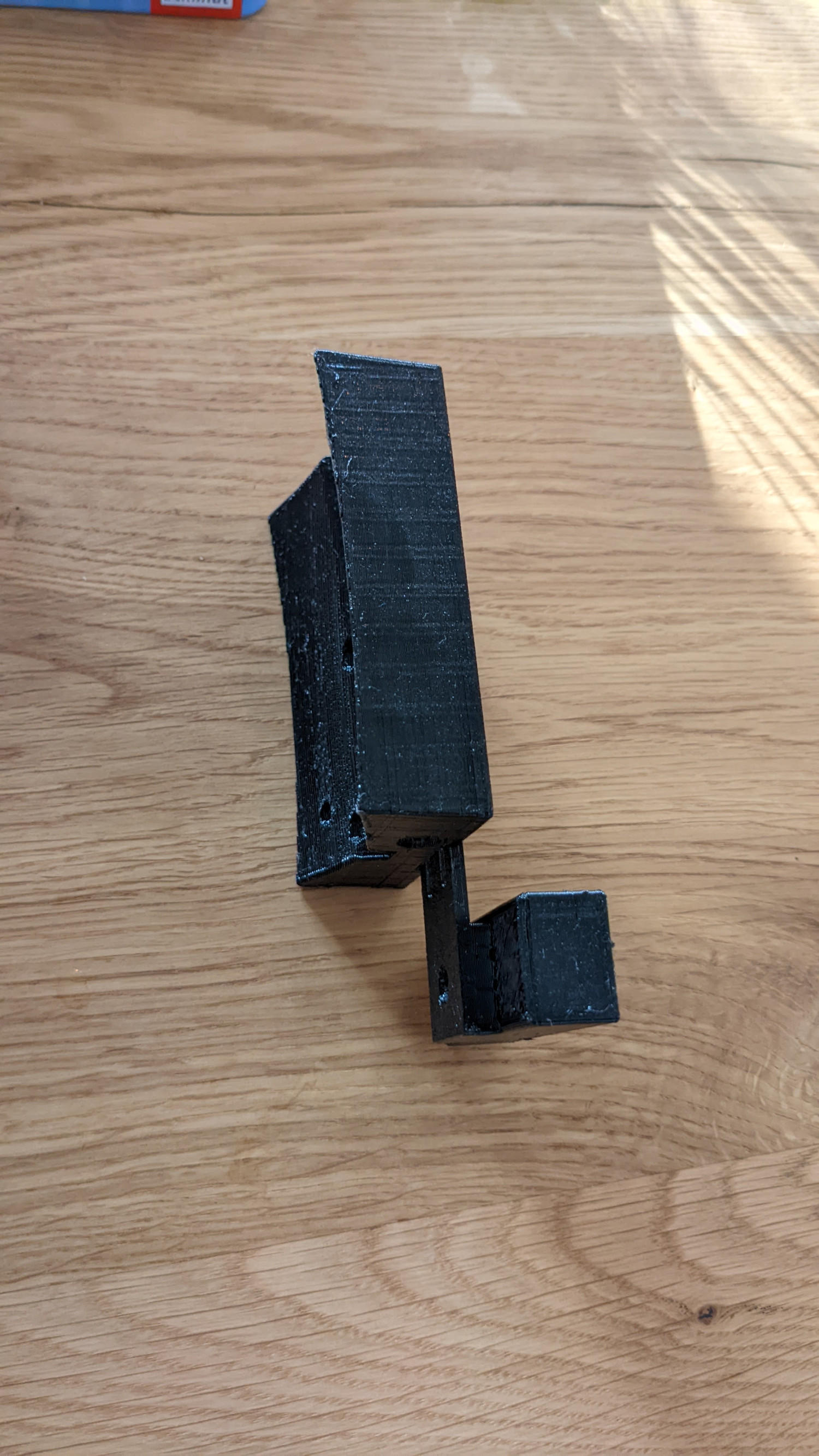
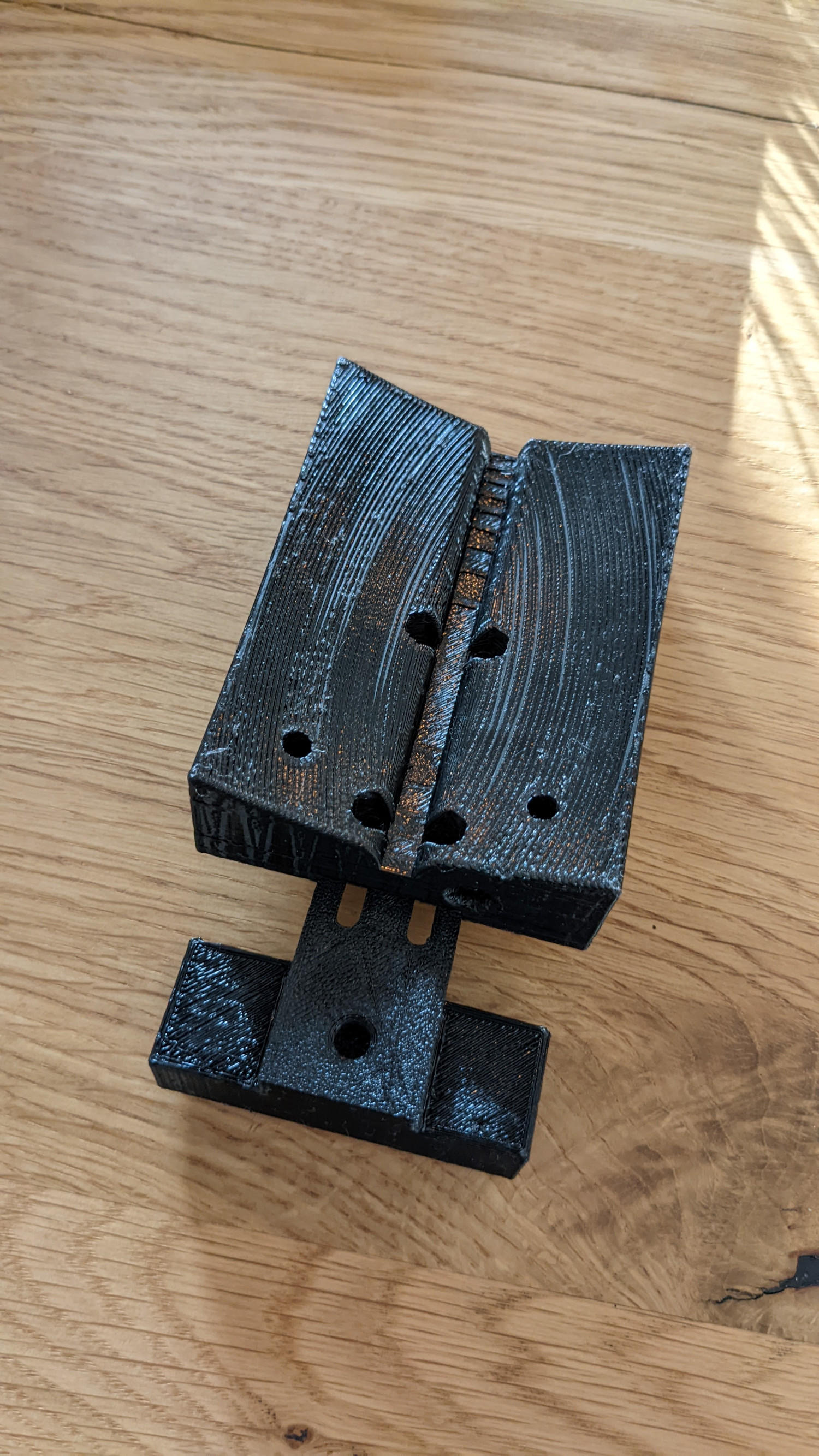
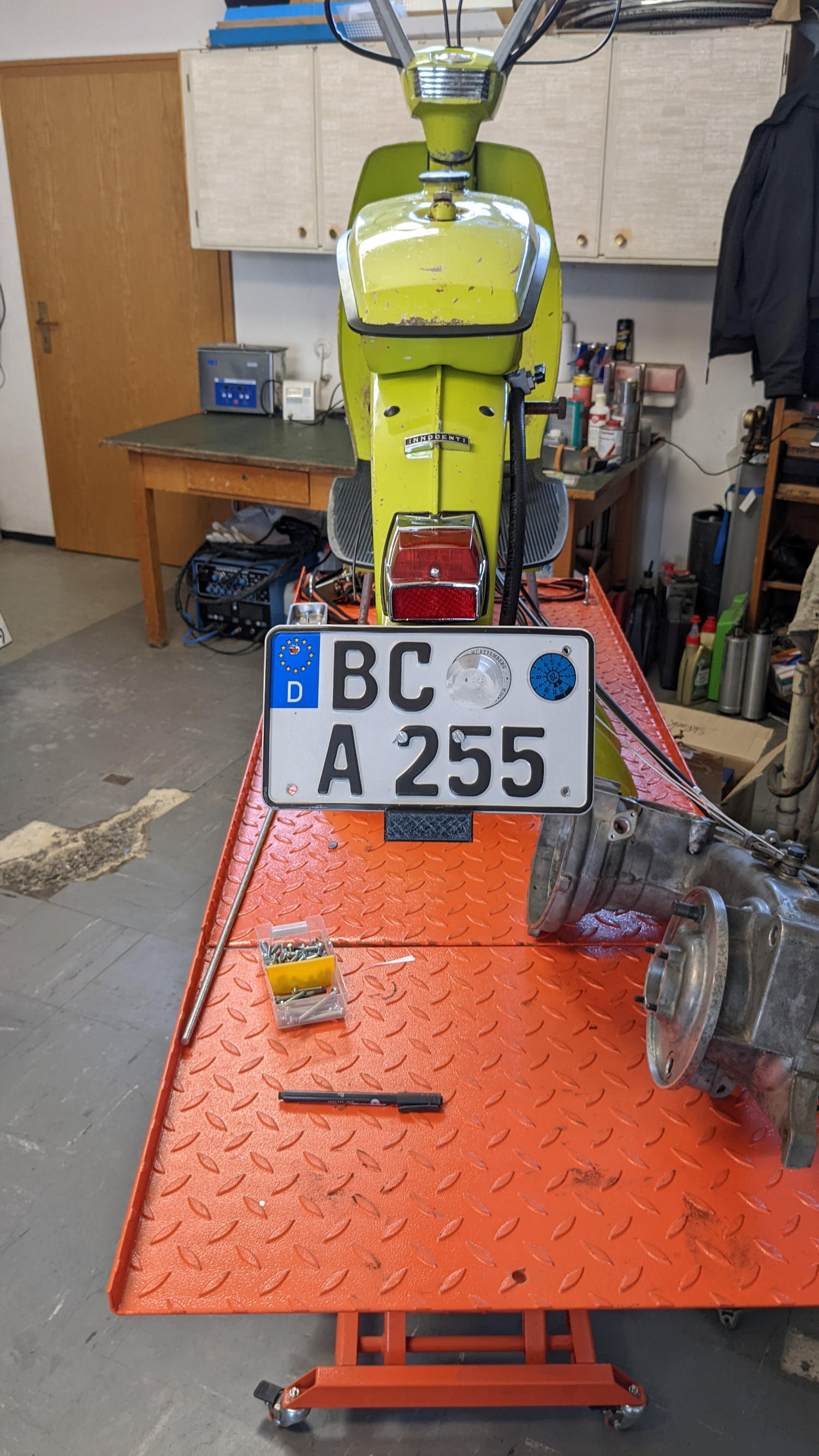
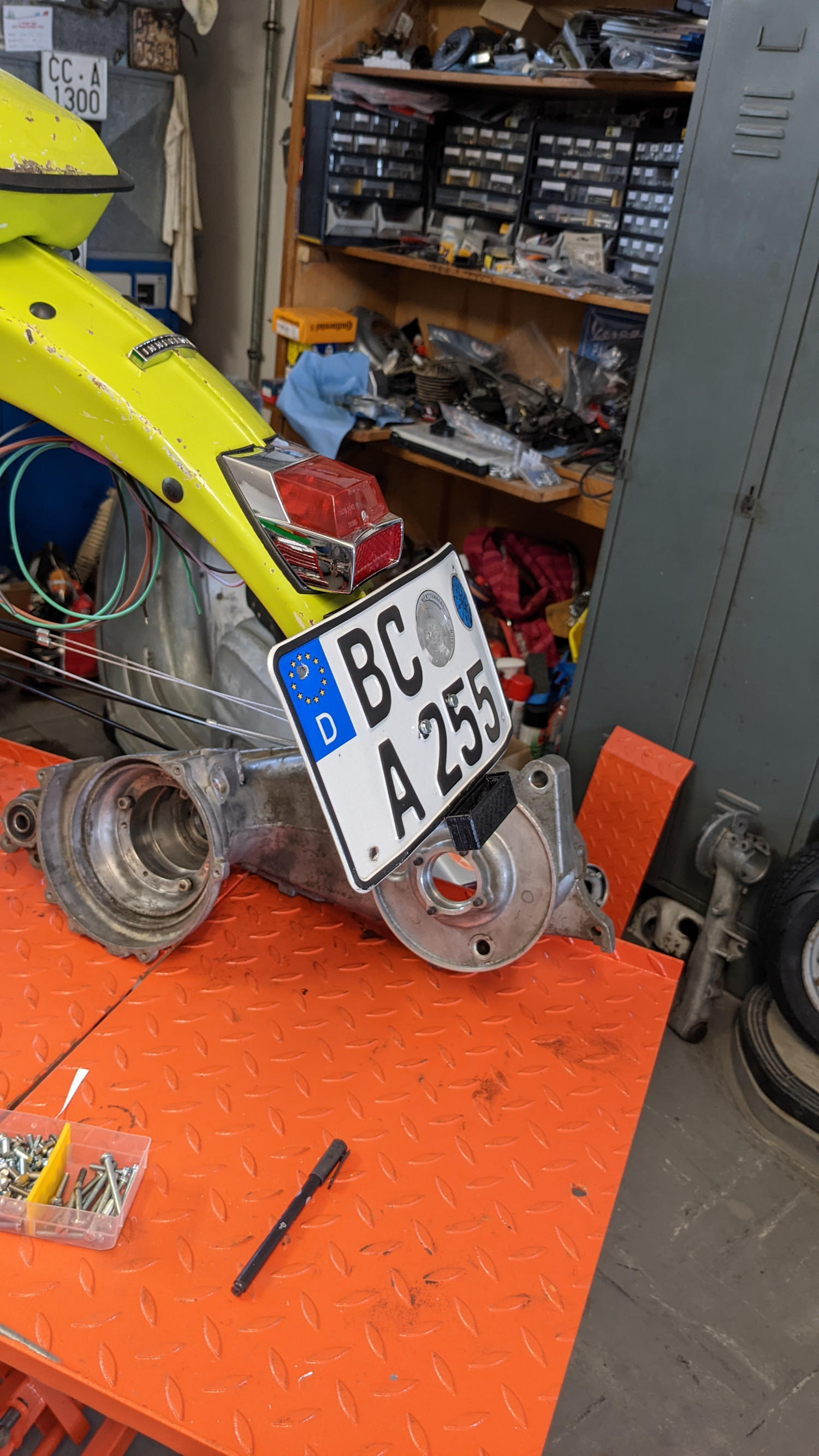
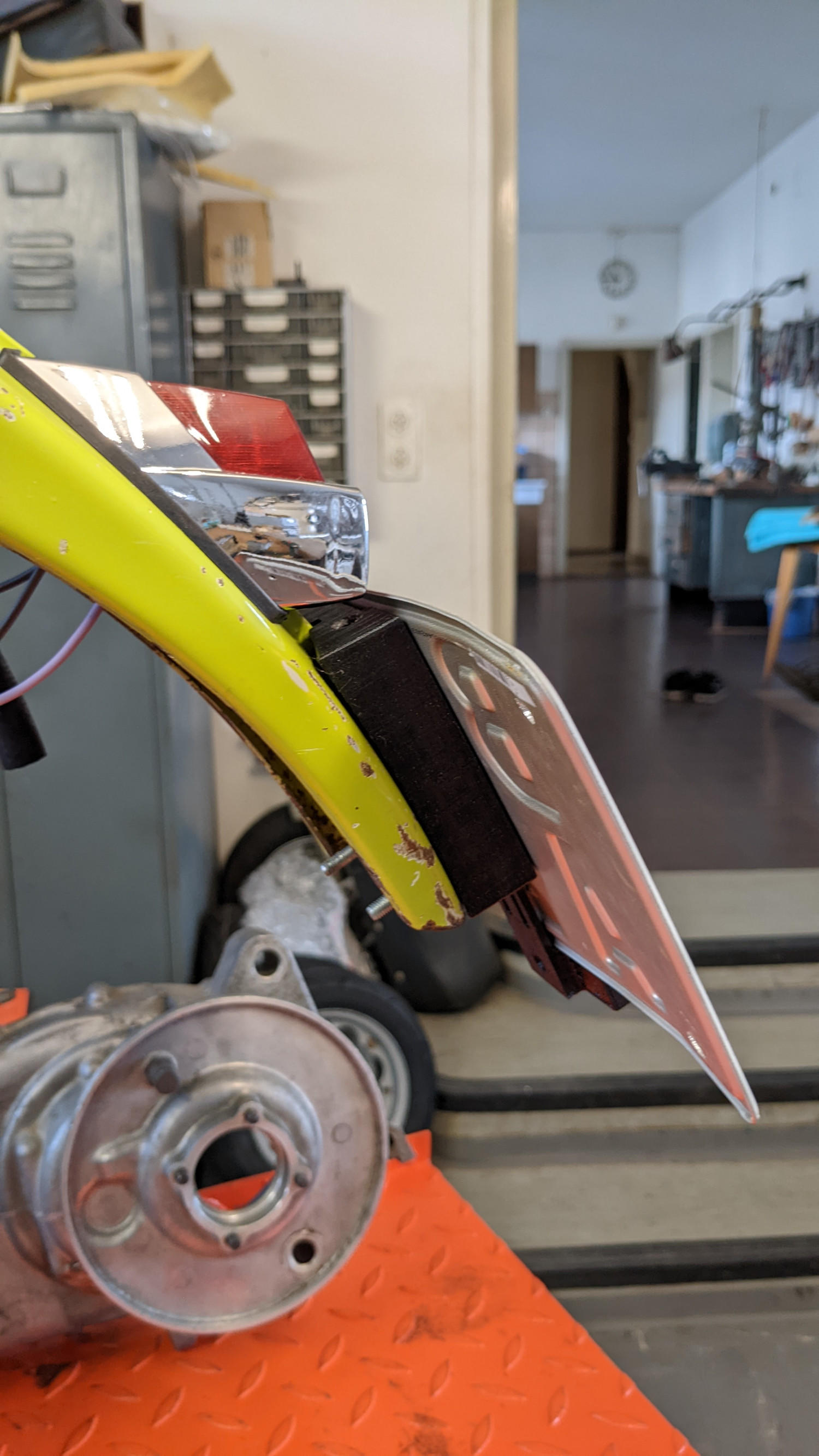
17 PunkteNa gut, einen kleinen Teaser am heiligen Sonntag gibt es. Und nein die Halterung ist nicht wie sie nachher in der Serie sein soll und in weiser Voraussicht: ich nehme noch keine Vorbestellungen entgegen, kann keinen genauen Preis nennen, kann noch keinen genauen Liefertermin nennen usw. ...das übliche GSF Spielchen halt
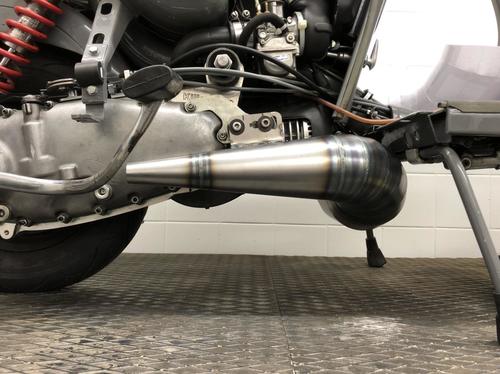
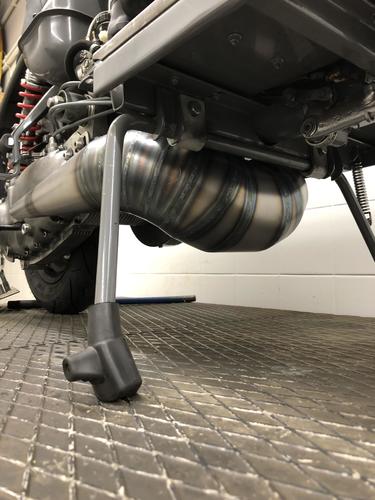 17 Punkte
 -
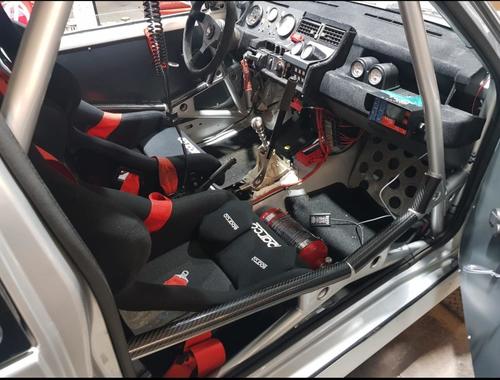
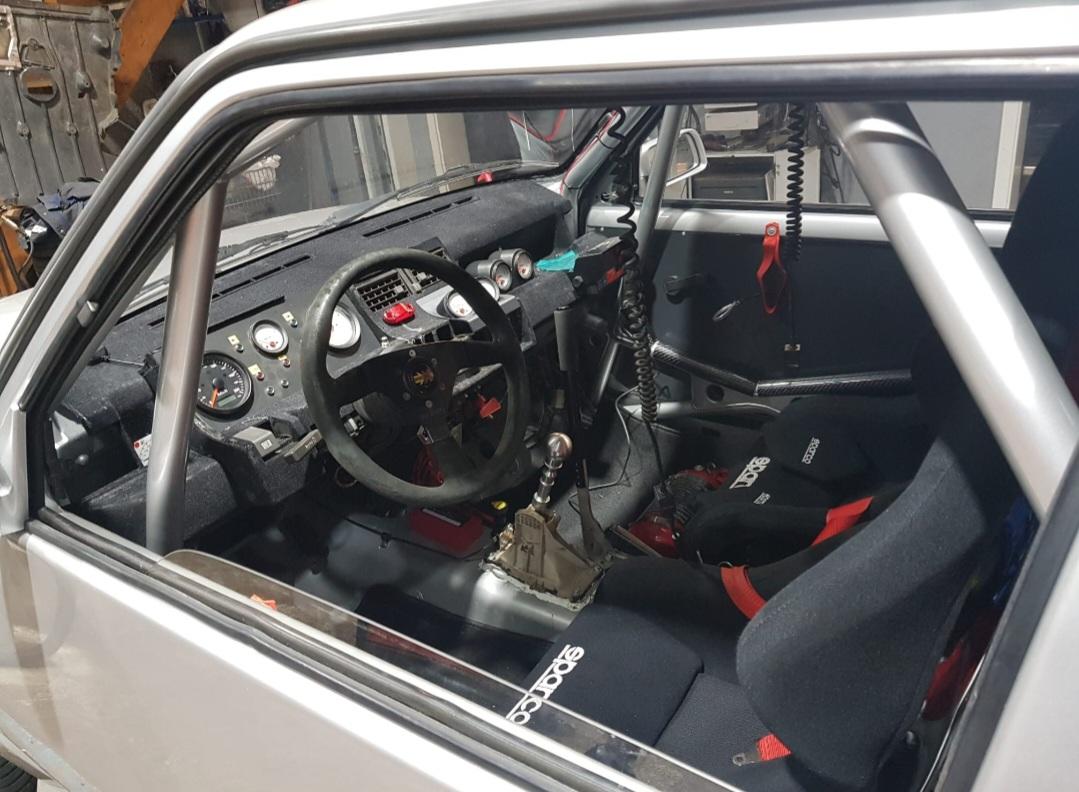
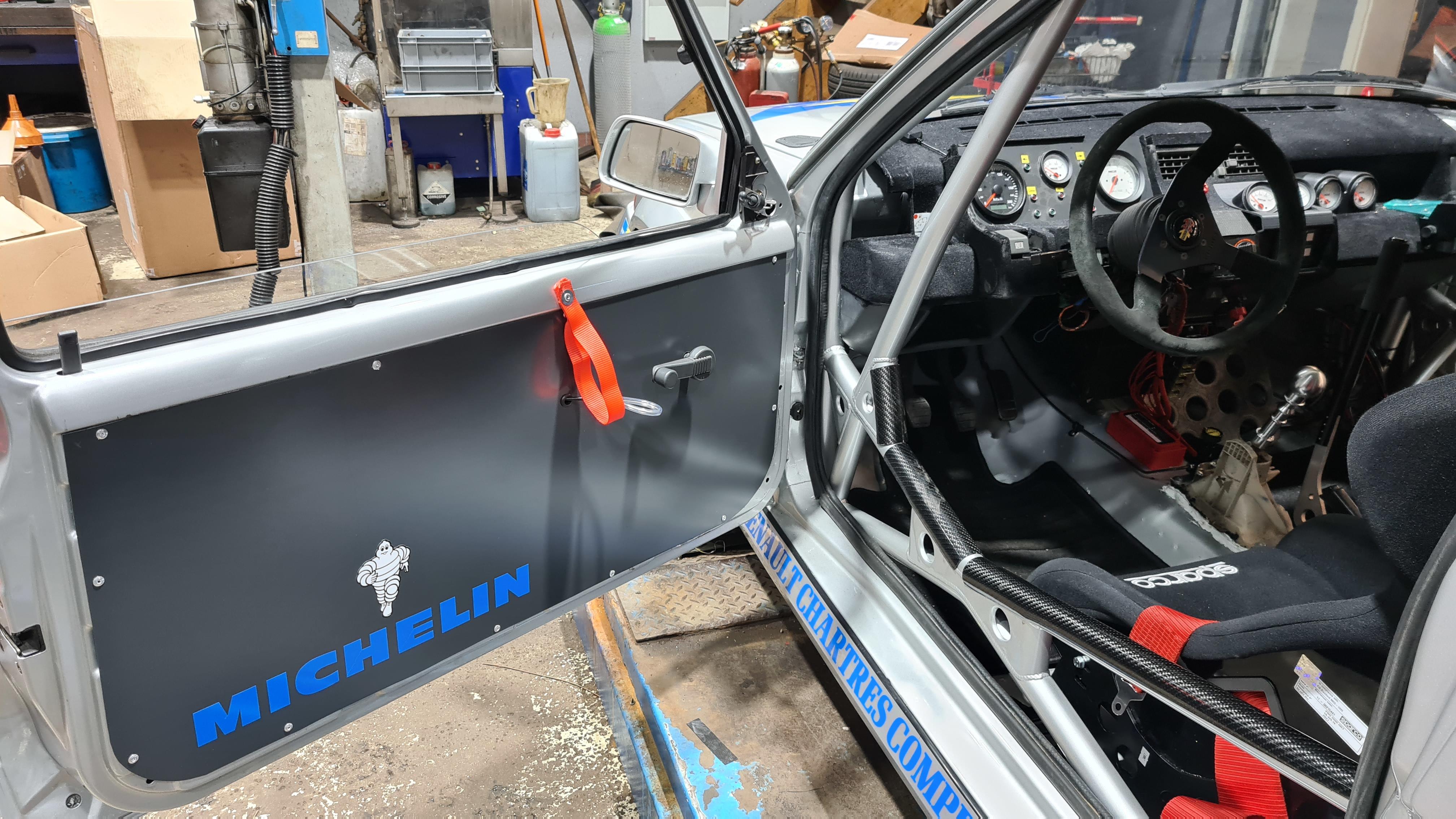
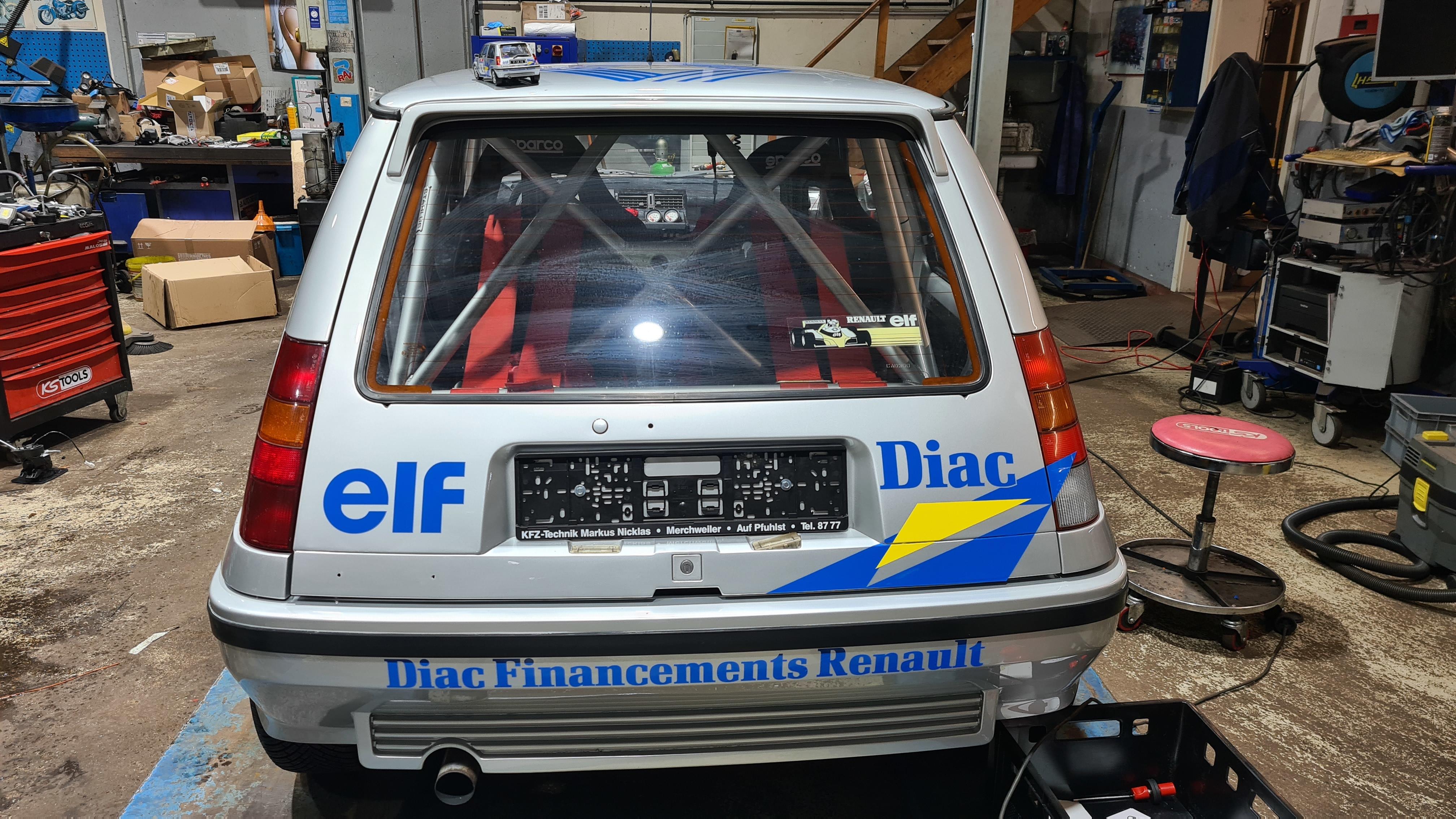
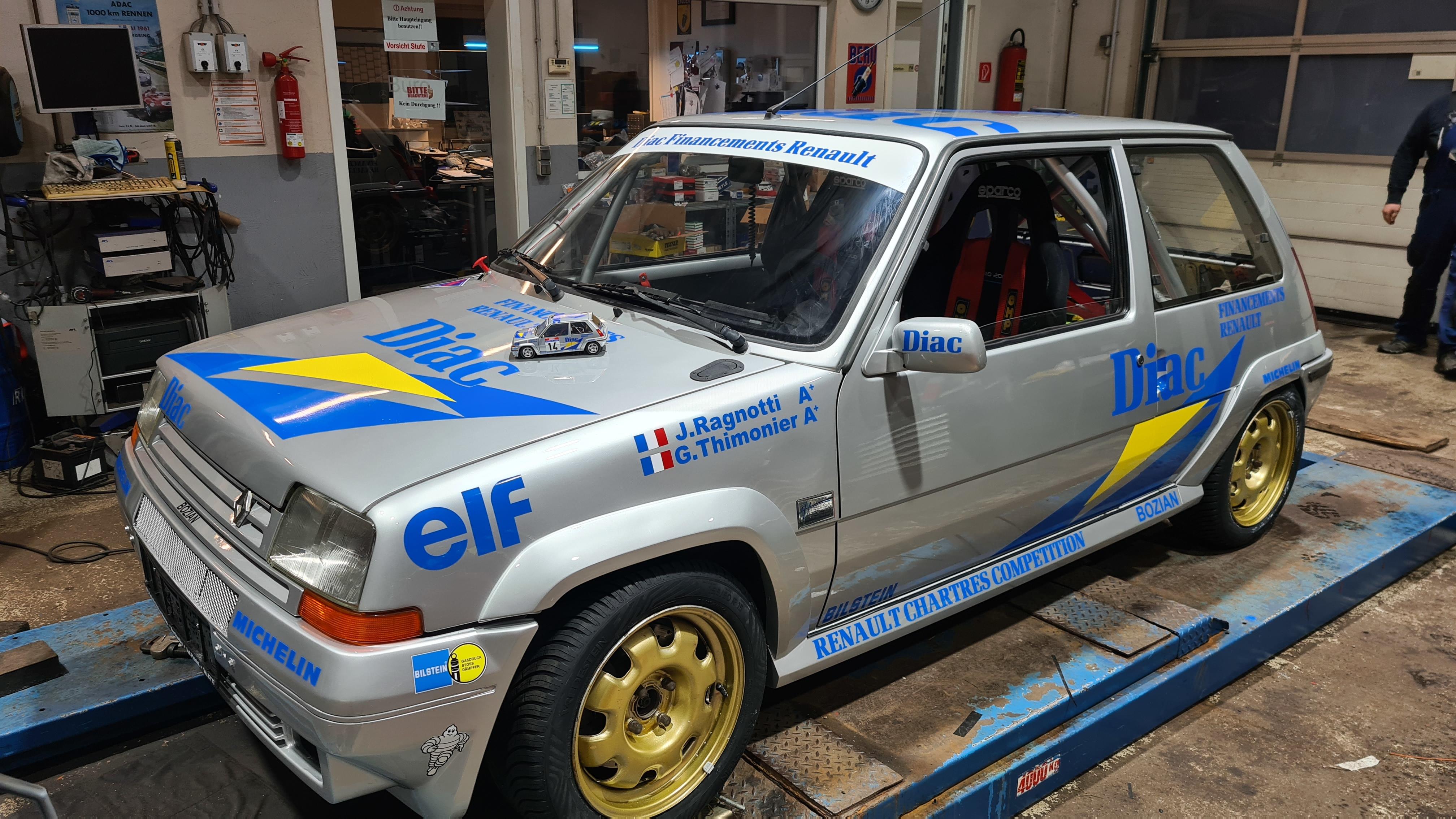
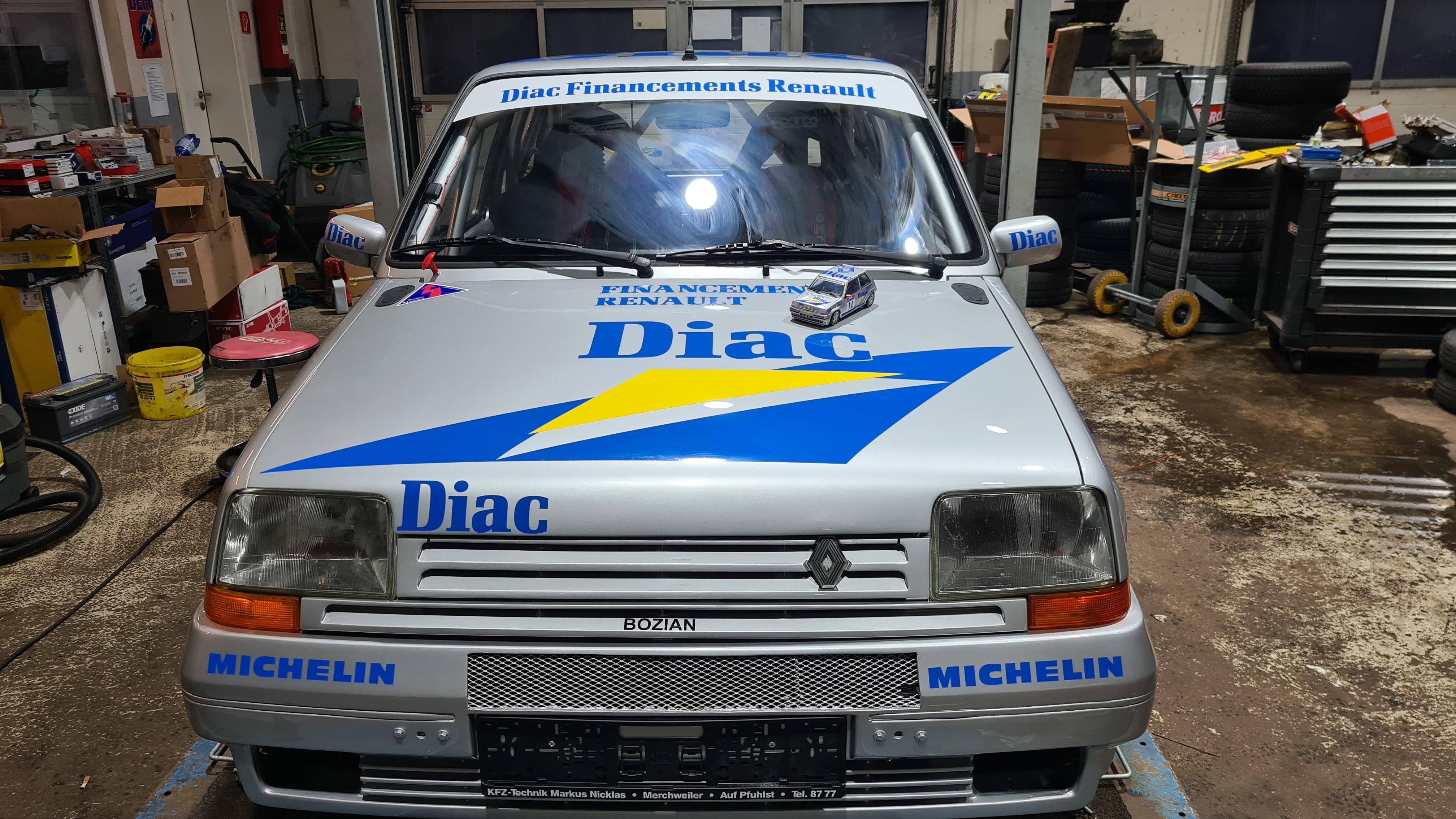
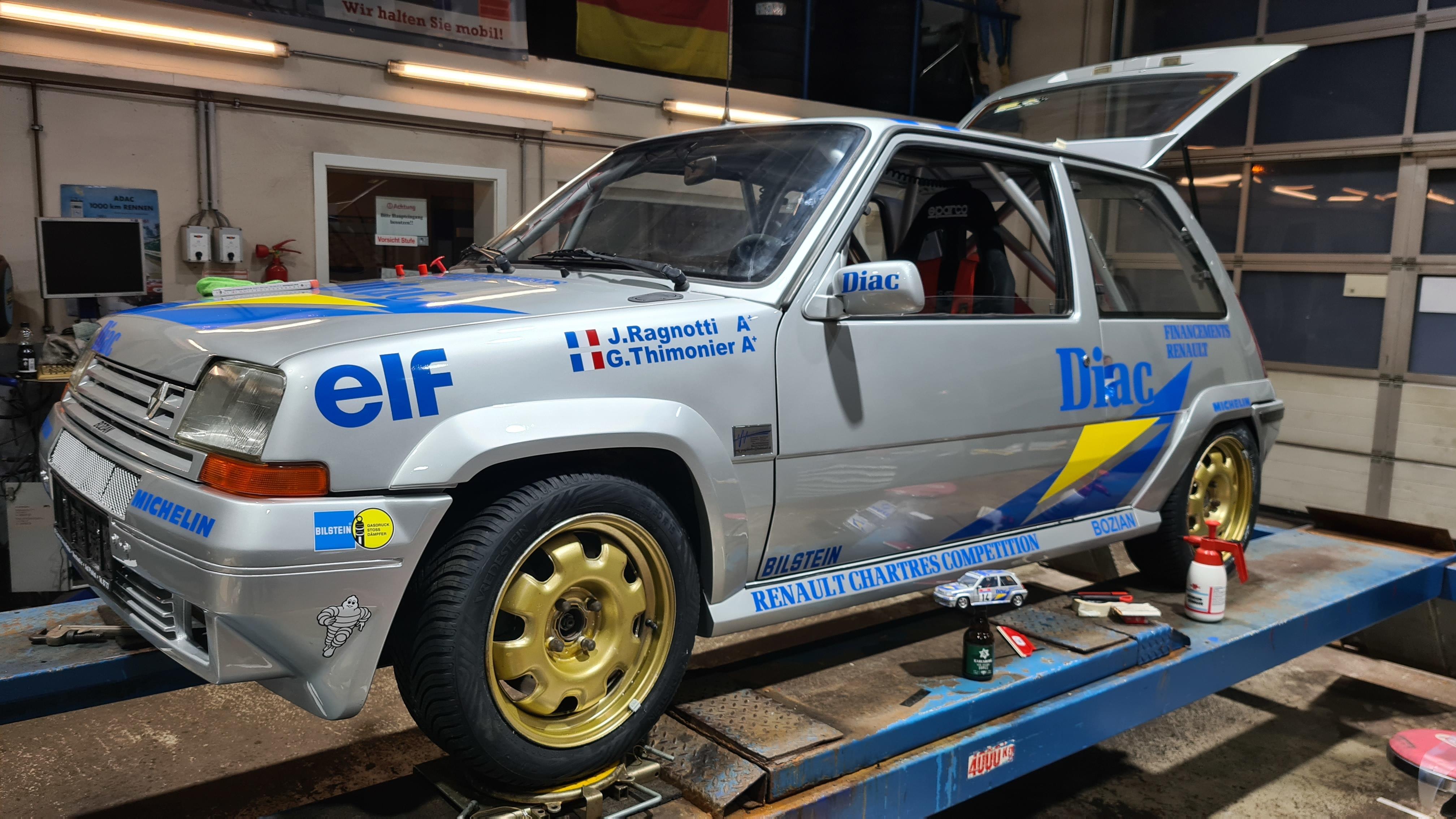
10 PunkteDie woche noch beschriften, paar testfahrten und am 26-27.02. Rally Oschersleben
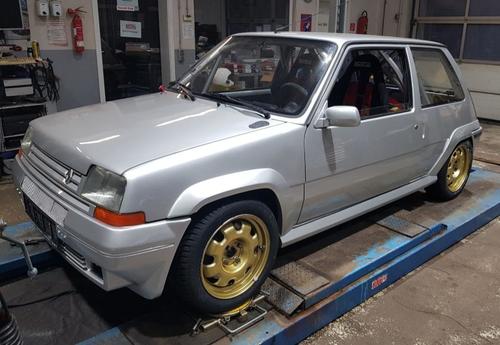

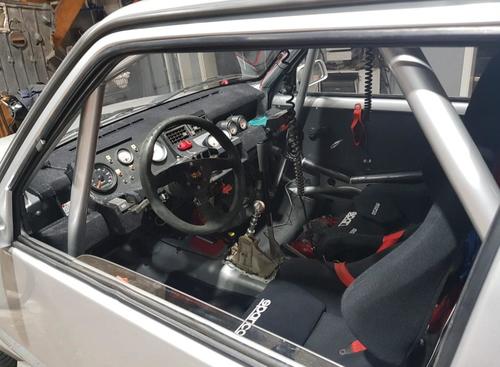
 10 Punkte
 -
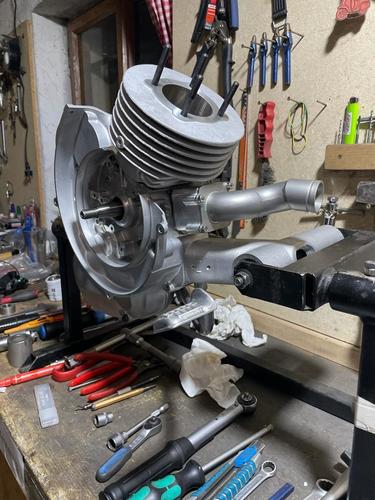
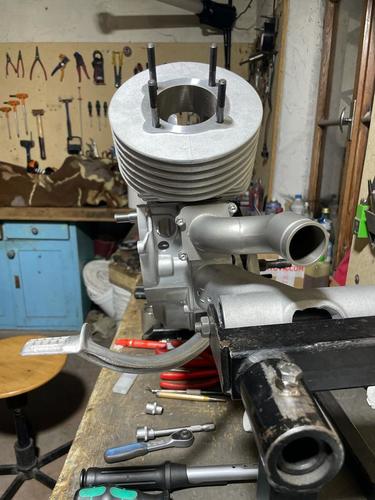
9 PunkteHeute mal den neuen Ansauger auf M1 B 60 Gtr montiert, mit 30er stutzen , und die grössere Am6 membrane. Den motor wird ein phbl 30 dann füttern. Binn gespannt was der stutzen kann in verhältis zu den grossen. Luk
 9 Punkte
 -
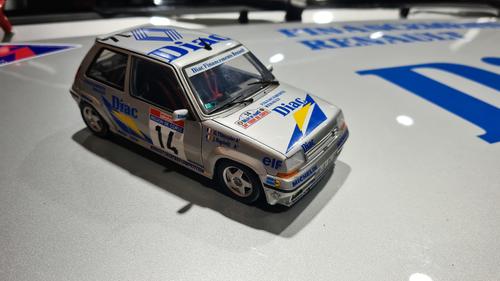
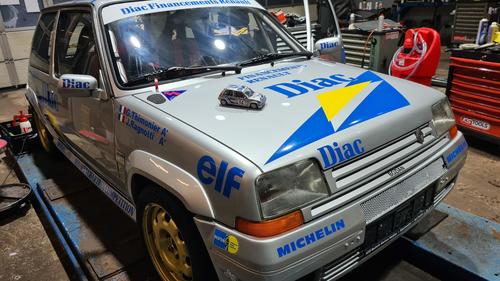
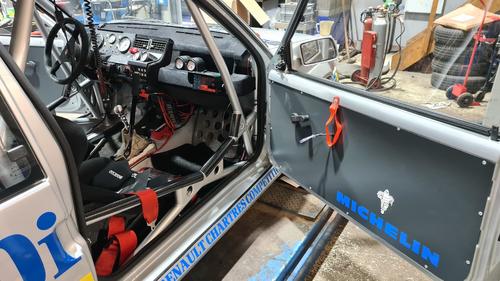
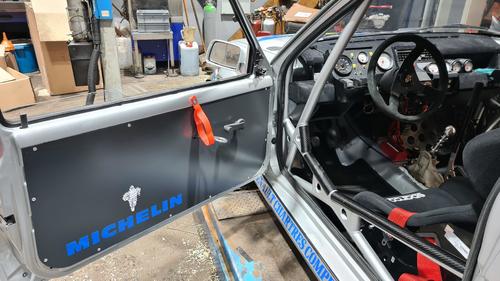
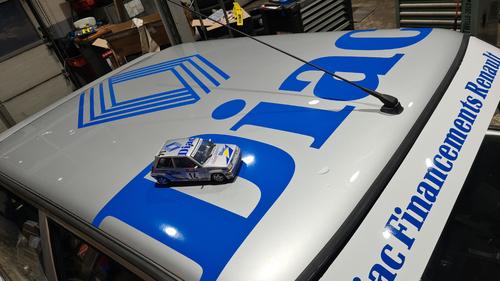
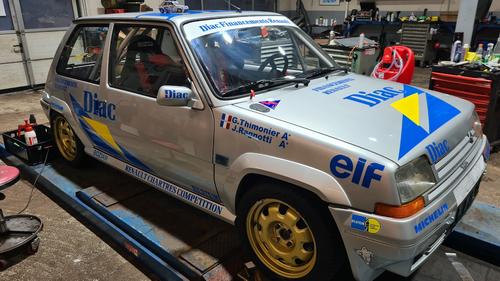
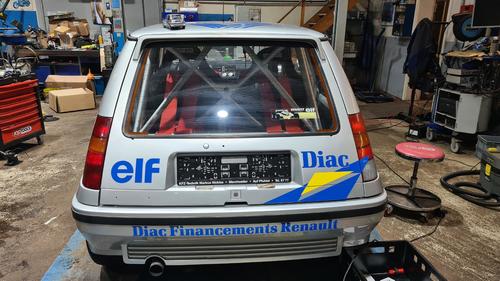
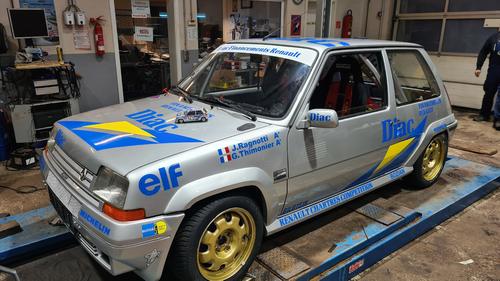
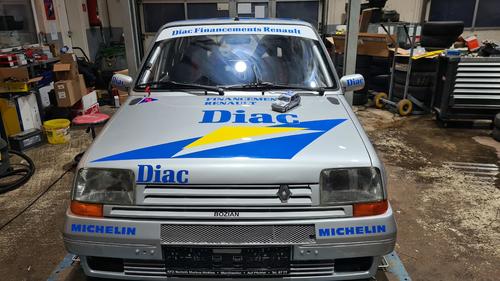
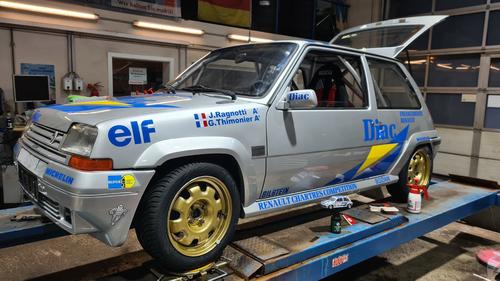
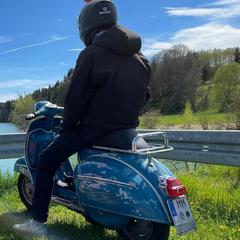
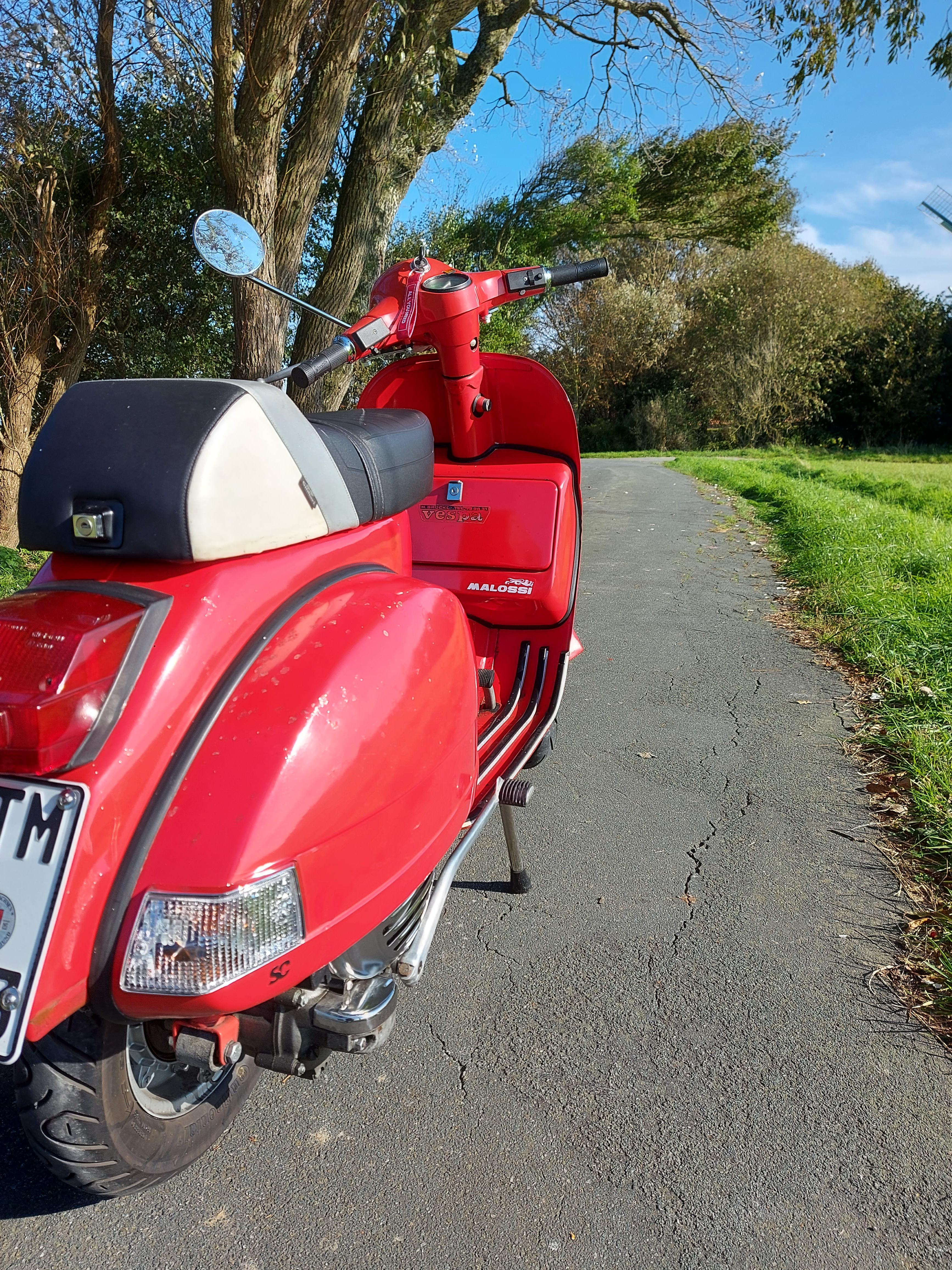
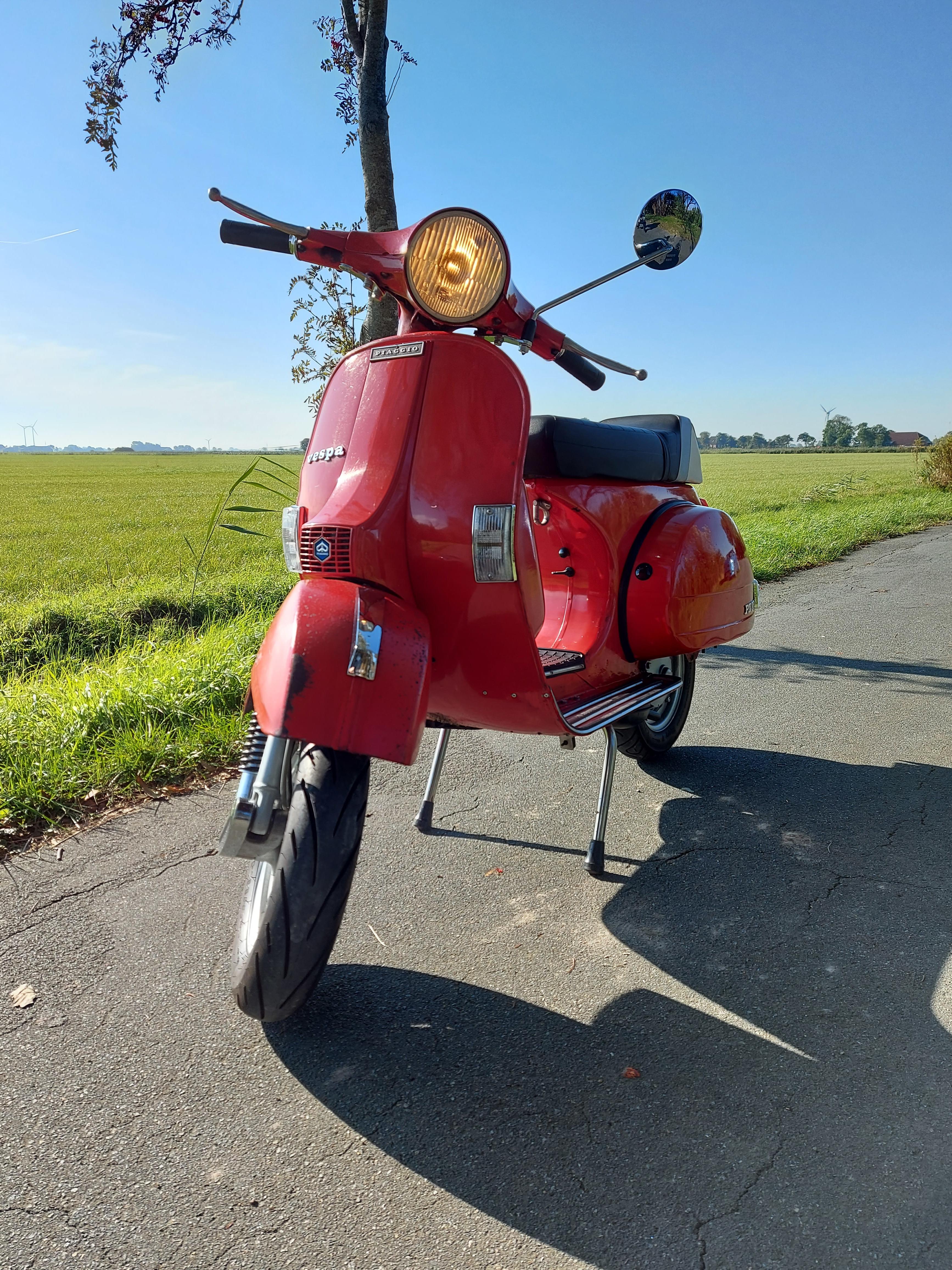
6 PunkteHab ihn heute noch beklebt, kommt ans Original schon gut drann
 6 Punkte
 -
5 Punkte@Herr Gawasi Die Hauptverlegung, also ohne Krümmer, steht so gut wie. Hier und da noch ein paar Winkel anpassen. Im Januar wollte ich mich eigentlich um die Krümmerverlegung kümmern aber Dienstreisen und Baustellen am Haus haben mich nicht in die Werkstatt gelassen. Das gehe ich jetzt im Februar an Ich mach mal ein paar Bilder wenn ich den Bellyteil fertig habe für die Schweißlehre. Platztechnisch bin ich aber schonmal sehr zufrieden5 Punkte
-
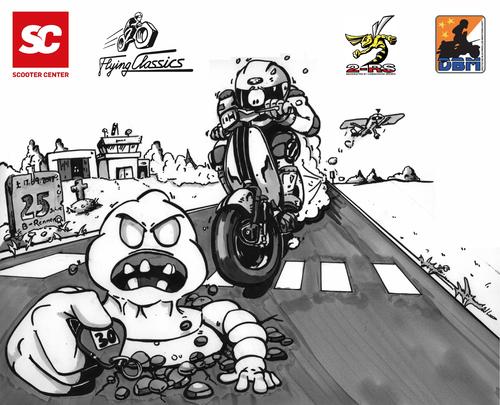
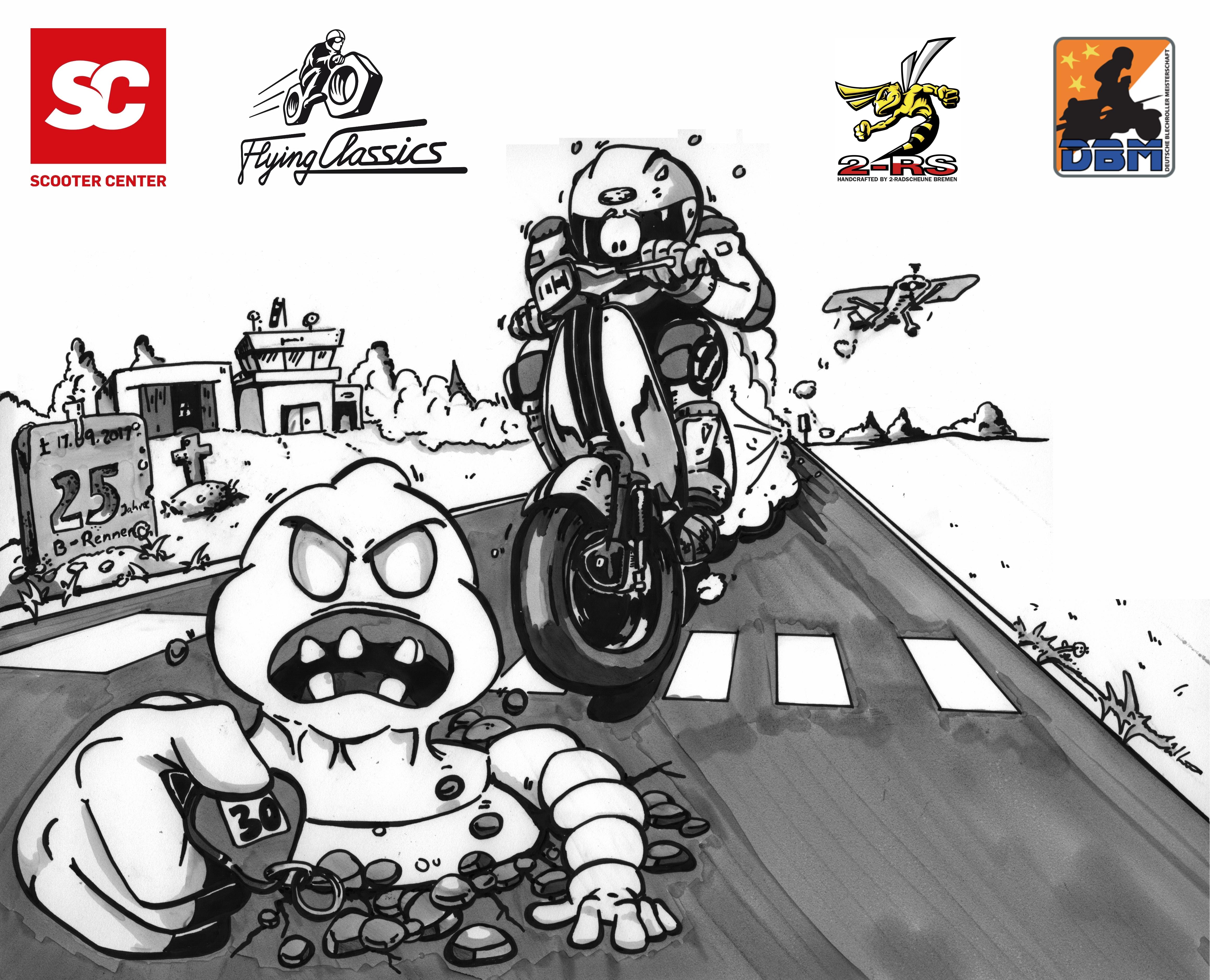
Die Minusschrauber werden 30 und das muss gefeiert werden! Wir haben keine Kosten und Mühen gescheut und haben wieder einen Flugplatz für das Beschleunigungsrennen angemietet. Das Rennen findet am 1. Oktober 2022 auf dem Flugplatz Karlshöfen (27442 Gnarrenburg) statt. Zeltplatz und Nighter sind in ca. 5km Entfernung in der Nordsoder Str. 13 (Worpswede-Ostersode, auf dem Sportplatz bei der Feuerwehr). Anreise ab 30. September 2022 möglich. Auf dem Zeltplatz gibt es diesmal Duschen und feste Toiletten. Das Beschleunigungsrennen wird voraussichtlich auf 200m Distanz gefahren. Alle weiteren Details werden rechtzeitig vorher bekanntgegeben, wenn wir die epidemische Lage einschätzen können und die geltenden Vorschriften zu dem Datum kennen.
 4 Punkte
 -
CNC Kupplung Stingworks Sei Giorni GP 6 Scheiben Kupplung für LF - war das schon mal? Kennt die jemand? auf Facebook gesehen und auf "moto-components.jimdosite.com" gefunden3 Punkte
-
3 PunkteDurch das andere Topic wurde es doch erst unübersichtlich. Es geht doch um den Zylinder und mit anderem Hub, Auspuff, ... ergeben sich andere Varianten / Konzepte. Wenn es dafür dann jeweils ein eigenes Topic gibt, wird das nicht einfacher zu lesen / zu suchen.3 Punkte
-
3 PunkteNeben Gesundheitssystem gehört auch die Post wieder in öffentliche Hände, die Halb-AG Bahn wieder nach den Bedürfnissen der Bevölkerung ausgerichtet, dh. entprivatisiert etc., Wasserversorgung und Schwimmbäder in kommunale Hand. Impfstoffe müssen patentfrei werden. Privatisierung sucks.3 Punkte
-
Das Problem ist der Mißbrauch der Käuferschutzfunktion in betrügerischer Absicht - also trotz erfolgten Versands von Waren im ehrlich beschriebenen/bebilderten Zustand meldet der Käufer ein Problem bei PayPal, von wo dann sehr häufig ohne weitere Prüfung des Sachverhalts der Kaufpreis an den Käufer zurückerstattet und beim Verkäufer vom Konto abgebucht wird. Im Ergebnis ist dann die verschickte Ware und das Geld weg. Als unschuldiger Verkäufer kann man dann versuchen, bei Paypal seinem Geld hinterherzulaufen. Besonders interessant wird es, wenn der betrügerische Käufer im Ausland sitzt.3 Punkte
-
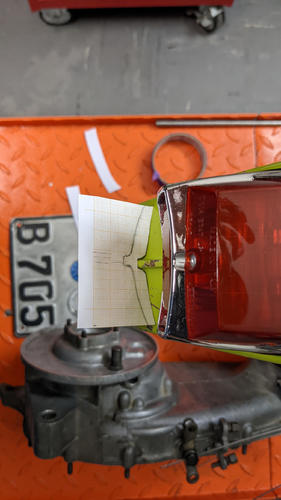
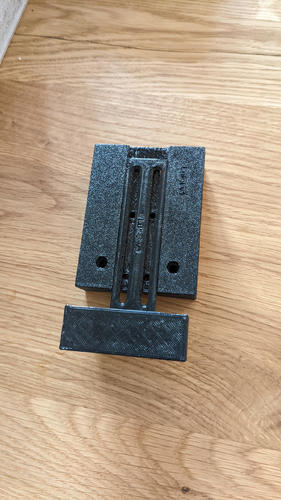
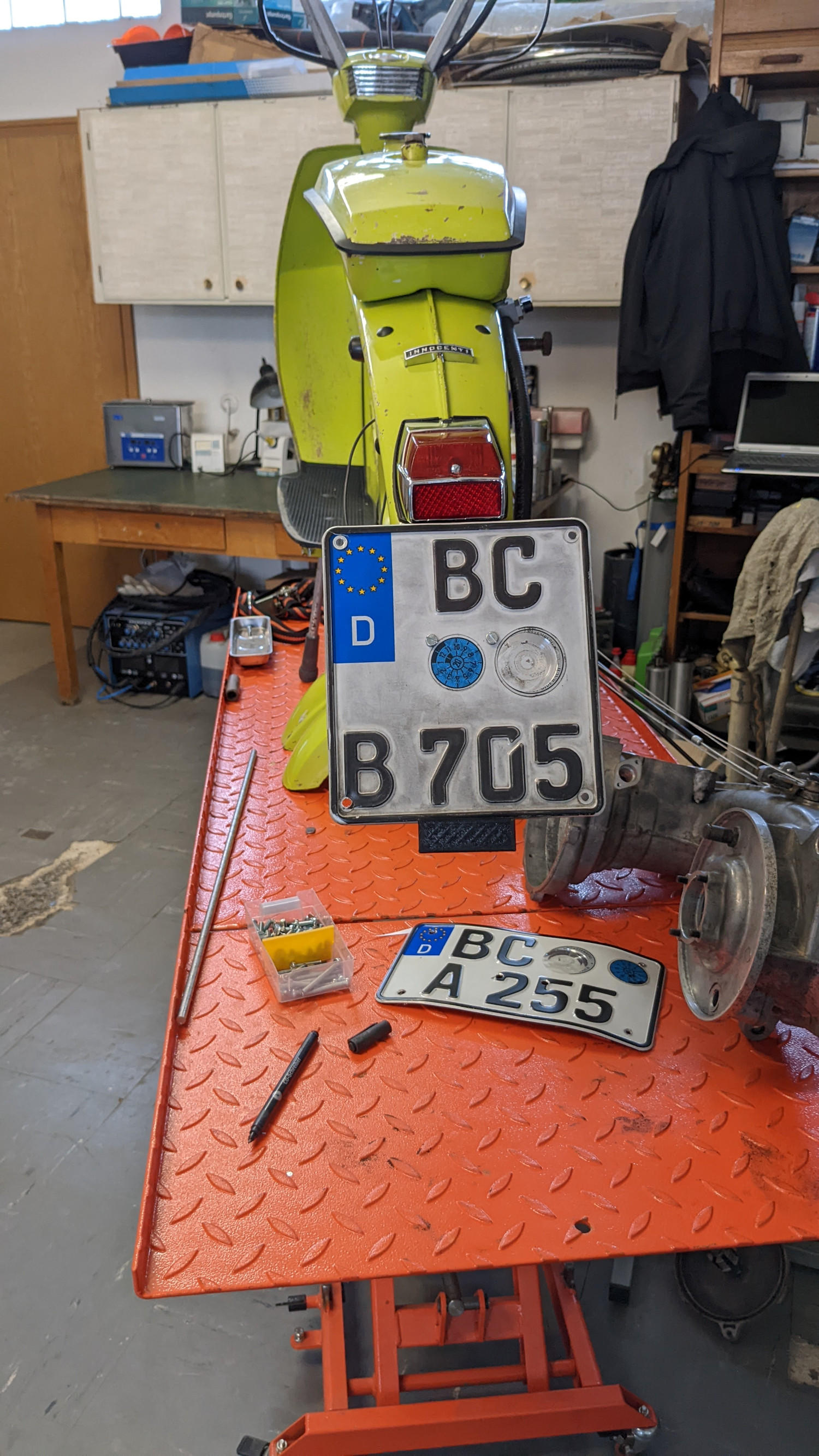
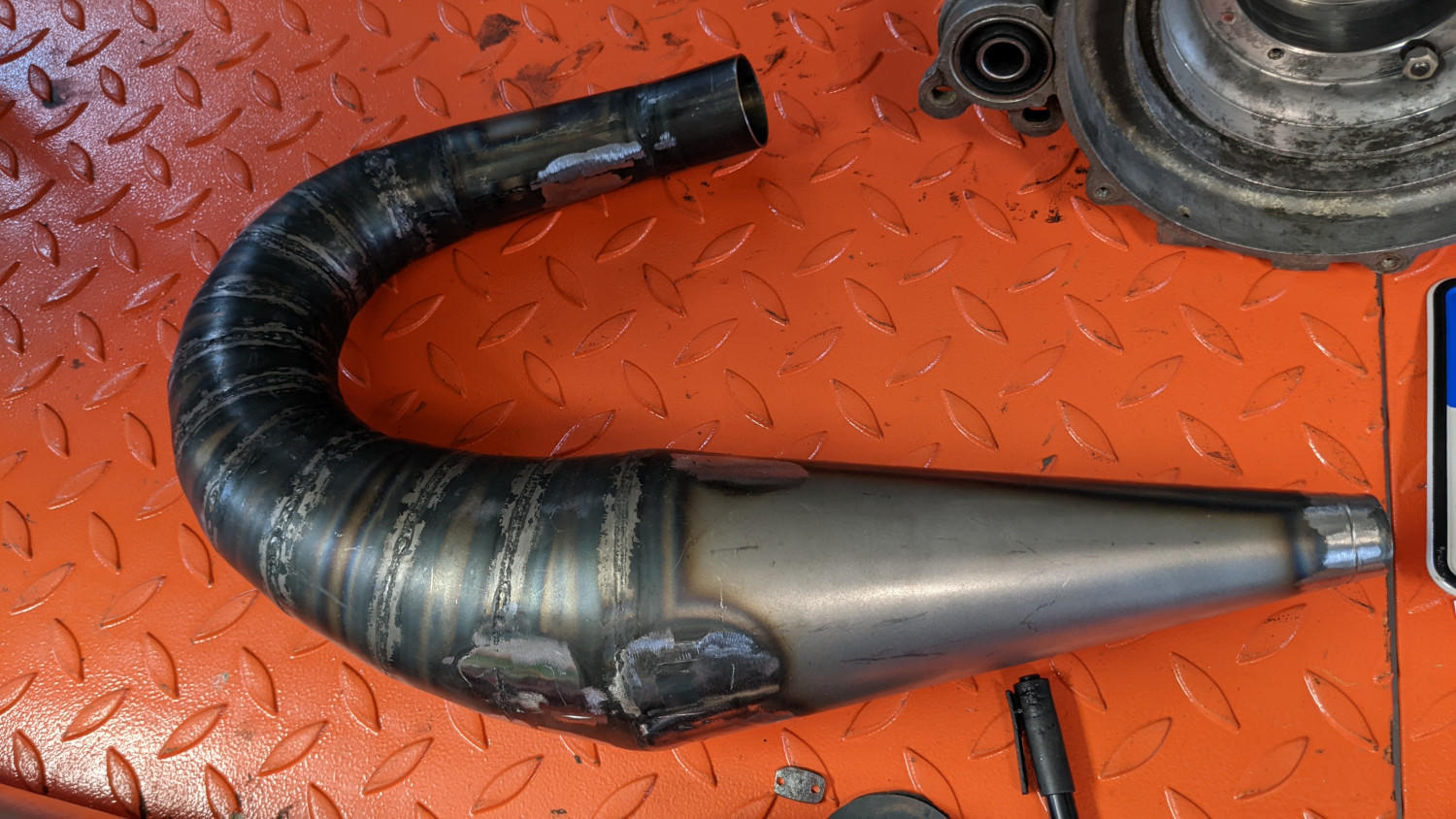
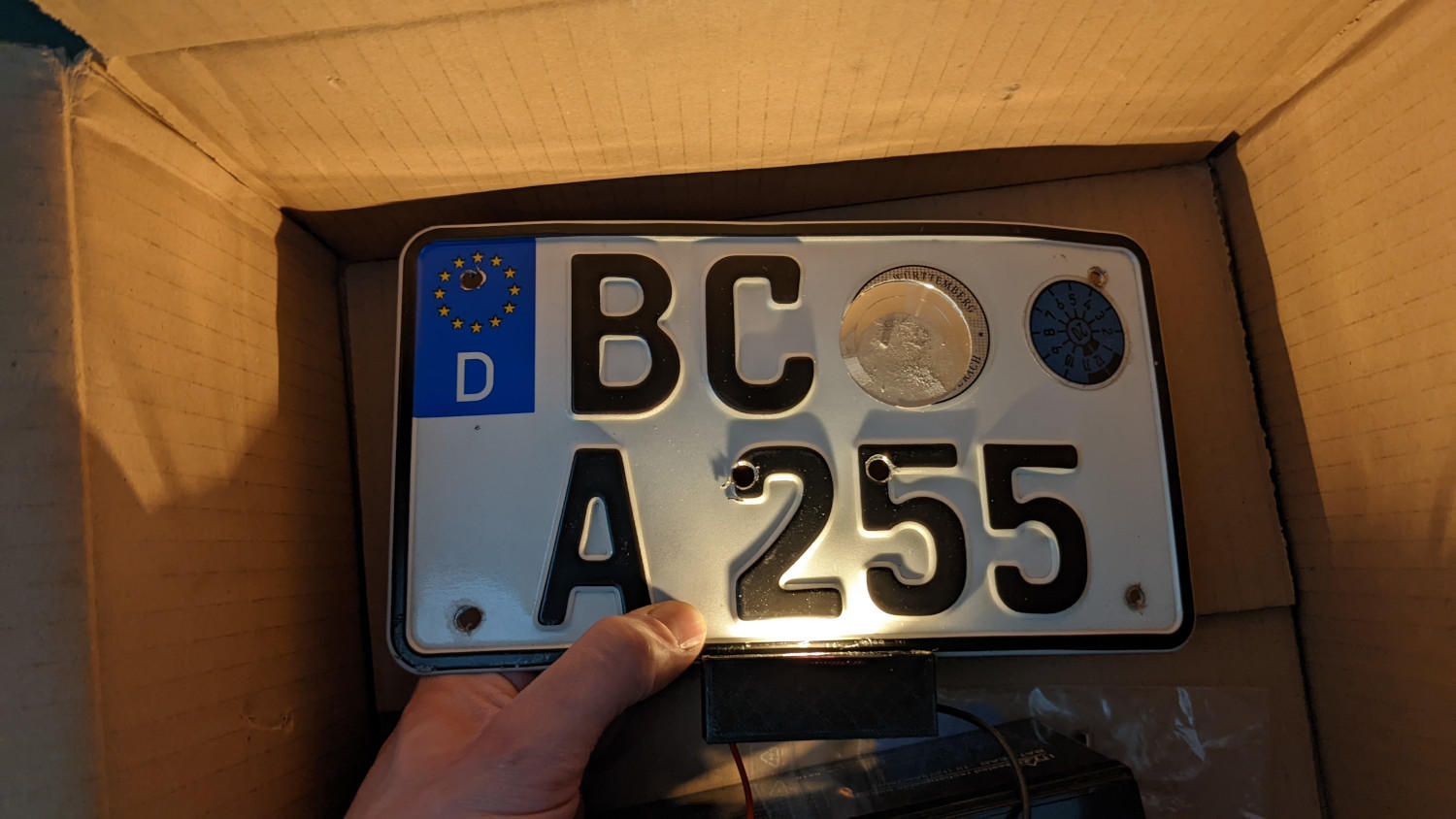
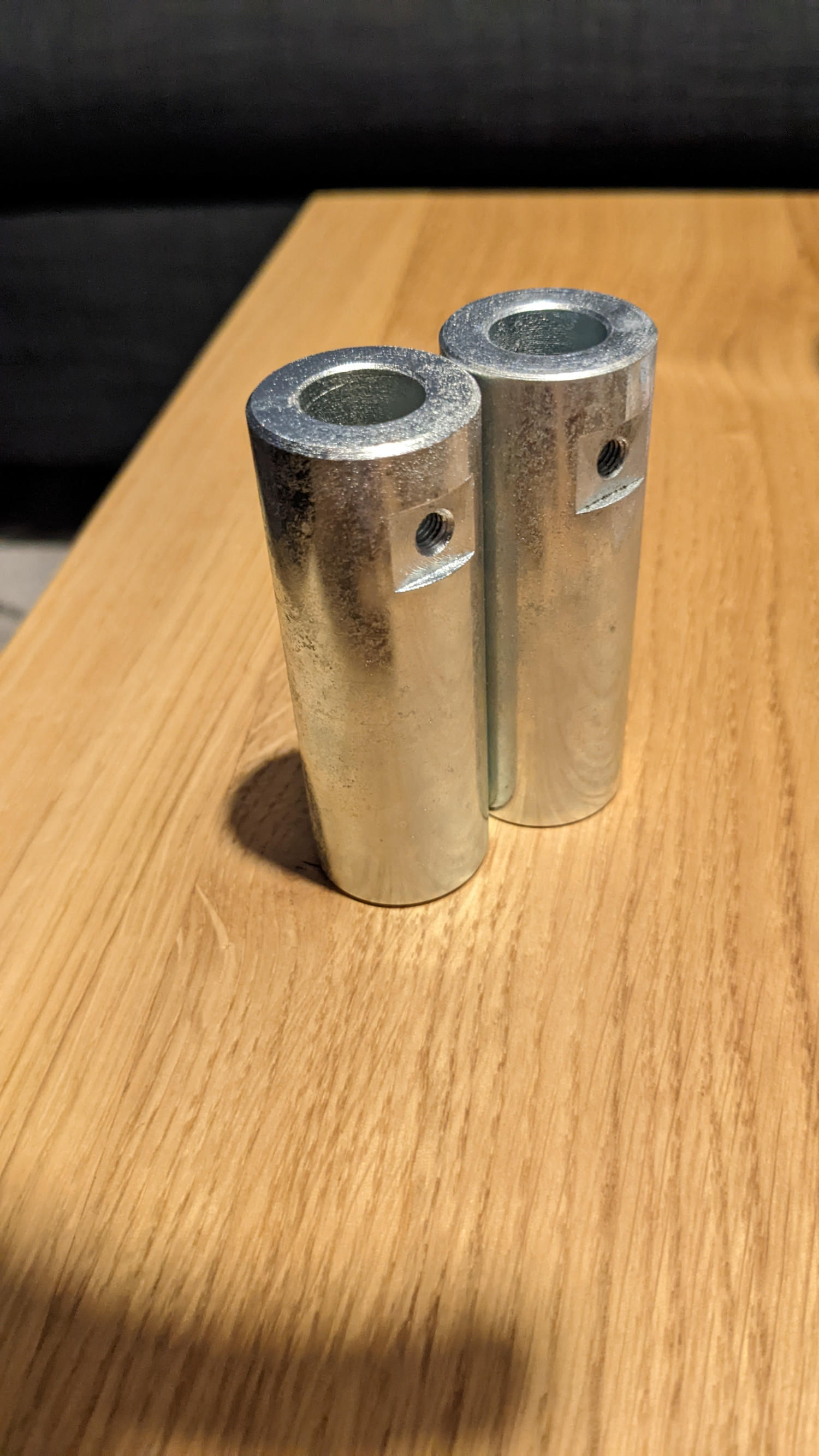
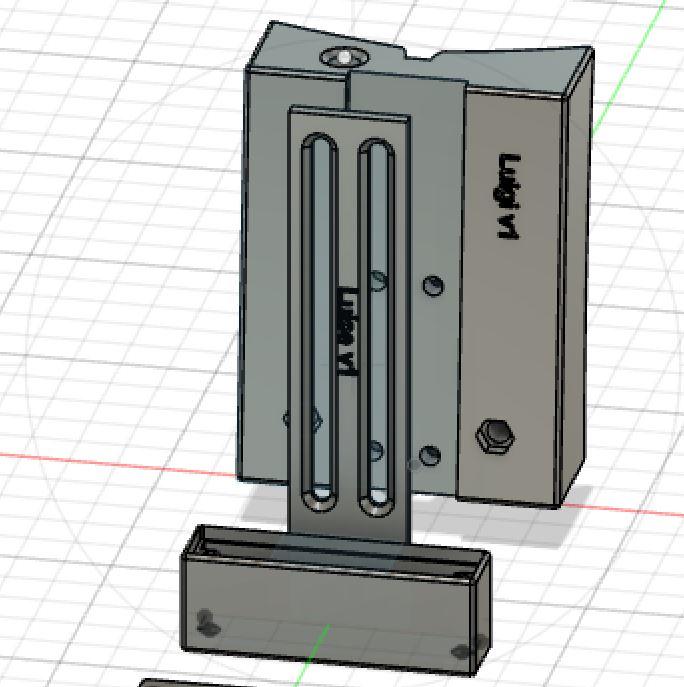
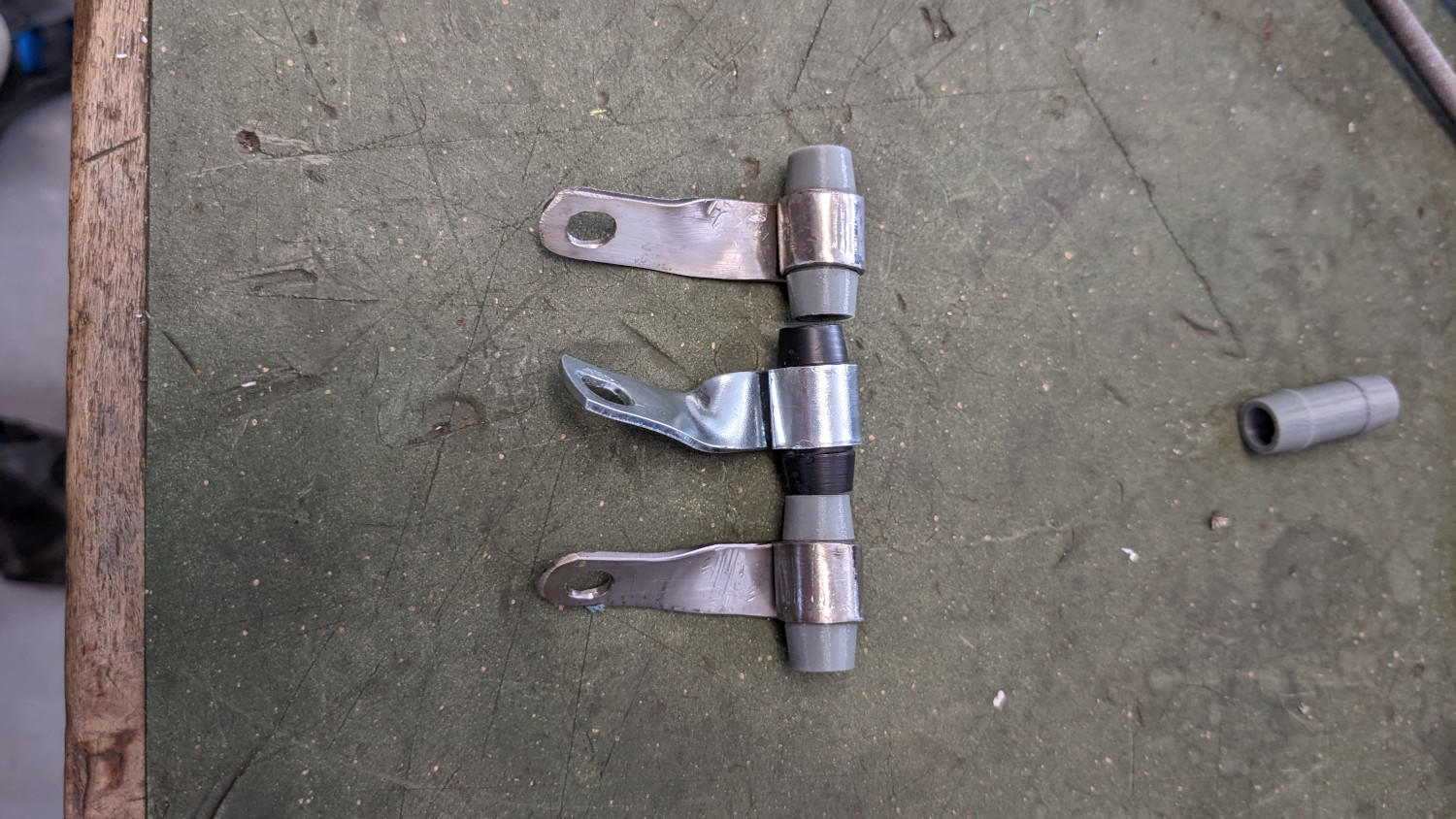
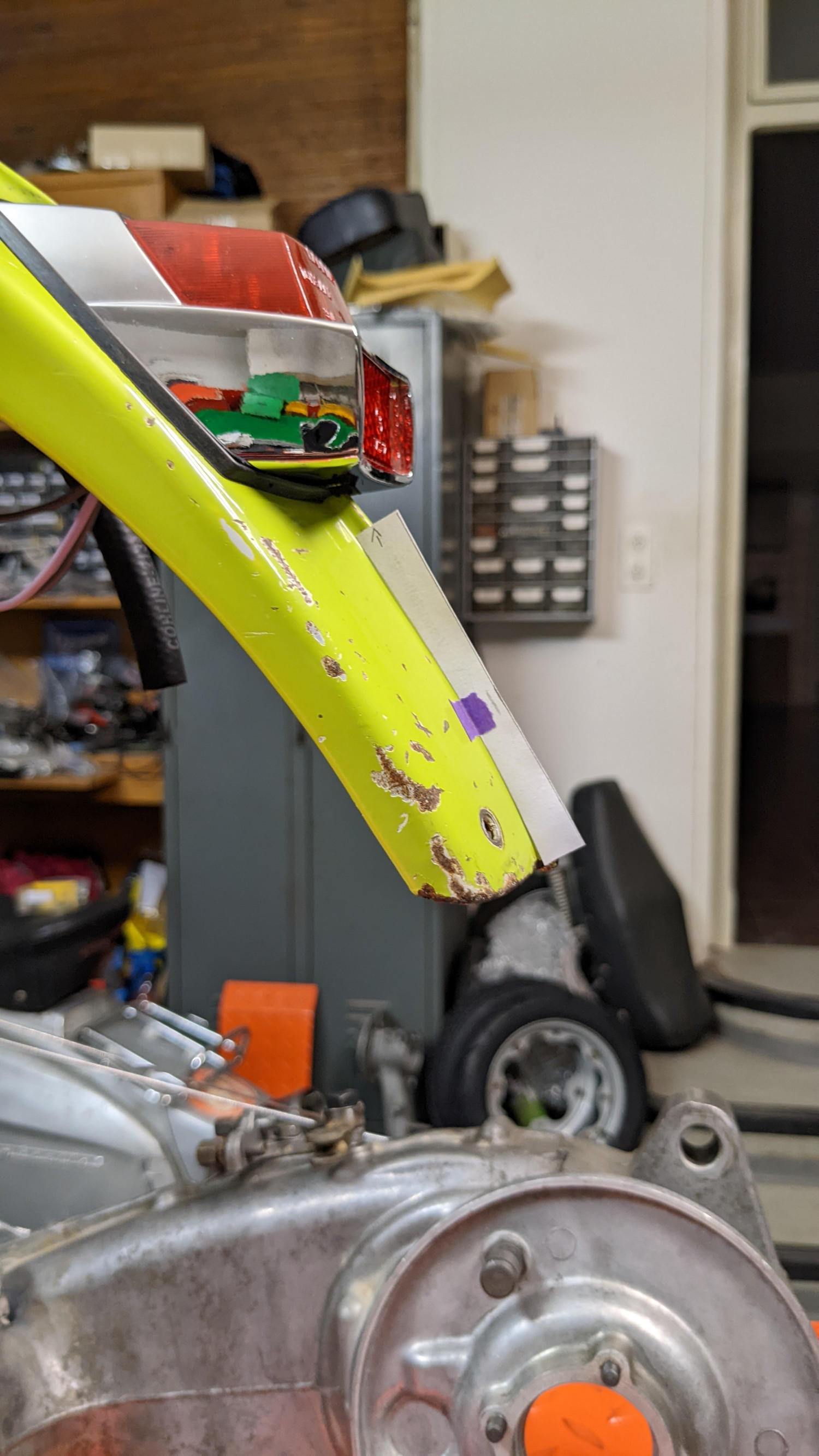
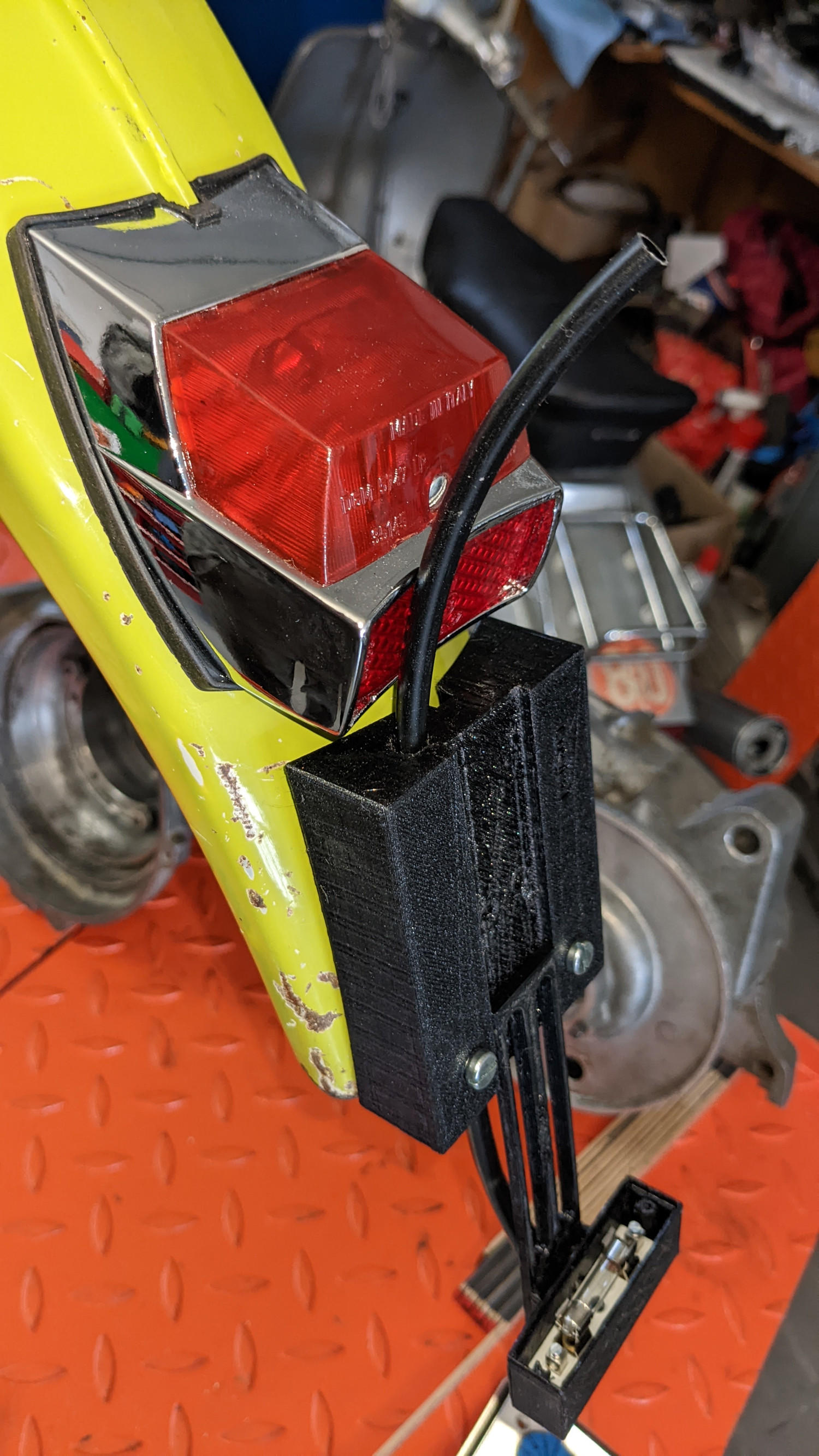
2 PunkteAlso hier das Update: 1. sind die verstärkten Distanzbuchsen der Motortraversen vom Verzinken zurück: 2. hab ich mir einen 3D-Drucker zugelegt und bin dran mich einzuarbeiten Da die Halterung für die Tachowelle noch nicht lieferbar war (und ich erwartet hab, dass das noch dauert) dachte ich mir - prima Testobjekt. Also letztes Wochenende gezeichnet und gedruckt, dann noch die entsprechenden Bleche zurechtgeschnitzt, gebogen und angepasst: Fertig verbaut erfüllt das dann einwandfrei seinen Zweck Selbstverständlich ist der Halter seit diesen Freitag bei Jockey lieferbar und ich hätte es mir sparen können... 3. war noch ein letztes Thema (außer Motoren) offen - die Kennzeichen. Da beide Luis mindestens ein 125er-Taferl bekommen gibt's meines Wissens nix von der Stange. Wieder ein Fall für den Plastikdrucker Die Form vom Heck war für mich eine Herausforderung, ging aber am Ende ganz gut: - Formen abgenommen: - Eingescannt und ein Modell hingefummelt: - Noch eine verstellbare Kennzeichenbeleuchtung mit hingebastelt: - Grob testgedruckt: Bin eigentlich ziemlich happy mit dem Halter - die Form passt, zumindest an @vnb1ts Heck (da wurde die Form abgenommen) perfekt, für meine muss noch bissi angepasst werden. Passt auch mit großem Kennzeichen (dafür müsste aber die Schiene der Beleuchtung noch verlängert werden): Ein paar kleinere weitere Anpassungen an den Maßen sind noch nötig (Löcher, Senkungen für Muttern, etc.). Die Kennzeichenbeleuchtung braucht auch noch ein bisschen Liebe, aber das wird schon Glas/Lichtscheibe fehlt z.B noch. Kabel wird durch einen Schacht im Halter durchgeführt und soll unten in die Rückleuchte rein. Leuchten tut sie zumindest mal in der Testversion: Einfacher wäre natürlich eine dieser kleinen LED-Leuchten, aber das wäre die letzte Option, ich will's ohne LED 4. hab ich den Egig-Puff nackig gemacht - nächster Schritt wird dann das Ding aus Papier/Karton nachzubauen um dann die Anpassung an den Motor/Rahmen testen zu können. Direkt am Blech würde ich mir das nicht zutrauen...
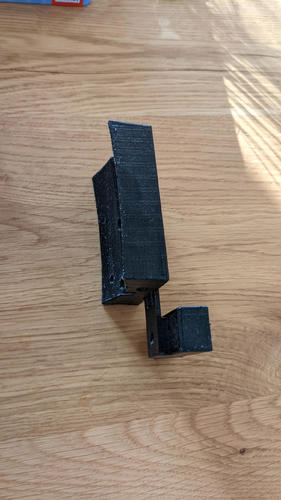
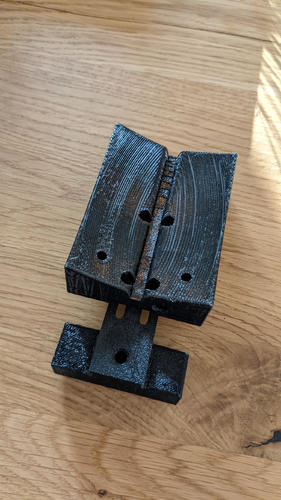
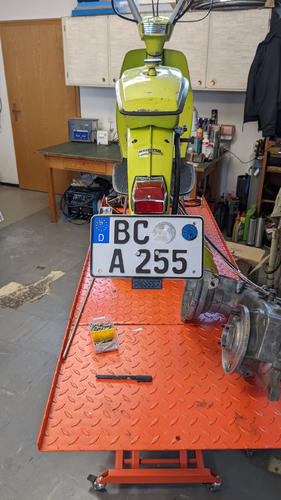
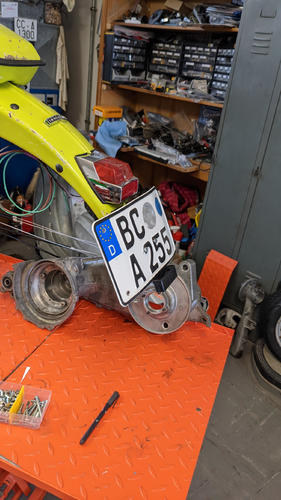
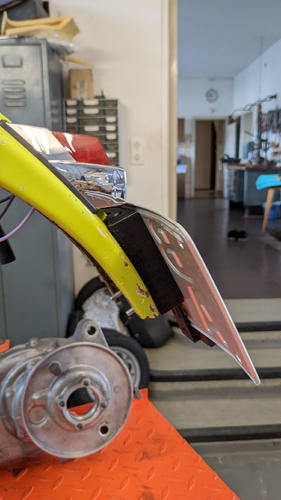
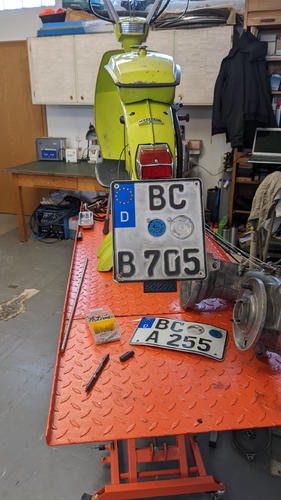
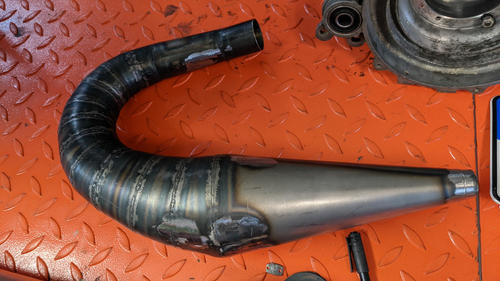
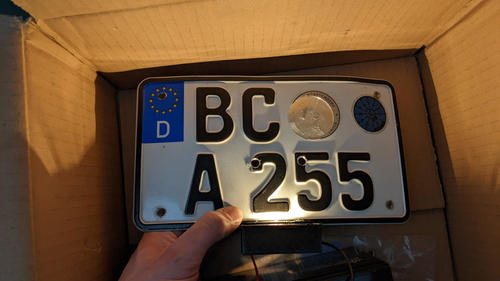
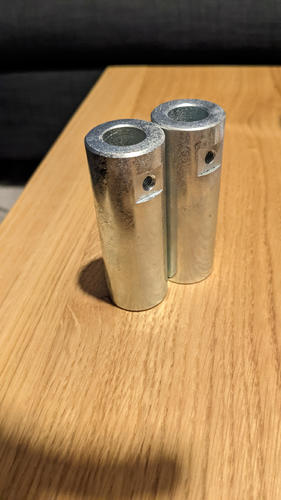
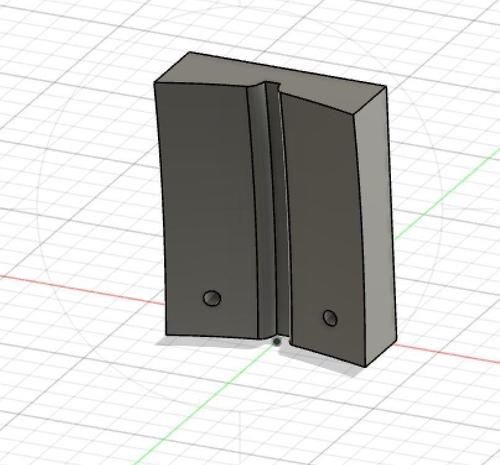
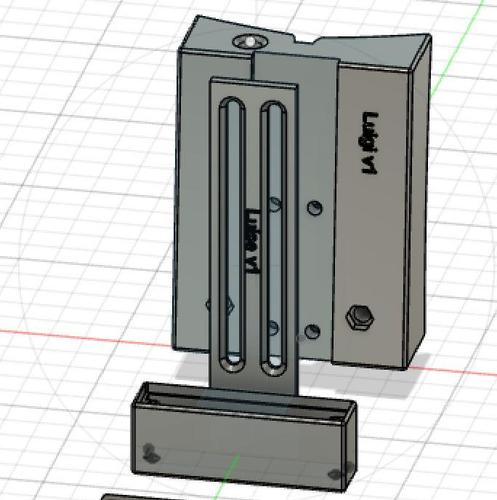
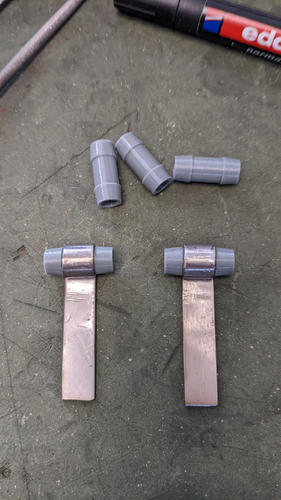
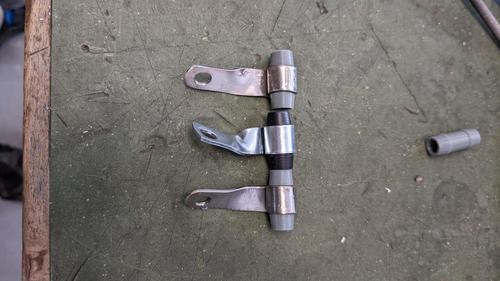
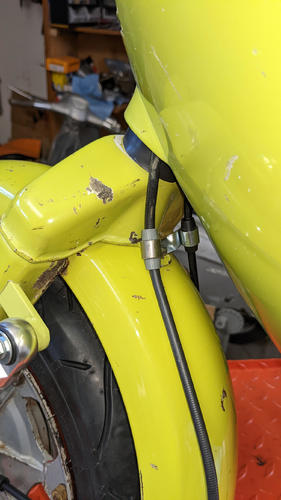
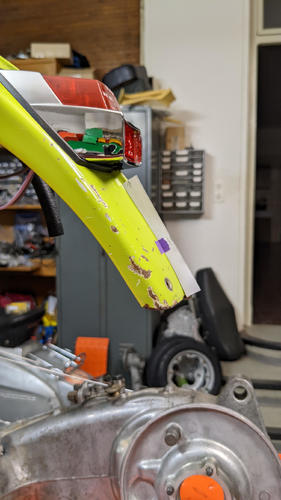
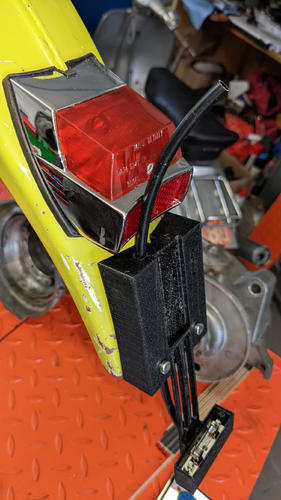 2 Punkte
 -
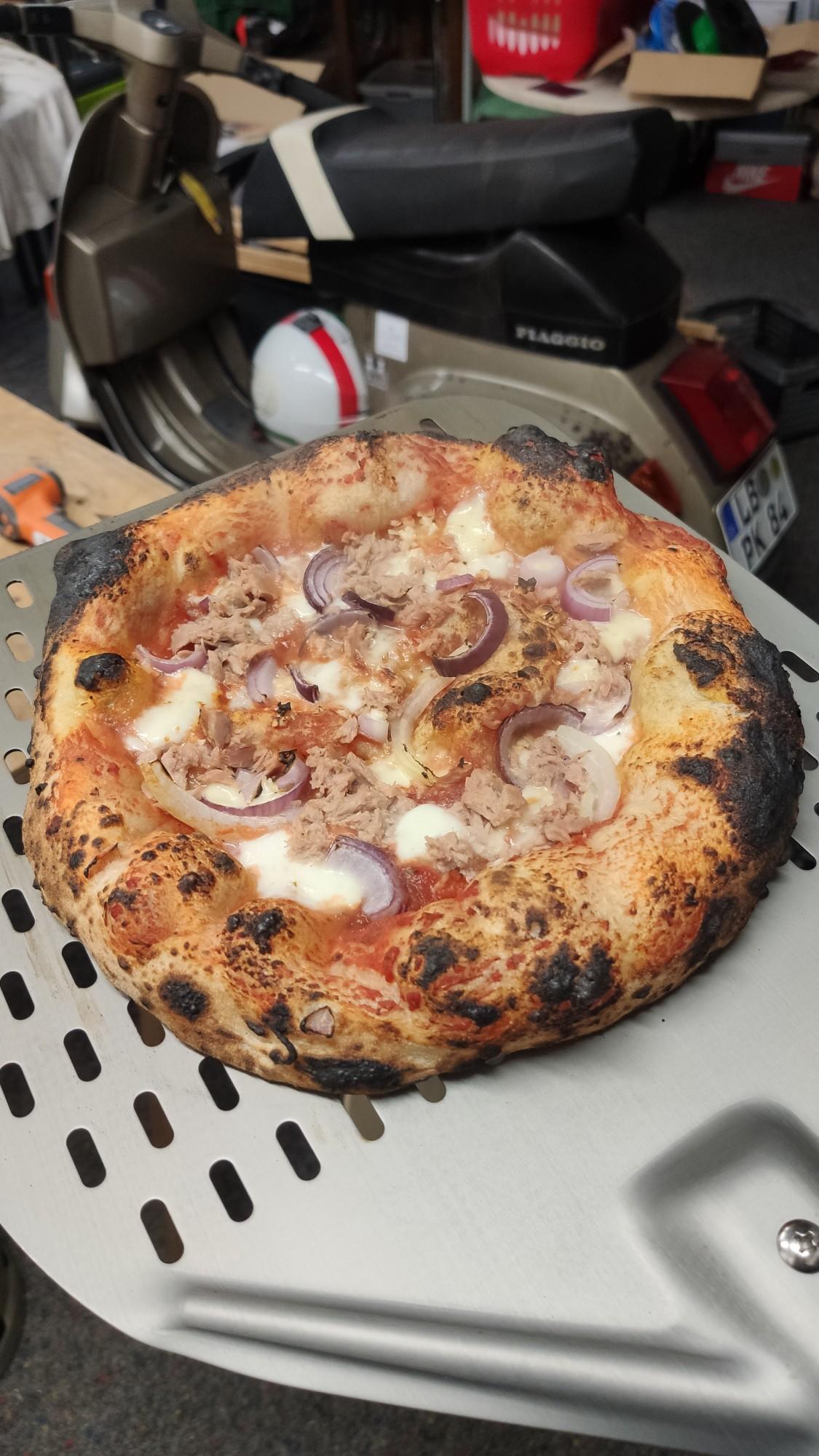
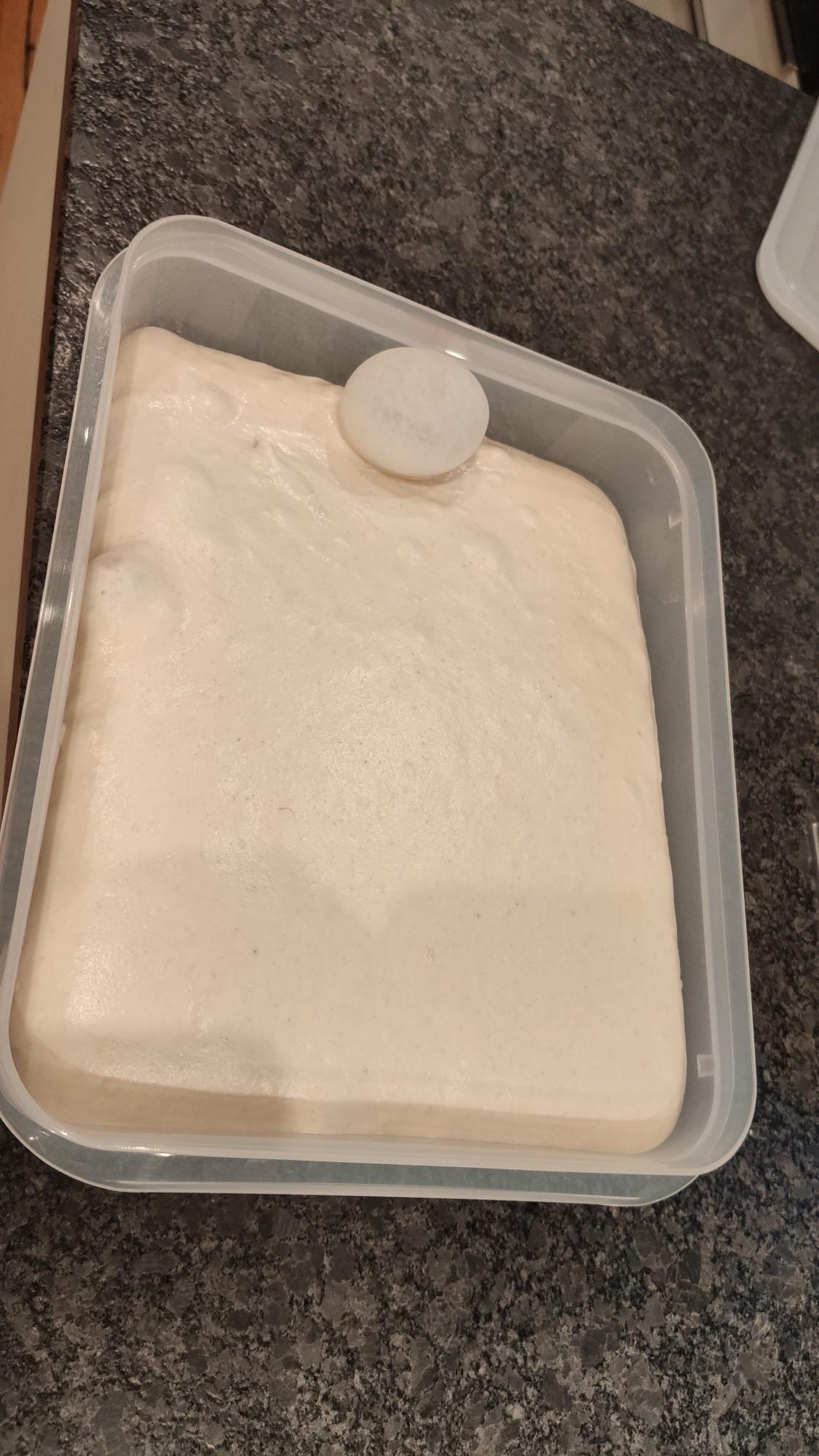
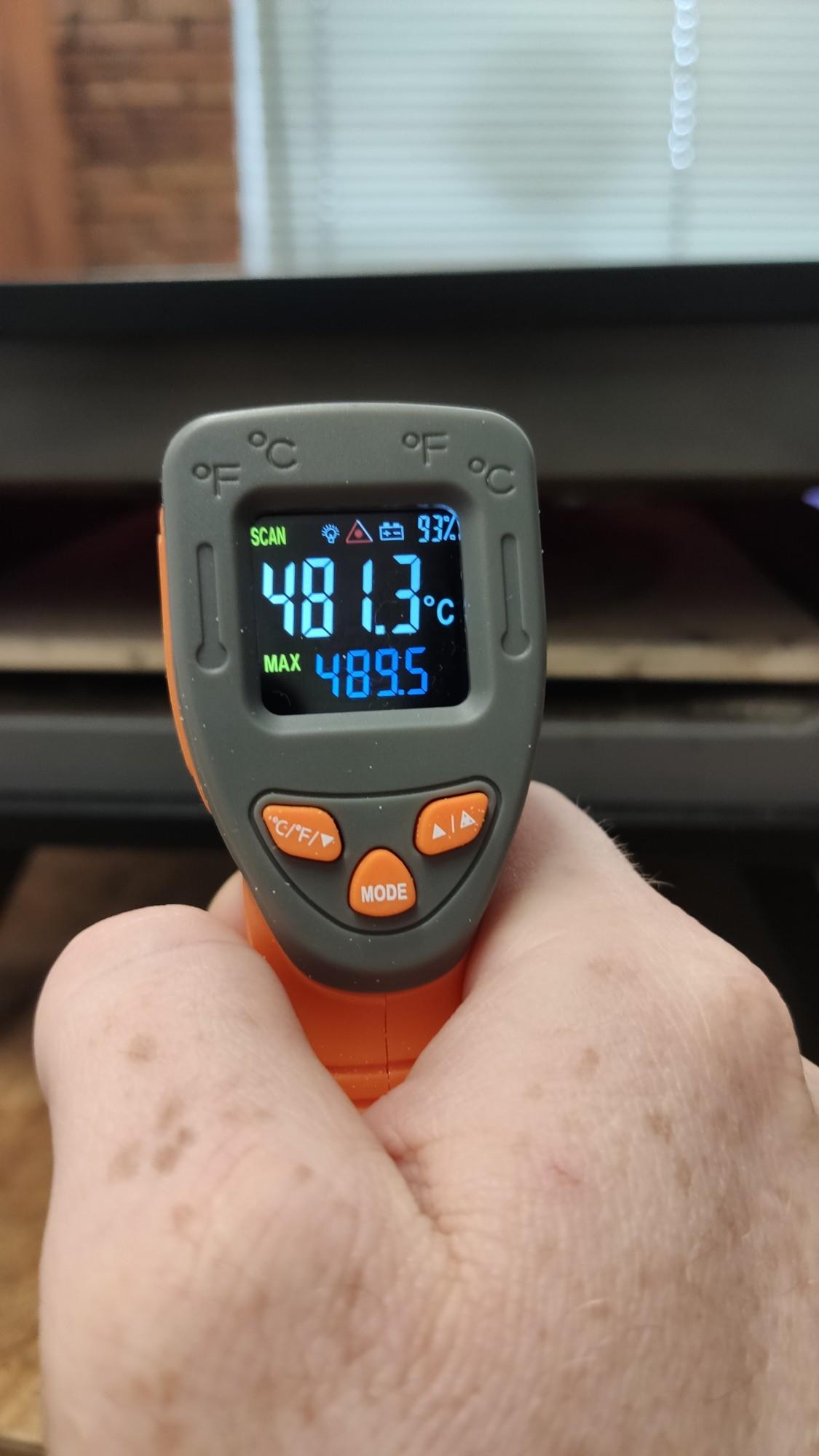
2 PunkteHeute gab's wieder Pizza 1kg Pizzeria von Caputo 650ml Wasser 1g Trockenhefe 30g Salz 18h Stockgare 6h Stückgare Alles bei Raumtemperatur
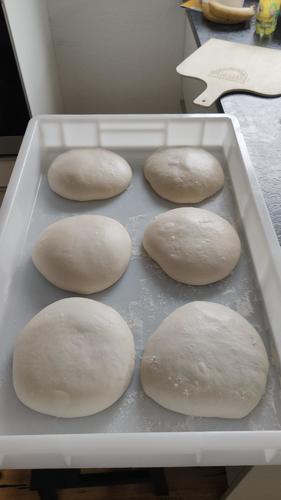
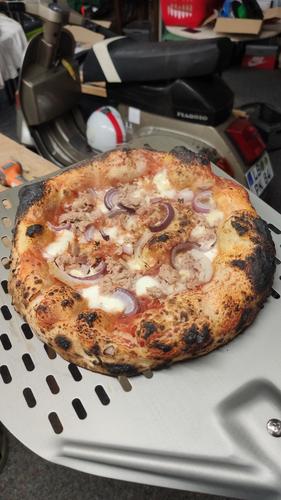
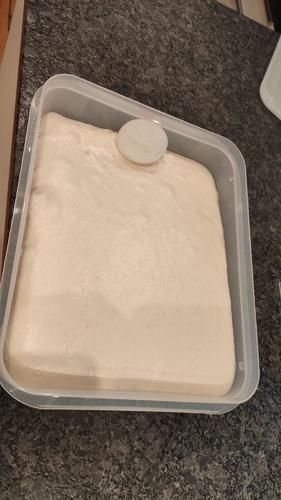
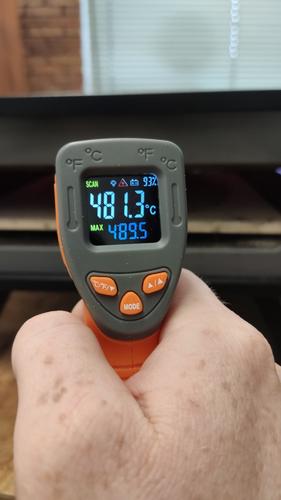 2 Punkte
 -
2 PunkteNennt sich Setzschlag, Mutter auf die Welle und mit einem normalen Hammer links und rechts eine mitgeben.2 Punkte
-
2 Punkte
-
Moin, jo wir sind auch da... Hierum geht´s: https://leinemaschbleibt.de/2 Punkte
-
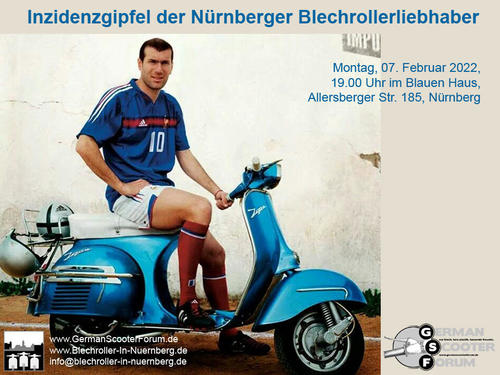
Wir sind ja alle geboostert, hoffe ich
 2 Punkte
 -
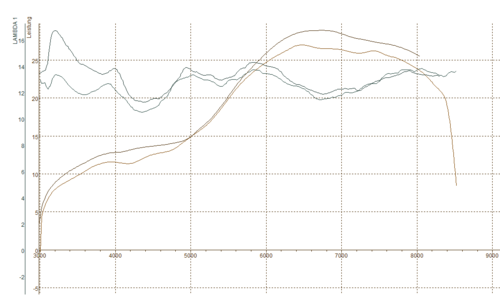
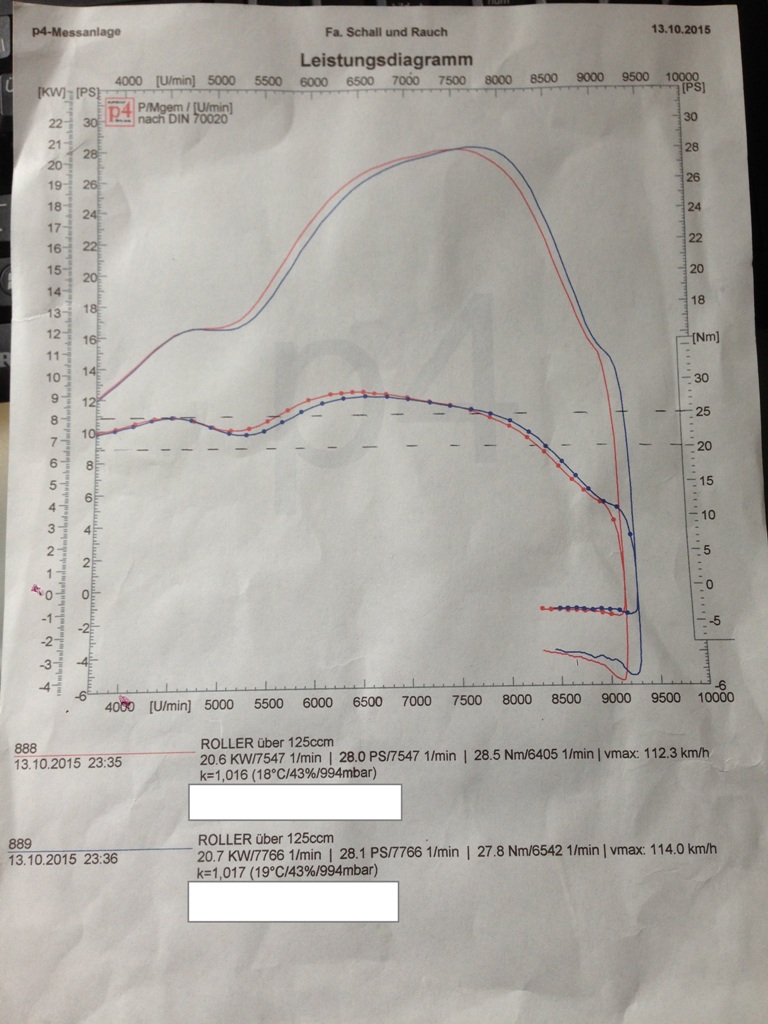
2 Punkte2 Punkte2 PunkteHeute war Tag der Wahrheit mit @Herr Gawasi und der Unterstützung von @ace und @gravedigger. Rahmenbedingungen: P&P Simonini Motor mit Voyager von @Herr Gawasi (ggf. mag er ja noch was dazu schreiben). Mikuni 30 TMX mit 250HD, ND27,5, Clip Mitte, PJ40 (grob abgedüst auf dem Prüfstand) Die PJ hatten wir auch mal abgeklemmt, das war quasi in der Messtoleranz auf dem Prüfstand VHSH als Leihgabe von @vnb1t mit empfohlener Bedüsung von @Kevin Becker und @leichtzumerken - vielen Dank dafür. Die "stärkere" Kurve auf dem Diagramm ist der VHSH, die andere Kurve der Mikuni. Letztendlich sind sowohl AFR als auch somit die Leistungskurven voneinander abweichend. Im Mikuni ist auf jeden Fall Potential für weitere Anpassung d. Bedüsung, die Abweichung sollte somit auch schrumpfen. Es kann aber gut sein, dass der VHSH bei gleicher AFR ein kleines Stück über dem Mikuni liegen könnte, kann man am bereich ab ca. 7.500u erahnen. Muss man nochmal vergleichen. Was mir am VHSH aber gut gefallen hat, sind die vermehrten Einstellmöglichkeiten mit den zahlreichen Mischrohren, der harmonische Leistungsverlauf, die schmalere Bauform (insb. für Serie 3 & Simonini) und die Verarbeitungsqualität. Auf jeden Fall eine gute Alternative zum Mikuni.
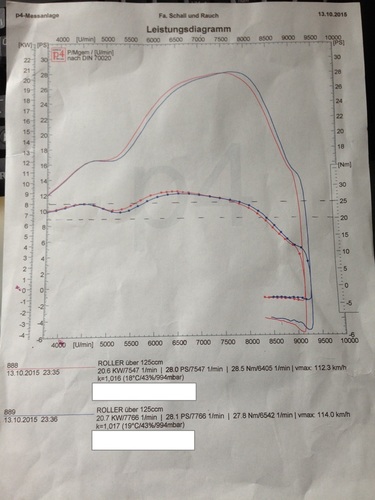
 2 Punkte2 PunkteWas genau ist ein "Kultfaktor"? Klingt nach Vokabular von Leuten die auch von "Garagengold", "Wertanlage" und "Kultkarre" reden.2 Punkte2 Punkte2 Punkte2 PunkteDiese Geschichte mit wegen Pässen den Deckel ohne Stopfen überfahren hält sich wirklich hartnäckig: ich glaube eher Ritas Version wegen dem Öl im Werk Ich habe schon viele hohe Pässe überquert mit immer absolut perfekt laufenden T5 SI Motoren: da passiert überhaupt nichts! Der Motor läuft genauso wie sonst nur ist er wie zugeschnürt und hat etwas weniger Leistung Es offeriert sich aber am Berg wer seinen Motor nicht ordentlich abgestimmt hat und vor allem wenn er vorher zu fett war dann fängt er oben richtig zu stöpseln an Zu bedenken ist auch das Pässe nicht nur hoch und Kamm heißen sondern das es immer wieder auch wieder runter geht: runter fährt man fast ausschließlich mit Motorbremse und Schieber zu Pässe runter den Stöpsel raus würde ich deshalb nicht empfehlen! Überhaupt wäre dieser Stöpsel rein raus auf Tour in den Bergen vom Handling völlig bescheuert Die Geschichte wegen den Bergen hält sich allerdings tapfer seit mittlerweile Jahrzehnten: muss man auch erstmal schaffen Wer wusste das „Frühstück ist die wichtigste Mahlzeit“ eine Erfindung von Herrn Kellogs war um seine Müsliprodukte besser verkaufen zu können: es glauben deshalb heute nach 120 Jahren noch Leute frühstücken wäre „wichtig“ Gebetsmühlenartige Wiederholungen hämmert in die Hirne!2 PunkteWürde bei der Wahl der Welle vor allem auf den Steuerwangendurchmesser achten! Der Steuerwangendurchmesser meiner SIP Welle beispielsweise ist minimal größer als bei der original Piaggiowelle. Das war in meinen Fall top, da beim Dichtspalt kleiner 0.08mm rauskam. Kann aber im Einzelfall auch mit Kontakt am DS enden. Je nach Lagertoleranzen und Ausgangslage. Ich lasse mir darum immer mehrere kommen und vermesse den DS Dichtspalt mit Lagerdummy oder relativ zur Originalwelle. Für mich ein absolutes Muss, da manche Wellen auch nen etwas zu kleinen Durchmesser haben, was zu einem zu großen Dichtspalt führt und das wiederum zu schlechter Abstimmbarkeit fuhren kann. Die Superkupplungen sind m. E. übertrieben. bei deinem Setup reicht vermutlich ne Sip Ring mit 16 original federn (evtl. auf 10 ori+4L Federn wechseln), dazu SIP CR80 Beläge mit kurzen LLaschen. So hab ich mit knapp 20PS seit einigen tkm fast keinen Verschleiß, weder an den Laschen noch an der Grundplatte und das ganze zieht sich supergeschmeidig.1 Punkt1 PunktWenn die Nut in deiner Welle nicht tief genug ist.... kann das schon sein das der Keil zu weit raus schaut. Mach mal das Polrad ohne Keil drauf und Handfest und schau ob es noch rumeiern tut.1 PunktUnd was genau hat das mit dem Thema hier zu tun? Er wird wissen wie er seine Arbeit kalkuliert, denke nicht das er es von dir vorgerechnet braucht. Macht übrigens saubere Arbeit der Kollege Und btw. 35€+MwSt sind keine 30€, denke die Zeit is schon länger vorbei… @Vespavecchio, die Polini Welle gibt es in den einschlägigen italienischen Shops für 170-180€, denke das macht dann auch noch mal einen Unterschied1 Punkt1 PunktIch hab den Sebac vorne raus und gegen Pascoli getauscht. Nicht perfekt, besser, ja, besser triffts. Gut ist anders. Dafür knirscht und quitscht er beim Einfedern. Irgendwas ist immer1 Punkt1 PunktHD 125 ist zu Fett, ND ca 65 Nadel JJK 10er Ventiri Dingsgebums Läuft so wie ein Sack Nüsse Ach ja, Gänge waren leider auch falsch eingehängt und beim Prüfstand kein 3,5er Inbus1 Punkt1 Punkt1 Punktanscheinend nicht. Bin lange Jahre Repro gefahren, der war richtig Sch***e! Jetzt dank wladimir endlich einen originalen, revidiert, frisch befüllt und total Happy! Zu dem SIP Race Federbein, bei dem würde mich allein schon der extrem kastrierte kurze Federweg und fehlender TÜV abschrecken.1 Punkt1 Punkt1 PunktEigentlich sollte das eine als Scherz gedachte Reaktion auf die "Augsburg Klugscheißerei" sein...1 Punkt400 € für das Lenkrohr ohne Reibungsdämpfer, 500 € für das mit.1 PunktDas nutzt hier gerade gar nichts. Der Kollege hätte gerne eine Preisidee und keine PM.1 Punkt1 PunktBin mal bissl auf die Suche gegangen. Und einmal ein Motor von mir selbst (hatte ich gar nicht mehr aufm Schirm, einfach zu viel gewechselt) Big Box Sport, aber der PM läuft eigentlich identisch. (In einer PM gefunden, mehr weiss ich nicht mehr) 210 MHR Malossi unbearbeitet, ÜS 132 Grad mit 1mm oder 1,2mm Fußdichtung. -60mm Glockenwelle -MRP Membranansauger mit Vforce 4 -28er Keihin , momentan 45 ND , JJH Clip 2,5 , HD148 Lüfterrad PX Elestart im Durchmesser nicht verkleinert Big Box Sport Zündung ungefähr 18 Grad
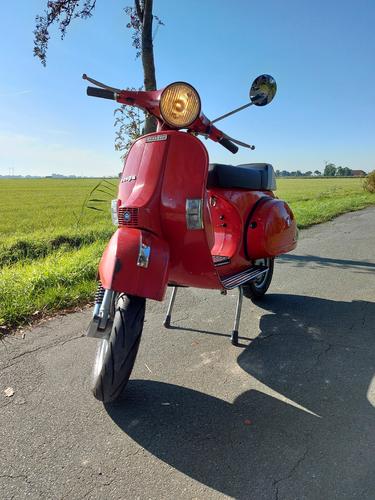
 1 Punkt1 PunktDanke das ihr meinen Vergaser betrieben habt. Erfolg sieht gut aus. Viel Spaß auf der Straße, denn dass ist was zählt.1 Punkt1 Punkt1 Punkt1 Punkt1 PunktGeiler Scheiß! Hast du auch ein paar Bilder, um das Bild mit Decke drin einzuordnen? Sehe ich das richtig, dass das Ständerwerk komplett innerhalb das Mauerwerks liegt und nicht IM Mauerwerk? Wo liegt es nun auf und vorallem welche Funktion hat es noch? Bitte mehr Bilder, ich mag so alten Scheiß!1 PunktNa, dann : Guten Morgen Schön, wieder was von Dir zu lesen1 Punkt1 Punkt1 PunktMeine 83er PX80E mit dem 139er Zylinder (Eingetragen) aus meiner Jugend mit 61,8mm Übermass Kolben hat gute 60.000km gelaufen. Motor komplett erneuert 23/65 Primär , Kanäle gefräst , SI20 , Megadella V2CL3 Auspuff, HP Lüfterrad, Cosa Kupplung mit ring .Technik am Roller alles komplett überholt vorne mit lusso Ankerplatte. Versiegelt mit Fluid Film und Timemax Karosserie Fett.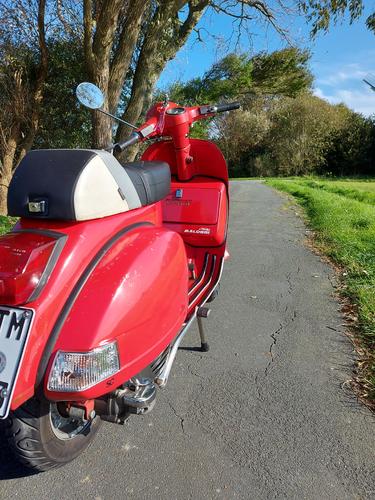
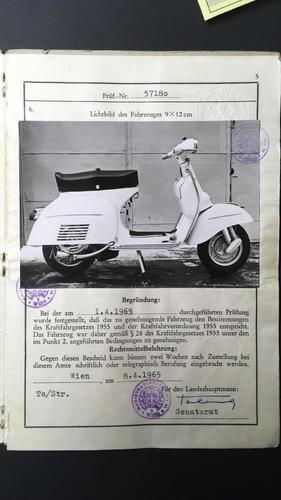
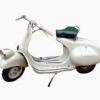
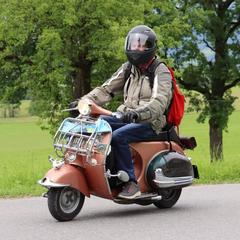
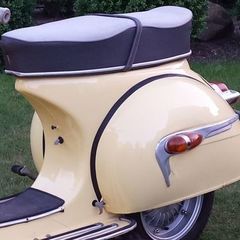
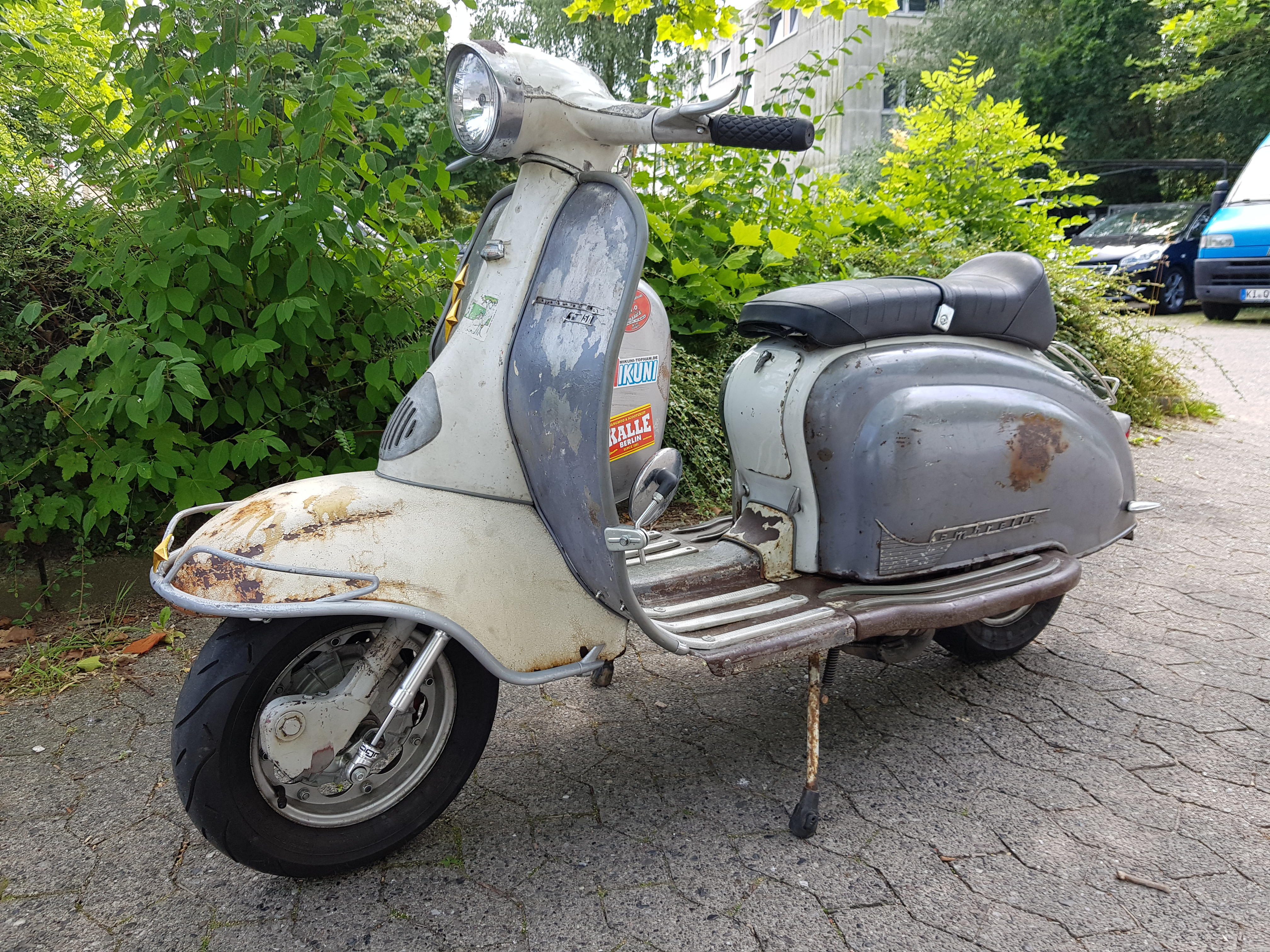
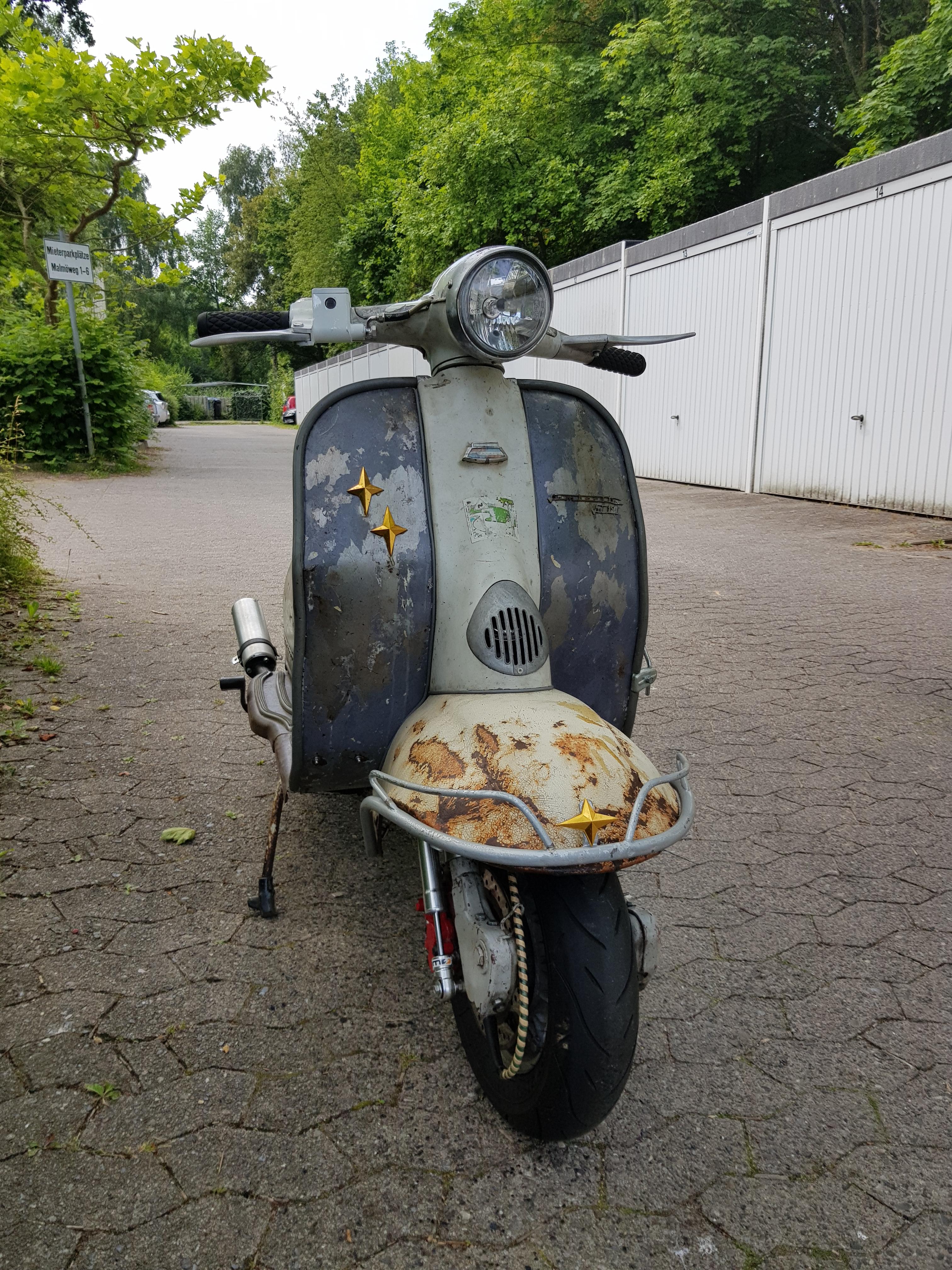
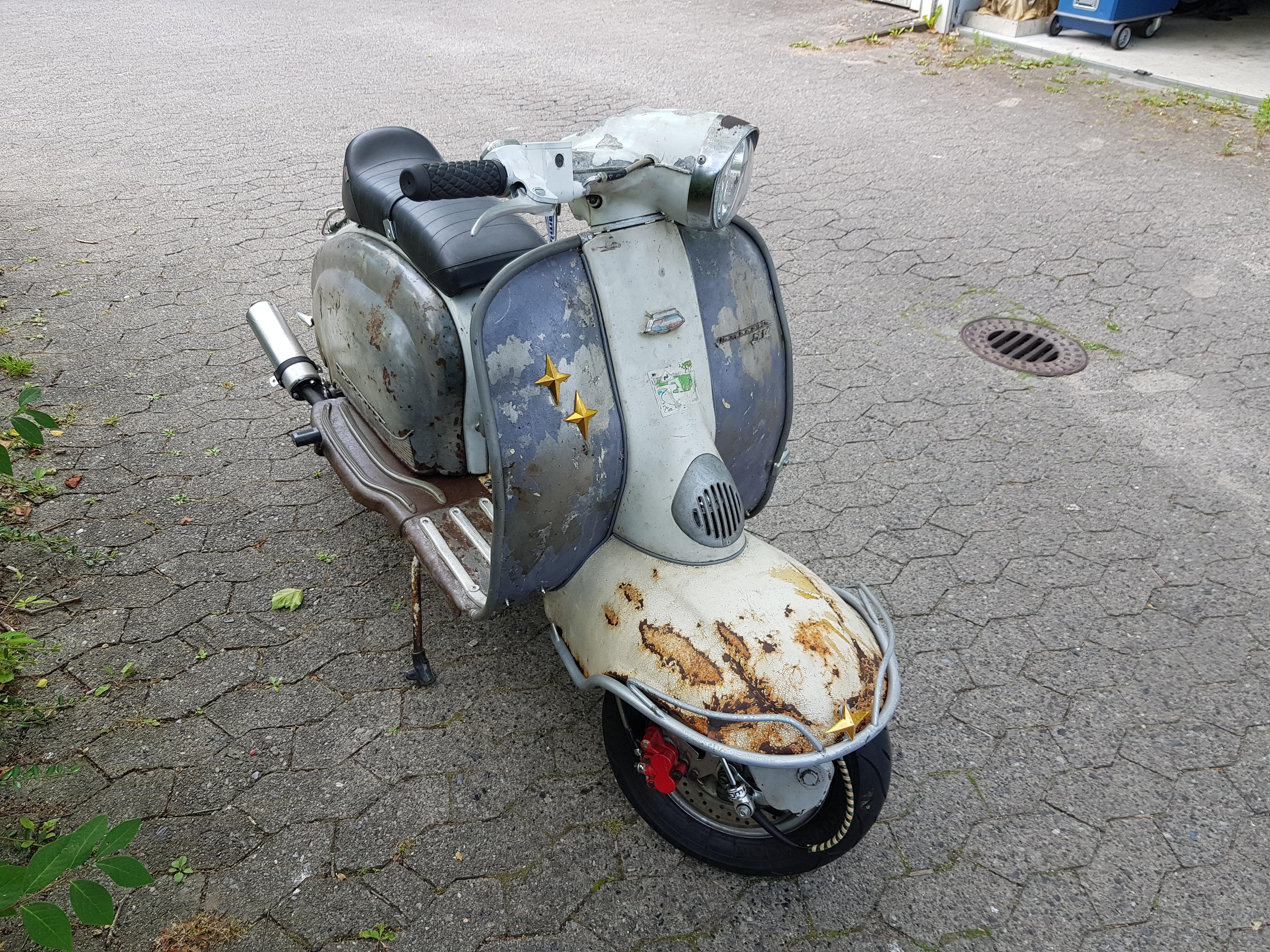
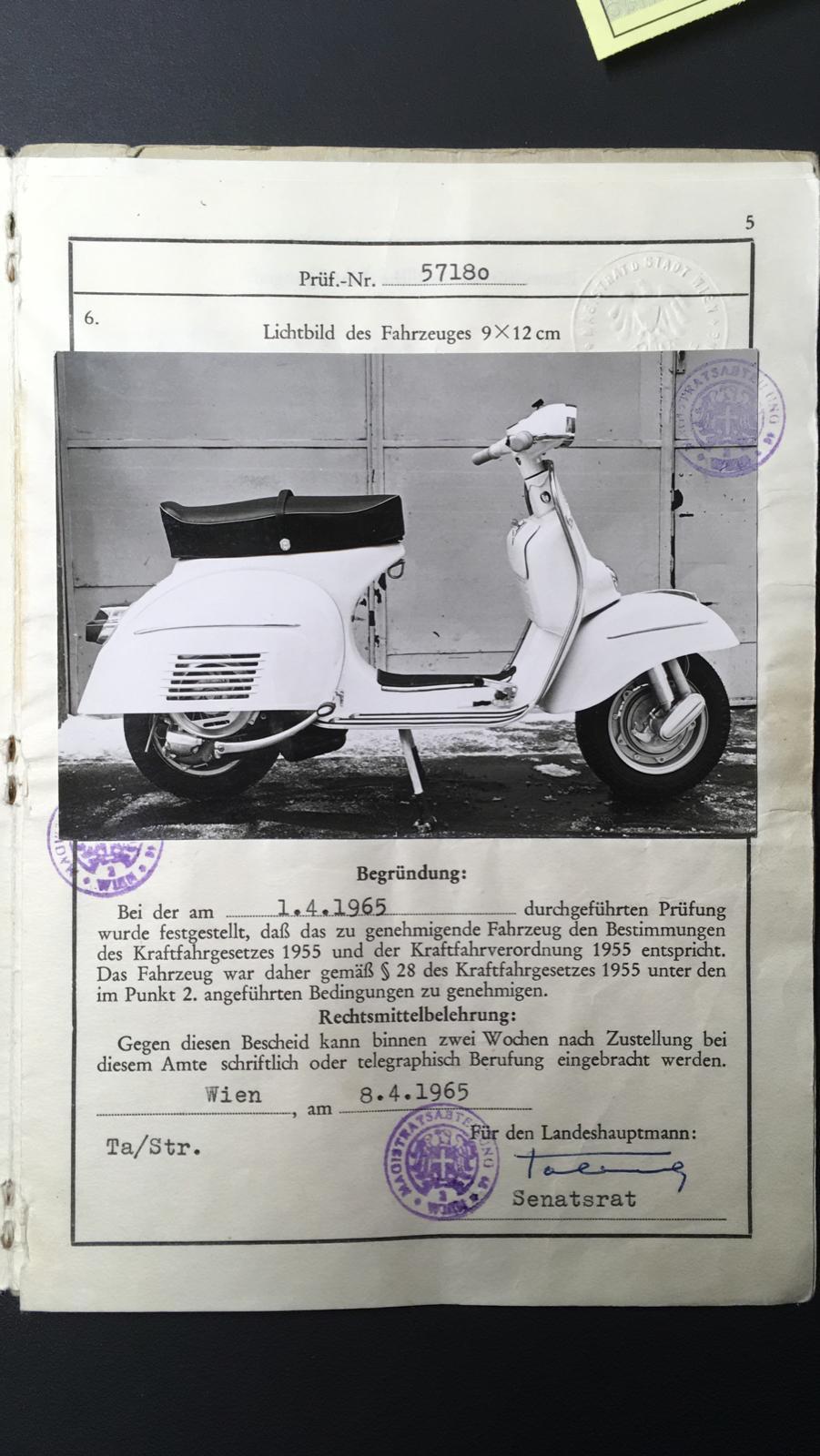
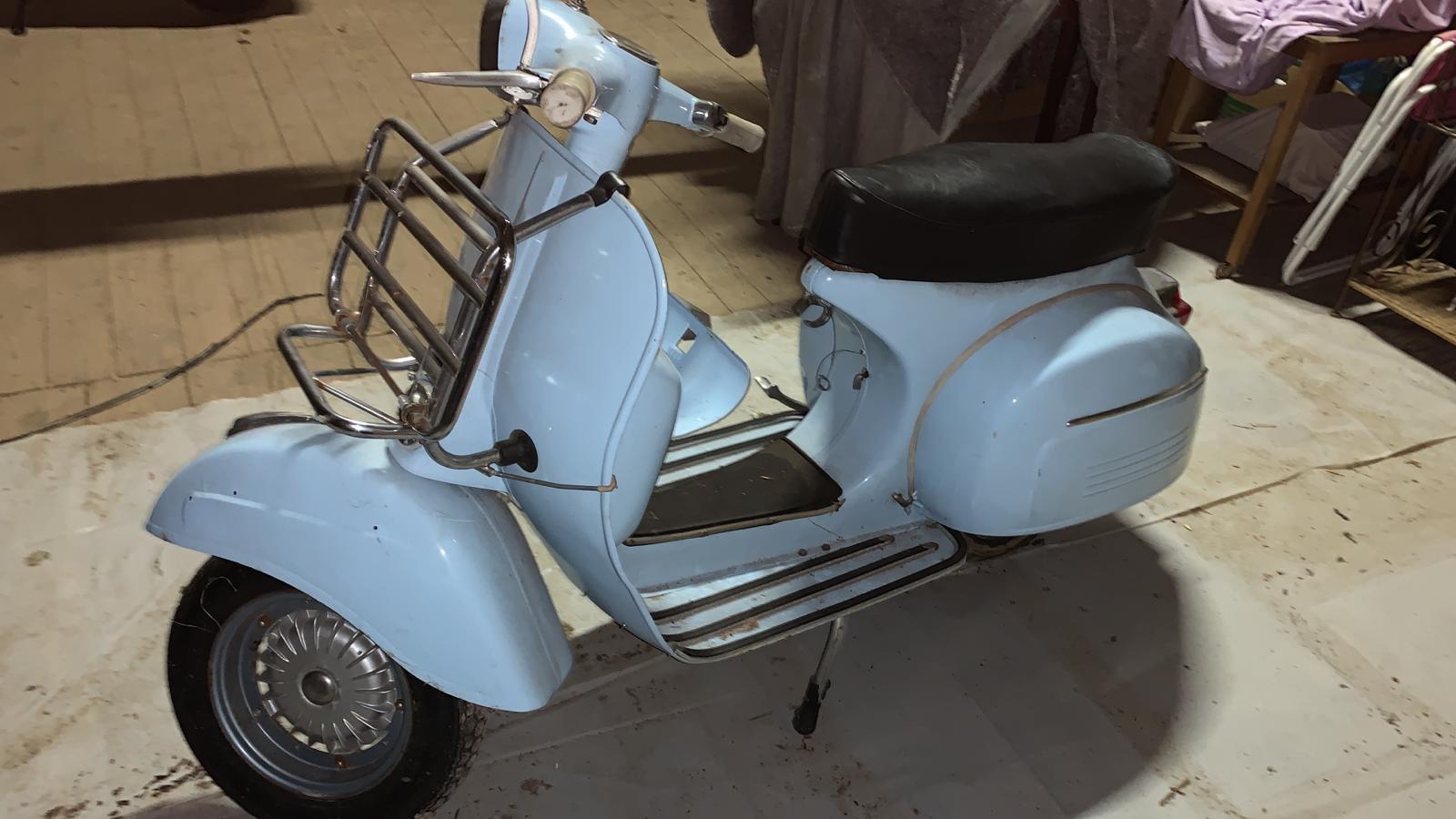
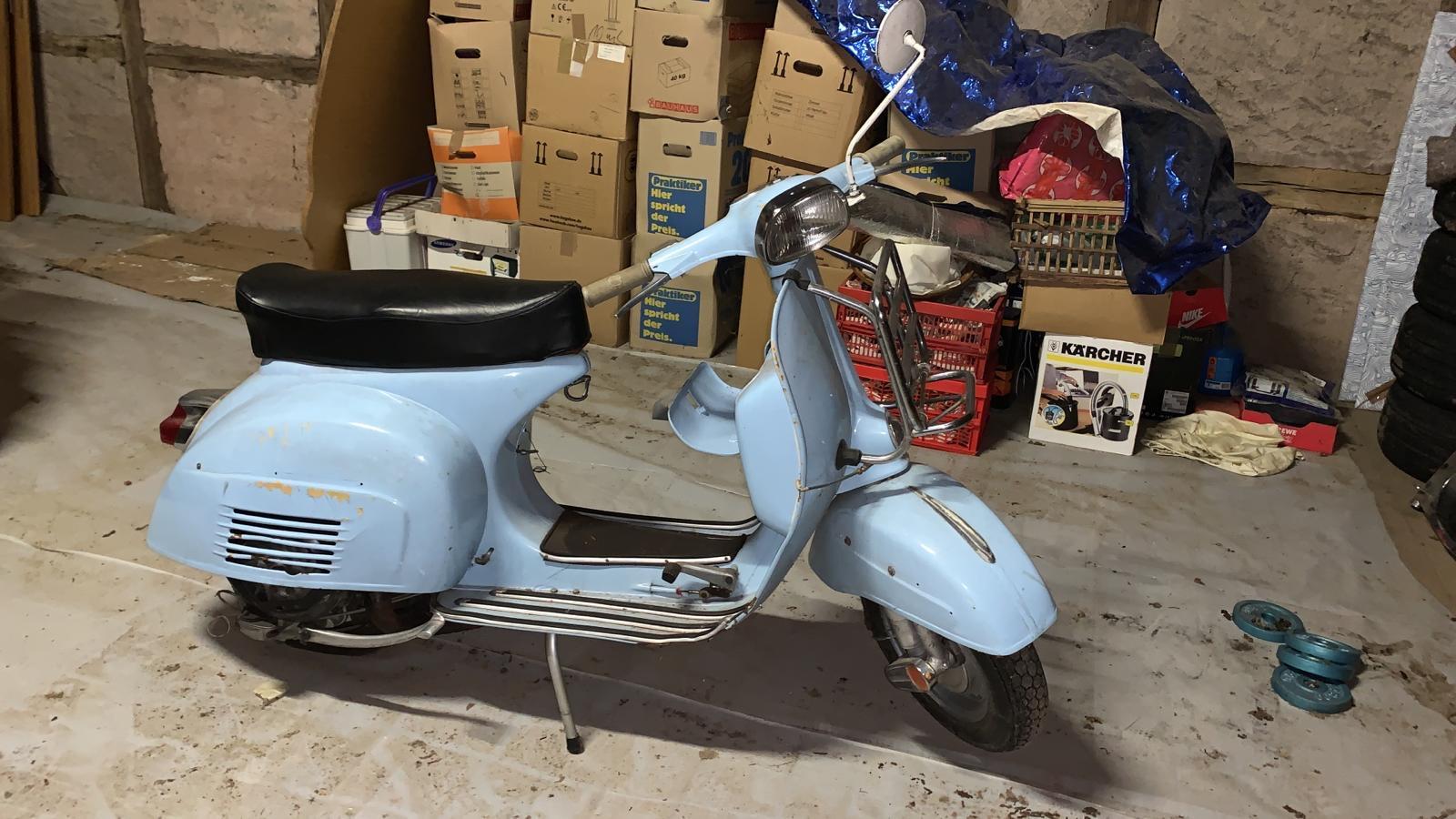
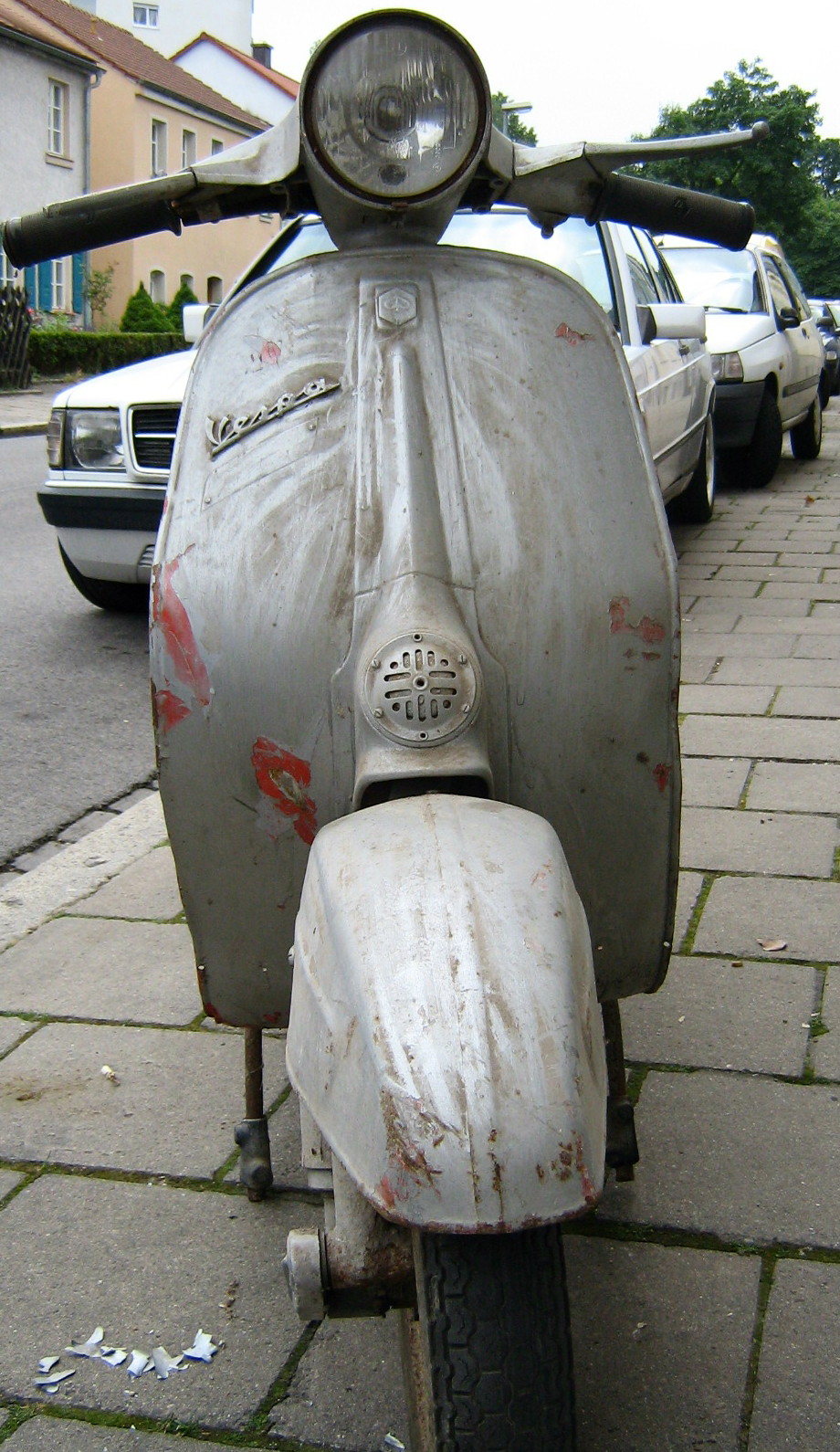
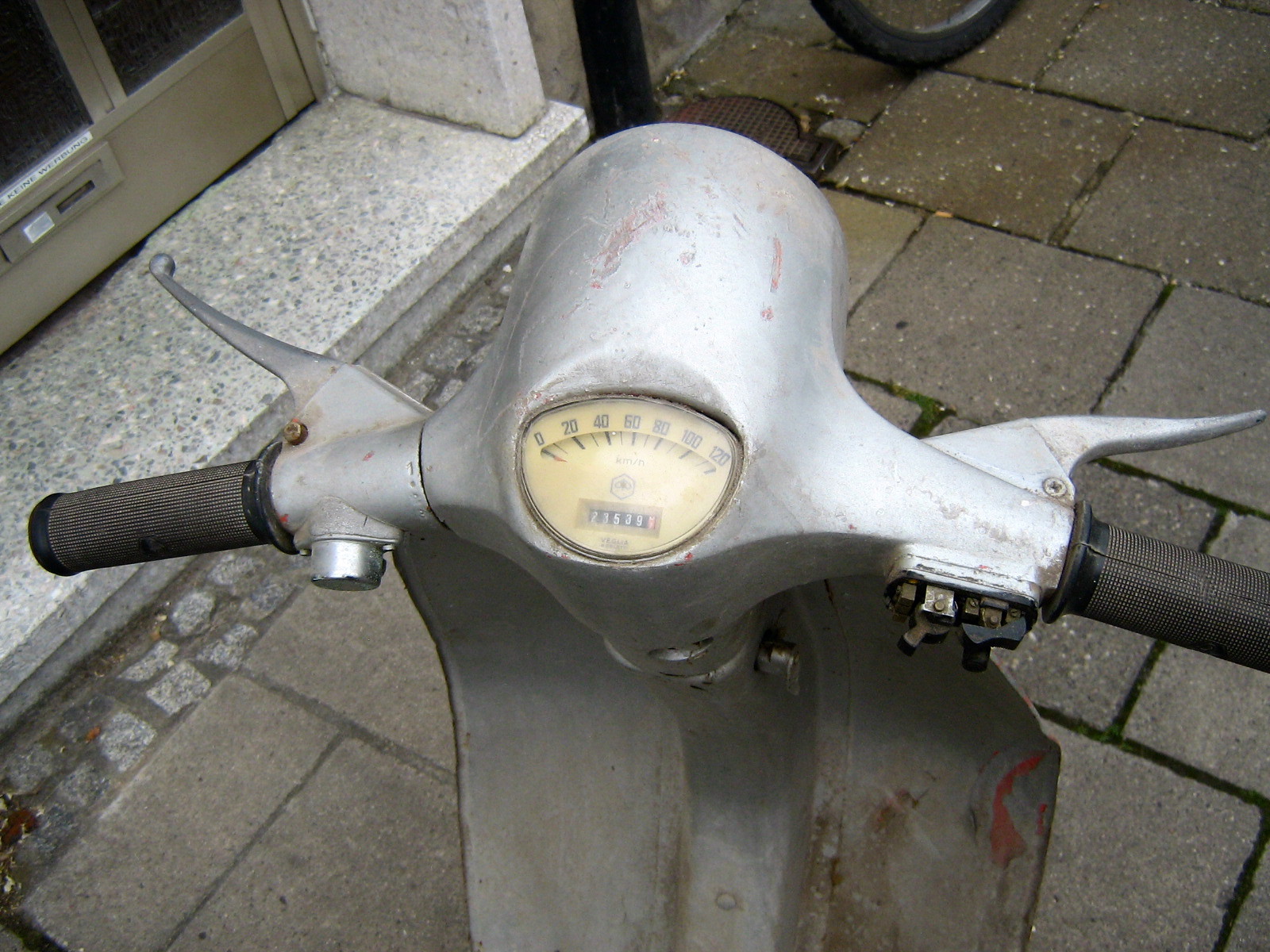
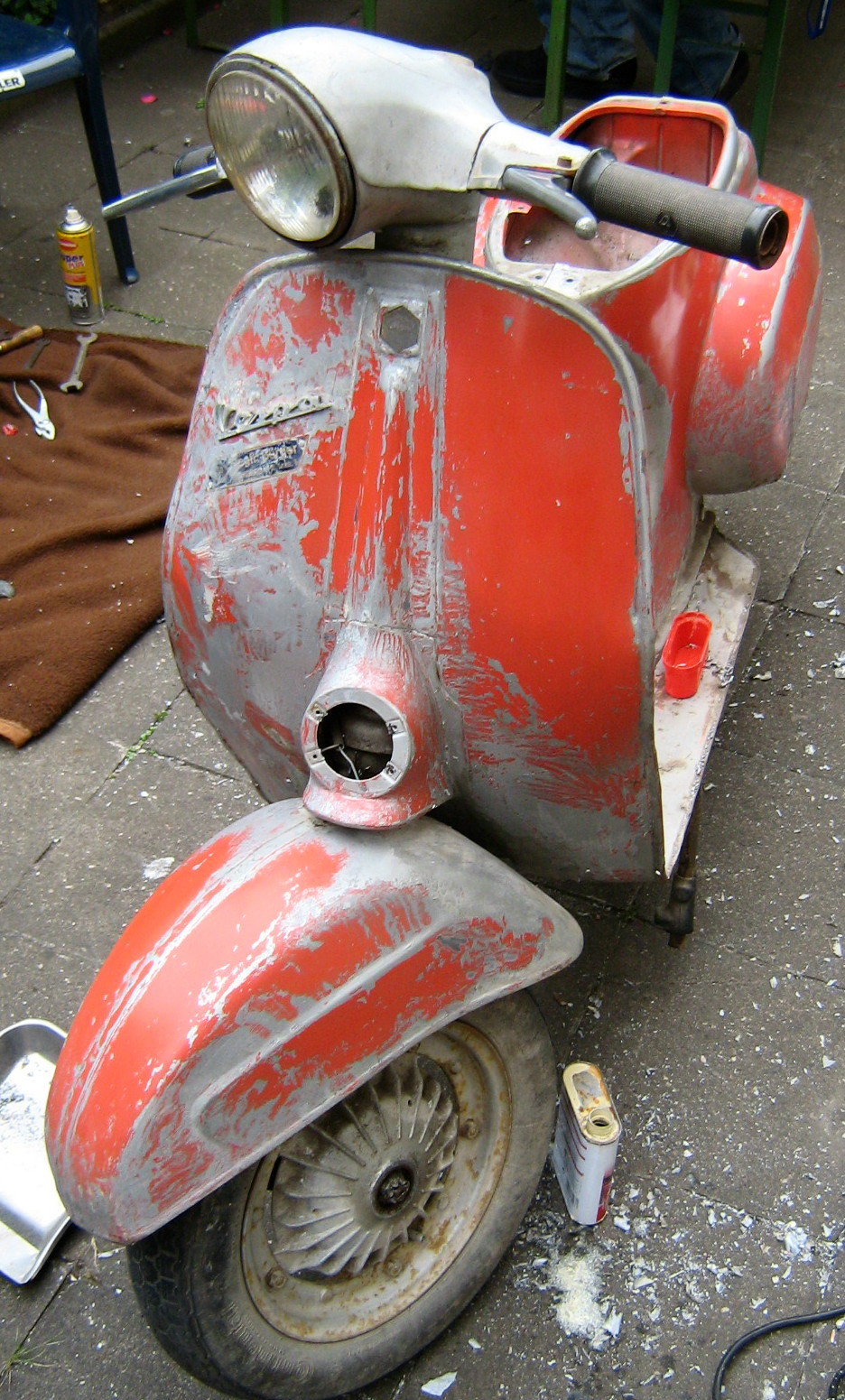
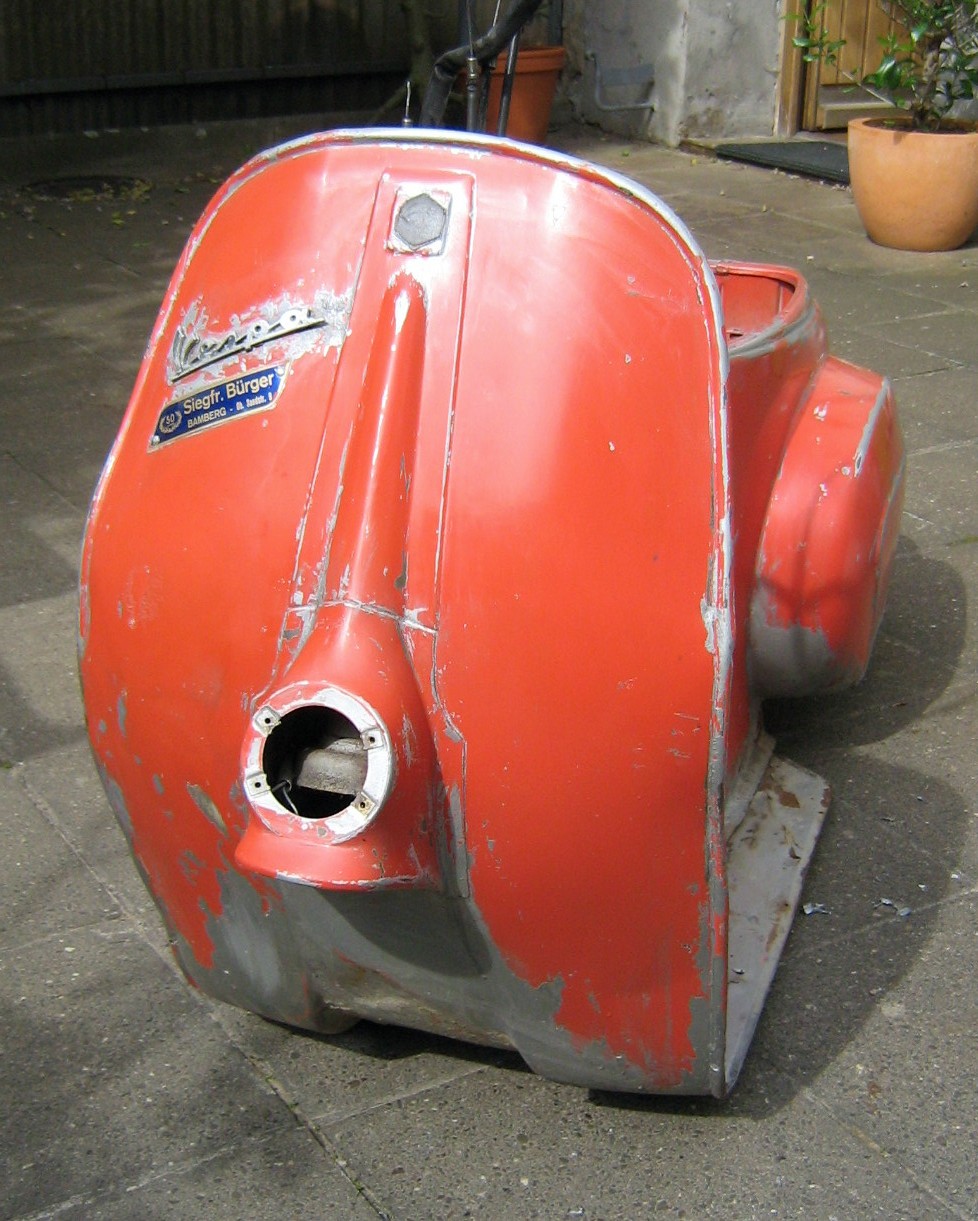
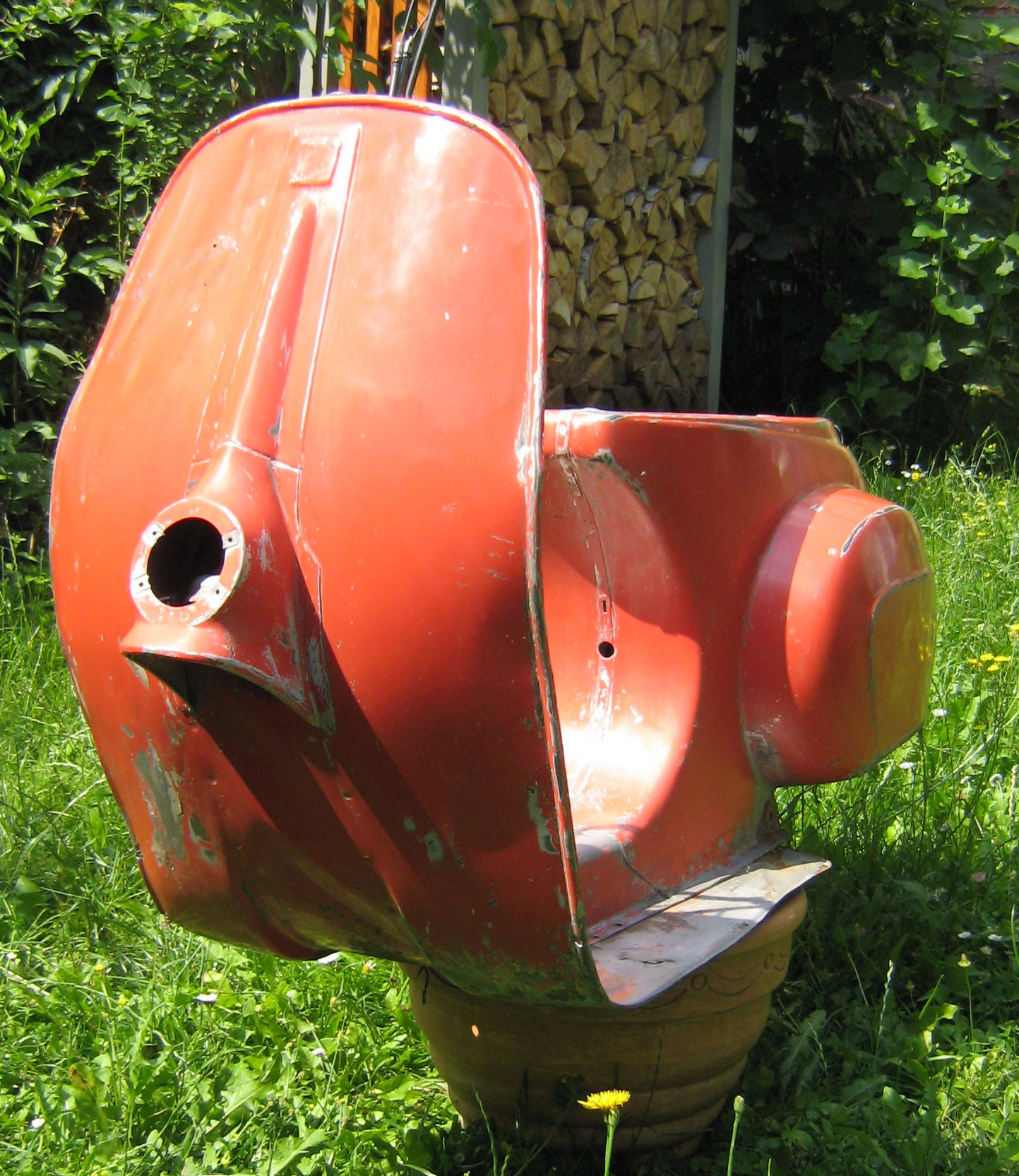
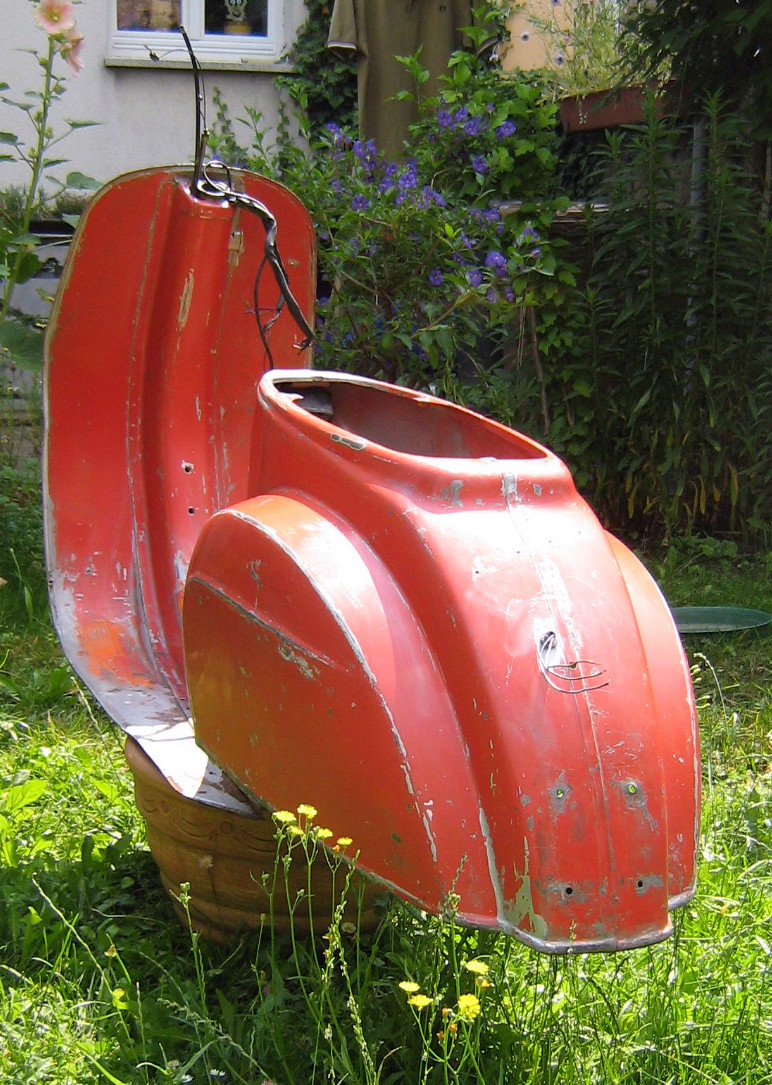
 1 Punkt1 PunktFinde ich nicht so schlimm wie deine ganzen nachträglich mit "+++" editierten Beiträge @re9041 Punkt1 PunktMoin! Ich will noch mal was zu der 1/4 Meile sagen! Haltet die 1/4 Meile in Ehren und belasst es dabei. Erinnert euch an die guten alten Zeiten. Die 1/4 Meile stammt aus einer Zeit wo 30PS der heilige Gral waren. Wo man mit 150kmh im Ziel einfach als Gottheit verehrt wurde. Das ist gut ein Jahrzehnt her und die Technik hat einen extremen Sprung gemacht. 30PS bekommst heutzutage Plug'n'Play. Die 150kmh fallen schon nach der 1/8 Meile. Angepasstes Getriebe? Kein Thema, früher undenkbar. Was würde passieren wenn wir heutzutage 1/4 Meile fahren? Entweder ihr macht nichts und fahrt mit dem alten 1/8 Meile Setup die restliche Strecke im Begrenzer. Oder das andere extrem, die Übersetzung wird verlängert für max Kmh. Klar reden wir hier über Rennsport, aber das ist für alle ein Hobby. Wer von euch kann mir garantieren, daß ihr die restliche Strecke im Begrenzer ohne Klemmer fahren könnt? Ich weiss noch wie Salvo damals wegen nem Klemmer mit Hubschrauber abgeholt wurde.... Wer von euch hat eine dementsprechende Teststrecke, um die Kiste mit langer Übersetzung bei Max Speed zu testen? Läuft die Kiste stabil etc. Ich habe sofort Truls vor Augen wie er damals abgeflogen ist, weil sich die Kiste aufgeschaukelt hat wegen mistiger Fahrwerkgeometrie. Und nein, wehe jemand kommt nun mit dem Argument, wäre der Rahmen ordentlich versteift gewesen... Ich habe zu viele Rahmenverstärkungen brechen sehen über die Jahre! Bei der heutigen Leistung, gibt es rechnerisch ein paar Roller die locker 190Kmh am Ziel hätten! Versteht mich nicht falsch, ich liebe die 1/4 Meile. Nichts wäre schöner als mal wieder 1/4 Meile ballern. Die Vernunft sagt aber nie wieder, alleine schon um das Risiko für euch und eure Familien zu minimieren!1 Punkt1 Punkt1 Punkt1 PunktLetztes Update Die DGT hat mir nach Zusendung meines Schreibens folgenden Link geschickt: https://sede.dgt.gob.es/es/vehiculos/altas-bajas-y-rehabilitacion-de-vehiculos/baja-vehiculo-exportacion/index.shtml Ich habe dann die spanische Botschaft in Hamburg kontaktiert und hatte dort einen netten unkomplizierten Kontakt. Folgendes war für die Abmeldung über die Botschaft wichtig: Antrag gemäß dem vom DGT zur Verfügung gestellten Formular: https://sede.dgt.gob.es/sede-estaticos/Galerias/modelos-solicitud/01/Mod.01-ES.pdf Ausweis der interessierten Person: o Natürliche Personen: offizielles Dokument, das die Identität und den Wohnort des Halters bescheinigt, Personalausweis, spanischer Führerschein, Aufenthalts Bescheinigung, Reisepass mit Identifikationsnummer für Ausländer). o Juristische Personen: Karte mit der Steuernummer der Gesellschaft und Nachweis der Vertretung und Identität des Unterzeichnenden(Modell verfügbar unter www.dgt.es). o Minderjährige oder Entmündigte: Angaben und Unterschrift des Vaters, der Mutter oder des Vormunds, deren Personalausweis und ein Dokument zum Nachweis, dass sie als solche handeln. Fahrzeugpapiere: o Original der Zulassungsbescheinigung (Permiso de Circulación) und TÜV-Karte (ITV) oder Bescheinigung des Verlusts derselben oder Anzeige des Diebstahls dieser Dokumente. o Original des TÜV-Scheins (Tarjeta de Inspección Técnica) oder Bescheinigung des Verlusts derselben oder Anzeige des Diebstahls dieser Dokumente. o Wenn die Behörden des Landes wo Sie das Auto angemeldet haben, die Original Fahrzeugscheine einbehalten haben, müssen Sie eine Fotokopie des aktuellen Fahrzeugscheins vorzeigen. o Wenn sie die spanische Zulassungsbescheinigung und TÜV-Scheins verloren haben, dann müssen Sie folgende Formular auch vorlegen: https://sede.dgt.gob.es/sede-estaticos/Galerias/vehiculos/modelos-e-impresos/Declaracion-de-extravio.pdf Kopie der Zahlungsbestätigung der Gebühr an die DGT 4.1 (zurzeit sind es 8,59€) Die Zahlung der Gebühr können Sie per Überweisung an die folgende Kontonummer durchführen: Begünstigter: Dirección General de Tráfico C.C.C.: 2100 5731 7602 0020 4028 IBAN: ES29 2100 5731 7602 0020 4028 SWIFT: CAIXESBBXXX Den Verwendungszweck müssen Sie wie folgt ausfüllen: 1. Ausweisnummer des Fahrzeughalters 2. Kennzeichen 3. Baja vehículo por traslado a otro país Beispiel: “12345678A - 0000-BBB - Baja vehículo por traslado a otro país” Wenn das Fahrzeug seit seiner Zulassung in Spanien älter als 15 Jahre ist, müssen Sie keinen Betrag bezahlen. Im Grunde das, was auch schon unter dem Link zu finden ist. Ich war im Besitz der Permiso de Circulation und der TÜV-Karte (ITV), die Dokumente reichen. Vorausgesetzt der Vorbesitzer übernimmt die Abmeldung, denn nur dieser kann es tun, es sei denn er stellt eine Vollmacht aus: https://sede.dgt.gob.es/sede-estaticos/Galerias/otros-tramites/registro-apoderamientos/otorgamiento_ES.PDF Dann braucht man aber auch noch eine notariell beglaubigte Pass oder Perso-Kopie vom Vorbesitzer. Fazit: Ich hatte Glück, weil der Vorbesitzer in Deutschland und nur 30km entfernt von Hamburg wohnt und sich so alles relativ problemlos organisieren ließ. Wenn keiner oder nur über Landesgrenzen Hinaus ein Kontakt besteht, wird es offensichtlich schwieriger. Über die folgenden Konsequenzen, hätte ich den Roller jetzt nicht abgemeldet bekommen und die Steuer würde auch vom (unbekannten) Vorbesitzer nicht weiter bezahlt werden, weiß ich natürlich nichts. Anmeldung in Deutschland lief (in meinem Fall) aber problemlos. Und jetzt freue ich mich auf hoffenltich viele sonnige Stunden auf der schönen Spanierin!1 Punkt1 PunktEs gibt eine schöne Historie zurück bis zum Baujahr und der Erstzulassung in Österreich 1965. Mein Plan ist nun die Wiederherstellung in den Originalzustand. O-Lack ist natürlich nicht mehr drin, aber ich bin auch kein O-Lack Fetischist. Am Ende soll sie wieder so aussehen:
 1 Punkt1 PunktIch hab da mal ne Frage... Ich habe eine SS180 erworben und möchte mich mit einem erfahrenen Schrauber an die Komplettrestaurierung machen. Jetzt kommen heute über den SIP Newsletter folgende Komponenten rein: Kurbelwelle für die SS180 mit Möglichkeit zum Verbau einer PX Kupplung https://www.sip-scootershop.com/DE/Products/45154100/Details.aspx?newsletter=43e1b783-1df6-4023-abf3-fcd9df3987dc Pinasco Rennzylinder 225 für die SS180 https://www.sip-scootershop.com/DE/Products/rennzylinder+pinasco+225+ccm+_81115600 und verbesserte Flytech Zündung mit höherer Schwungmasse für Umrüstung auf 12 V Ursprünglich wollte ich ja eine Motovespa 160 kaufen und mit PX Technik ausrüsten. Wollte extravagante Farbe, ggf. Scheibenbremse und sanftes Tuning... Dann lief mir diese SS180 über den Weg und ich habe zugeschlagen: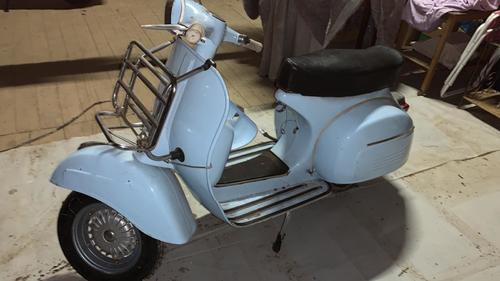
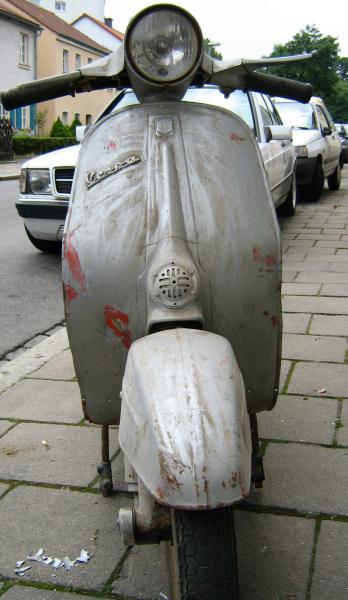
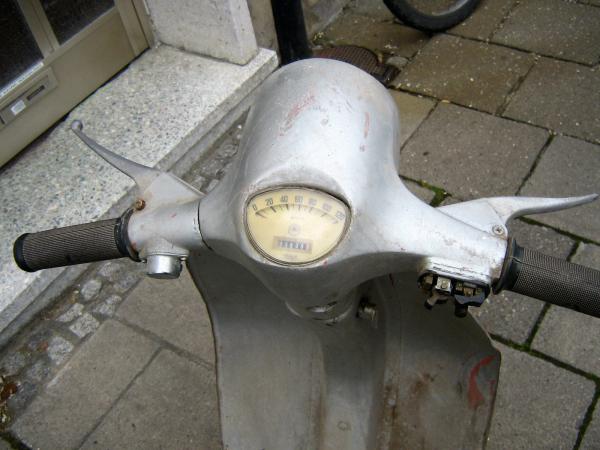
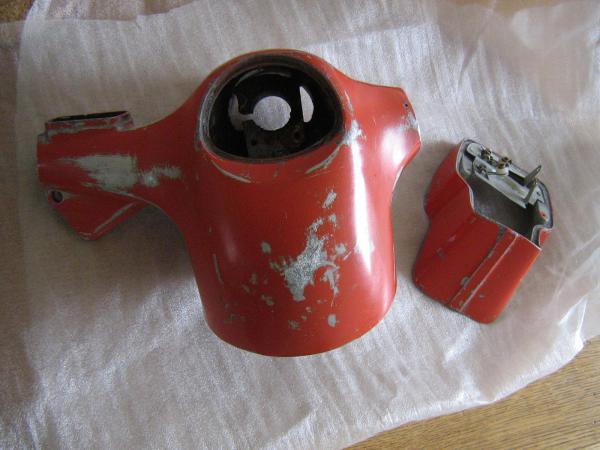
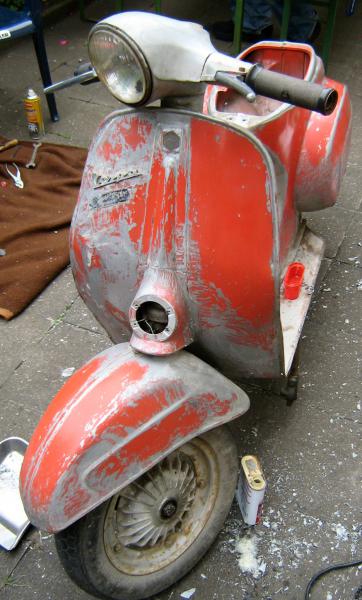
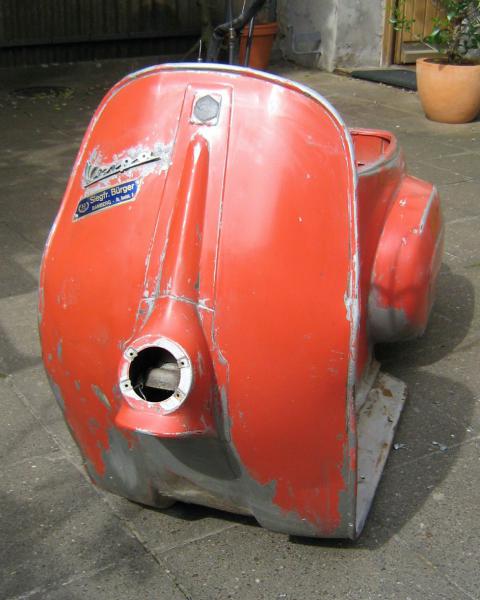
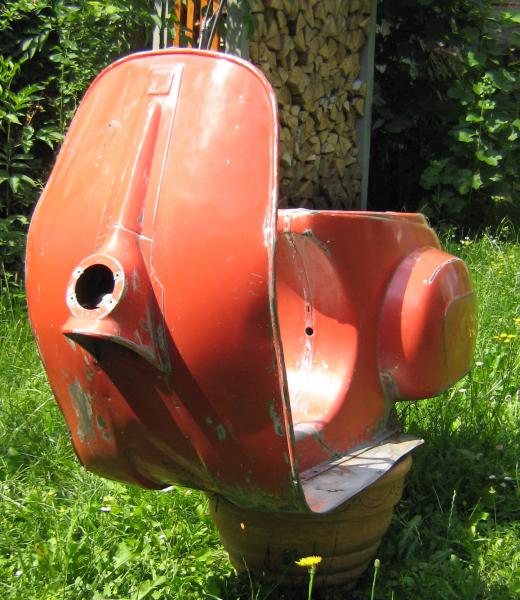
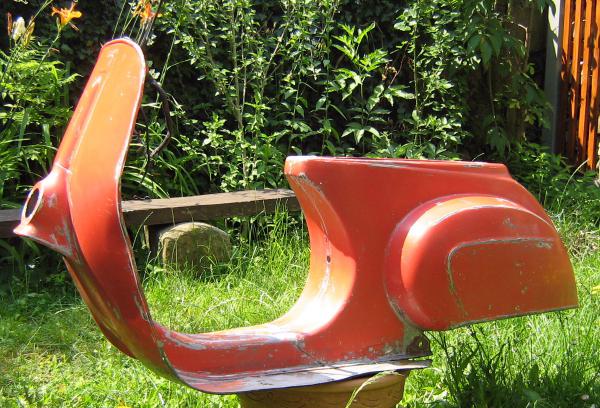
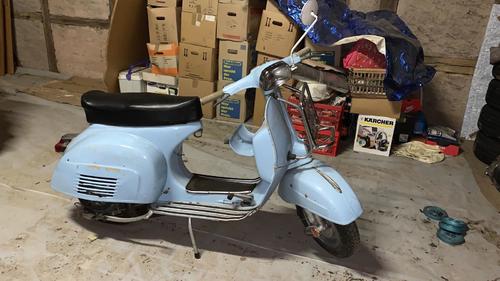 1 Punkt1 Punkthier mein kleiner Ausflug ins dizzy-Aceton-Universum; Rangehensweise im SS topic nachzulesen.... grünweisse Grüße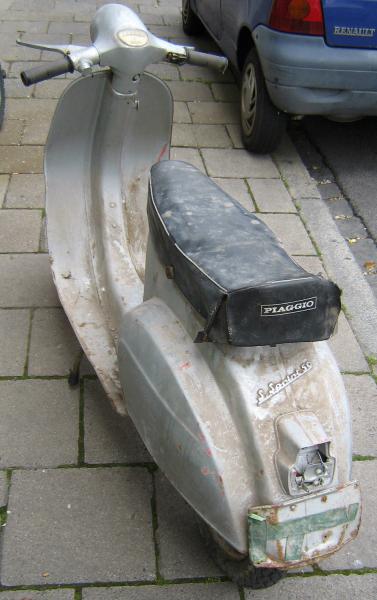
 1 Punkt





























.thumb.png.78c69dcb6f8fcf5e30d793f130d1817c.png)







Wichtige Information
Diese Website nutzt Cookies und vergleichbare Funktionen zur Verarbeitung von Endgeräteinformationen und personenbezogenen Daten. Die Verarbeitung dient der Einbindung von Inhalten, externen Diensten und Elementen Dritter. Je nach Funktion werden dabei Daten an Dritte weitergegeben. Einige dieser Verfahren sind technisch unerlässlich, andere kommen nur mit Ihrer Zustimmung zum Einsatz, eine Anpassung ist in den die Cookie-Einstellungen möglich. Für Details siehe die Datenschutzerklärung
Account
Navigation
Suche
Configure browser push notifications
Chrome (Android)
- Tap the lock icon next to the address bar.
- Tap Permissions → Notifications.
- Adjust your preference.
Chrome (Desktop)
- Click the padlock icon in the address bar.
- Select Site settings.
- Find Notifications and adjust your preference.
Safari (iOS 16.4+)
- Ensure the site is installed via Add to Home Screen.
- Open Settings App → Notifications.
- Find your app name and adjust your preference.
Safari (macOS)
- Go to Safari → Preferences.
- Click the Websites tab.
- Select Notifications in the sidebar.
- Find this website and adjust your preference.
Edge (Android)
- Tap the lock icon next to the address bar.
- Tap Permissions.
- Find Notifications and adjust your preference.
Edge (Desktop)
- Click the padlock icon in the address bar.
- Click Permissions for this site.
- Find Notifications and adjust your preference.
Firefox (Android)
- Go to Settings → Site permissions.
- Tap Notifications.
- Find this site in the list and adjust your preference.
Firefox (Desktop)
- Open Firefox Settings.
- Search for Notifications.
- Find this site in the list and adjust your preference.