
Rangliste
-
zini
Members7Punkte52Gesamte Inhalte -
Motorhead
Members5Punkte16.870Gesamte Inhalte -
piotr
Members5Punkte2.103Gesamte Inhalte -

belle.schaefer
Members4Punkte1.323Gesamte Inhalte




Beliebte Inhalte
Inhalte mit der höchsten Reputation am 25.11.2016 in allen Bereichen anzeigen
-
Großes Lob an Zini für die detaillierte Beschreibung !! Das nenne ich mal "Teilen von Erfahrungswerten mit Gleichgesinnten" Vermisse ich ja manchmal bei diesem Thema5 Punkte
-
4 Punkte
-
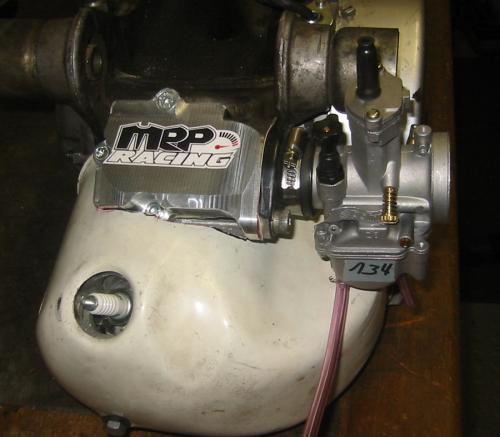
Ich habe kürzlich den LinkeNummer-Stutzen mit dem MRP-Racing-Spacer (siehe #163) und der Imola-Membran auf einem Imola V4.1 verbaut. Dabei habe ich ausschließlich selbst zugeschnittenes, eingefettetes Dichtpapier (Aquarellpapier 300g/m2) und keinerlei Dichtpampe wie Dirko o.ä. verwendet. Laut Pressure-Leak-Down-Test ist die Bude komplett dicht.
 3 Punkte
 -
3 Punkte
-
zwar keine Redensart nervt aber tierisch: Black Friday Cyber Monday usw.. ich kanns nichtmehr hören3 Punkte
-
3 Punkte
-
3 PunkteDa ist ja reichlich Luft. Wir müssen da noch einen Termin ausmachen.... Der EX 500 ist schon ein dicker Motor und mindestens ein Mal habe ich auch schon gedacht, ich müsste 2Takte weniger haben. Aber wozu? Ich wollte ja eine Altherren-Reiseyacht haben. Alles ist schon so gut, wie es ist. Und wenn mich die Reuse später doch langweilt, dann bau ich mir was neues. Ach was: Ich bau sowieso danach was neues, ich kann gar nicht anders.3 Punkte
-
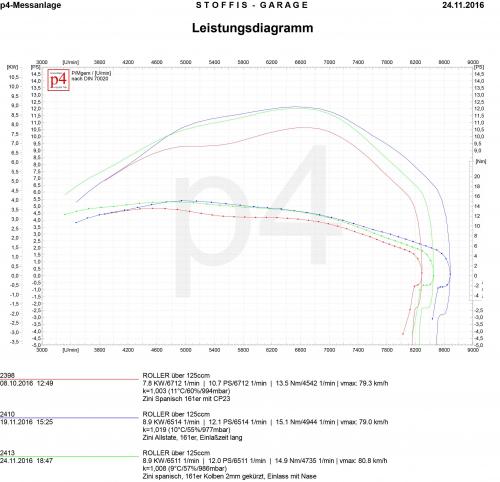
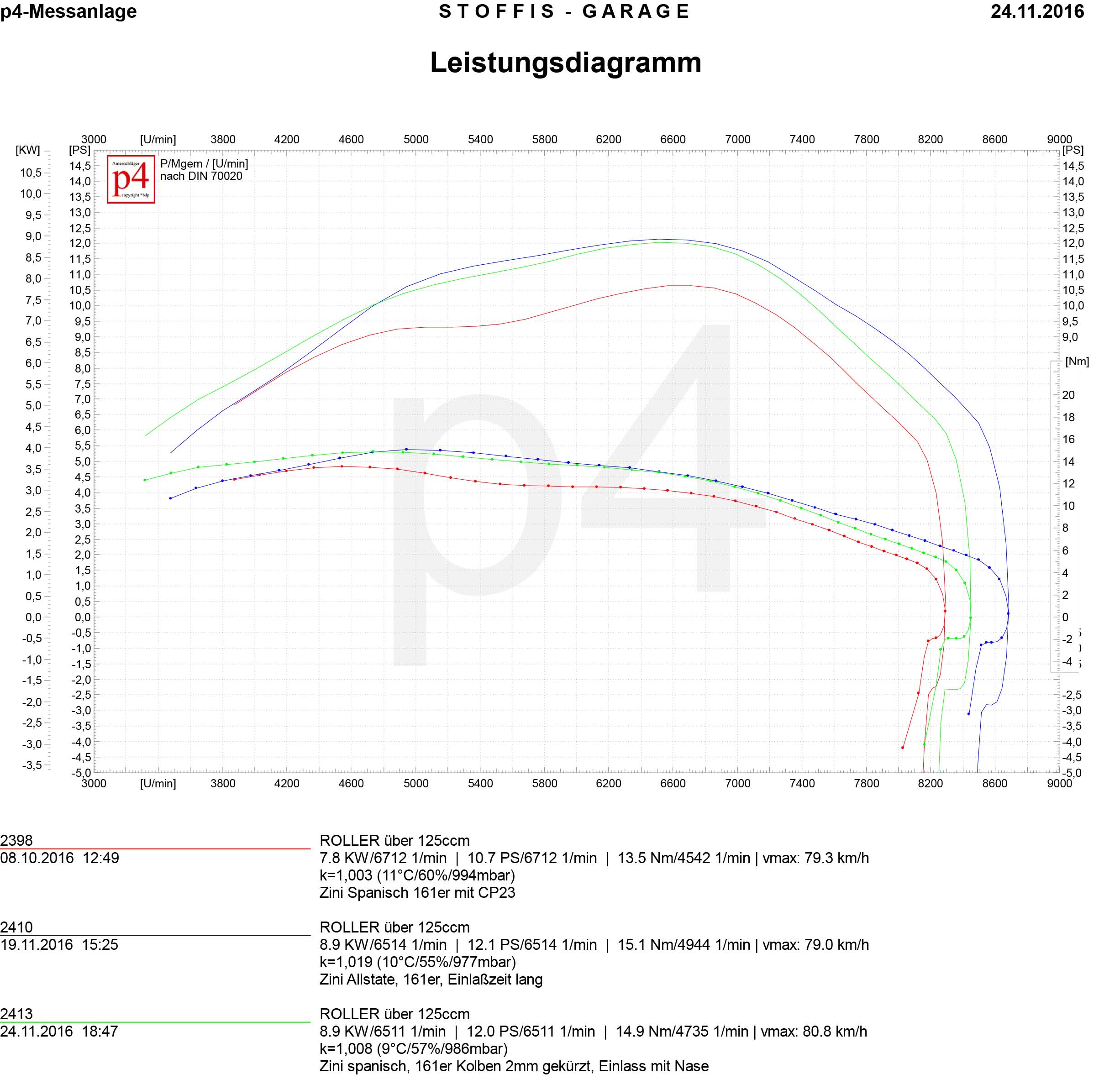
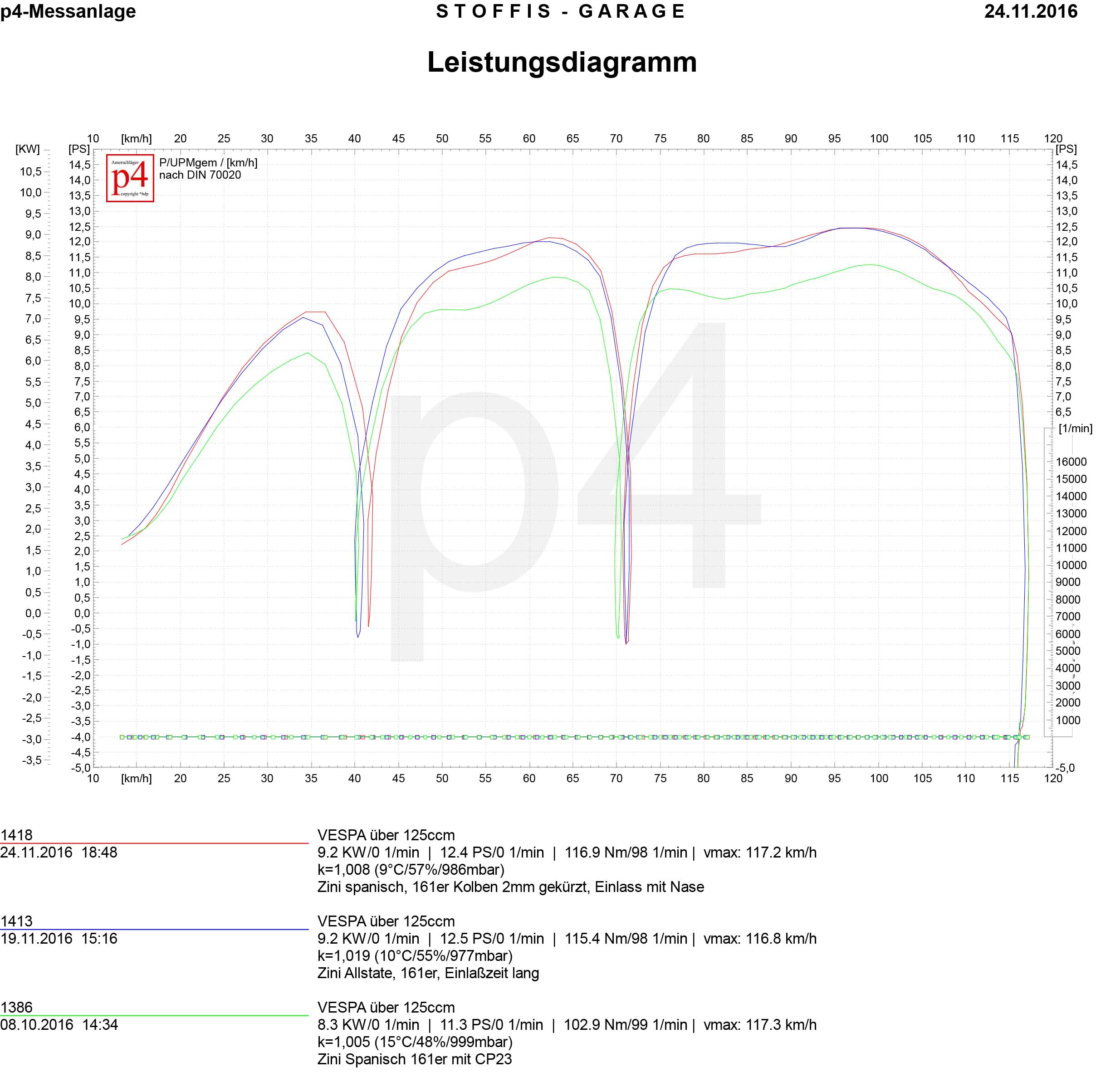
Bei der kurzen Einlasszeit kommt die Frage auf, kann man da noch Leistung rausholen? Ohja, man kann. Und das mit minimalem Aufwand. Hier mal das Leistungsdiagramm original, Kolben um 2mm gekürzt mit Nase im Einlass und Kolben um 4,5mm gekürzt mit Nase im Einlass Wird der Kolben um 4,5mm gekürzt ist die Einlasszeit noch ca.4° kürzer als beim Bollag 151 oder bei meiner 150er Zylinder Conversion. Dabei verliert er aber schon unten raus, dreht dafür aber höher.
 3 Punkte
 -
3 Punkte
-
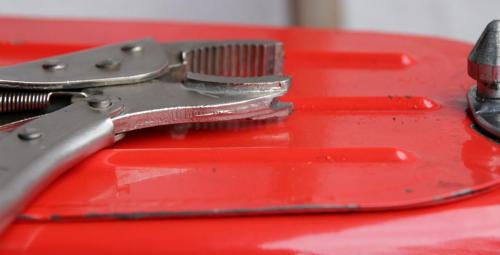
Ich muss mich einfach nochmal zitieren und loben, auch wenn's stinkt. Hatte grad kürzlich wieder einen Patienten, bei dem's ohne die Zange niemals nich' geklappt hätte.
 2 Punkte
 -
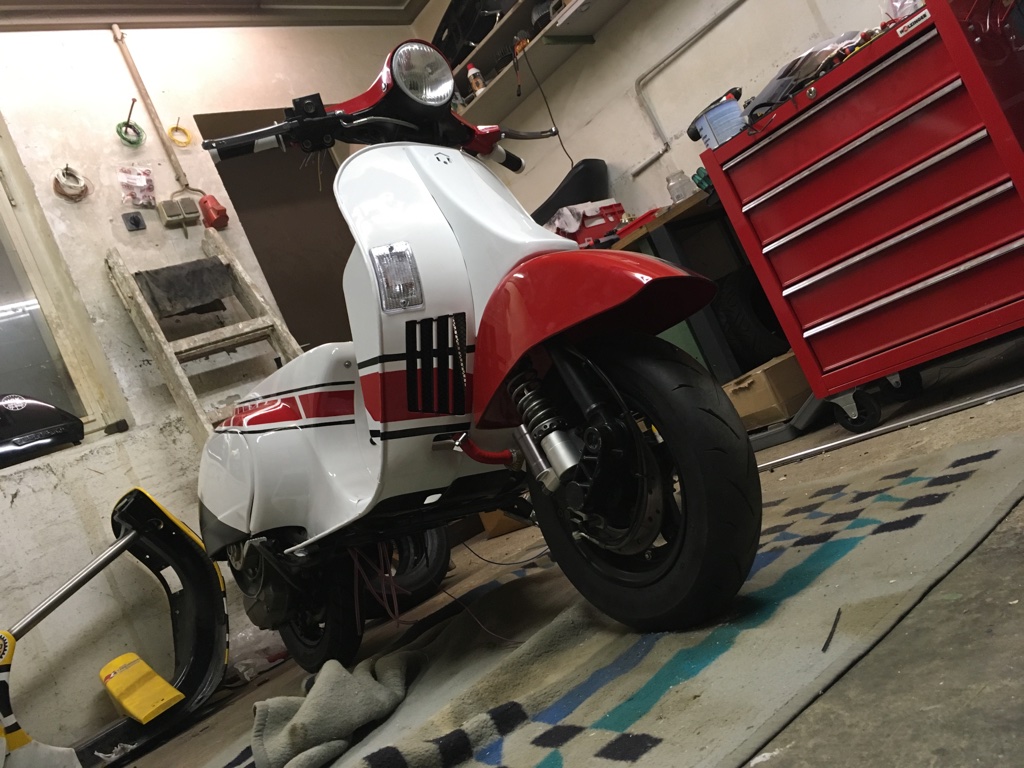
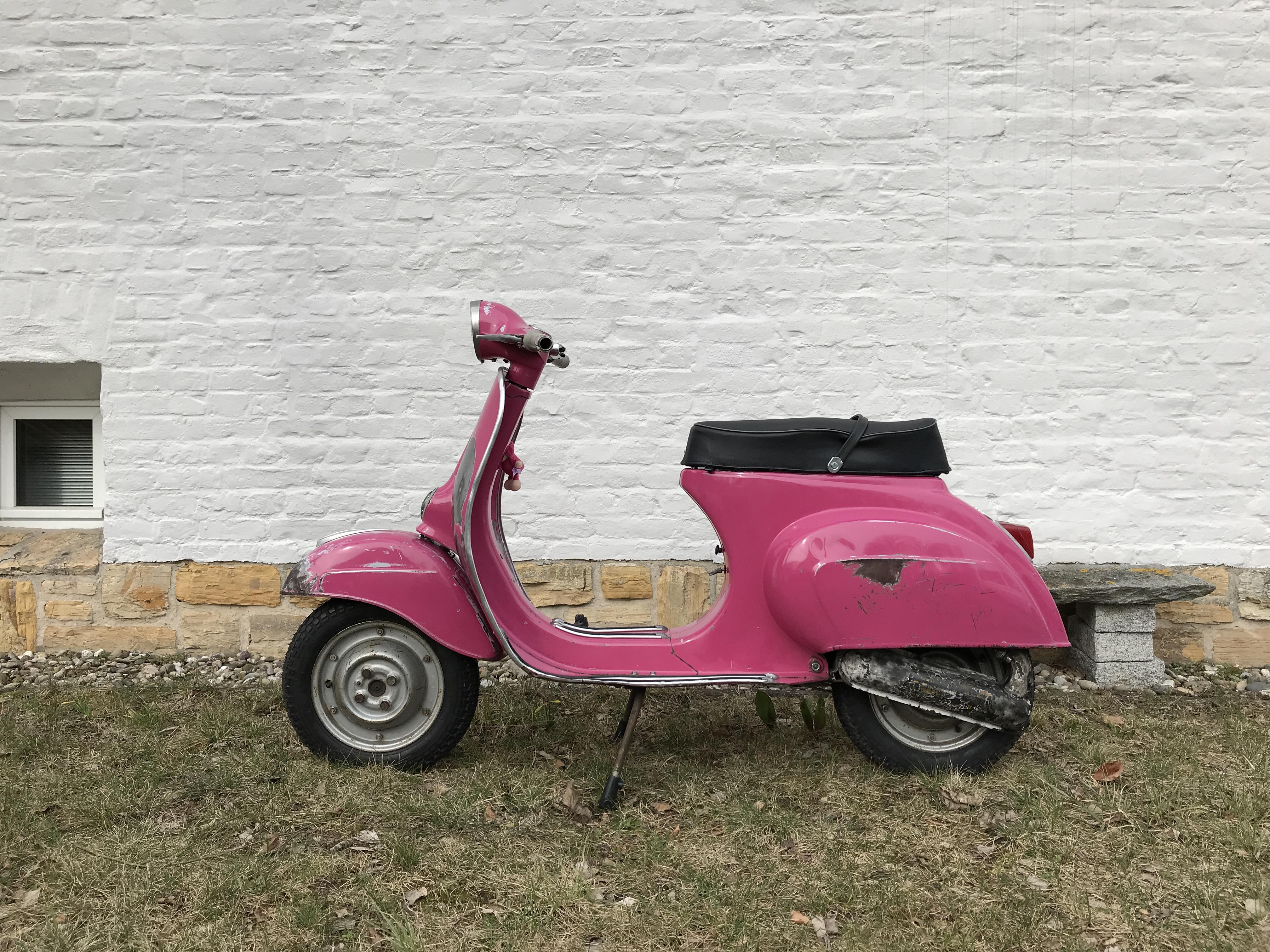
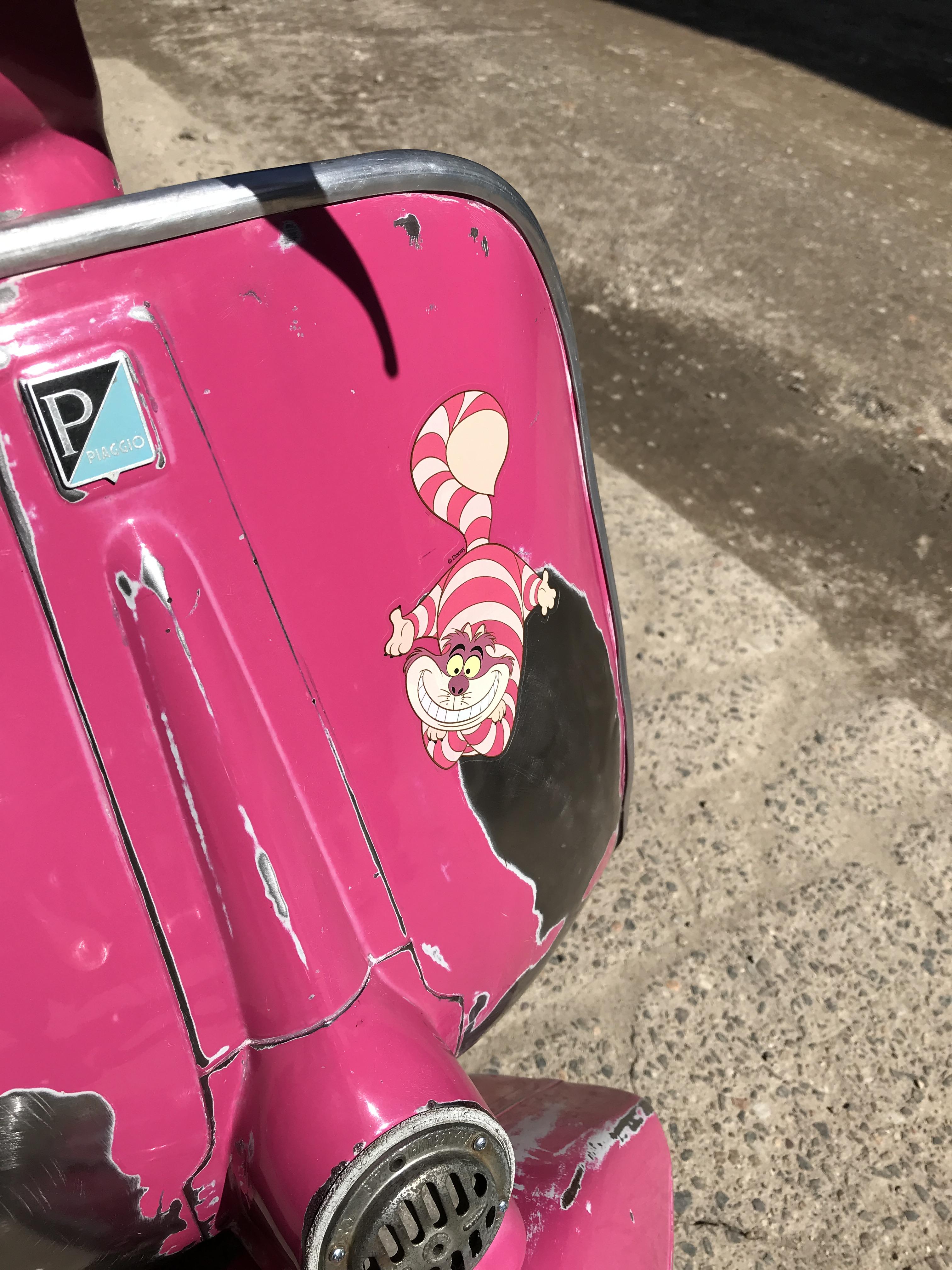
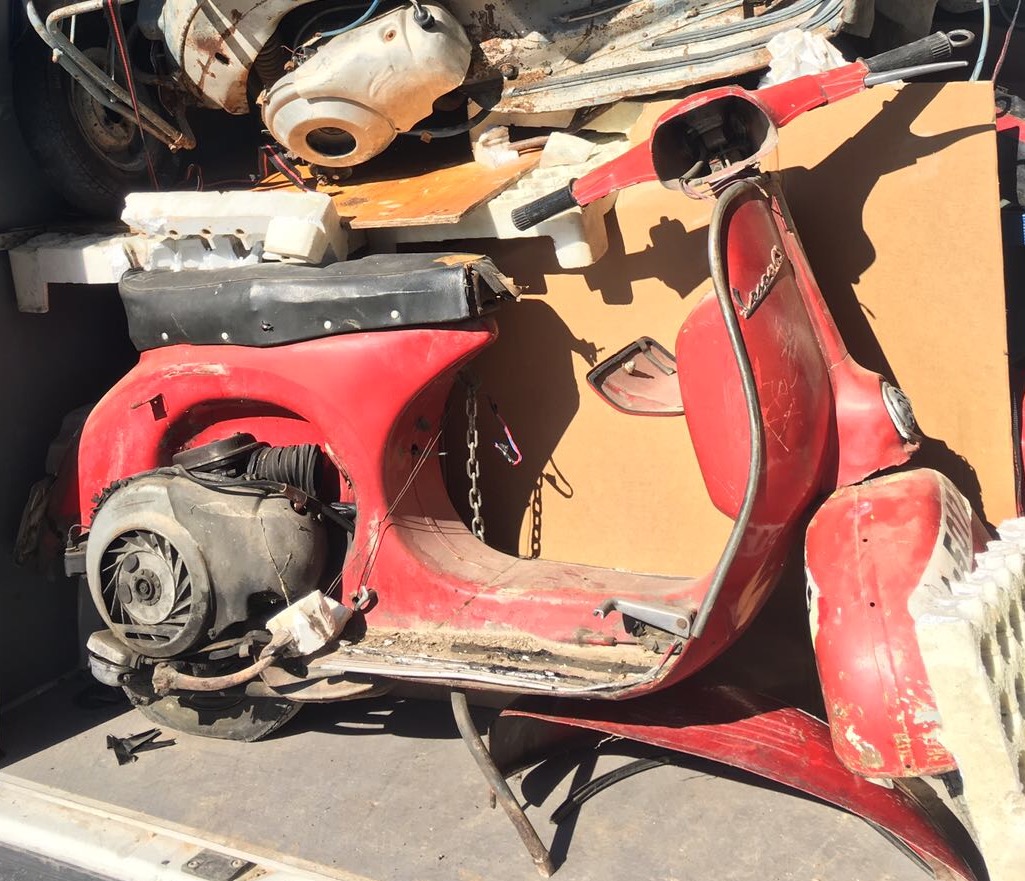
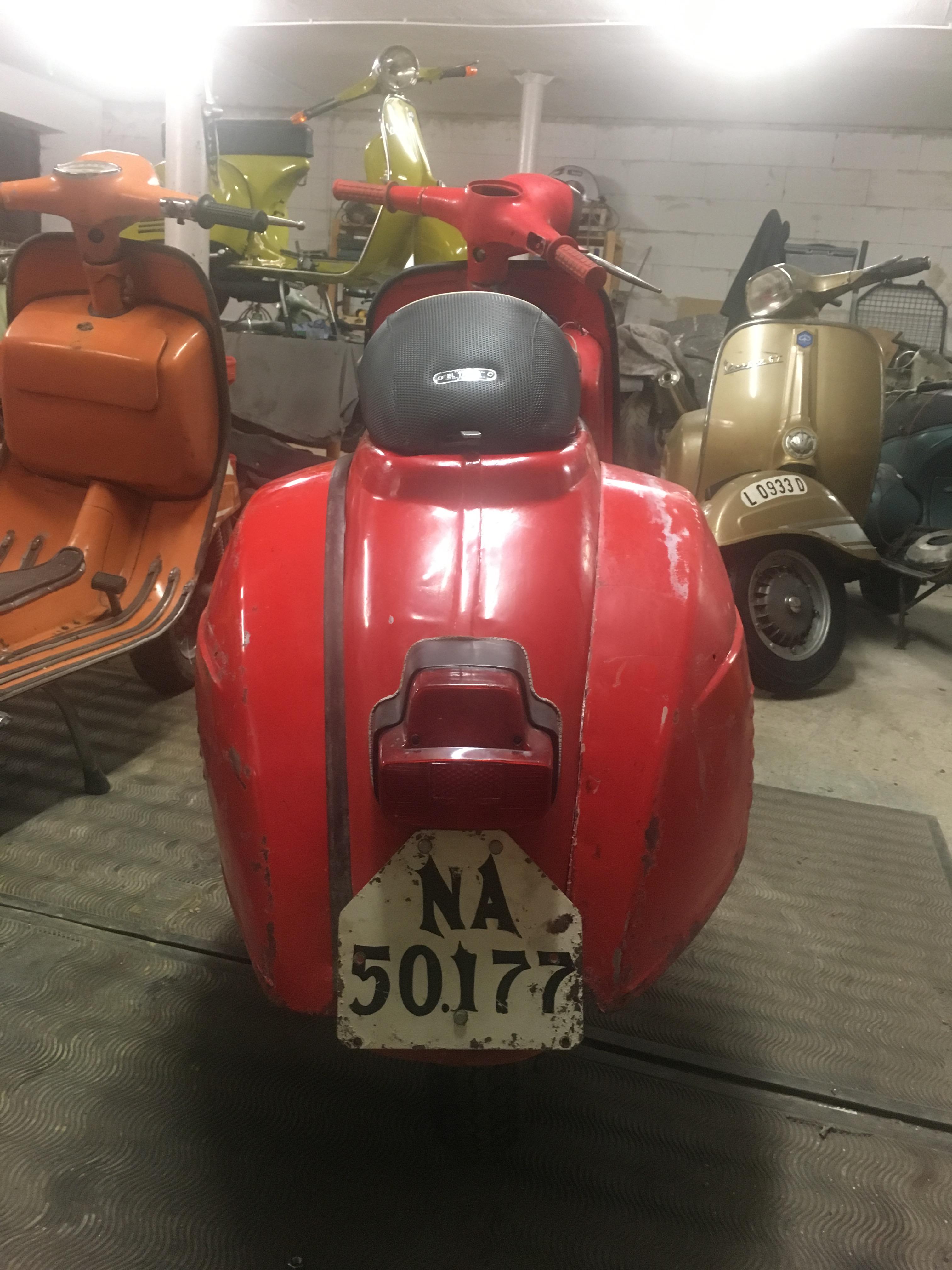
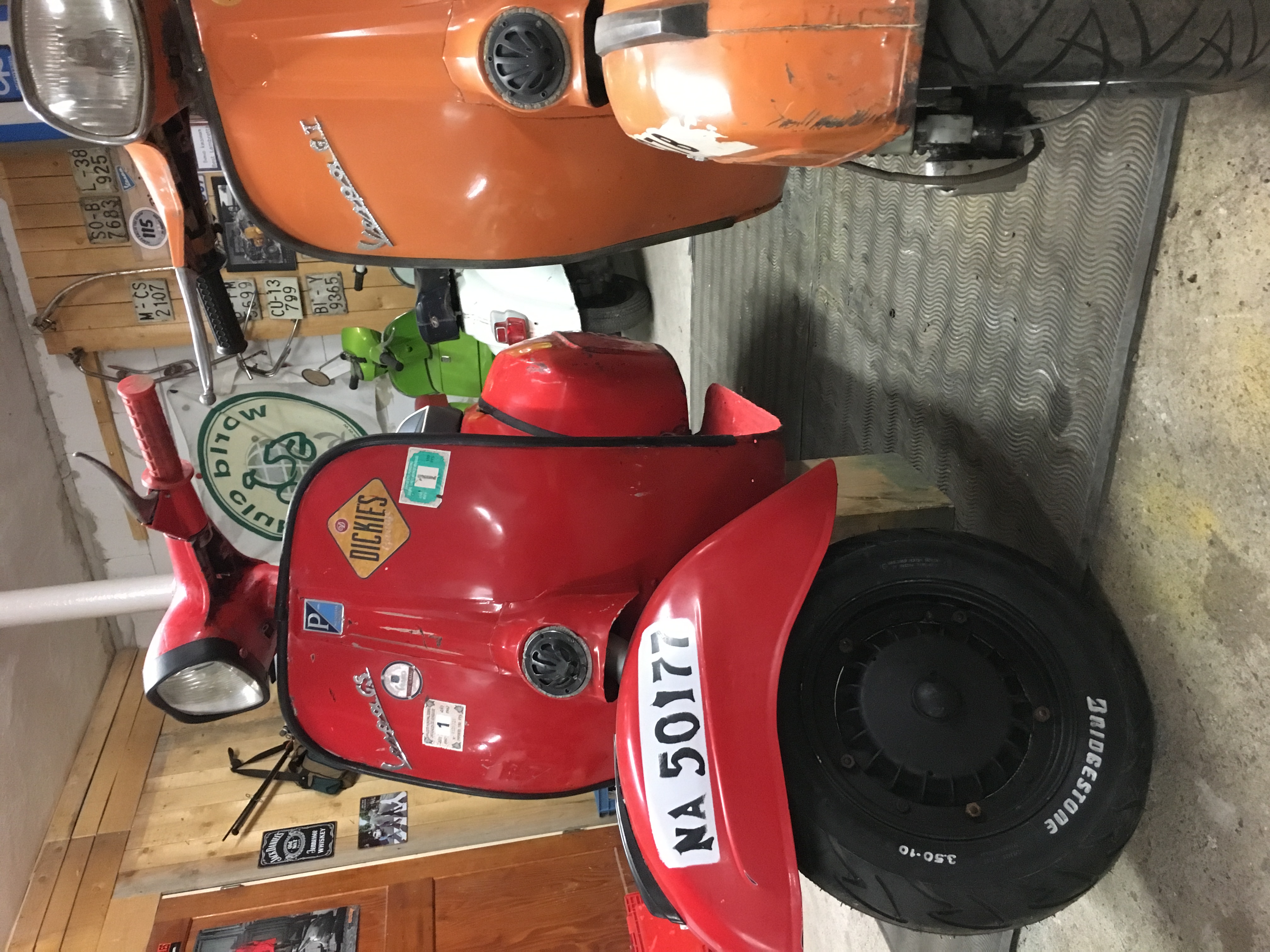
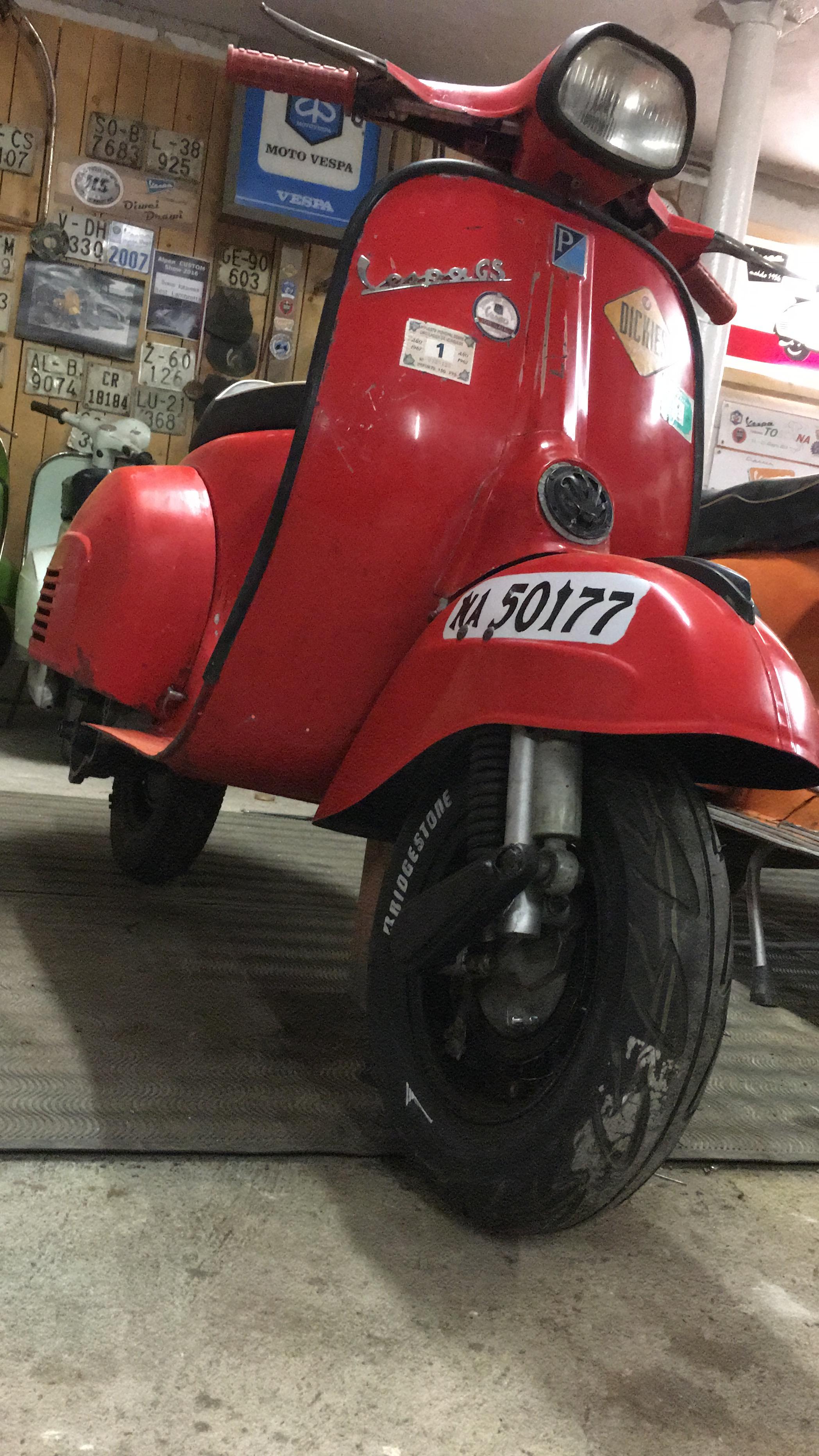
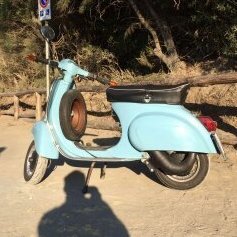
2 PunkteHola , hab hab hier ein ganz nettes vorher nachher anzubieten ... richte mir für nächste Saison ne olack rote GS 150 her , würziger Gullasch malossi 2016 , hab da mal rot/schwarze Kombi gewählt .. roller ist abgelackt , beilackiert , hier mal vorher .... Frontschaden , Gabel im Sack und jetzt Zwischenstand vielleicht gefällt es ja saludos
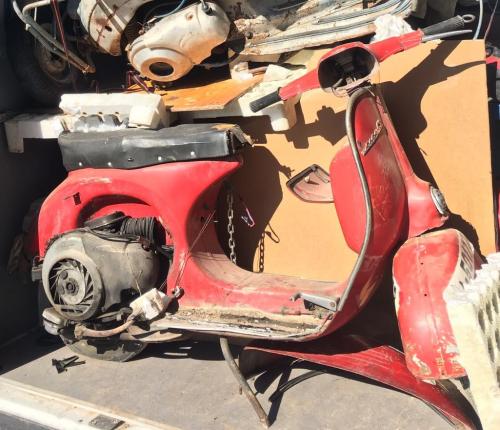
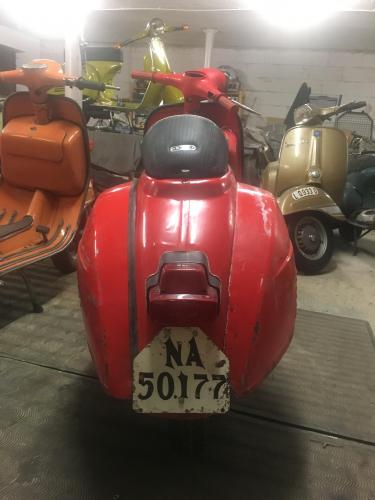
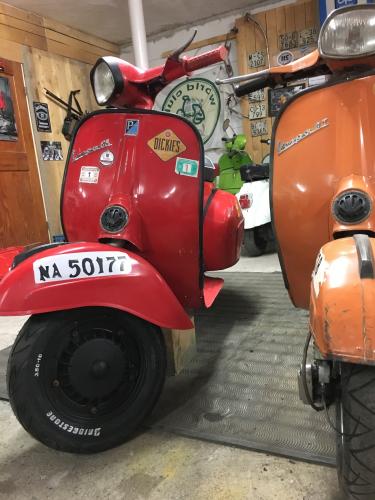
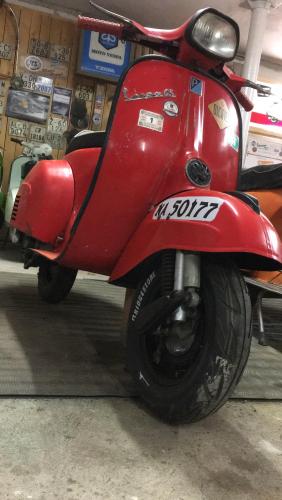 2 Punkte
 -
2 PunkteFröhlich und heiter geht es moooooooooorsche beim Dreckswetter weiter, die Basis sind 3 kg Schopf Vagöts God Jogl
.thumb.jpg.493cd547d56ff8b5229a42e94cf0d2fd.jpg)
.thumb.jpg.abe3341249e83d4d35ce7713b0e98ae0.jpg) 2 Punkte
2 Punkte -
2 PunkteMeine Frau hatte gerade entbunden, da kam ihre Zimmernachbarin rein, auch nach der Entbindung, ziemlich schlapp. Dahinter 4(!) Männer im Schlepptau. Da nicht genug Stühle an deren Bett standen, setzte sich einer an's Fussende des Bettes meiner Frau und glotzte sie auch noch doof an. Ratet mal, welche Landsleute... Das war der Punkt, seit dem meine Frau eine Zusatzversicherung mit Einbettzimmer hat.2 Punkte
-
2 Punkte
-
warum? leistung is wohl wichtiger als son kack ss rahmenteil im inneren2 Punkte
-
2 Punkte
-
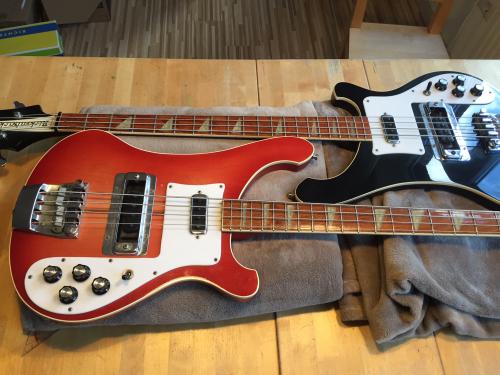
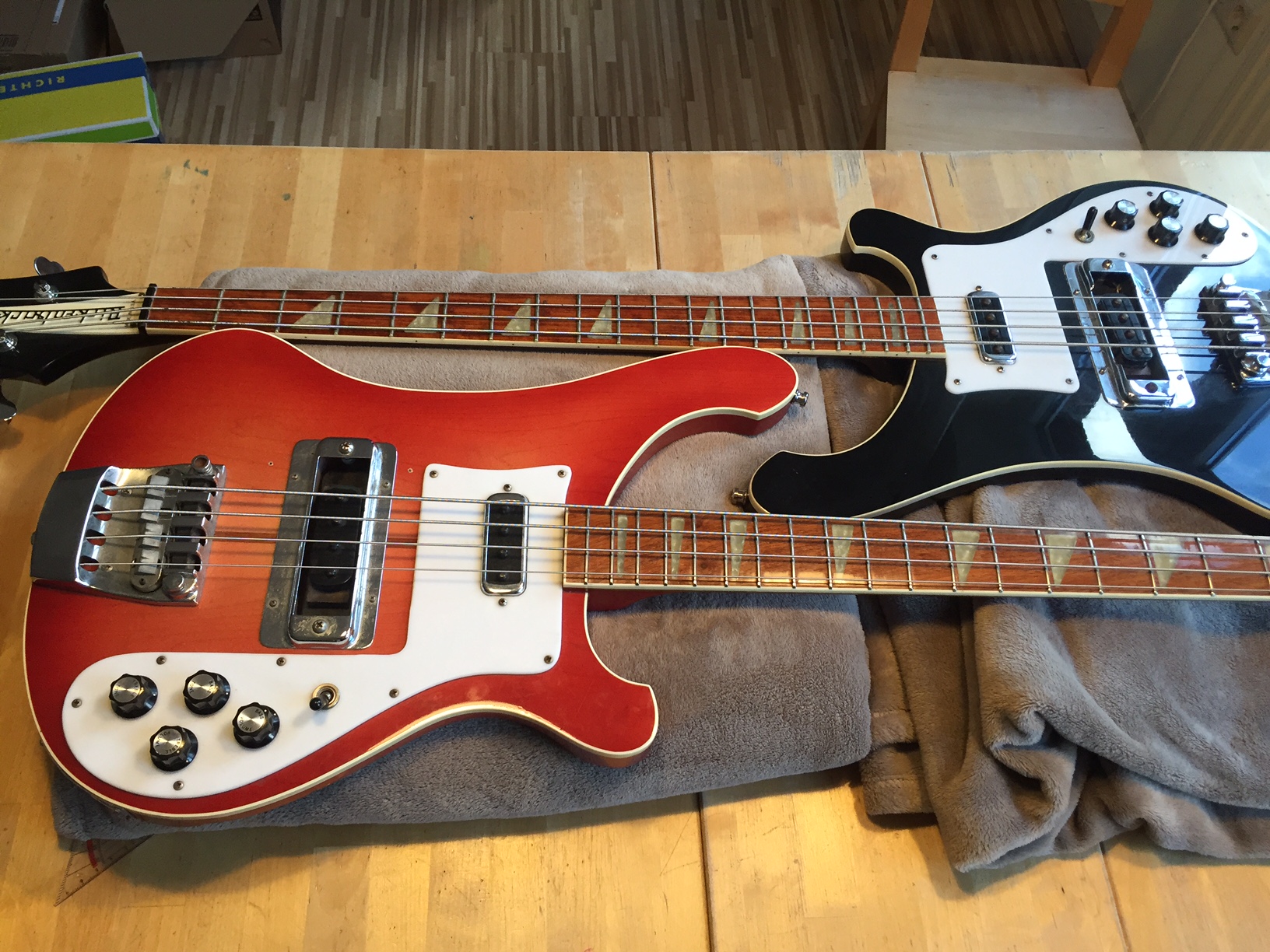
2 PunkteAuf einem Bein kann man ja bekanntlich nicht stehen. 79er Rickenbacker 4001 in Fireglo hinzugekommen
 2 Punkte
 -
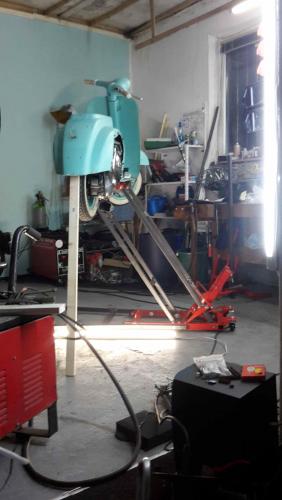
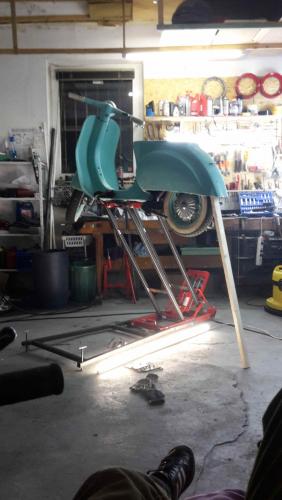
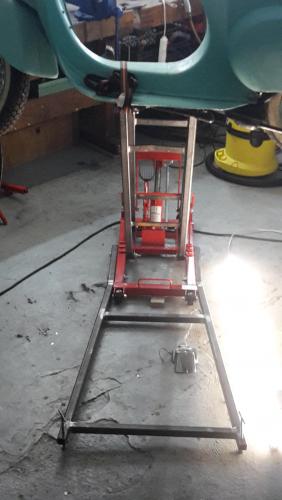
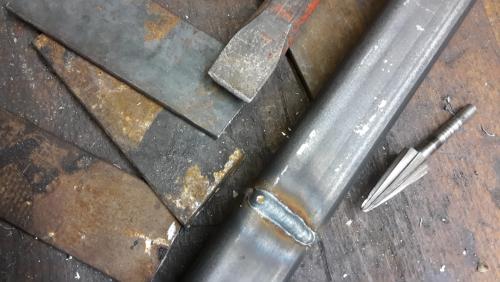
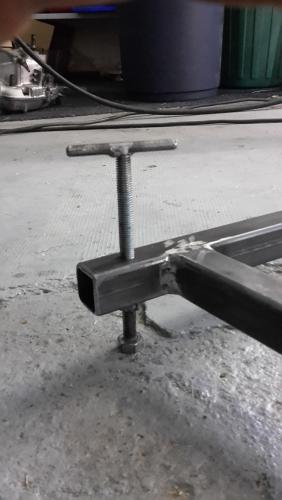
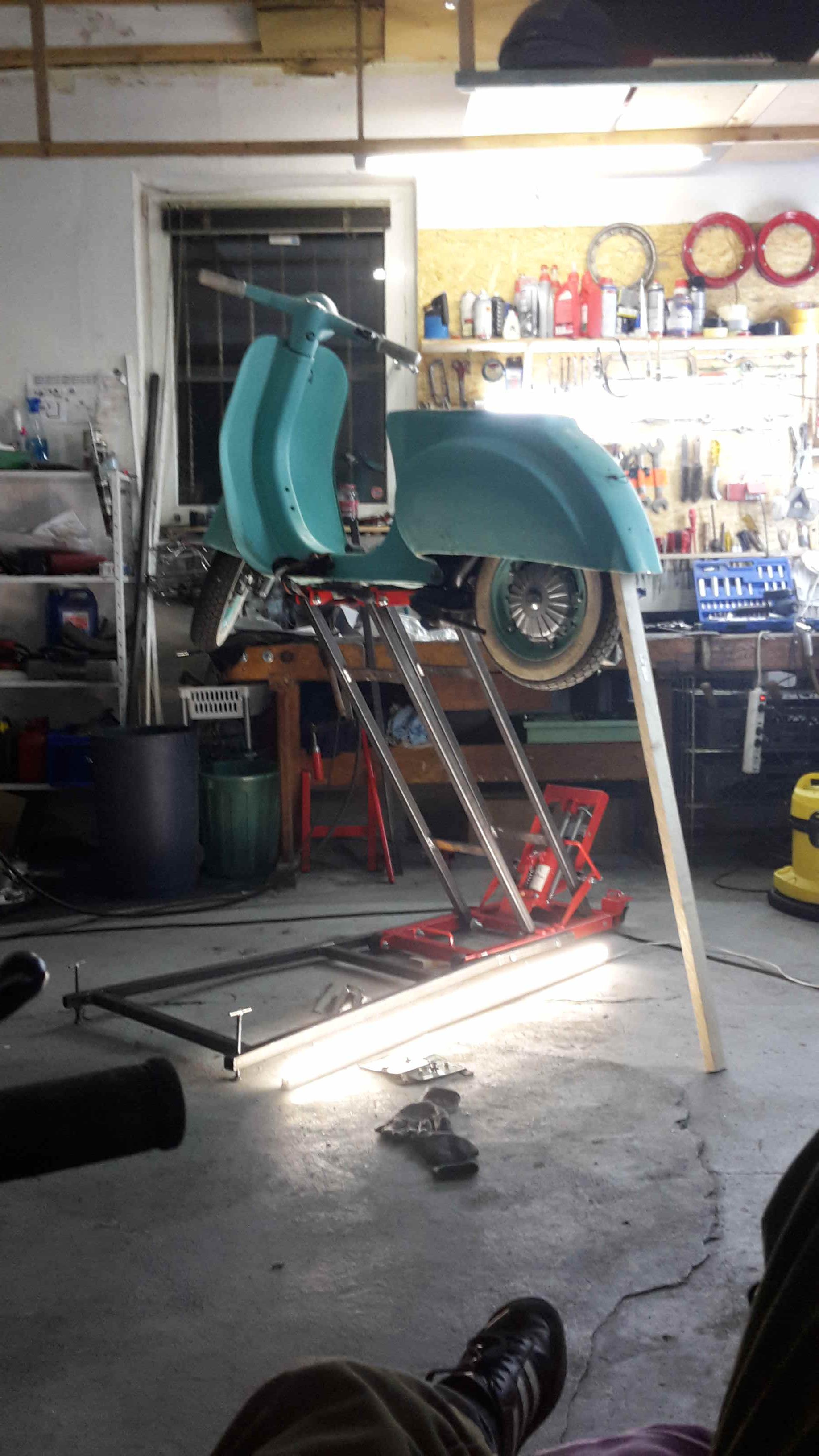
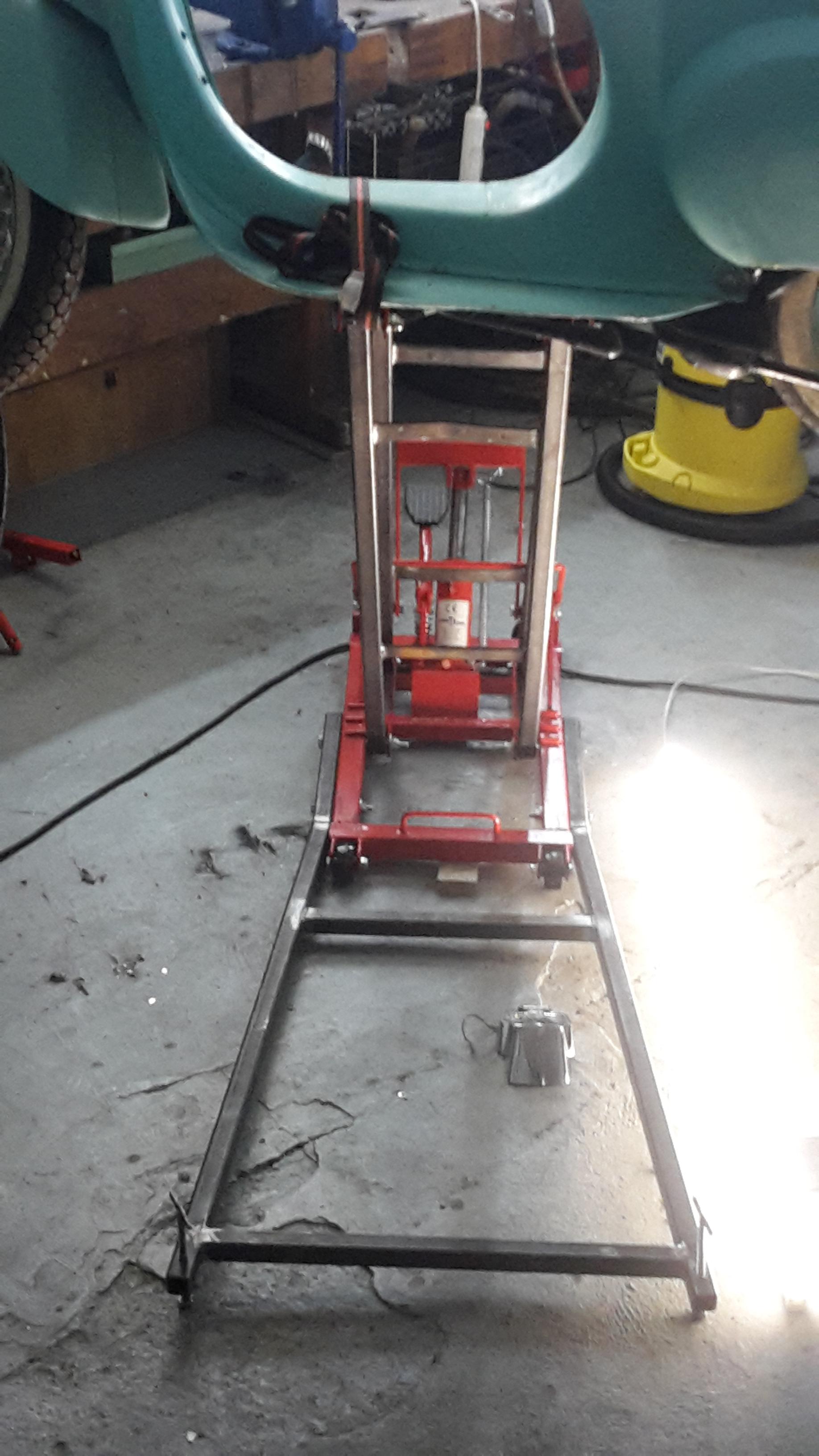
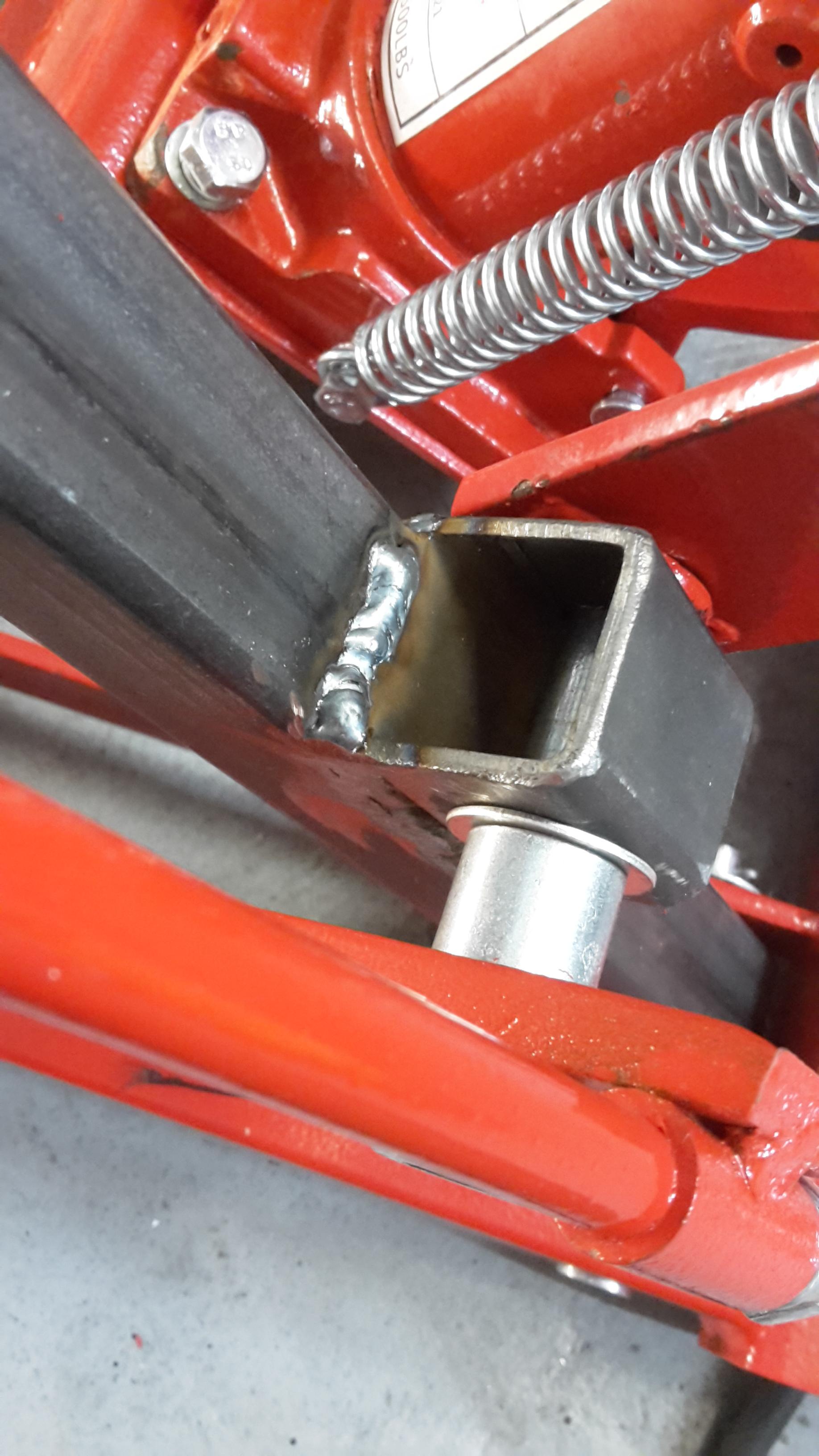
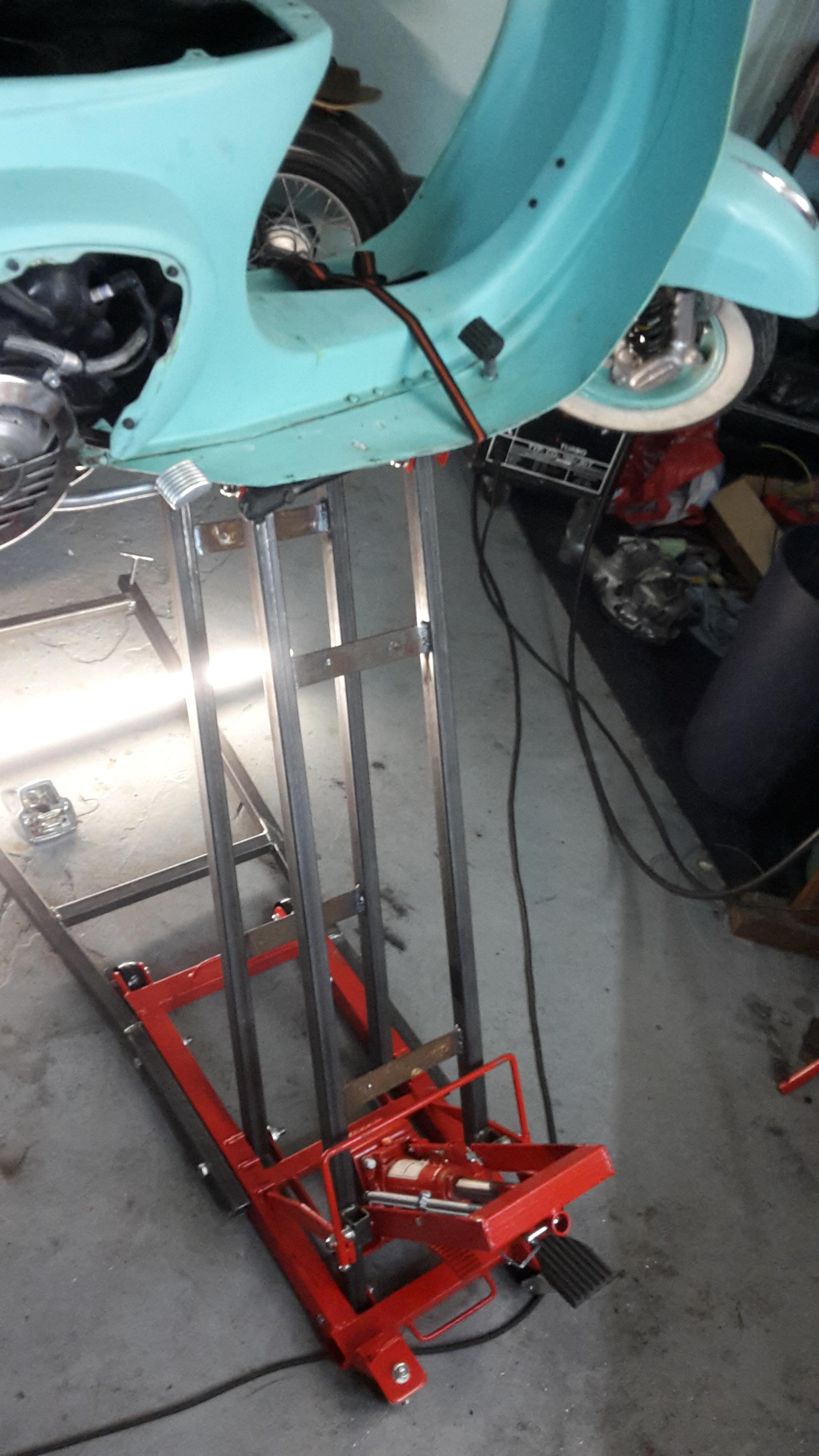
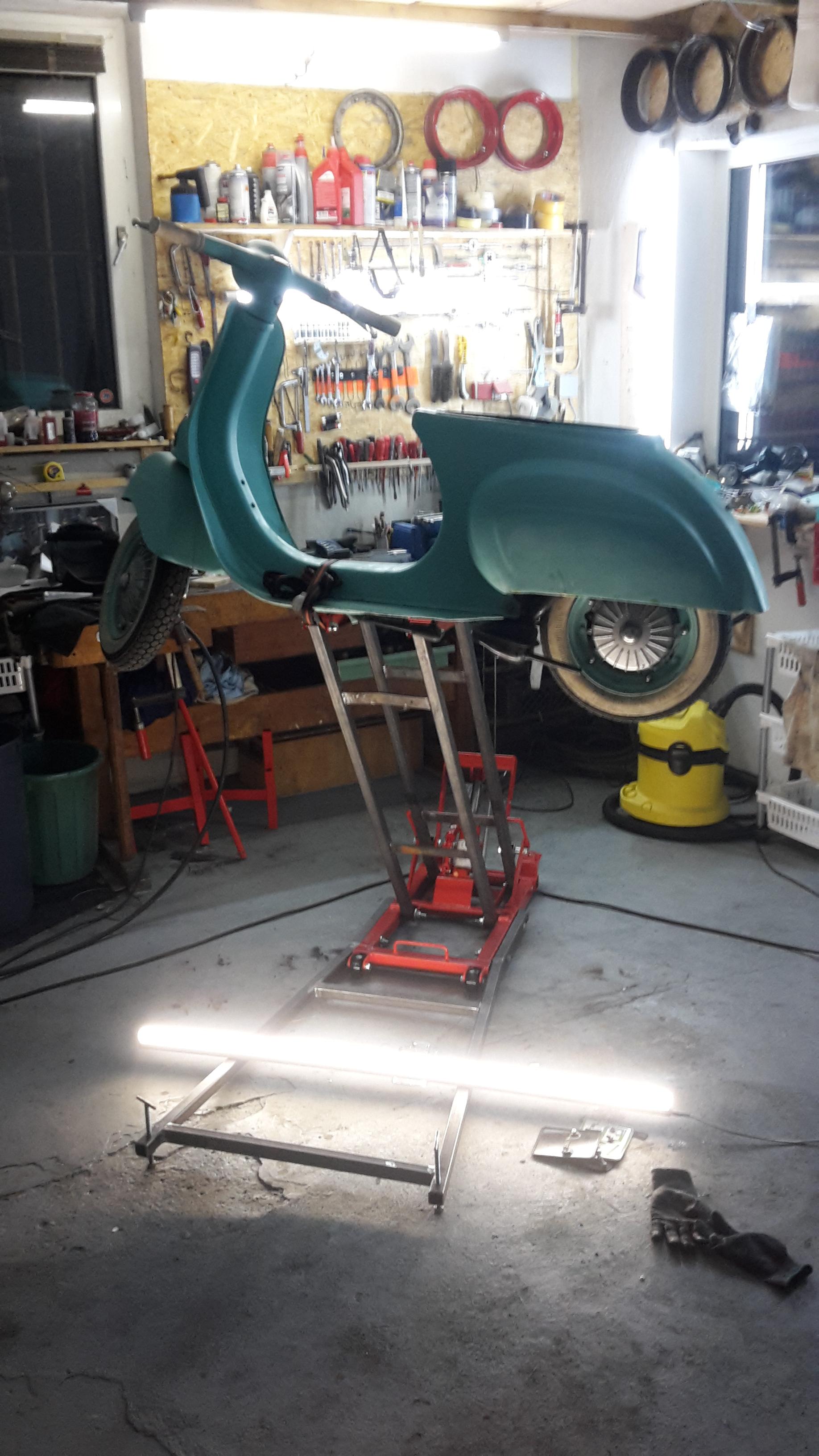
Die Dachlatte ist übrigens nicht Teil der Konstruktion, sondern war nur eine Überlegung um das Ungleichgewicht auszugleichen. ich mache jetzt aber einen kleinen Sandsack, der an die Gabel gehängt wird als Ausgleich zum Motor.
 2 Punkte
 -
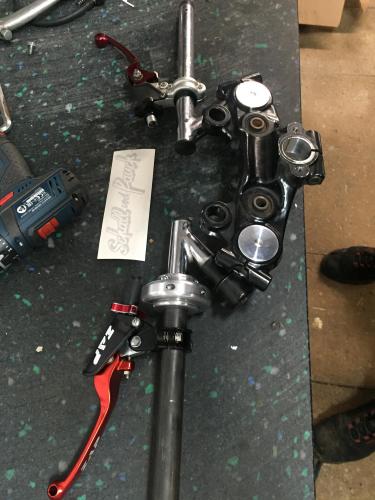
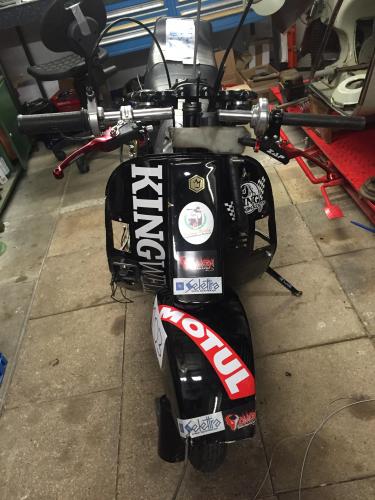
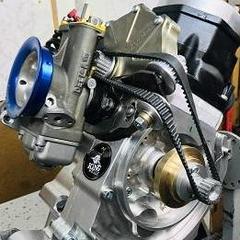
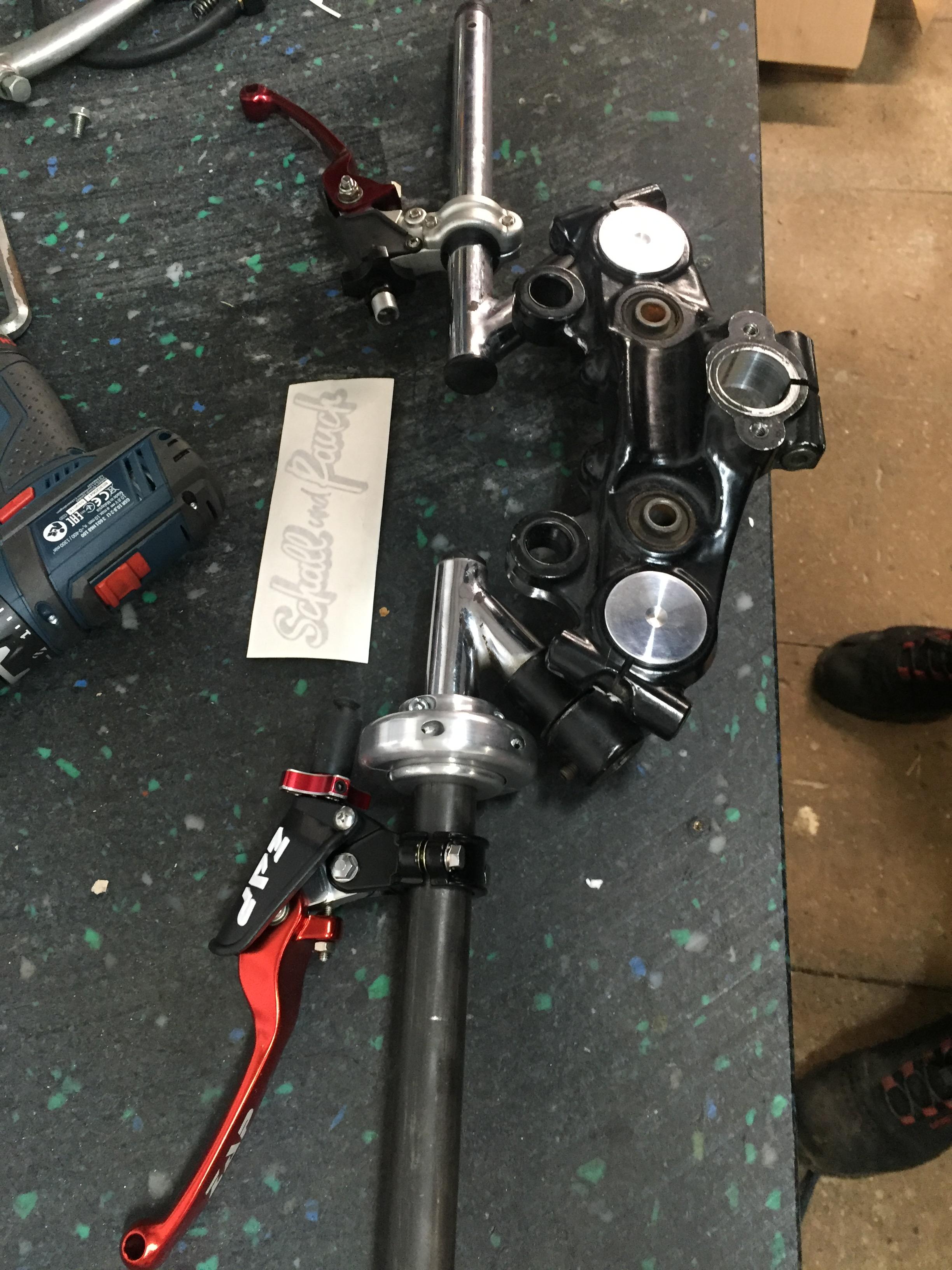
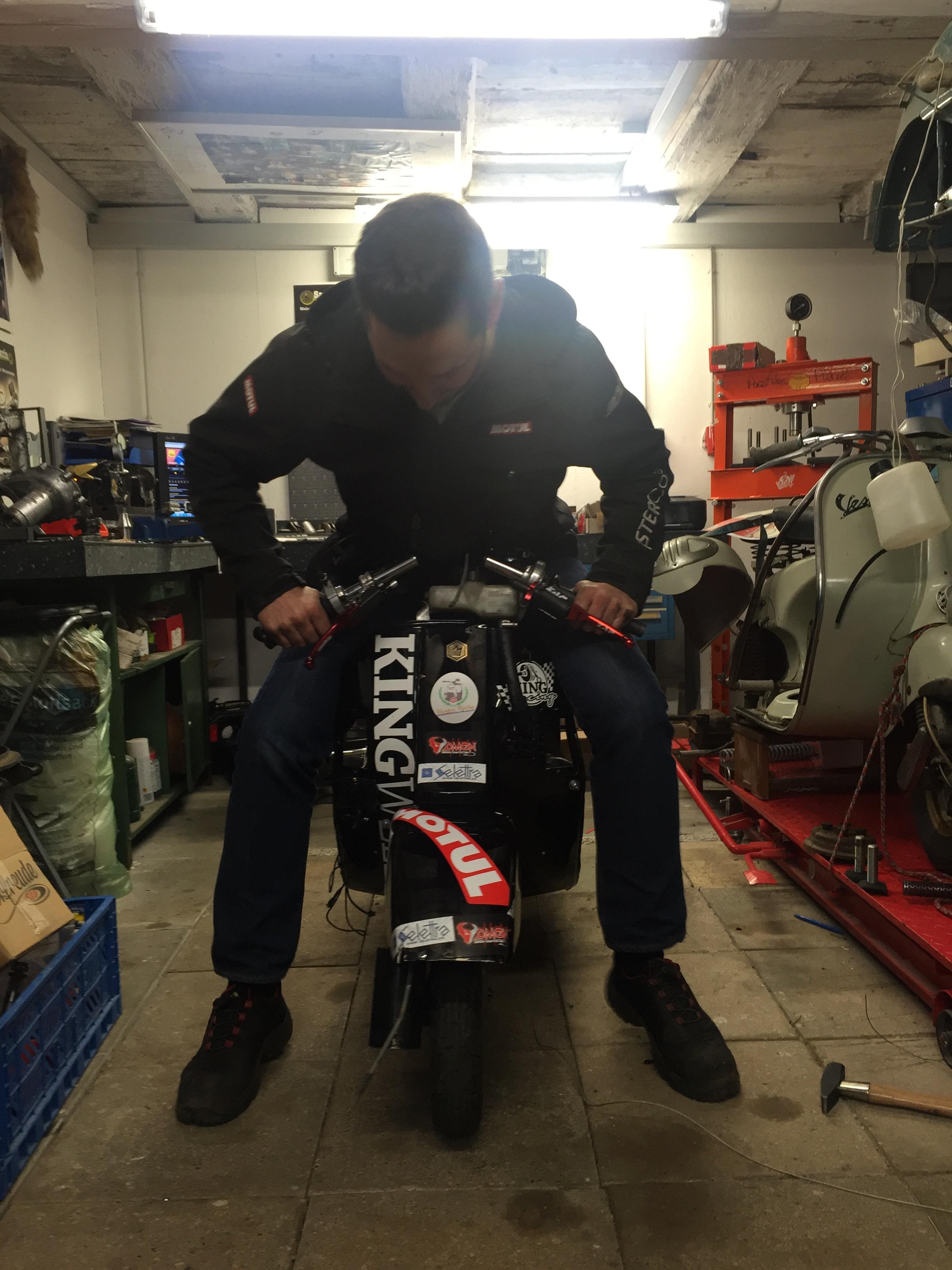
2 PunkteWas soll ich sagen, ich bin bereit für die DBM 2017, aber sowas von Vollgas, Kupplung spicken lassen und voll drauf-drüber Danke an Nico von Schall&Rauch Sehen uns bei Scooterist Meltdown 2017 an der Bar und auch Prüfstand.
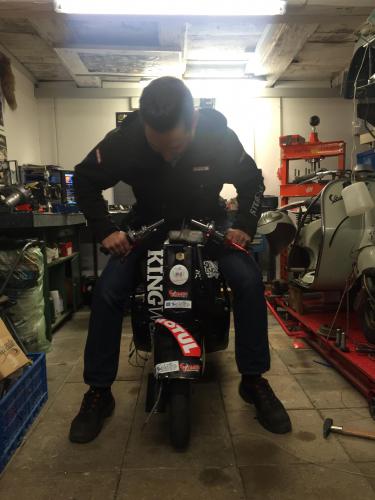 2 Punkte
 -
Hier noch die Messung in km/h. Original, Kolben um 2mm gekürzt mit Nase im Einlass und Kolben um 4,5mm gekürzt mit Nase im Einlass Bei dieser Messung sind es 2 verschiedene Motoren. Alle teile gleich bis auf die Übersetzung. Beide mit 125er Getriebe, die Allstate mit 65-23, die spanische mit 64-23. Achja, alle Messungen mit SIP Road.
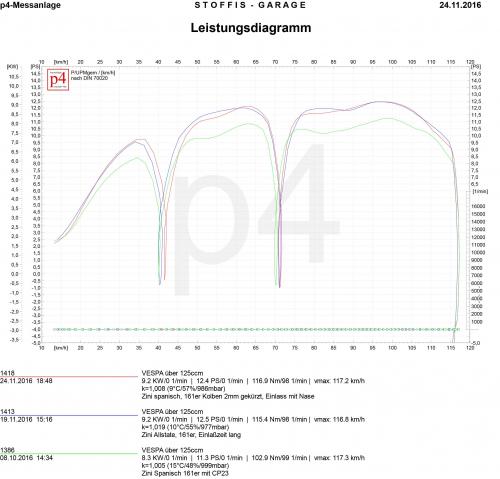 2 Punkte
 -
2 PunkteDas hatten wir schon einmal hier im GSF ich zitiere mich einfach mal selbst2 Punkte
-
2 PunkteHab zur LTH gegriffen, verbaut der Marco selber bei seinen Parma Motoren. Lag mit dem Einlass bei ~115vOT->61nOT wenn ich mich recht erinnere. Bilder nochmal vom Firefox editiert...
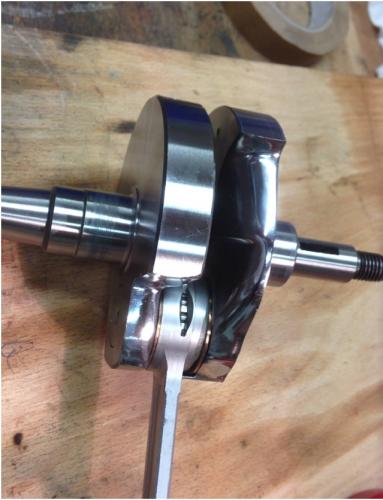
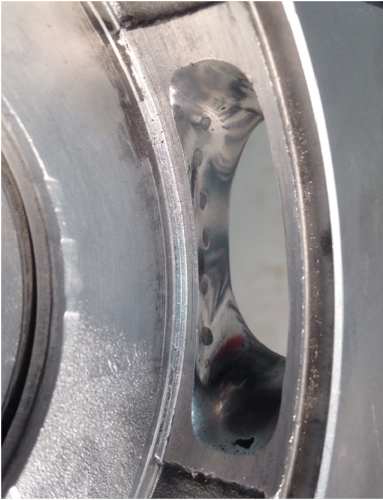 2 Punkte
 -
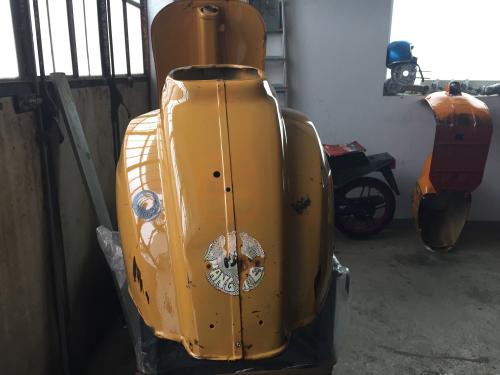
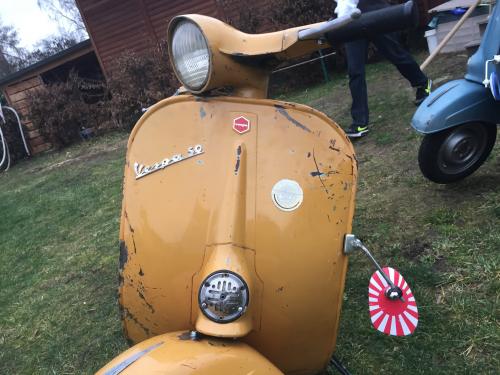
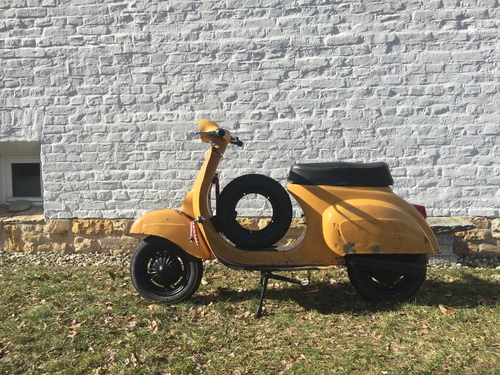
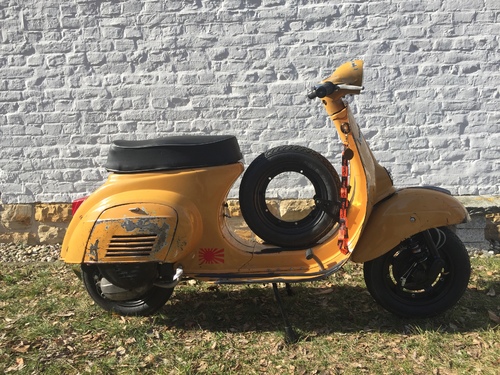
1 Punkt1 PunktHallo, ich hatte ziemlich genau das gleiche Problem... PX BJ '84 ohne Papiere gekauft, der Vorbesitzer ebenso und die Polizei hat zwar die Auskunft über die Unbedenklichkeit gegeben, hat aber kein Papier rausgerückt. Genauso waren über den LBV keine Daten mehr verfügbar. Der einzig gangbare Weg den ich über die Zulassungsstelle in HH rausgefunden habe war die Kiste zusammen zu bauen und die Vollabnahme zu machen um danach neue Papiere zu beantragen. Da ja niemand den Verlust eidesstattlich versichern kann werden die "alten" Papiere behördlich aufgeboten und nach verstreichen der Frist auf Grundlage des Eigentumsnachweises und der Vollabnahme neue Pspiere ausgestellt. Papiere nur für den Rahmen zu bekommen wird schwierig. Da hier zeitgleich noch eine Sprint und eine Cutdown PX rumstehen hab ich den Rahmen weiterverkauft. Ich kann den Käufer mal anschreiben wie weit er in der Angelegenheit ist und was dazu sagen könnte.... Gruss Larsen1 PunktJa, gibt es. http://www.scooter-center.com/de/product/7676246 Aber auch hier mal kurz lesen:1 PunktRohrdommel finde ich einen sehr schönen Namen für einen Vogel. Klingt so sympathisch veraltet. Würde gut zu einer typischen seichten Nachkriegskomödie passen (Handlung: Heinz Rühmann und Theo Lingen fahren mit dem Fahrrad in die Lüneburger Heide, um nistende Rohrdommeln* zu beobachten. Dabei werden sie mit geheim operierenden Nazi-Stasi-Geheimagenten verwechselt. Das führt zur allerlei Verwirrungen und lustigen Situationen. Ein heiterer Spaß für die ganze Familie, FSK. ab 6) * Alternativ der Wiedehopf oder die Spottdrossel.1 Punkt1 Punkt1 PunktWas mancheiner so treibt. Macht ja nix, wird schon halten. Hielt früher ja auch! Mir gefällt dein Einlass1 Punkt1 PunktAlso. Wir wollten bei meinen Eltern und Schwiegereltern grade zu Abend essen 18:30 uhr. Da gings los,meine Frau und ich also ins Krankenhaus. Da war natürlich, sagen wir mal so,nur Notbesetzung. Ein Arzt und eine total junge Hebamme. Neben uns war noch eine Geburt im gange. Eine türkische,mit schreien und allem. Die nervten nicht nur uns. Bei meiner Frau ging es dann super flott. Um 20:30 wurde geschlüpft. Dann der Schock,unsere Tochter atmete nicht und hing ganz schlapp auf dem Arm der Hebamme. Dann musste es schnell gehen,abnabeln und da liefen sie weg. Ich hätte fast gebrochen,zitterte und konnte mich nicht bewegen. Kurze Zeit später,ein Baby schrie. Man war ich froh. So war das. Ach ja,vielleicht wäre ich beruhigter gewesen von Anfang an,wenn die Hebamme mal erwähnt hätte,dass sie vorher auf einer Neugeborenen intensiv gearbeitet hat.1 PunktZerschneide die 90ss ned! Nimm Stoßdämpfer Verlängerung und Eigenbau ansauger der gleich nach der flanschplatte nach links in Fahrtrichtung steht mit einem gegenwinkel nach ein paar cm. Sollte so auch gehn..1 Punkt1 Punkt1 PunktAus erfahrung? Oder weil es so in den shops usw angepriesen wird? denn genau das ( bissle power und keine drehzahlmonster, das ist ja nur der malossi 136 (hahaha , ironie ;-)) kann auch eine mhr136, polini guss,und wie die alle heissen hast du schonmal SF geschraubt?1 PunktGesendet von meinem Raumschiff mit dem Communicator 2000 ®.
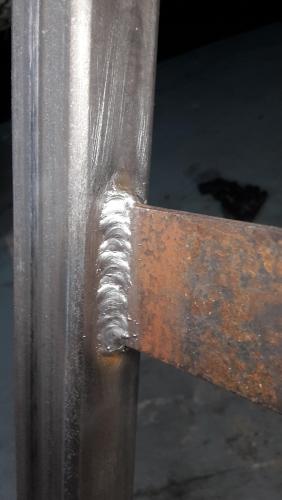
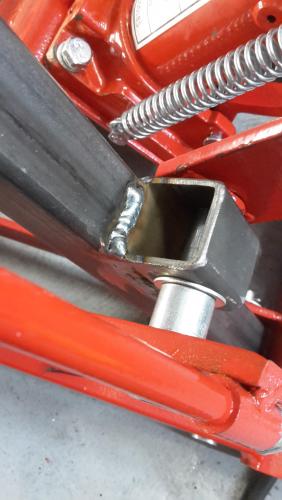
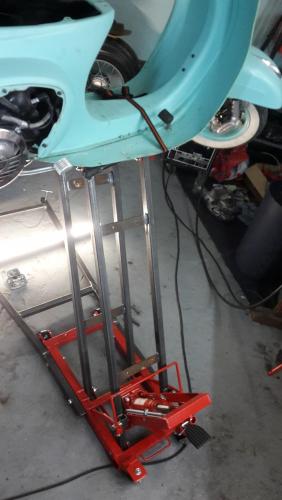
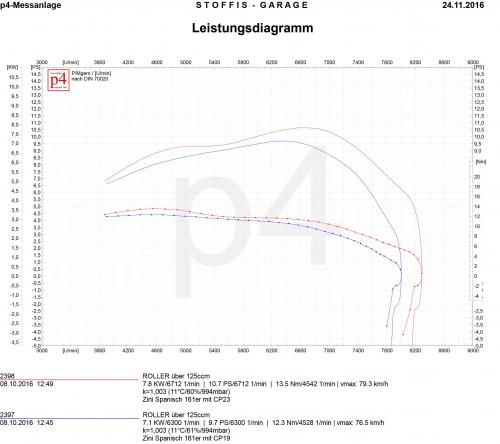
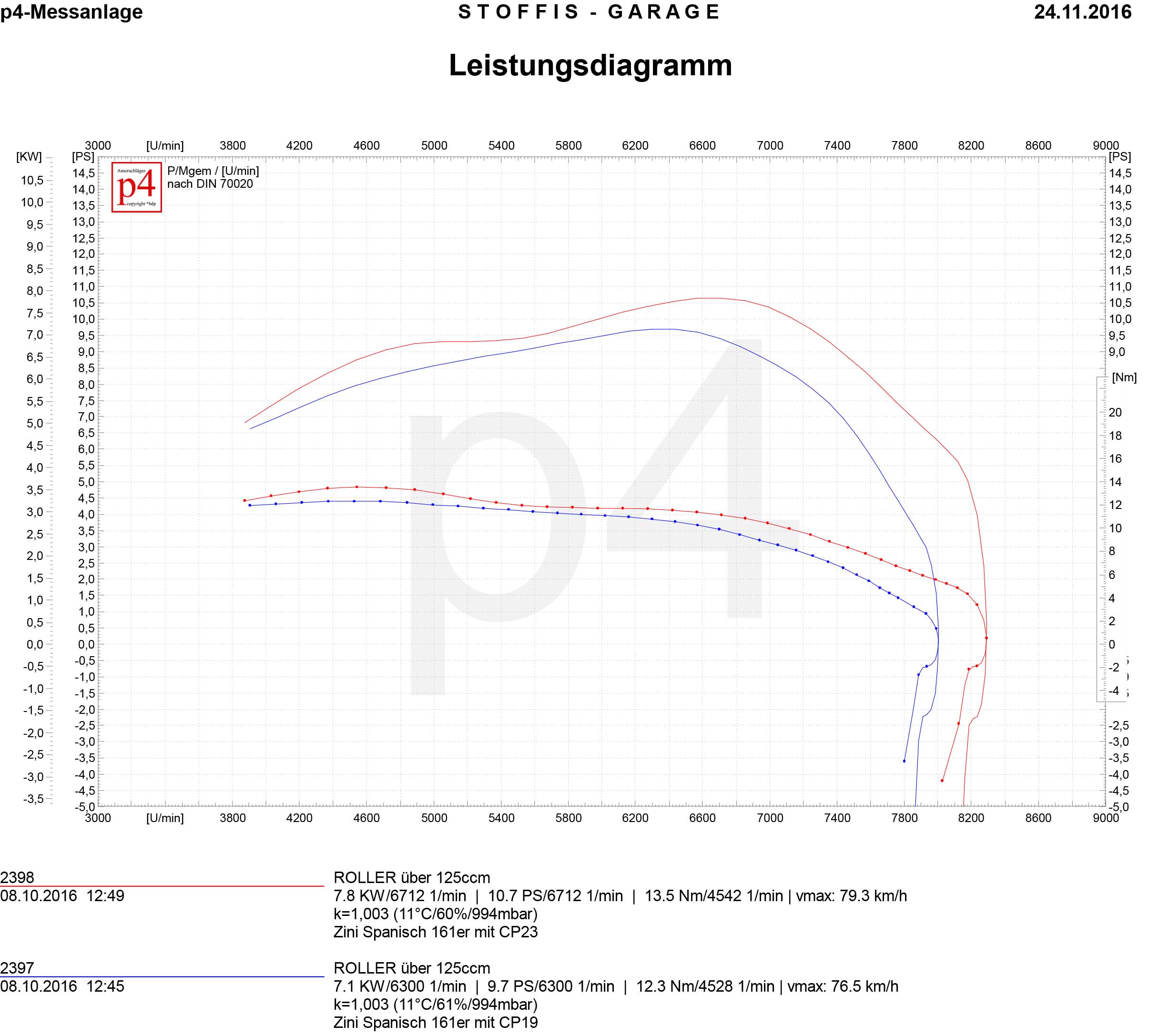
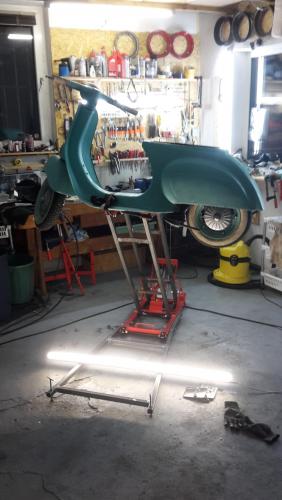 1 Punkt1 Punkt1 PunktWir (also ich) finden den Unterschied in der Lautstärke nicht so arg. Ich bin nicht verheiratet und habe noilich ungefragt von DS auf Membran umgebaut und keinerlei Einfluss auf die gehörte Lautstärke bemerkt. Es hört sich anders an, aber nicht lauter. Mir isses ja prinzipiell Ladden was du/ihr verbaut, aber wenn deine Frau dich in technischen Dingen berät, muss das nicht der Weisheit letzter Schluß sein. Gruß Chris1 Punkt1 Punkt4000 ostmark auf dem Schwarzmarkt, das sind 2000 Ostmark, macht 1000 Mark, dann sind es 500Euro. Passt! Tu es tu es....1 PunktHallo zusammen, hab eh schon lange nicht mehr geschrieben und jetzt hatte ich mal Zeit mich mit dem Pinasco 160 zu beschäftigen. Ich fahre den Zylinder seit der ersten Auslieferung und muss sagen bin sehr zufrieden damit, auch beim Giro delle Alpi war ich damit unterwegs. Als erstes ist mir aufgefallen dass der Zylinderkit etwas lauter im Ansauggeräusch ist, das kann aber ohne viel Aufwand verändert werden, dazu aber später. Die Steuerzeiten wurden eh schon gepostet, Einlass 133° ist quasi nix, für das geht er saugut, auch dazu später mehr. Die Verdichtung liegt bei 1:11,3. Hab bei einem Betrag gelesen "möchte Quetschkante 1,2mm", das würde ich nicht machen..... Hier mal eine Leistungsmessung mit dem Zylinder wie er von Pinasco ausgeliefert wird. Dabei der Vergleich CP21 zu CP23 Vergaser. Am Leistungsdiagramm steht CP19, da hab ich mich verschrieben.
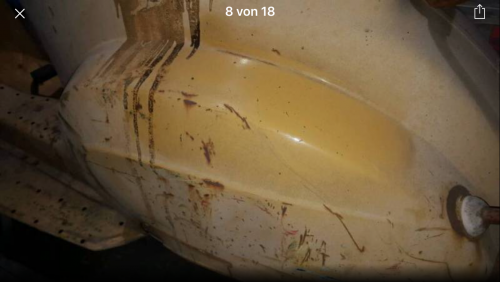
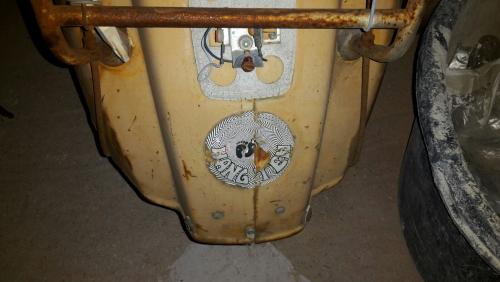
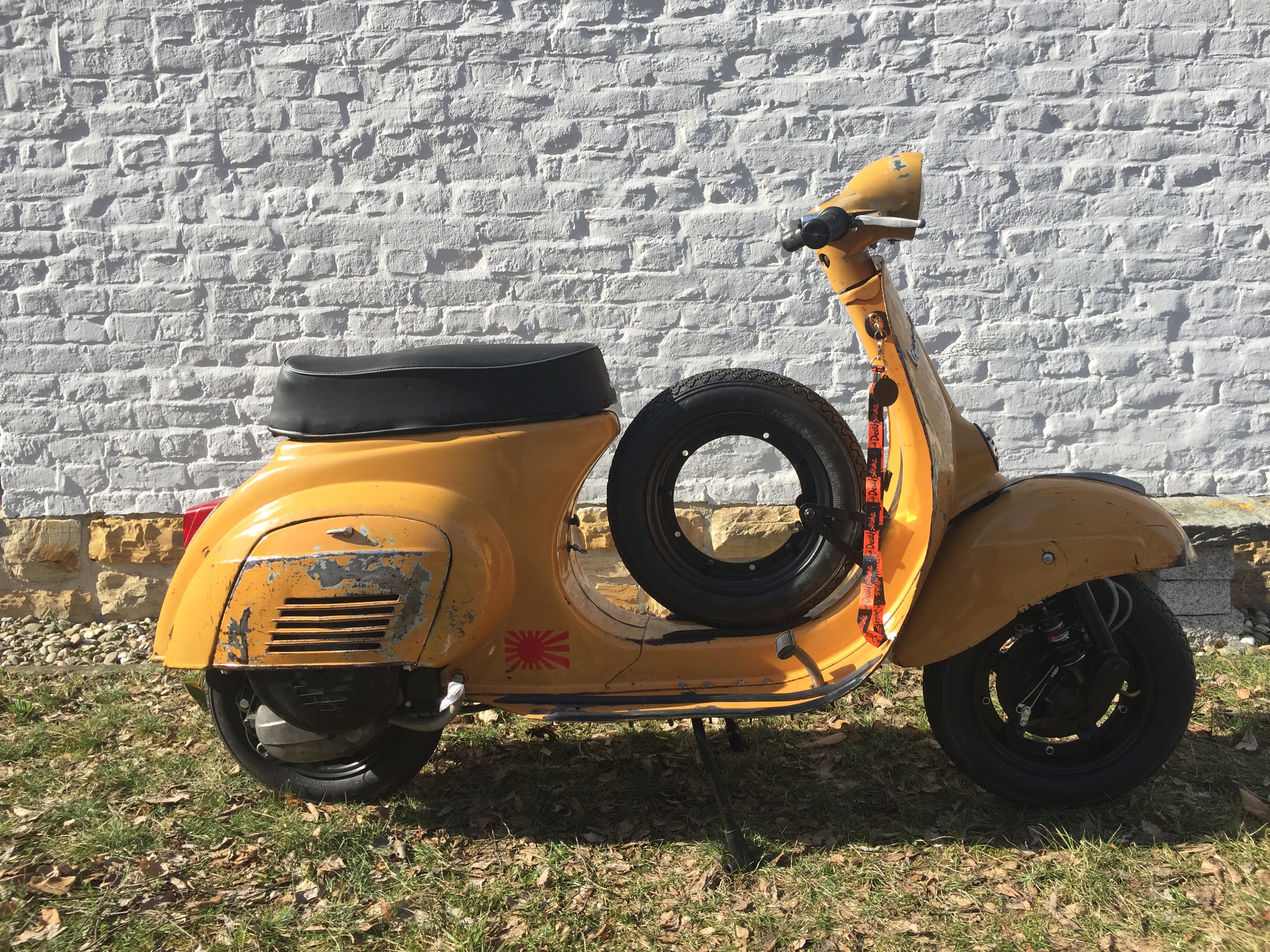
 1 PunktIst Win7 Ultimate. scf /scannow noch nicht. Werde ich wohl mal machen. Danke Haken war gesetzt. Hab´ den mal rausgemacht. Mal sehen. :)1 Punkt1 Punkt1 PunktHabe einen Parma 177 Motor mal gebaut mit fast den selben Komponenten ( 30er statt 28er PHPH, Serie Pro Welle von Mazzu statt K2D ) da standen mit dem Newline was mit 19 PS und 20 NM an.1 PunktRenesse mitter fuffi die letzte Sf die bei mir rumstand ist seit Samstag weg. jetzt muss ich nur noch Anfang des Jahres gucken das die Cosa geht.1 PunktKingwelle @ Scooterist Meltdown (2.-5. Feb 2017) Wahr oder falsch? Eine Smallframe macht einen 1000er Kawasaki Supersportler nass. Platziert Eure Wetten und schaut das Video! Übrigens, der Smallframe-Pilot ist Christoph Cramer von Kingwelle. Wer also mehr übers Nassmachen anderer Verkehrsteilnehmer erfahren möchte, kann mit den Kingwelle-Jungs auf der Meltdown Custom & Trade Show Kontakt aufnehmen. Weitere Infos folgen... Mehr zum Meltdown auf www.scooterist-meltdown.de Hier gehts zum Video Kingwelle Rotax gegen Kawasaki1 Punkt1 PunktServus, mal wieder was feines fertiggestellt. Eine schicke V50r in Positano Lackwork made by Alex Setup 130 DR / 12V Umbau / PKs Zündung mit leicht abgedrehten Lüra / 20erSHB Selfmade 30mm Krümmer und alte Et3 Banane Yss Dämpfer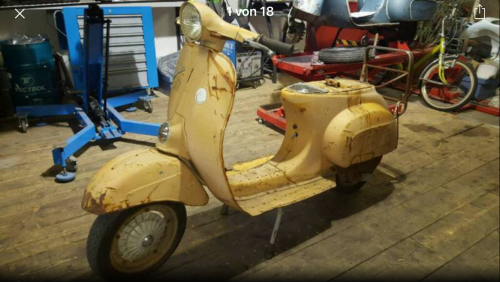
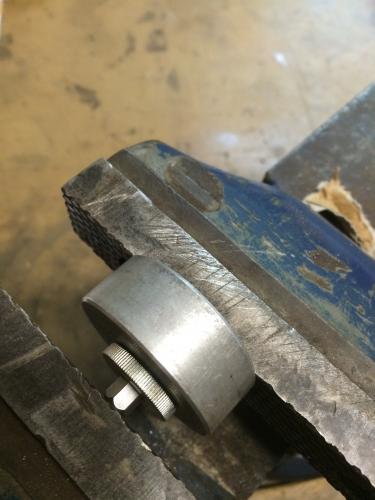
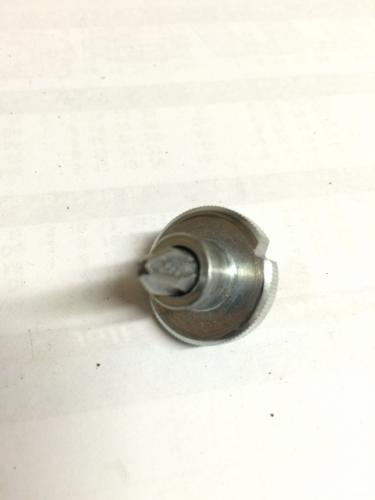
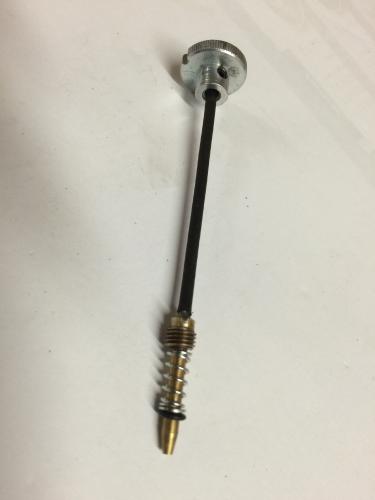
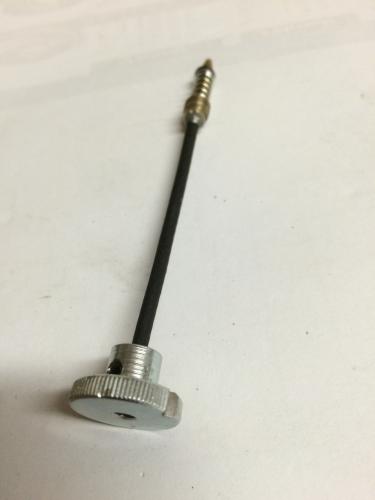
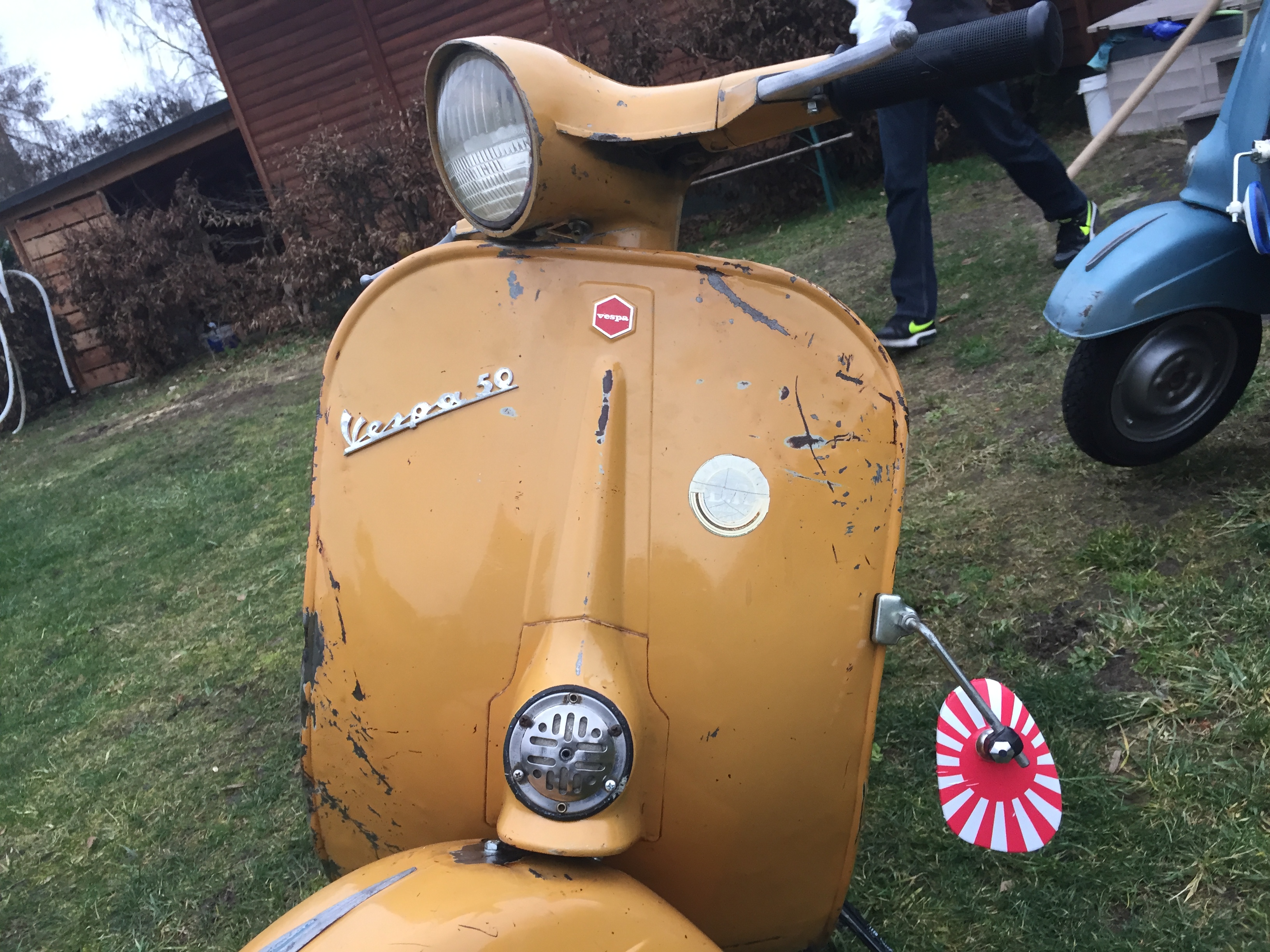
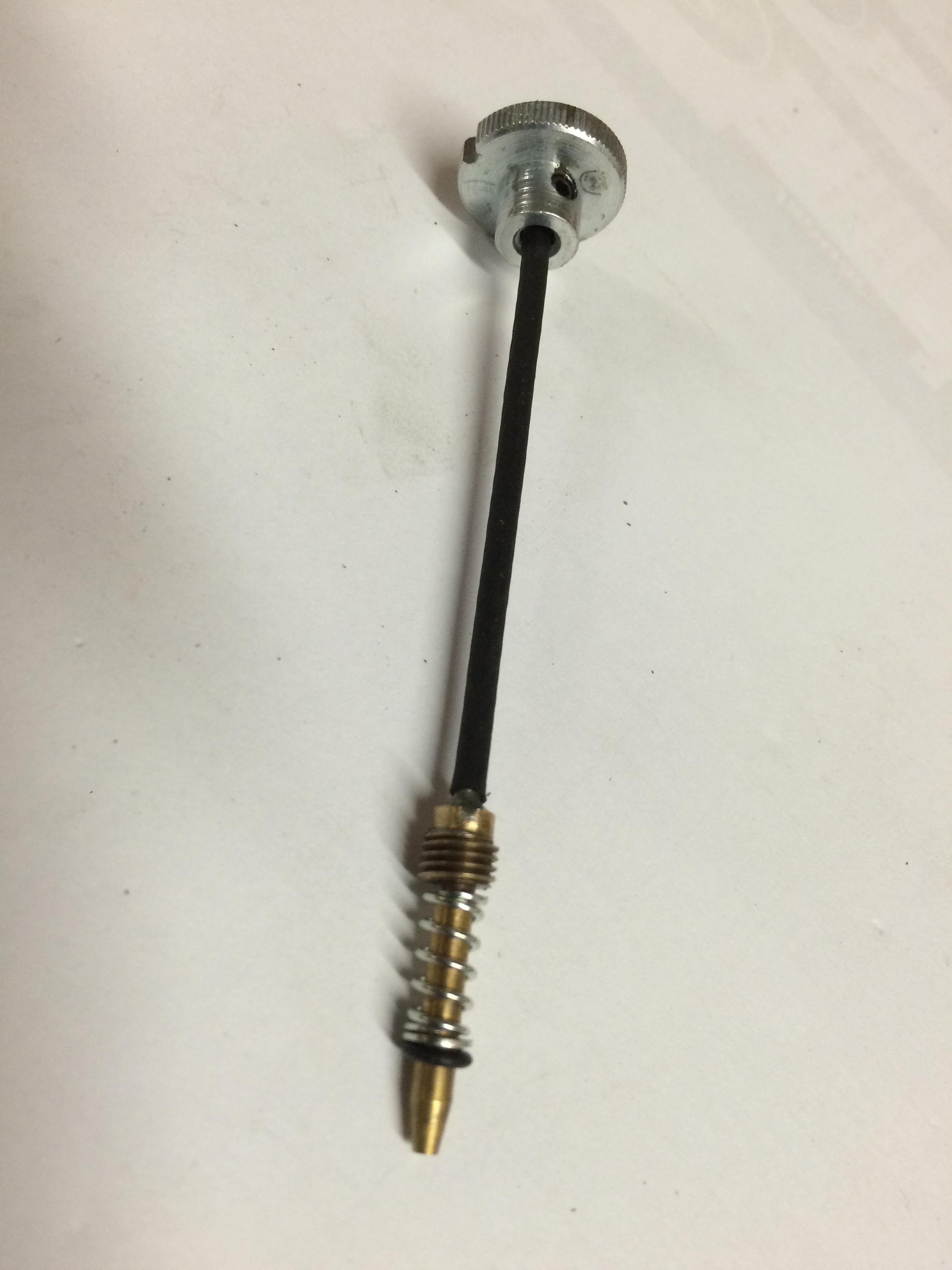
 1 PunktWindows 8/10? Schau mal in der Systemsteuerung -> "Erweiterte Systemeinstellungen" -> Reiter "Erweitert" -> "Starten und Wiederherstellen " -> Einstellungen ob da evtl. der Haken bei "Automatisch Neustart durchführen" gesetzt ist? Ansonsten schon mal scf /scannow durchgeführt?1 Punkt1 PunktSo, alles geklärt, wir sind im Geschäft. Mögen die Spiele beginnen. Habe ich irgendwo einen Fehler gemacht, eine Adresse nicht komplett oder falsch übertragen, einfach in der PN rückmelden. Ansonsten viel Spaß.1 Punkt1 PunktServus Fred, Wer wohl das Loch in die Münze gebohrt hat? Das Foto ist nicht zu sehen... Hab vom thisnotes4u den Tip bekommen beim Vespa-Veteranenclub und den Vespa Oldtimerfreunden aus München mal nachzufragen. Vielen Dank für den Tip Über sonstige Informationen bin ich sehr dankbar! Olympische Grüße! Sam1 Punkt1 Punkt1 PunktTMX30 im SF-Rahmen. Abdüsen - Einstellen - Hölle. Schnell russisch verpresst: Mit "Tastatur" weil man auch gar nichtsmehr sieht, wenn die Hand erst mal drin ist (falls überhaupt). Und weil´s so schön war, noch ´ne Gemischschraube mit biegsamer Welle.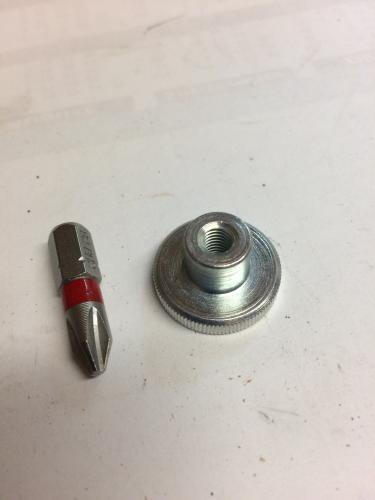
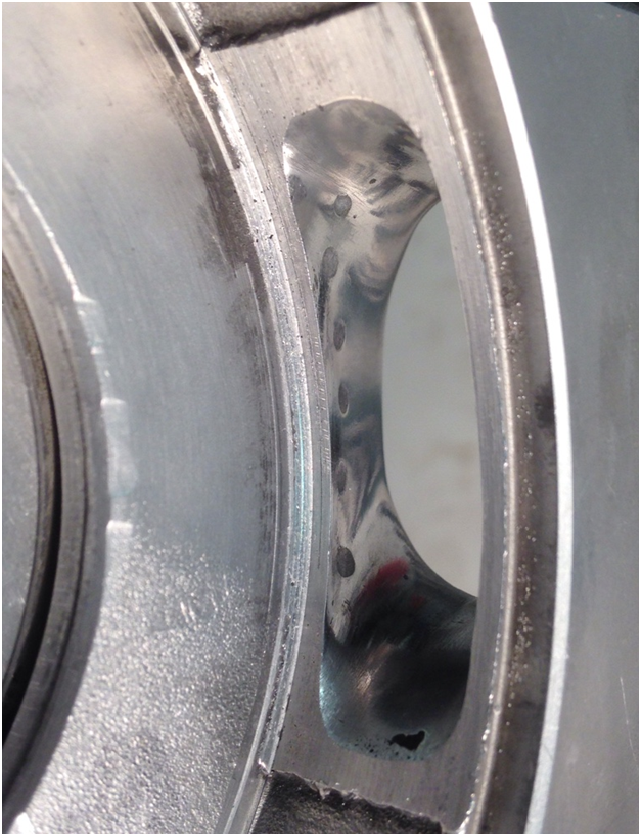
 1 PunktBei dem M232 sind knappe Stehbolzenkanäle systembedingt um 72mm Hub unterzubringen: Da er keinen Zylinderfuß haben kann wie Malossi & Co hat der möglichst enge Stehbolzenkanäle um den Zylinder ausreichend zu zentrieren. Somit kommen Gehäuseabweichungen im Stehbolzenbereich voll zum tragen. Bei Zylindern mit Fuß ist es egal welchen Durchmesser die Stehbolzenkanäle haben, die sind immer über den Fuß zentriert. Fazit: Wer 72er Bohrung und 232 ccm mit 57er Hub haben will muss eben mit der Situation klarkommen.1 Punkt










.jpg.0d1844a61b0b6a42aecdb9dbb6b27c51.jpg)
.jpg.4dd28dc2e6d7d5c1fb0e371e09d04d85.jpg)































Wichtige Information
Diese Website nutzt Cookies und vergleichbare Funktionen zur Verarbeitung von Endgeräteinformationen und personenbezogenen Daten. Die Verarbeitung dient der Einbindung von Inhalten, externen Diensten und Elementen Dritter. Je nach Funktion werden dabei Daten an Dritte weitergegeben. Einige dieser Verfahren sind technisch unerlässlich, andere kommen nur mit Ihrer Zustimmung zum Einsatz, eine Anpassung ist in den die Cookie-Einstellungen möglich. Für Details siehe die Datenschutzerklärung
Account
Navigation
Suche
Configure browser push notifications
Chrome (Android)
- Tap the lock icon next to the address bar.
- Tap Permissions → Notifications.
- Adjust your preference.
Chrome (Desktop)
- Click the padlock icon in the address bar.
- Select Site settings.
- Find Notifications and adjust your preference.
Safari (iOS 16.4+)
- Ensure the site is installed via Add to Home Screen.
- Open Settings App → Notifications.
- Find your app name and adjust your preference.
Safari (macOS)
- Go to Safari → Preferences.
- Click the Websites tab.
- Select Notifications in the sidebar.
- Find this website and adjust your preference.
Edge (Android)
- Tap the lock icon next to the address bar.
- Tap Permissions.
- Find Notifications and adjust your preference.
Edge (Desktop)
- Click the padlock icon in the address bar.
- Click Permissions for this site.
- Find Notifications and adjust your preference.
Firefox (Android)
- Go to Settings → Site permissions.
- Tap Notifications.
- Find this site in the list and adjust your preference.
Firefox (Desktop)
- Open Firefox Settings.
- Search for Notifications.
- Find this site in the list and adjust your preference.