
Rangliste
-

egig
GSF Support5Punkte7.090Gesamte Inhalte -
Sebi1111
Globaler Moderator5Punkte3.923Gesamte Inhalte -
Werner Amort
GSF Support4Punkte19.174Gesamte Inhalte -
skoot
Members4Punkte3.720Gesamte Inhalte



Beliebte Inhalte
Inhalte mit der höchsten Reputation am 07.08.2024 in allen Bereichen anzeigen
-
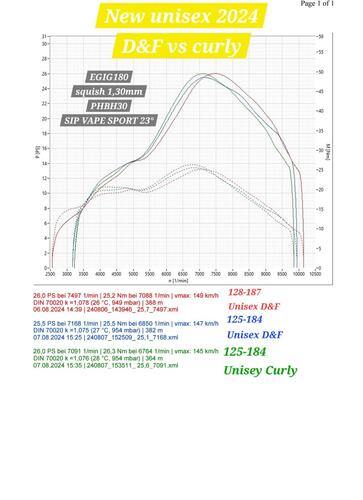
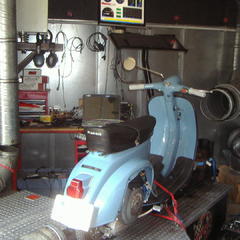
5 PunkteDank der veränderten Krümmer gibt es mehr Drehmoment ohne an Spitzenleistung und Band zu verlieren, erstmalig auch mehr NM als PS möglich bei passenden Zeiten.
 5 Punkte
 -
4 Punkte
-
4 Punkteso was in der Art hab ich letztes Wochenende auch gesehen. Die waren aber alle eher um die 50 und kamen auf altertümlichen Zweitaktern angereist.4 Punkte
-
3 PunkteNein, Gen X sind die Kinder der Boomer. Es gibt aber auch abweichende Definitionen
 3 Punkte
 -
3 Punkte"Boomer", das ist doch gar keine Generation, das war doch eine Fernsehserie. Alles, aber auch wirklich alles muß man hier erklären3 Punkte
-
3 Punkte
-
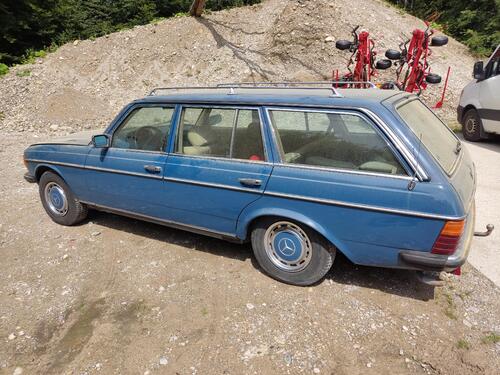
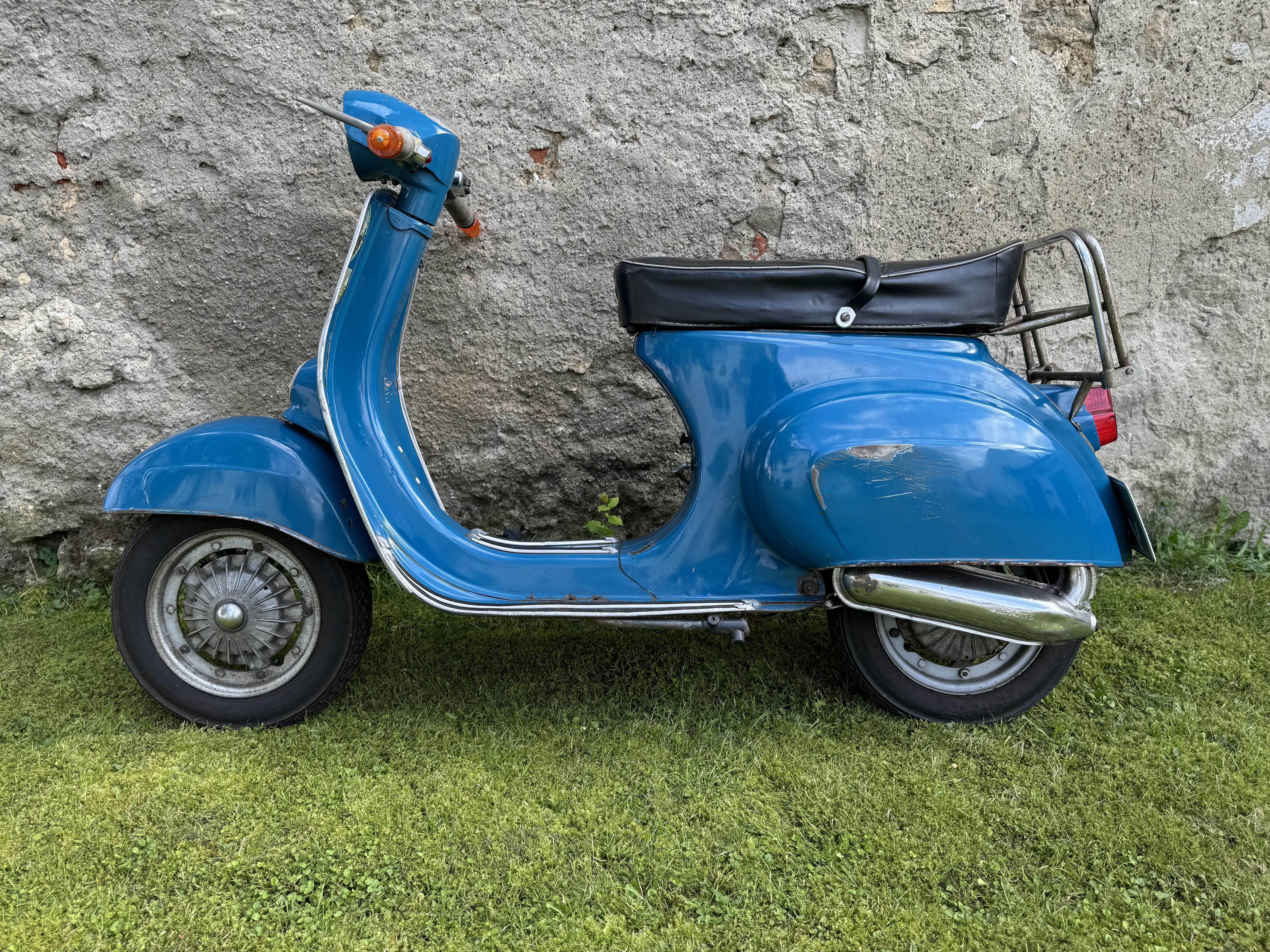
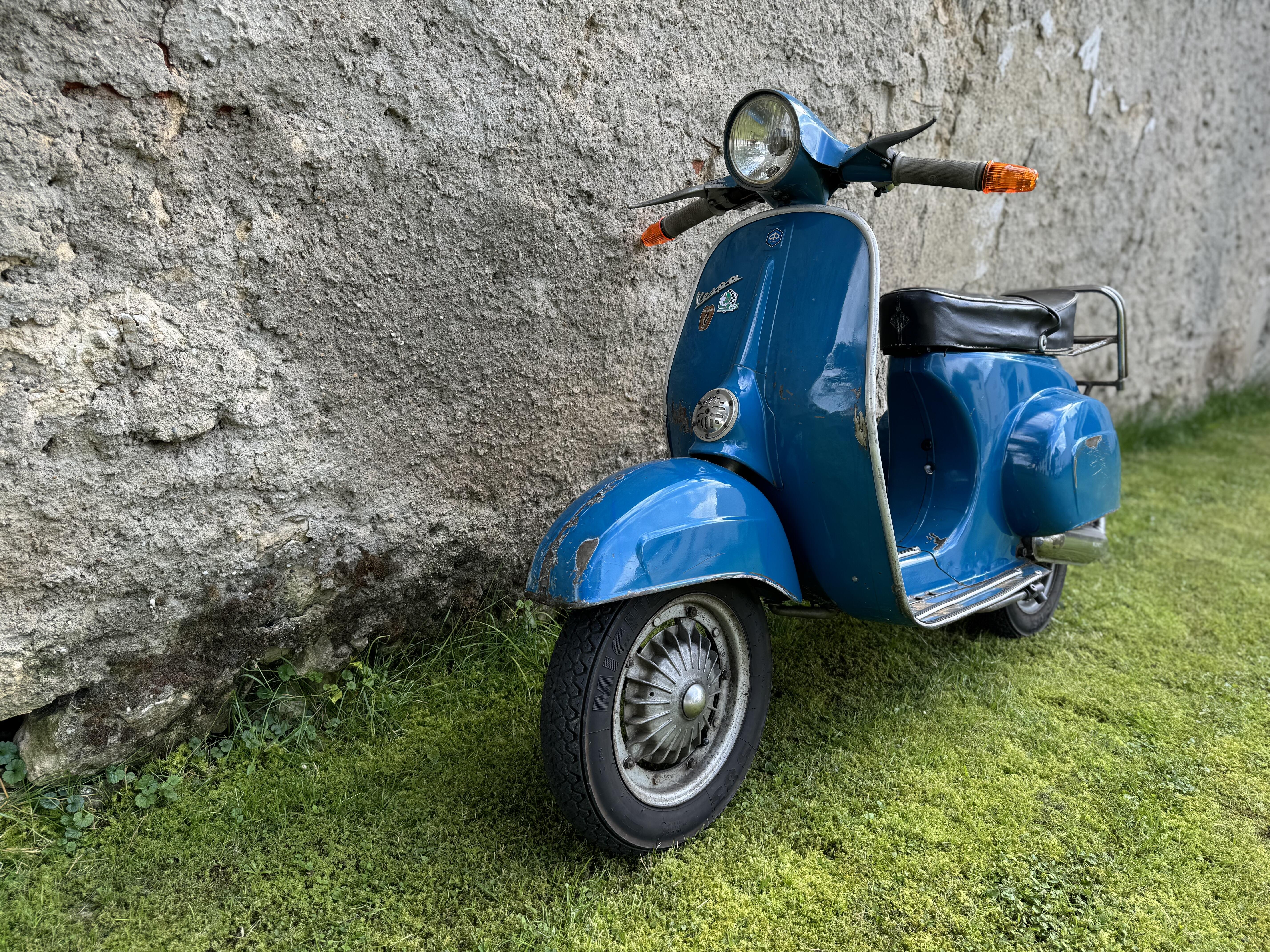
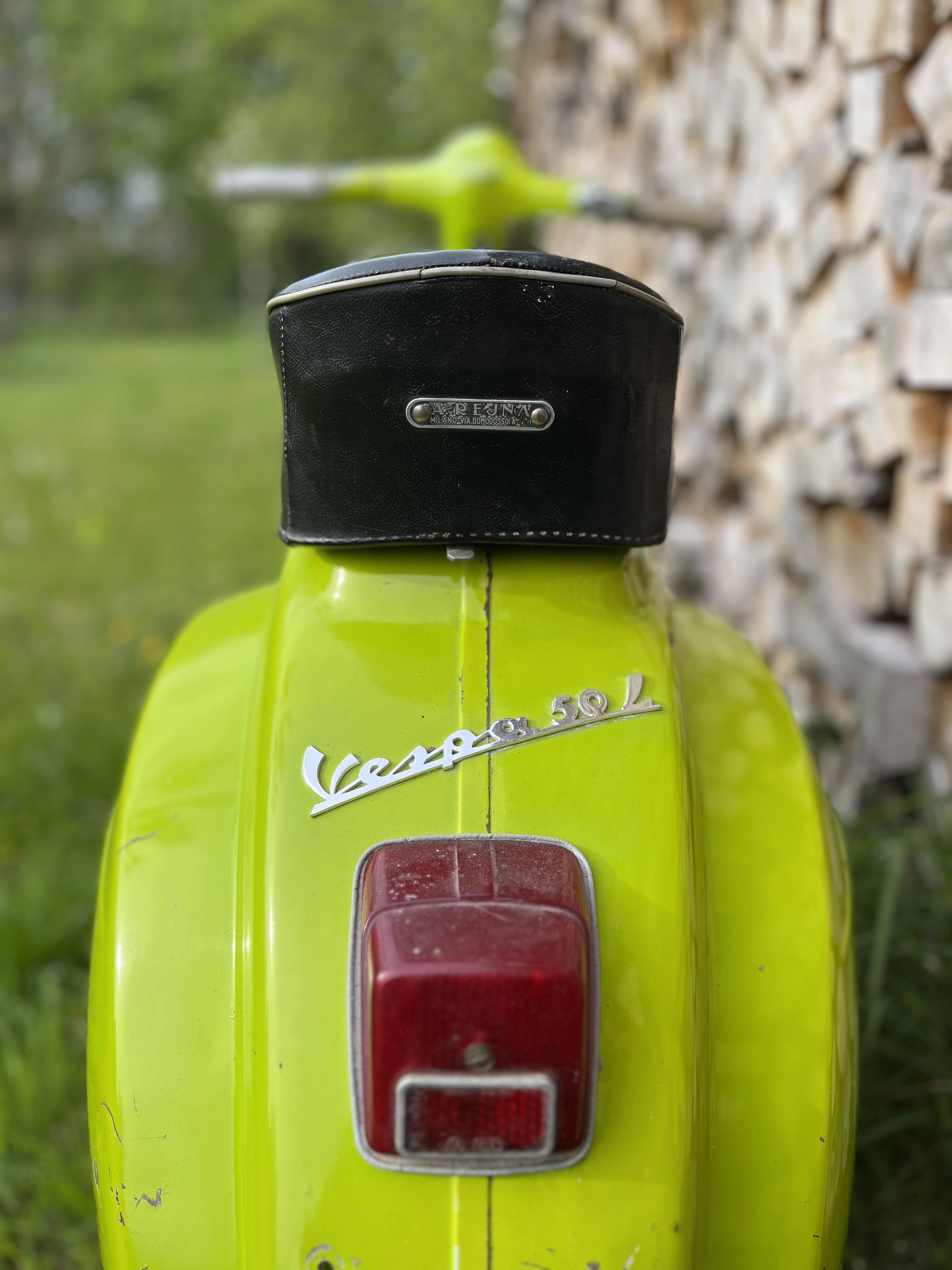
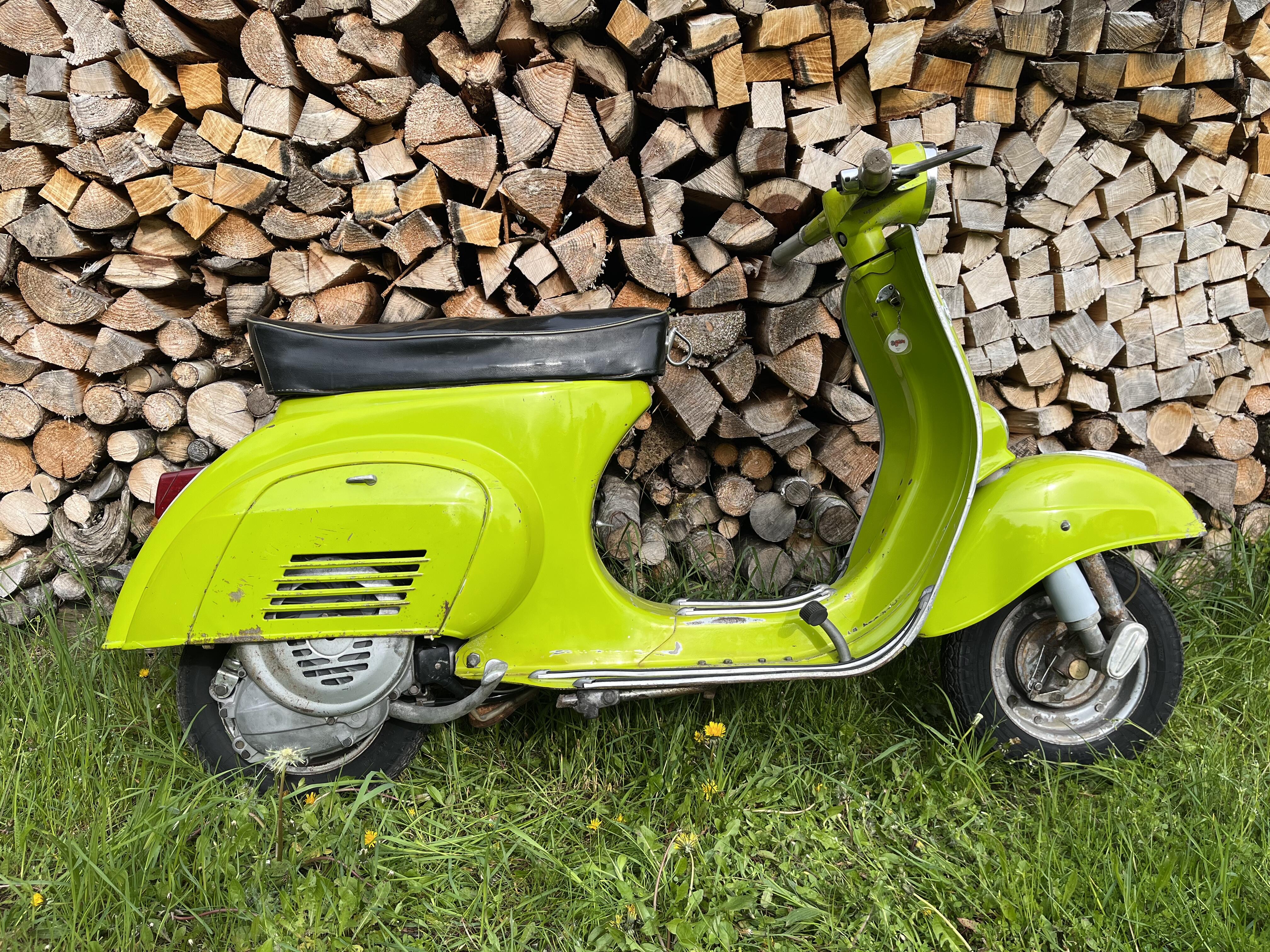
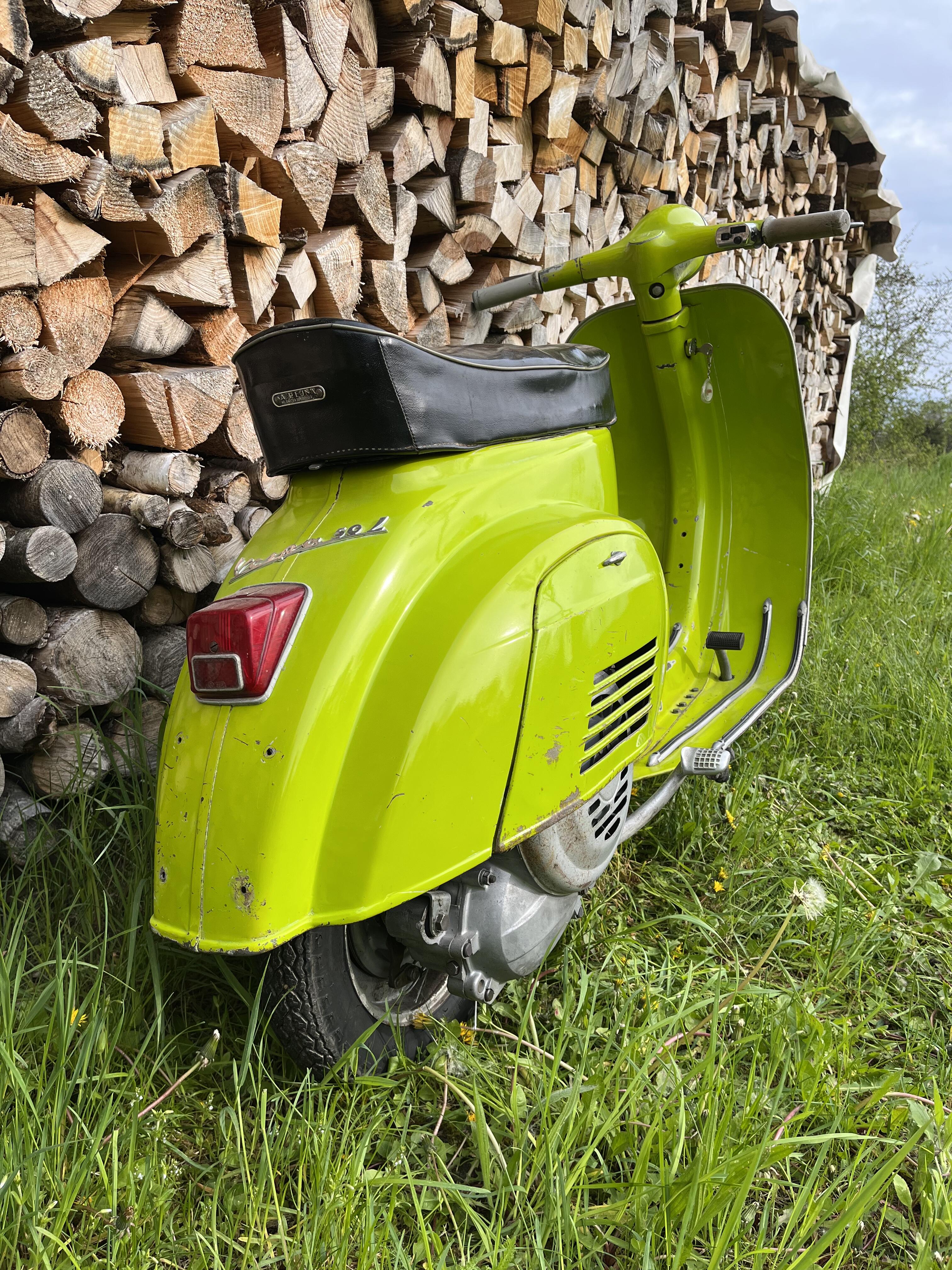
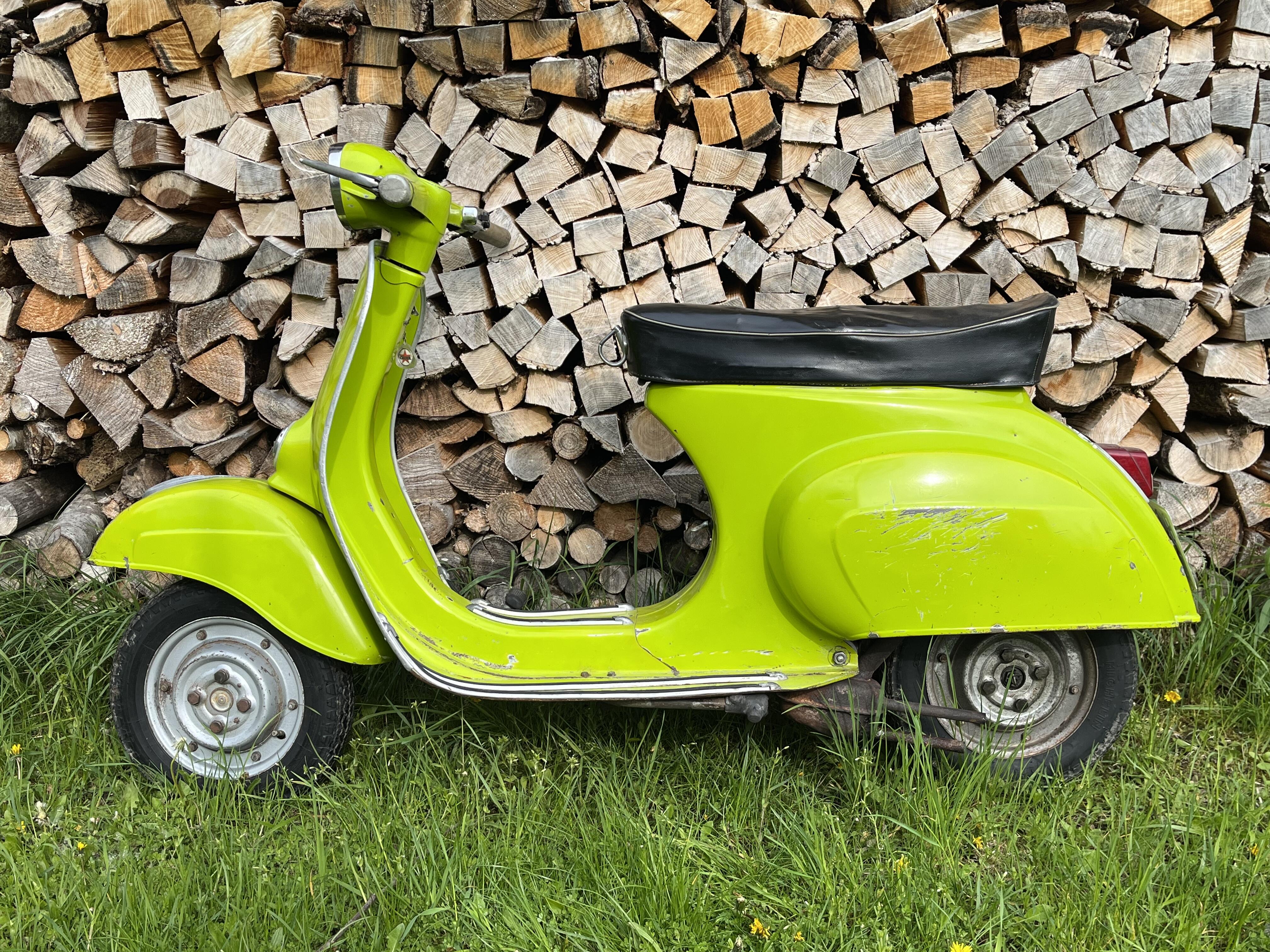
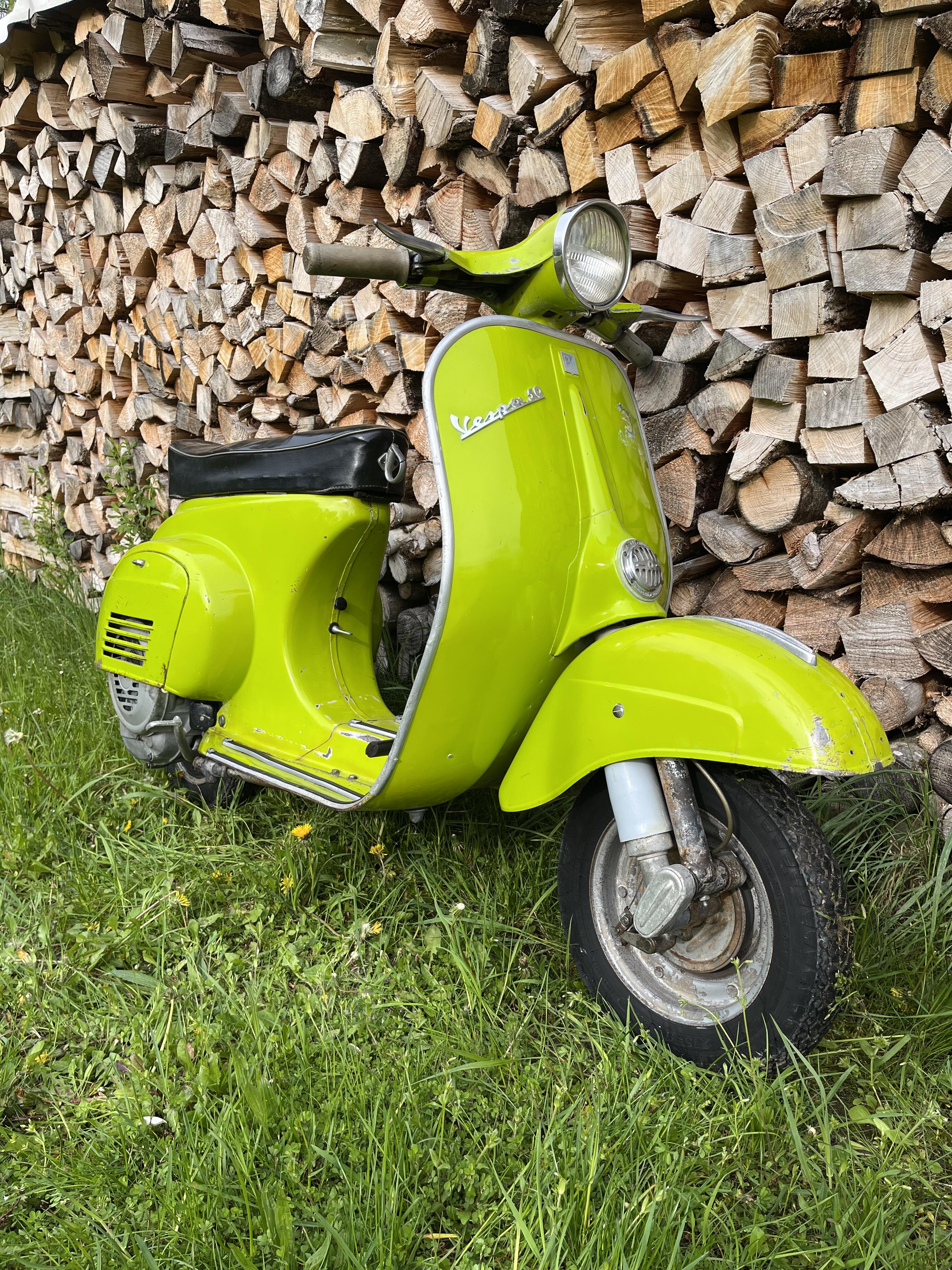
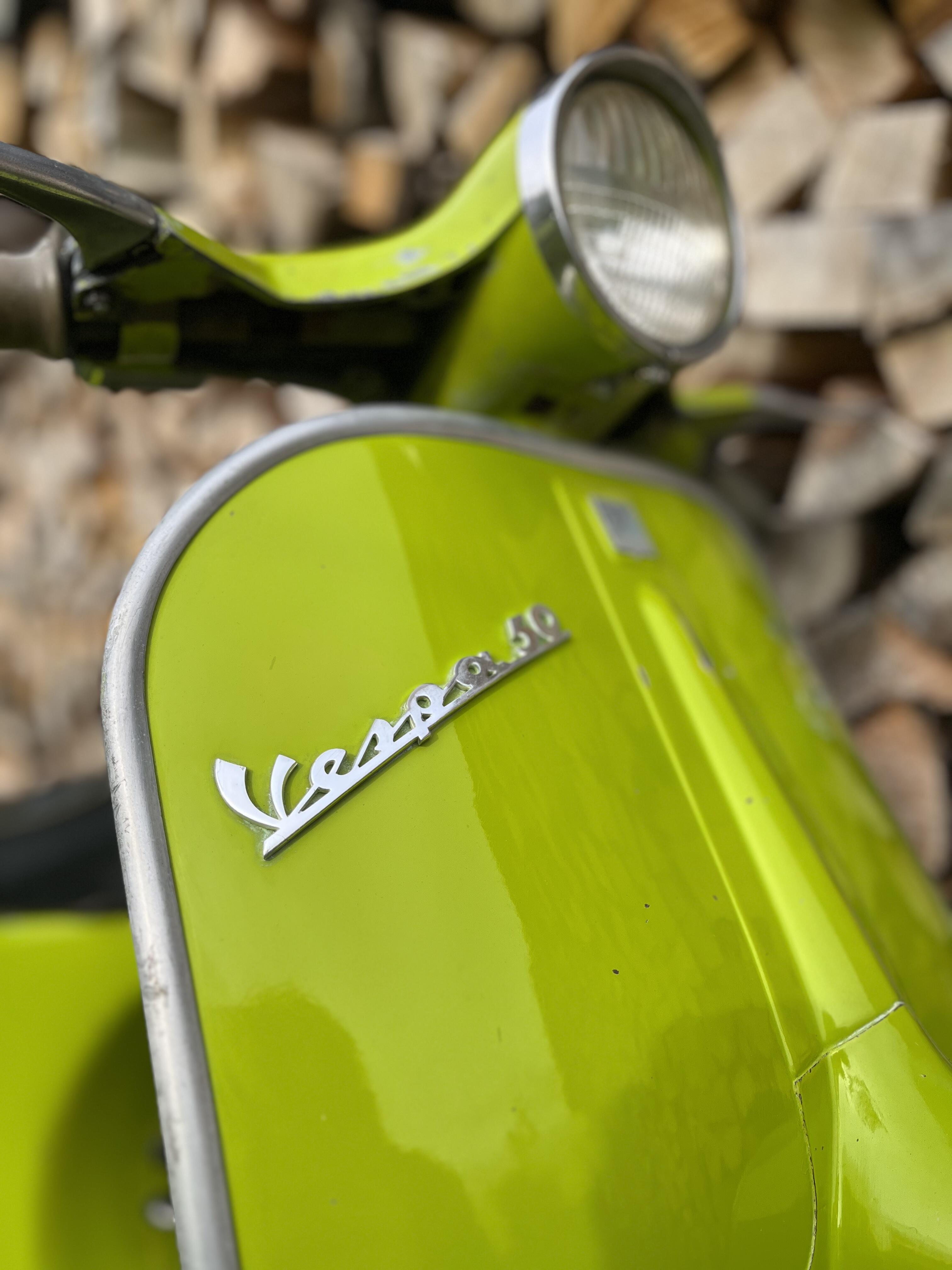
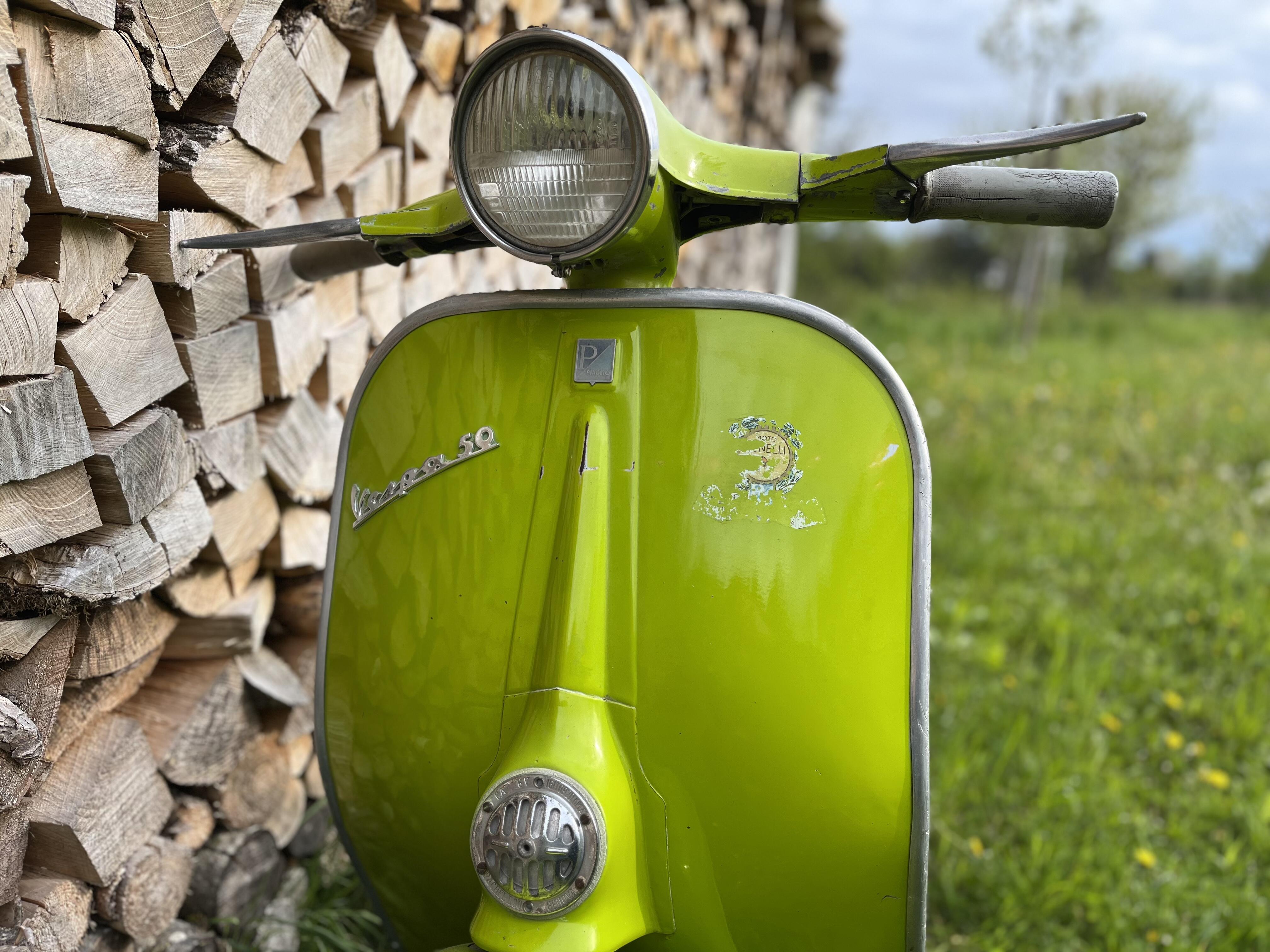
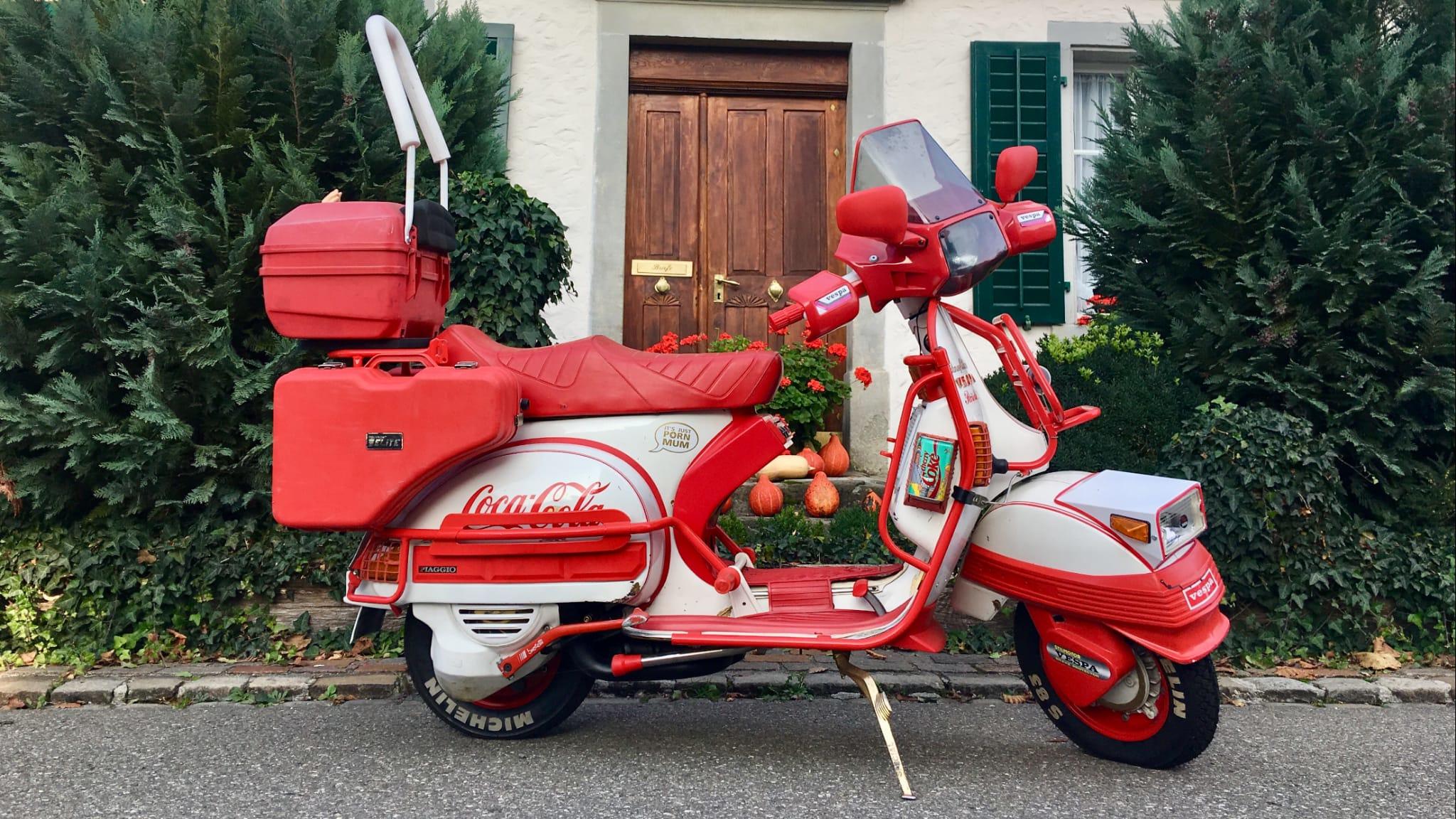
2 PunkteWollte mir eigentlich ein Herbst Winter Projekt holen das in meine Werkstatt passt. Aber dann Schockverliebt. Hätte nicht sein müssen, ist aber sowas geil 😜🤙👍
 2 Punkte
 -
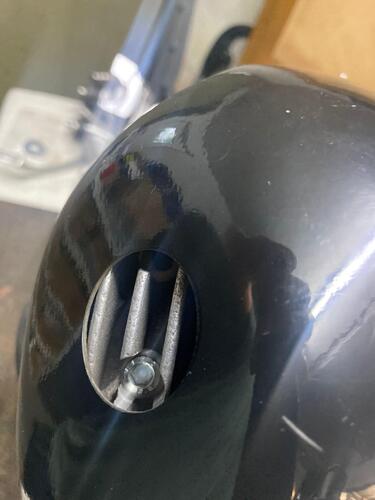
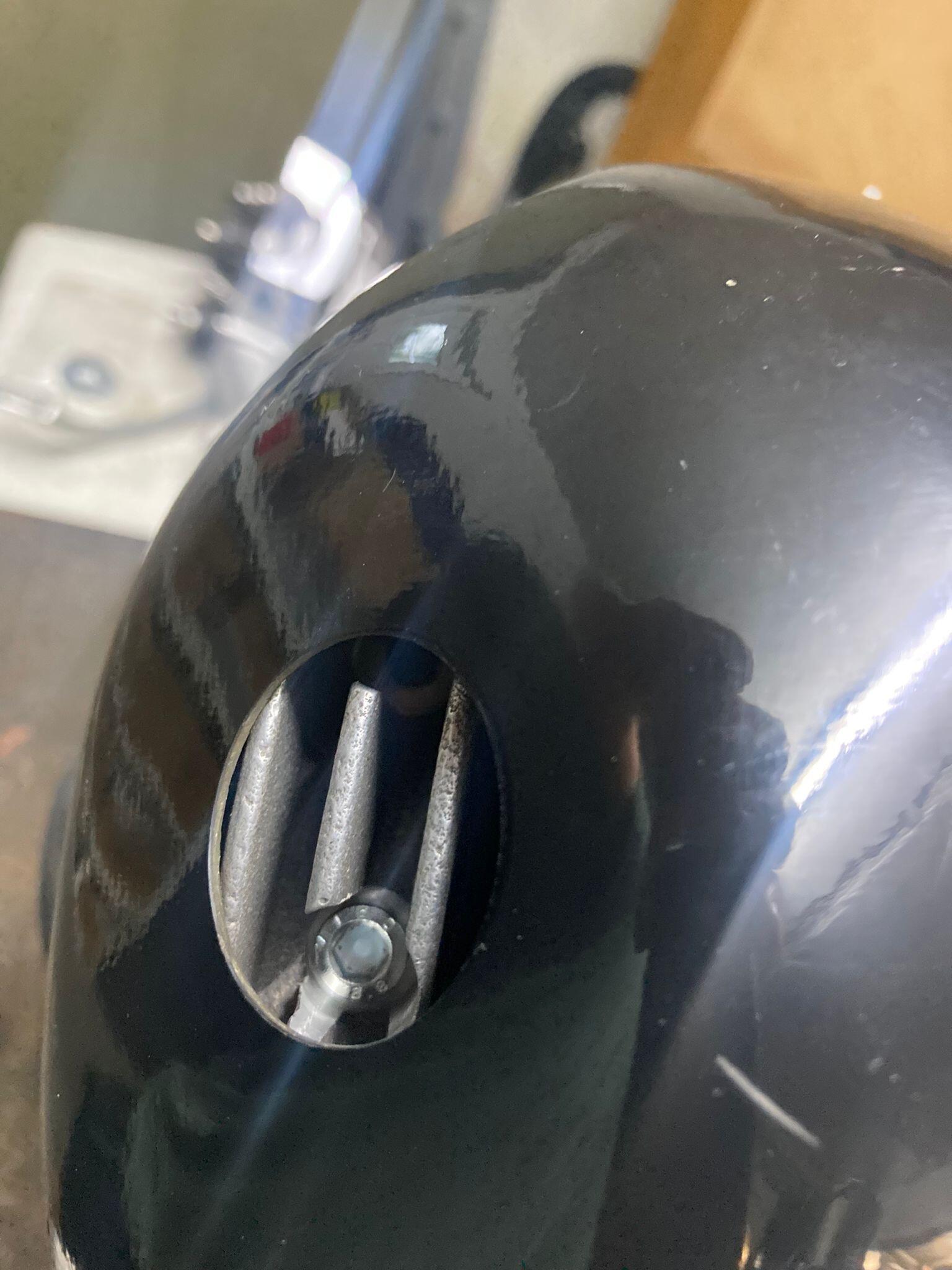
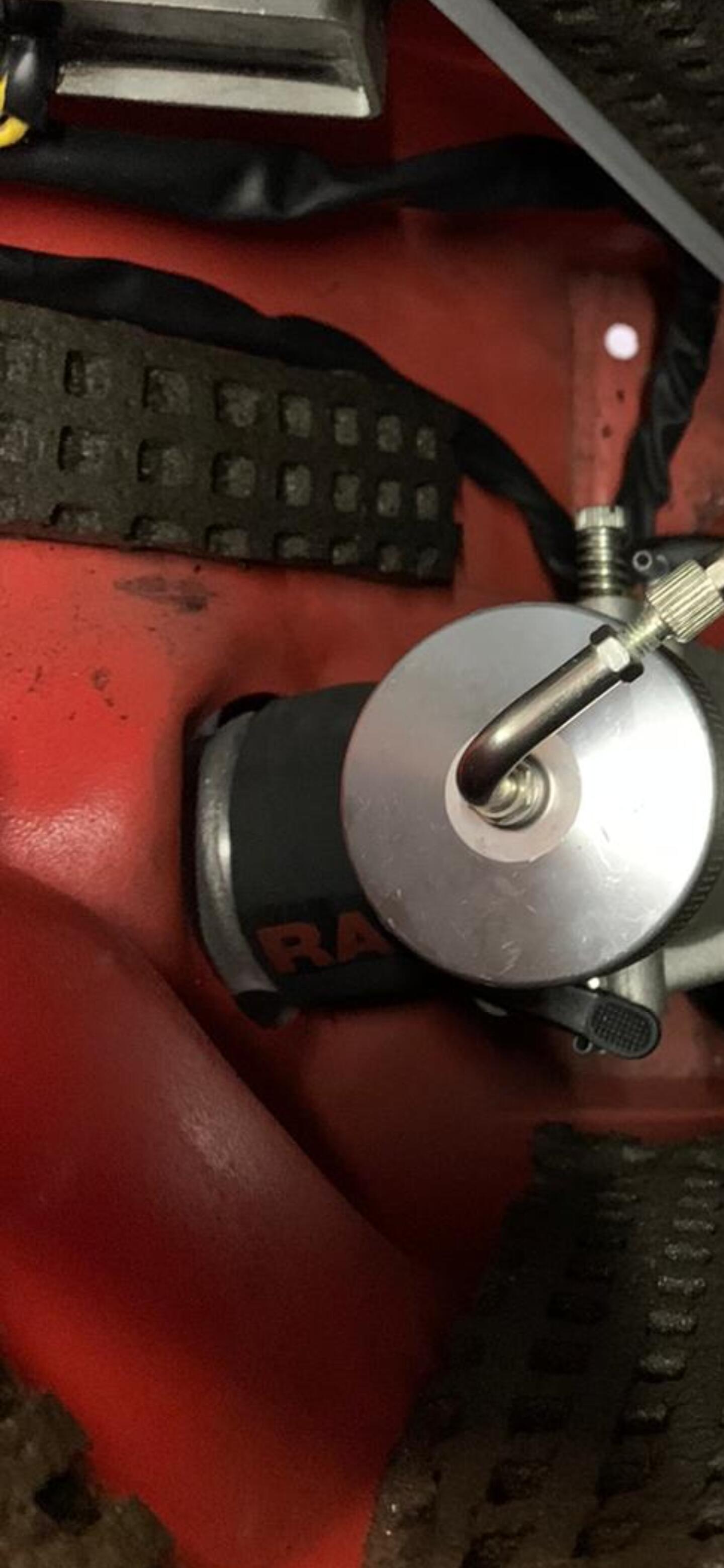
2 Punkte2 Punkte2 Punkte2 PunkteUnterirdisches Angebot kann ich schon machen und auch Obszönitäten wenn’s unbedingt gewünscht wird 🤡2 Punkte2 Punkte@McGregor Ich finde die BSK Haube nicht so schlecht. Für M200 Kopf und Overrev Kopf. Für den Overrev Kopf muss man das Loch für die Kerze neu Bohren, aber sonst liegt die gut an. Das alte Loch kann man mit einem ZK Loch Gummi verschließen.
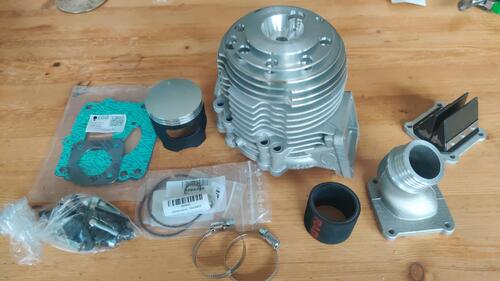
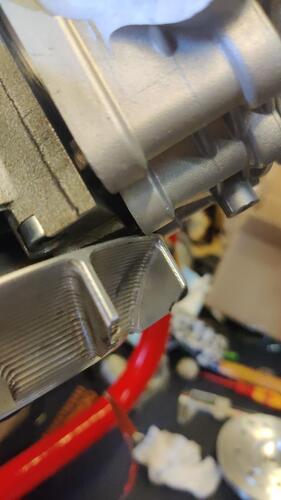
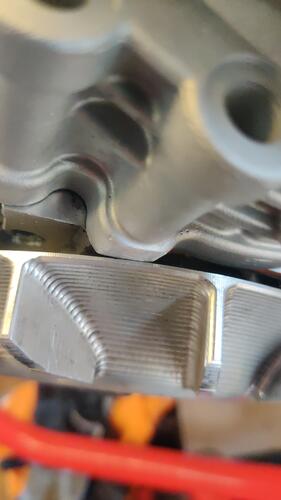
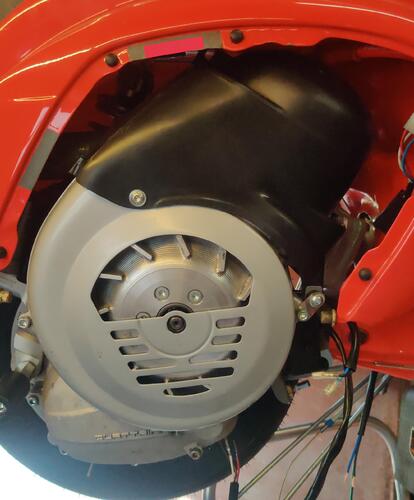
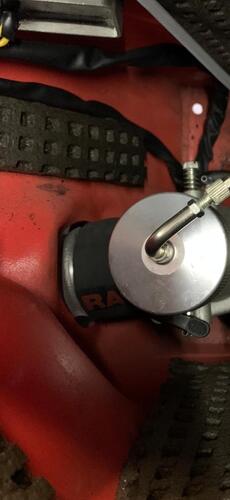
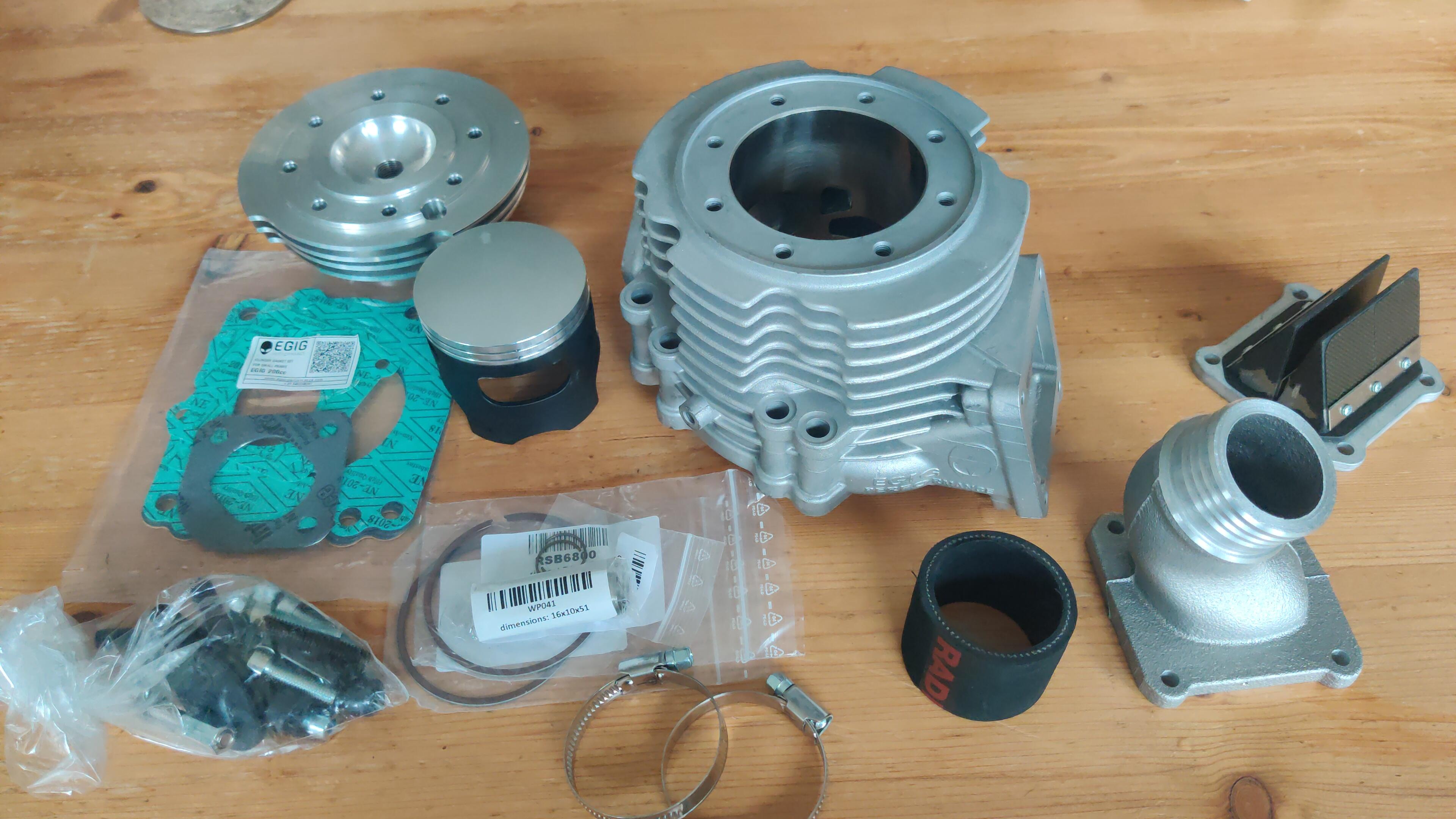
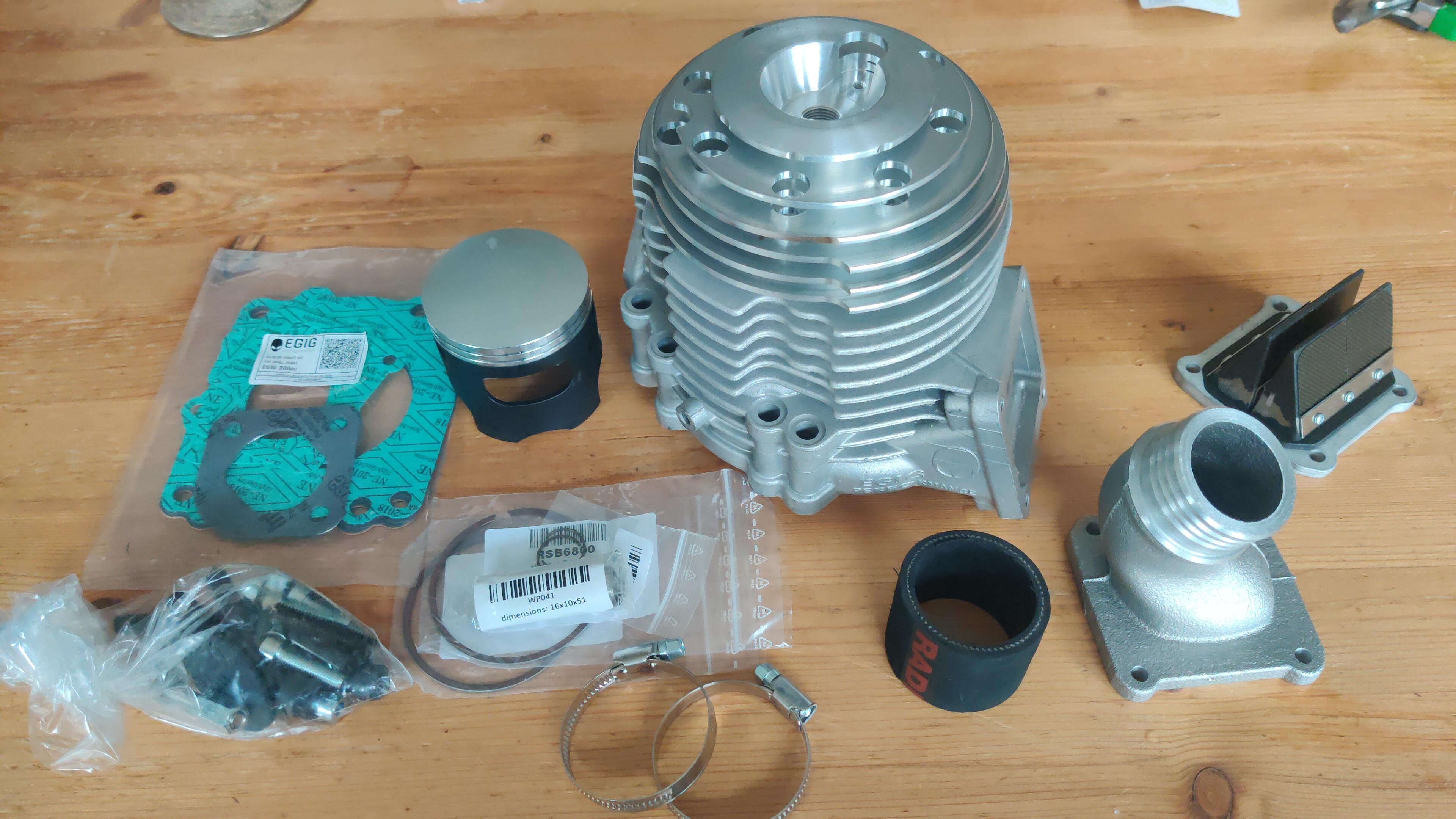
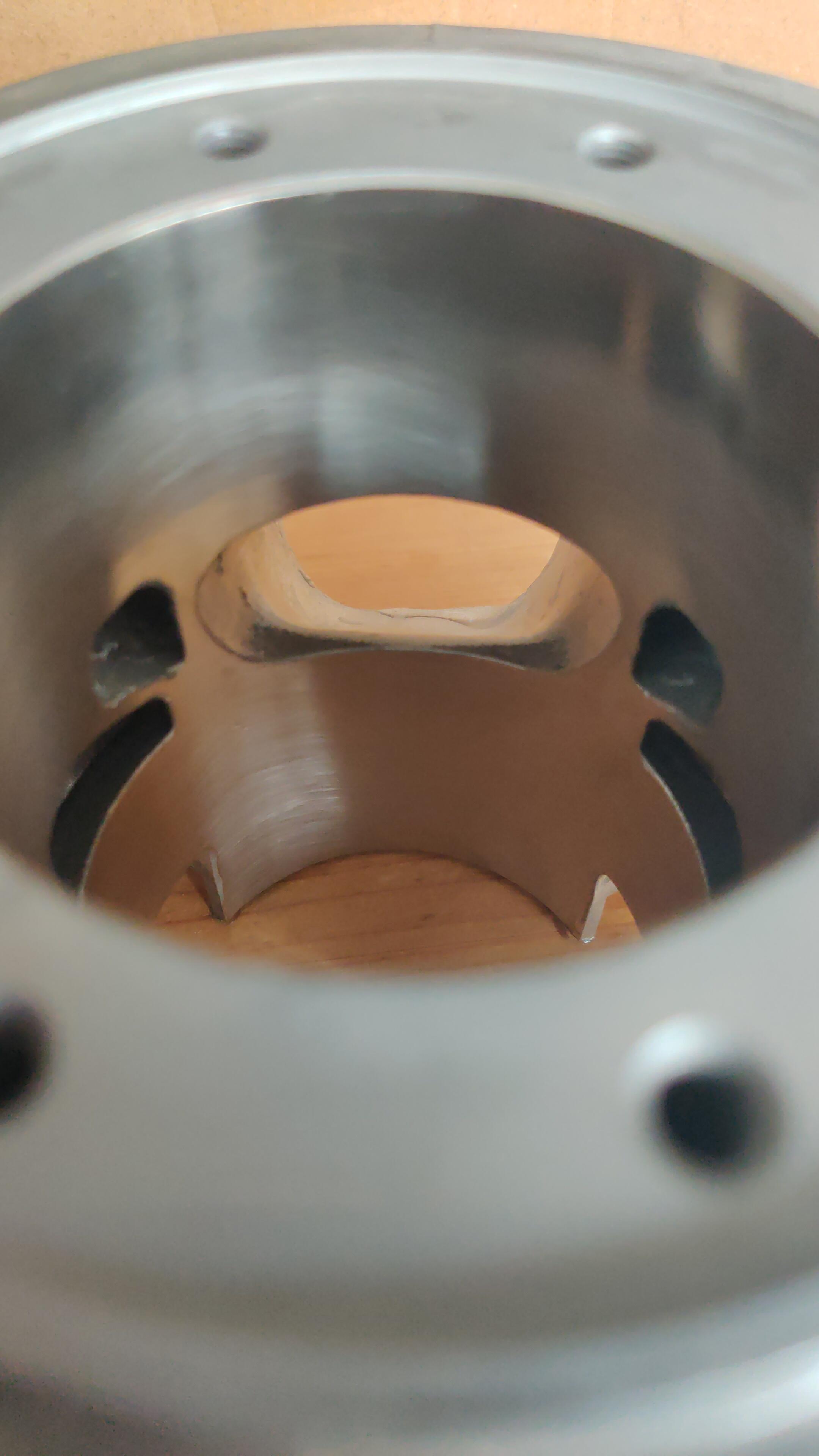
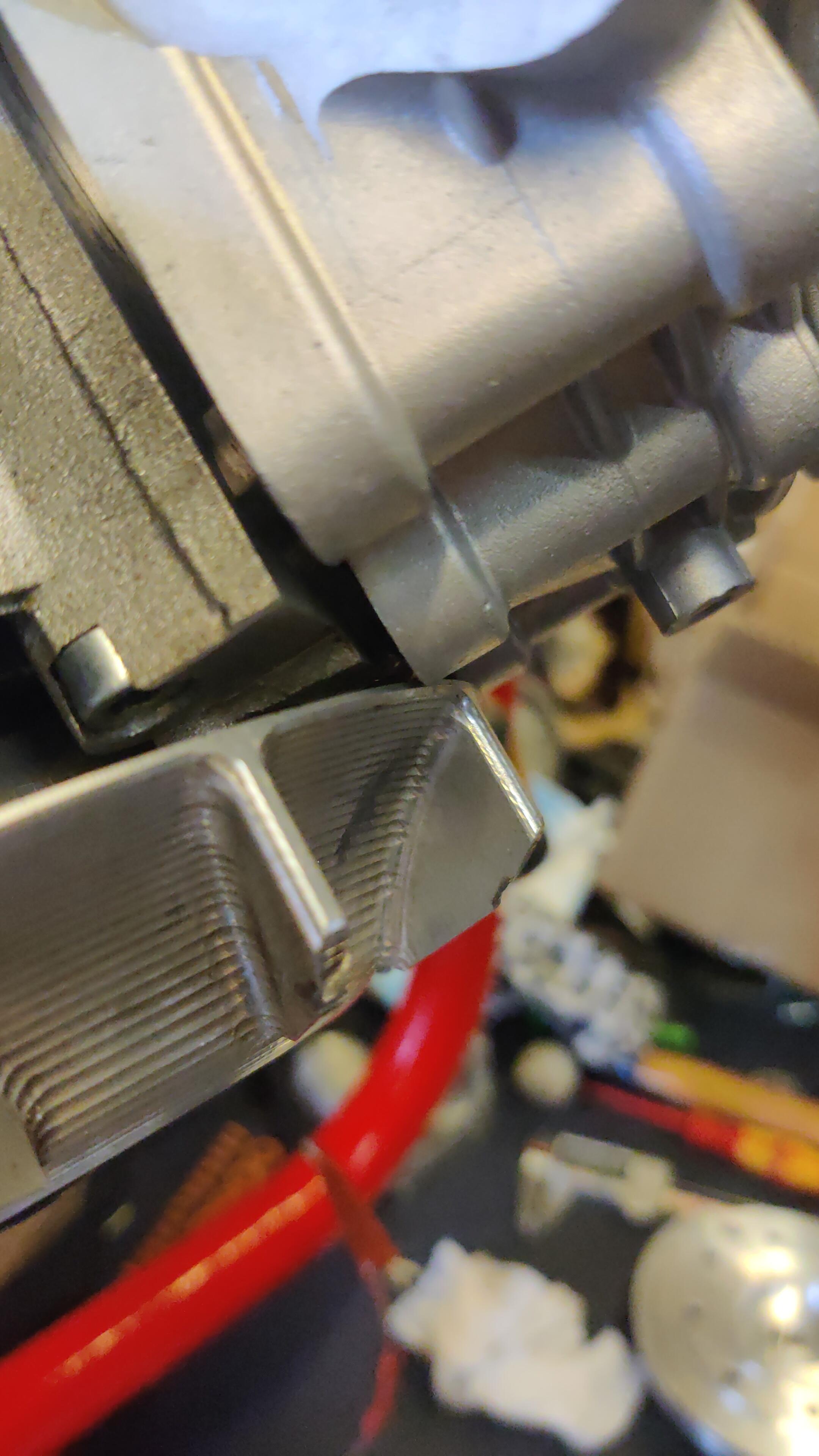
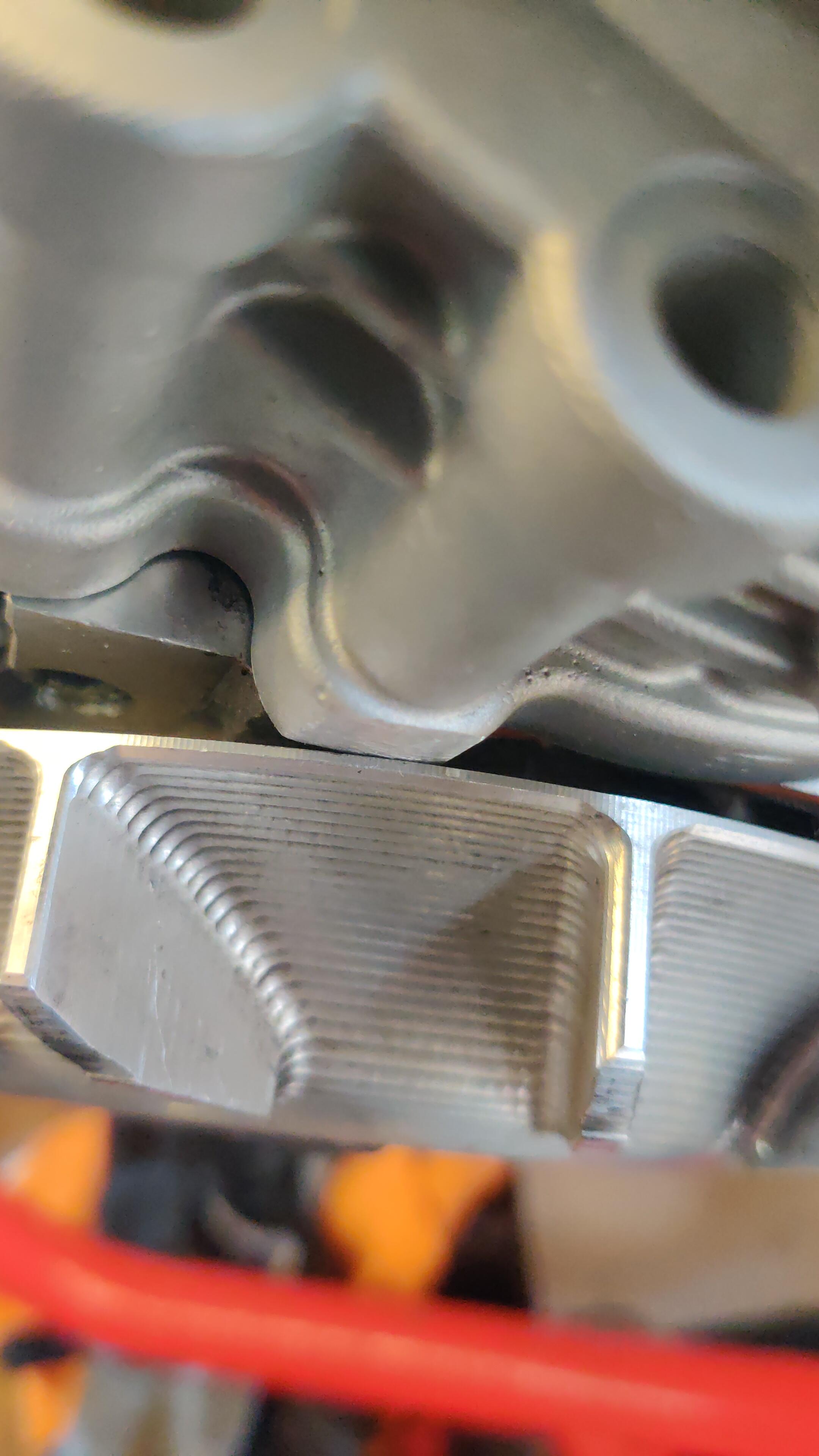
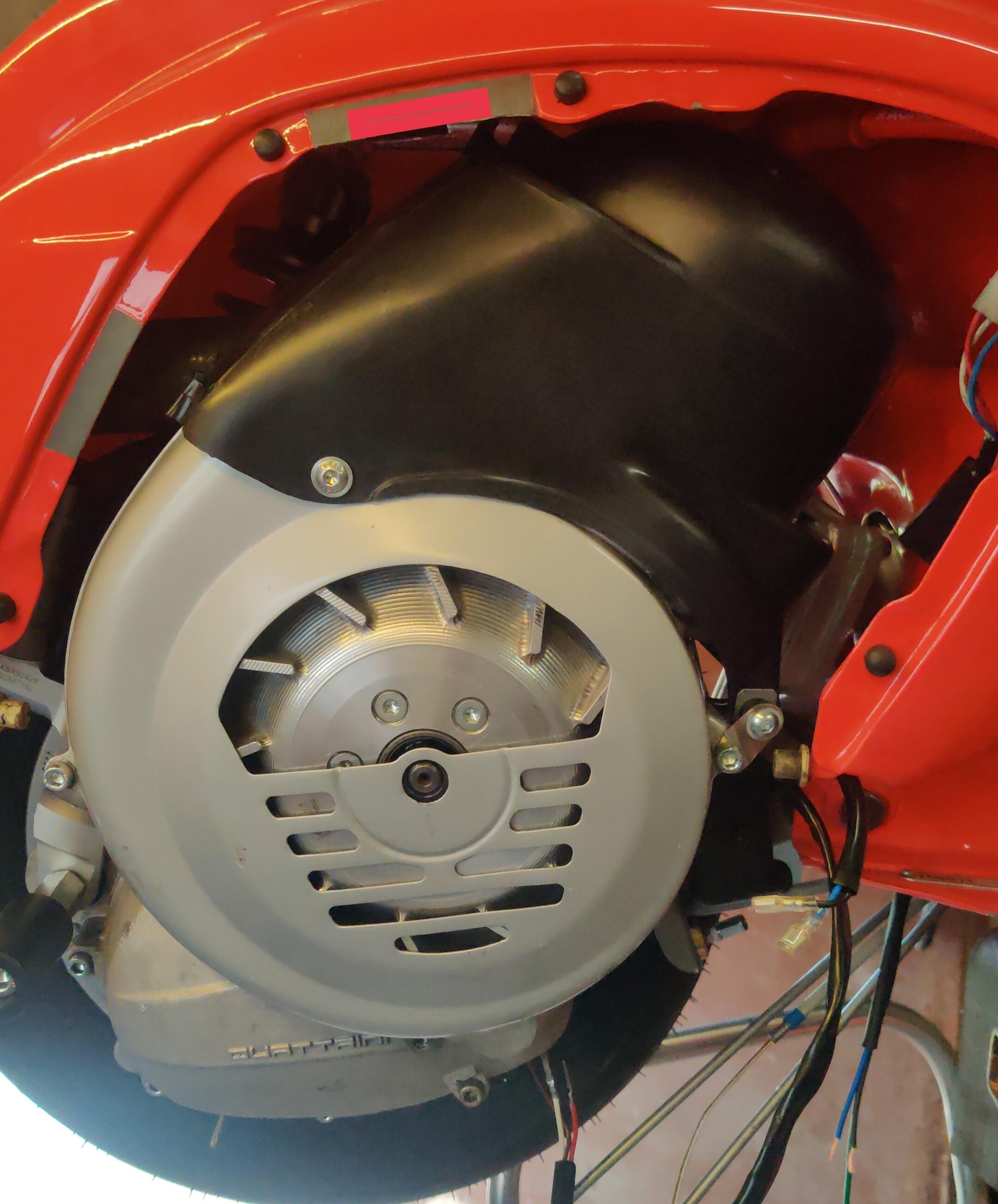
 2 Punkte2 PunkteDiese ganzen Namen/Titel sind so derbe bescheuert Kannste einfach nicht ernst nehmen2 Punkte2 PunkteWar grad aufm Topf und hab mal kurz eine unverbindliche Liste erstellt... dient evtl. bissl zur Übersicht für Jürgen: - vespawally ? - alfonso (2x) - joera1946 (2x) - Torto (2x, 2x XXL) - Pk_driver (1x L) - schalte (1x) - Franky0815 (2x) - knatti (1x L, 1x XXL) - Sebi1111 (1x M) - dorkisbored (1x) - Rö! (1x XL) - mottin86 (1x ) - palinka (1x M) - MV_Christian (1x oder 2x, L) - scooterlenni (1x) - Kebra (1x L) - juandefuca (1x XL) - keiler (1x L) - momo (2x L) - tittndidi ? - bullrich (1x XXL) - DeNiro (1x L) - stoa (2x L) - Barnosch ? - jambo71 (1x XL) - shanana (1x L) - Printmaster (1x L) - TobiPr (1x L) - snike (1x M, 1x L) Passt das erstmal so...? Kann auch noch alles mögliche ergänzen wenn nötig! Die 20 schaffma ja easy Edit: Liste aktualisiert!2 Punkte2 PunkteNochmal zum Thema Boomer: Über andere Alterskohorten lästern können natürlich nicht nur wir, das kriegen auch die jüngeren Leute ganz gut hin Mit Boomer sind die Ende 50- bis Anfang 70jährigen gemeint. Wobei den Boomern bestimmte Stereotypen nachgesagt werden. Boomer, so die gängigen Vorurteile, sind übertrieben konservativ, neuem gegenüber wenig aufgeschlossen, und halten Arbeit und Fleiß für das Allheilmittel zu einem besseren Leben. Außerdem bilden sie sich viel zu viel auf ihren Erfolg ein, der natürlich nur daher kommt, dass früher alles einfacher war. Sie lästern darüber, dass der Millennial in einer WG wohnt. Dabei verkennen sie, dass damals, als der Boomer jung war, ein Einfamilienhaus 30.000 Mark und ne Kiste Bier gekostet hat. Ein Betrag, der heutzutage kaum für Mietkaution und Maklergebühr eines WG-Zimmers im hippen Kreuzberg reicht. Oder so ähnlich... Ist natürlich genauso panne, wie über die GenZ abzurotzen. Aber warum sollten die in der Hinsicht besser sein, als die Generationen vor ihnen?2 Punkte2 PunkteBekommen wir 20 Shirts zusammen? Würde das Motiv nachbauen. soll es 1:1 so aussehen mit der alten Schrift?2 Punkte2 PunkteLaut dem Sip Typen der mich mit "Sie" am Telefon angesprochen hat,spielt das keine Rolle .... Shit sieht der mein Alter bei der Anruferkennung?2 Punkte2 PunkteDanke nochmals für die ganzen Rückmeldungen. Habe die Lince erstanden. Bin per Zug angereist und mit dem Roller dann die 500km auf der Landstraße zurück. Hat richtig Spaß gemacht.2 Punkte1 PunktIch habe am Freitag, nach langen Monaten des Wartens, endlich meinen Egig220 bekommen: Schön verarbeitet, viel dabei (Schrauben, ein ganzer Satz FuDis in verschiedenen Stärken, Stehbolzen, Muttern, usw.) Kleine Nacharbeit mit der Feile notwendig, für den bereits abgedrehten Vape-Lüfter vom vorherigen M200: Zylinderhaube angepasst und dann den Motor für dieR ahmen-Passprobe eingehängt: 34er Ansauger passt bei mir in drei SF-Rahmen: SS - BJ70, ET3 - BJ81, Special - BJ 78 Ich bin gespannt wie das Ding rennen wird. Wenn er auf dem gleichen Level oder gar besser als der M200 performt, ist der M200 für mich faktisch tot. Nächste Woche werde ich voraussichtlich die ersten Kurven fahren. Mein Setup: -Egig Performance 220 - 3-Teiler -Quattrini C200 -Kingwelle Brutus 60/118/16 -VHSB34 QD (umgebaut von @vespetta auf 2T ) -Vape Sport -FRT-Kupplung (umgebaut auf 5S) -DRT RSP Nürburg-Komplettgetriebe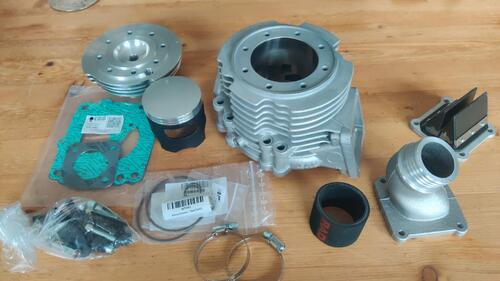
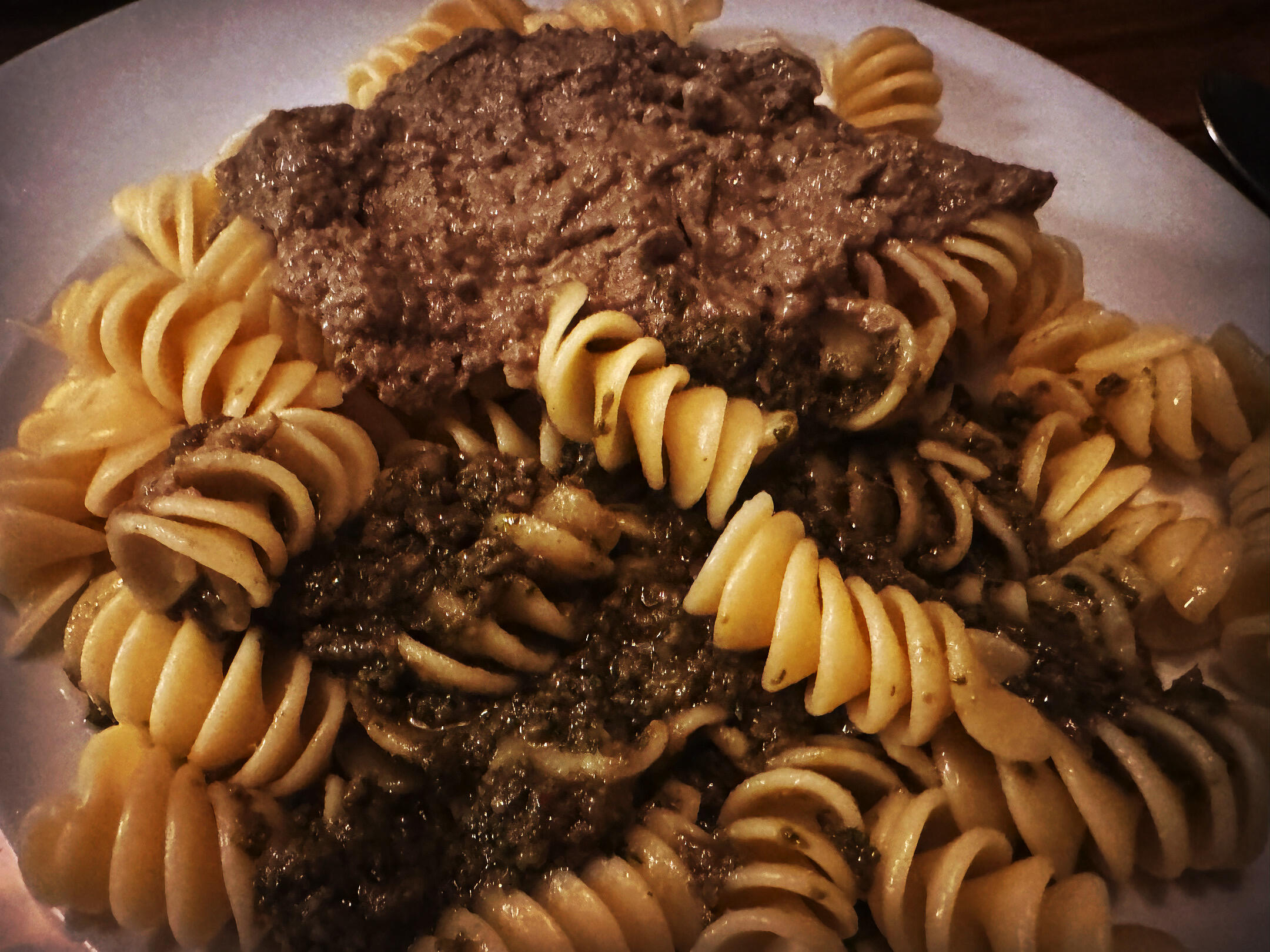
 1 Punkt1 PunktKühlschrank aufräumen! Riesenpasta mit zweierlei Geschmack: Hausgemachtes Rucolapesto und hausgemachtes Baba ghanoush. Yummy und vegan!
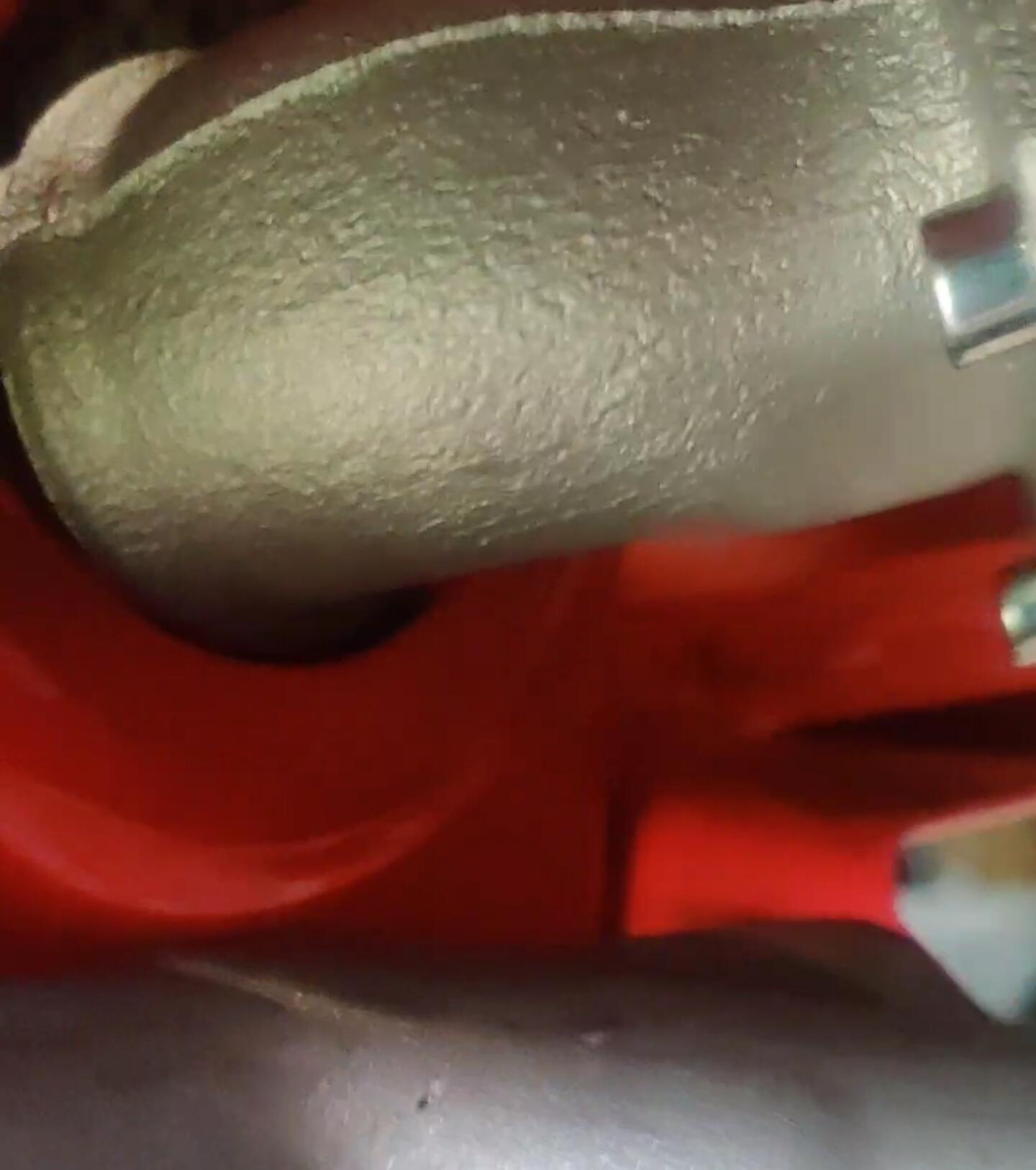
 1 Punkt1 Punkt1 Punkt1 PunktHabe gerade mal nachgeschaut, das Kupplugsseil sitzt stramm jedoch der Arm zum einhaken ist ganz zurückgezogen. hab es ein klein wenig gelockert und werde berichten1 Punkt1 PunktDeine Empfehlung mit der HD 118 weicht ja schon mächtig vom BGM Data Sheet ab, denke dass die Entwickler vom Zylinder sich schon was bei den empfohlenen Werten gedacht haben. Hast du eine plausible Erklärung für deine Abweichung? https://www.scooter-center.com/media/pdf/ae/69/15/DATENBLATT_DATA_SHEET_c4.pdf Generell halte ich es nicht für zielführend, im Forum so magere Bedüsungen zu posten und sie als dauerbelastbar anzupreisen. Das Risiko, mit der HD 118 nen Klemmer zu provozieren besteht aus meiner Sicht auf jeden Fall..1 Punkt1 Punkt1 PunktWo die Leckage herkommt, wir dir keiner verlässlich sagen können. Der Tipp von @Öcher mal den Motor abzudrucken ist schon sinnvoll, da kannst du dann schon einiges ausklammern... Je nach Bedüsung musst du nicht zwangsläufig Falschluftsymptome haben wenn es irgendwo leicht sabbert. insbesondere bei Membranblock und Vergaserwannen. Dass die Fläche wo der Membranblock aufliegt nicht 100% plan war, kam beim LML Block gelegentlich vor. Da kannst du ggf. Mit einem etwas dickeren Dichtungspapier, so 0,5mm kleinere Unebenheiten ausgleichen.1 Punkt1 PunktDas ist im Grundsatz positiv zu bewerten, weil die Generation Alpha mit dem "Du" aufwächst und im Sportunterricht über keinen Bock mehr springen kann. Auch dafür gibt es längst eine Software, die dein Alter und deine sexuellen Vorlieben beim Anruf in eine log-Datei schreibt und dem Mitarbeiter direkt anzeigt. Zum Thema: Ich würde ernsthaft darüber nachdenken, diesen SIP-Tacho - über den ich alle Nase lang sehr viele negative Nachrichten lese - vor das Vorderrad zu legen und dann mit beiden Rädern und mit Vollgas drüber zu fahren. Deine Geduld bewundere ich jedoch sehr. 3x einen Tacho zu tauschen und dann erneut ein Problem damit zu haben, spricht für einen Schrottartikel aus asiatischer Produktion.1 PunktHabe für Lapflop gegoogelt (ich mieses Schwein!) und festgestellt, dass sich insgesamt 3 Sendemasten in dem Dorf von Lapflop (wahrscheinlich von unterschiedlichen Mobilfunknetzbetreibern) befinden. Alle diese drei Sendemasten stehen nahe beieinander und sind alle Luftlinie ca. 300-400 Meter vom Haus von Lapflop entfernt. Ach so und das von Lapflop angesprochene hohe Mehrfamilienhaus steht zwischen dem Haus von Lapflop und den drei Sendemasten.1 Punkt1 PunktIch würde auch eins nehmen, gerade von @CheGhor - allerbeste Qualität 😍1 Punkt1 PunktIm Vespa 50 Special Kabelbaum ist das rote Kabel für Kill (Aus). Das grüne speist die Lichtverbraucher. Über Schnarre wurde bisher hier nicht geschrieben. Das wäre dann keine Deutsche, diese hatte Klingel und Lenkerendblinker. Von Special ist der Lenker und V5A1T der Rahmen? Lief das bei Dir bevor Du die neue Zündung eingebaut hast? Der Großteil der Aufnahme des Ist-Zustands und dessen Beschreibung liegt bei Dir. Erst dann kann hier vielleicht geholfen werden.1 Punkt1 PunktDie geburtenstarken Jahrgänge der 1960er Jahre. Der stärkste war 1964. Ende der 60er kam dann der Pillenknick, ausgelöst durch die Anti-Baby-Pille. So in etwa.1 Punkt1 Punkt1 PunktIch hatte es jetzt so verstanden, dass die nur in den Schein schauen, wenn überhaupt alte Vespas kontrolliert werden. Dann bist eh fein raus. Würde mal denken, dass du im Straffall umdrehen musst. Kann mir nicht vorstellen, dass man komplett stillgelegt wird an Ort und Stelle. Aber würde mich auch interessieren. Edit: laut ADAC Webseite: Die österreichische Polizei führt Kontrollen durch, bei Verstößen droht eine Geldbuße von 220 Euro, zudem kann der Biker angewiesen werden, umzukehren. Quelle:https://www.adac.de/news/tirol-fahrverbote-motorraeder/ https://www.adac.de/news/tirol-fahrverbote-motorraeder/1 PunktSo, die Roller haben allesamt den technischen Anforderungen genügt und es sind wohl alle ohne größere Blessuren zum Ziel gekommen. Hat Spaß gemacht mit euch! Cornetto Erdbeer1 PunktFinde keinen ER nur den 28 kannst mir einen link schicken Meine Erfahrung zeigt das hier 3 mm Bohrung brauchst damit genug Sprit kommt wenn das bei einer “normalen” schwimmerkammer machst dann dichtet die Nadel nicht mehr ab ich fahr seit Jahren so cosa Kammer gebohrt und zum düsenstock auf 3 mm und funktioniert einwandfrei wollte hier nur Erfahrung teilen damit die Leute nicht teueres Zeug kaufen1 Punkt1 PunktWochenende! Großer gemischter Salat mit Bratwürstchen und Kräuter-Käse-Baguette. Yummy und vegan!
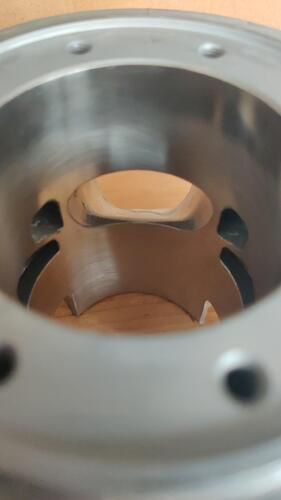
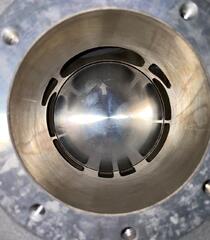
 1 Punkt1 PunktIch bin hier raus das Geschreibsel von dir kann ja keiner lesen1 PunktBeim scootercenter gibt's für ca. 5 Euro eine drosselscheibe die in Vergaser kommt. Damit hat das scootercenter ihre importierten v50s mit 50 kmh durch den TÜV legal gebracht. Kauf dir das Teil, lass dir ne Kopie eines Gutachten mitschicken und geh damit zum TÜV für Paragraph 21. Denke dann sollte nichts mehr im Weg stehen, sofern der roller sonst technisch fit. Ansonsten den Umweg über einen Rollerladen machen , der das schon oft gemacht hat und dafür bezahlen. Wurde eigentlich schon zig mal durchgekaut das ganze.1 PunktGrobes draufkucken, ob die teilnehmende Kiste Bremszüge, profilierte luftgefüllte Reifen, funktionierende Beleuchtung und nicht allzuviel Ölverlust hat.1 Punkt1 Punktach - die neue Ausführung ohne Löcher ? oder mit verbesserter Haftung der Nicasilschicht ? gegen Aufpreis beides möglich ?1 Punkt1 Punkt1 Punkt1 Punkt1 Punkt1 Punkt1 Punkt1 Punkt1 Punkt
Wichtige Information
Diese Website nutzt Cookies und vergleichbare Funktionen zur Verarbeitung von Endgeräteinformationen und personenbezogenen Daten. Die Verarbeitung dient der Einbindung von Inhalten, externen Diensten und Elementen Dritter. Je nach Funktion werden dabei Daten an Dritte weitergegeben. Einige dieser Verfahren sind technisch unerlässlich, andere kommen nur mit Ihrer Zustimmung zum Einsatz, eine Anpassung ist in den die Cookie-Einstellungen möglich. Für Details siehe die Datenschutzerklärung

x(870)_2024-08-07_08-14-36_1075.jpeg.9ef7f2dbfe0e07e7a2605d1f111b565f.jpeg)







.jpg.3723d563e38f83b392e456ace93b6d66.jpg)



















.thumb.jpg.9b066c8bf7cde81e084ce88643f48ef7.jpg)










Account
Navigation
Suche
Configure browser push notifications
Chrome (Android)
- Tap the lock icon next to the address bar.
- Tap Permissions → Notifications.
- Adjust your preference.
Chrome (Desktop)
- Click the padlock icon in the address bar.
- Select Site settings.
- Find Notifications and adjust your preference.
Safari (iOS 16.4+)
- Ensure the site is installed via Add to Home Screen.
- Open Settings App → Notifications.
- Find your app name and adjust your preference.
Safari (macOS)
- Go to Safari → Preferences.
- Click the Websites tab.
- Select Notifications in the sidebar.
- Find this website and adjust your preference.
Edge (Android)
- Tap the lock icon next to the address bar.
- Tap Permissions.
- Find Notifications and adjust your preference.
Edge (Desktop)
- Click the padlock icon in the address bar.
- Click Permissions for this site.
- Find Notifications and adjust your preference.
Firefox (Android)
- Go to Settings → Site permissions.
- Tap Notifications.
- Find this site in the list and adjust your preference.
Firefox (Desktop)
- Open Firefox Settings.
- Search for Notifications.
- Find this site in the list and adjust your preference.