
Rangliste
-
pötpöt
Members10Punkte7.241Gesamte Inhalte -
T5Pien
GSF Support6Punkte12.905Gesamte Inhalte -
vespetta
Members5Punkte11.043Gesamte Inhalte -
leimisprint177ccm
Members4Punkte1.426Gesamte Inhalte




Beliebte Inhalte
Inhalte mit der höchsten Reputation am 07.06.2018 in Beiträge anzeigen
-
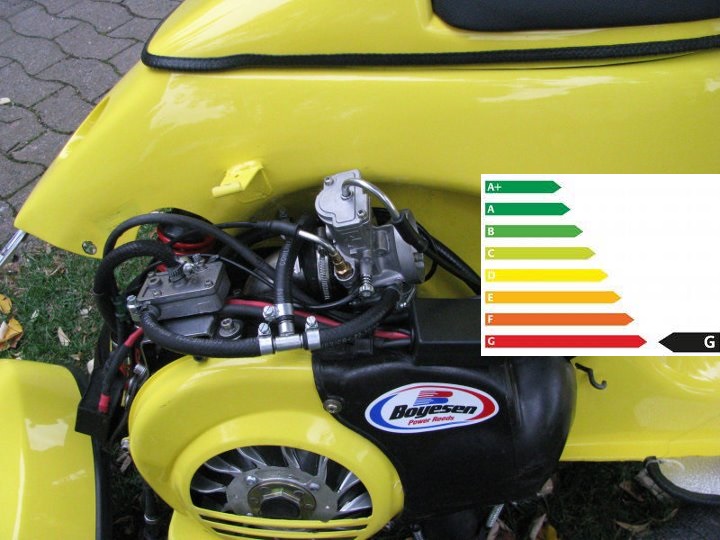
6 PunkteDu pustest kräftig ins Endrohr. Dann vergleichst du deine Gesichtsrötung mit einer Farbskala und hast so den prozentualen Abgasdurchsatz.
 6 Punkte
 -
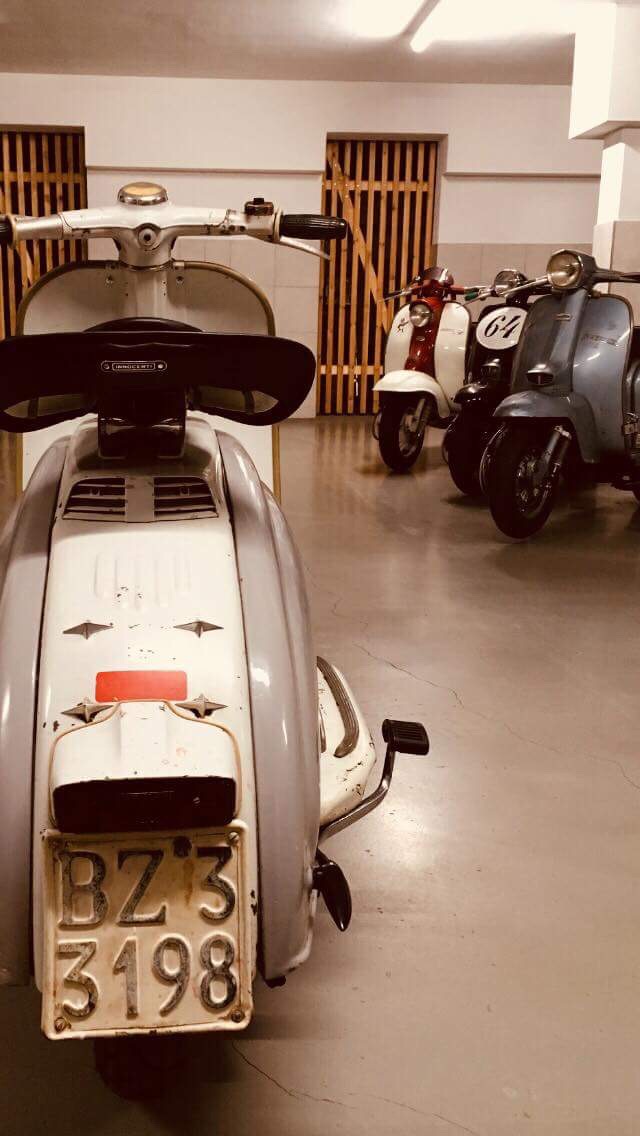
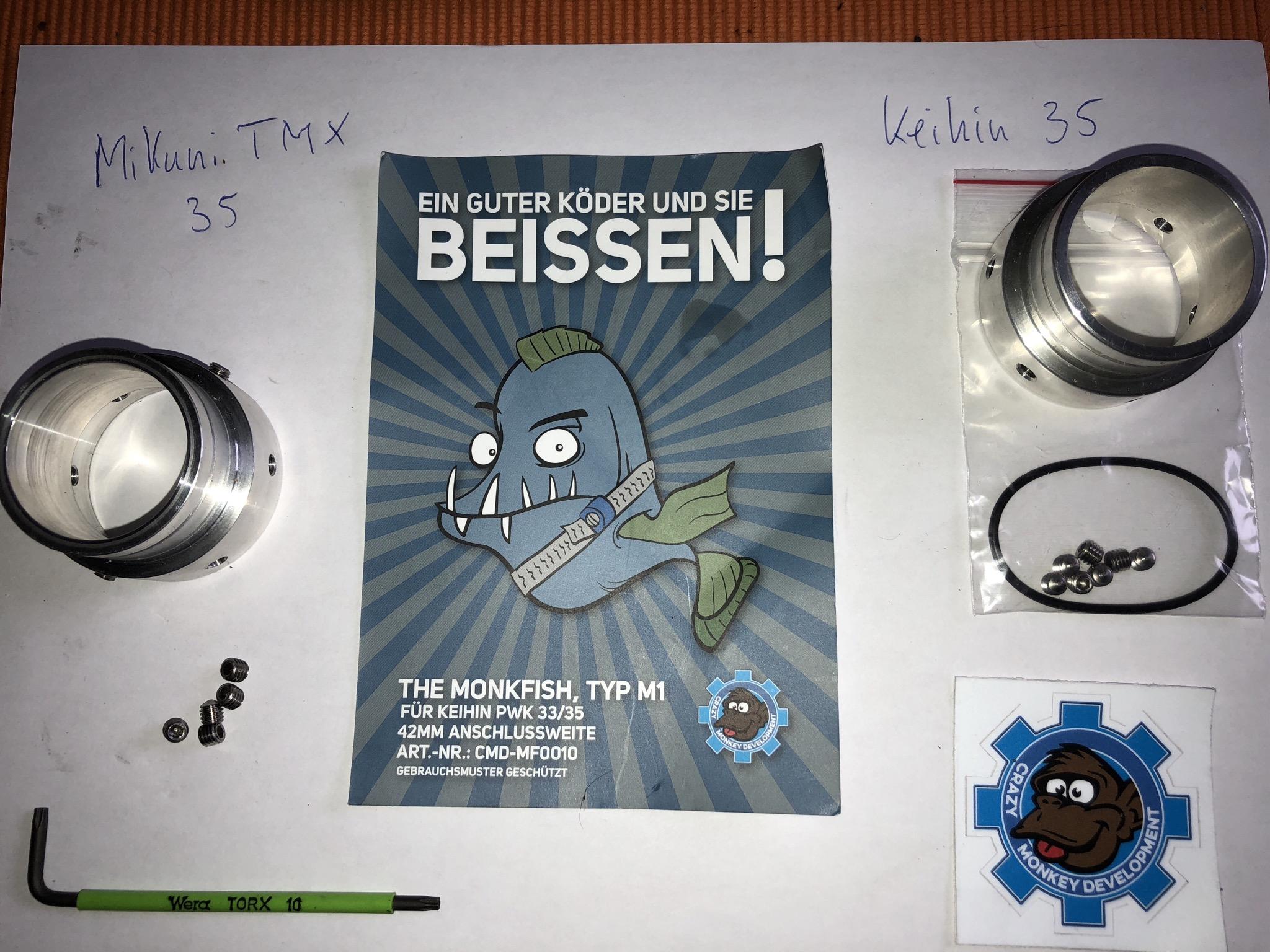
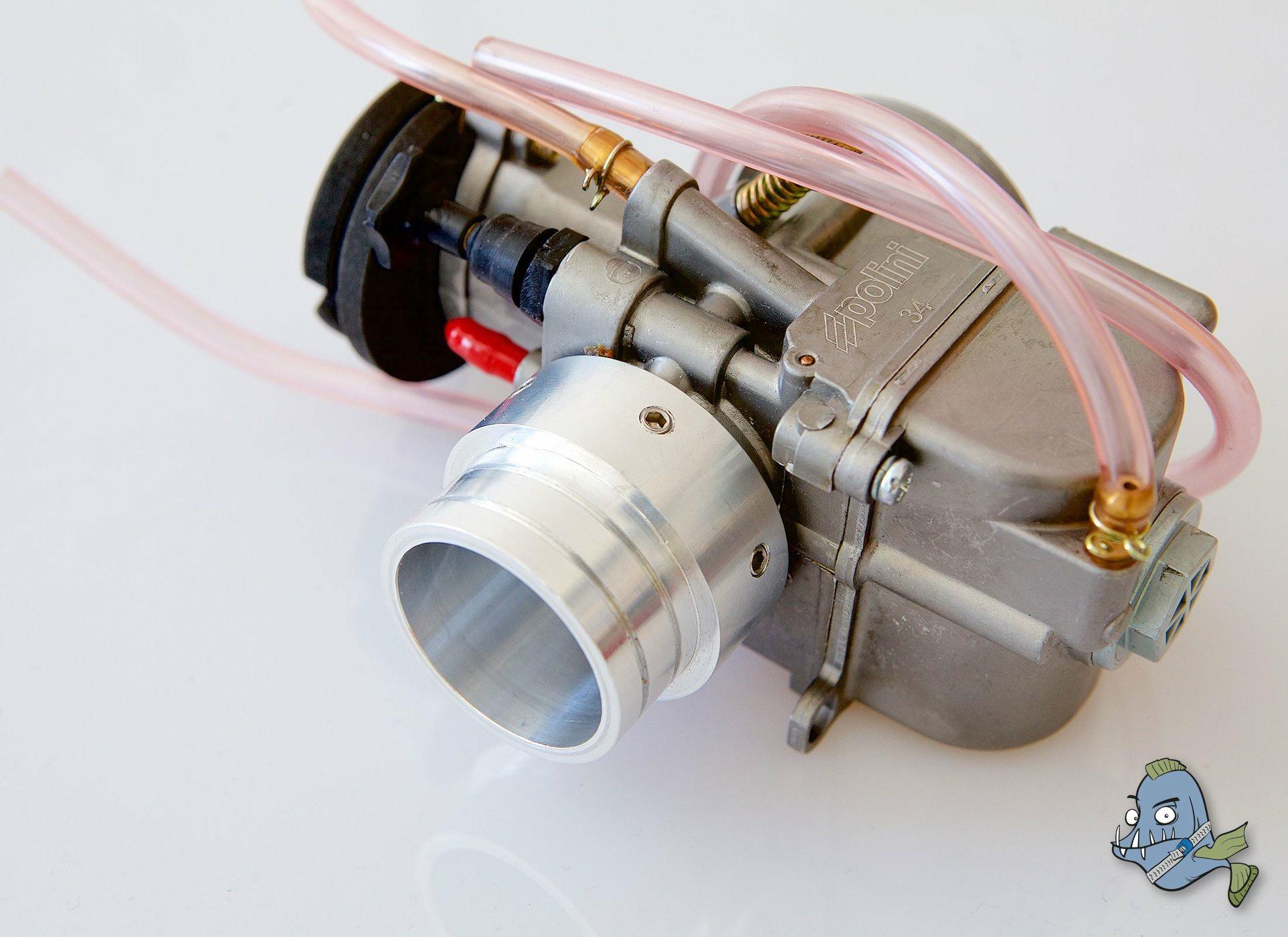
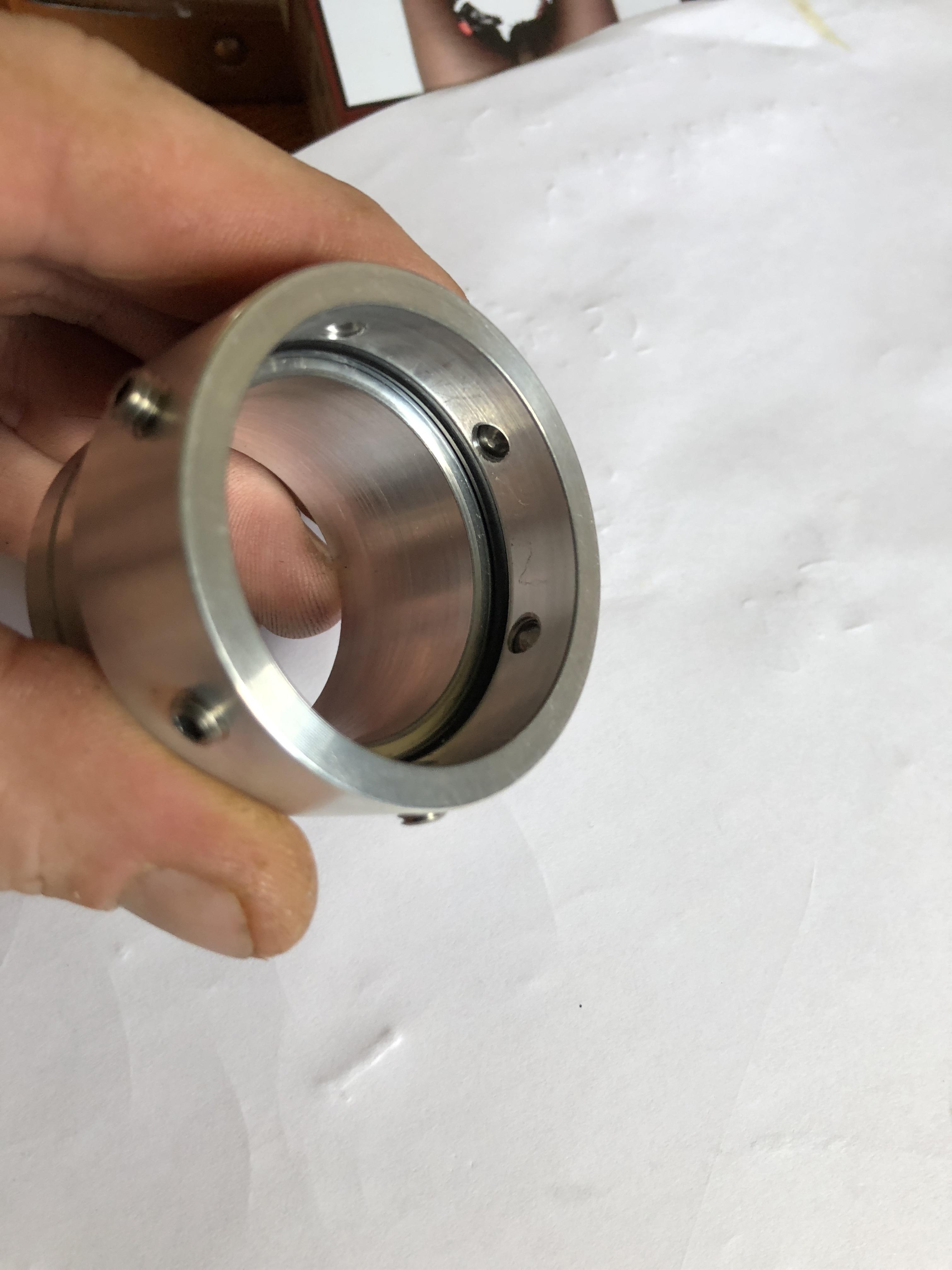
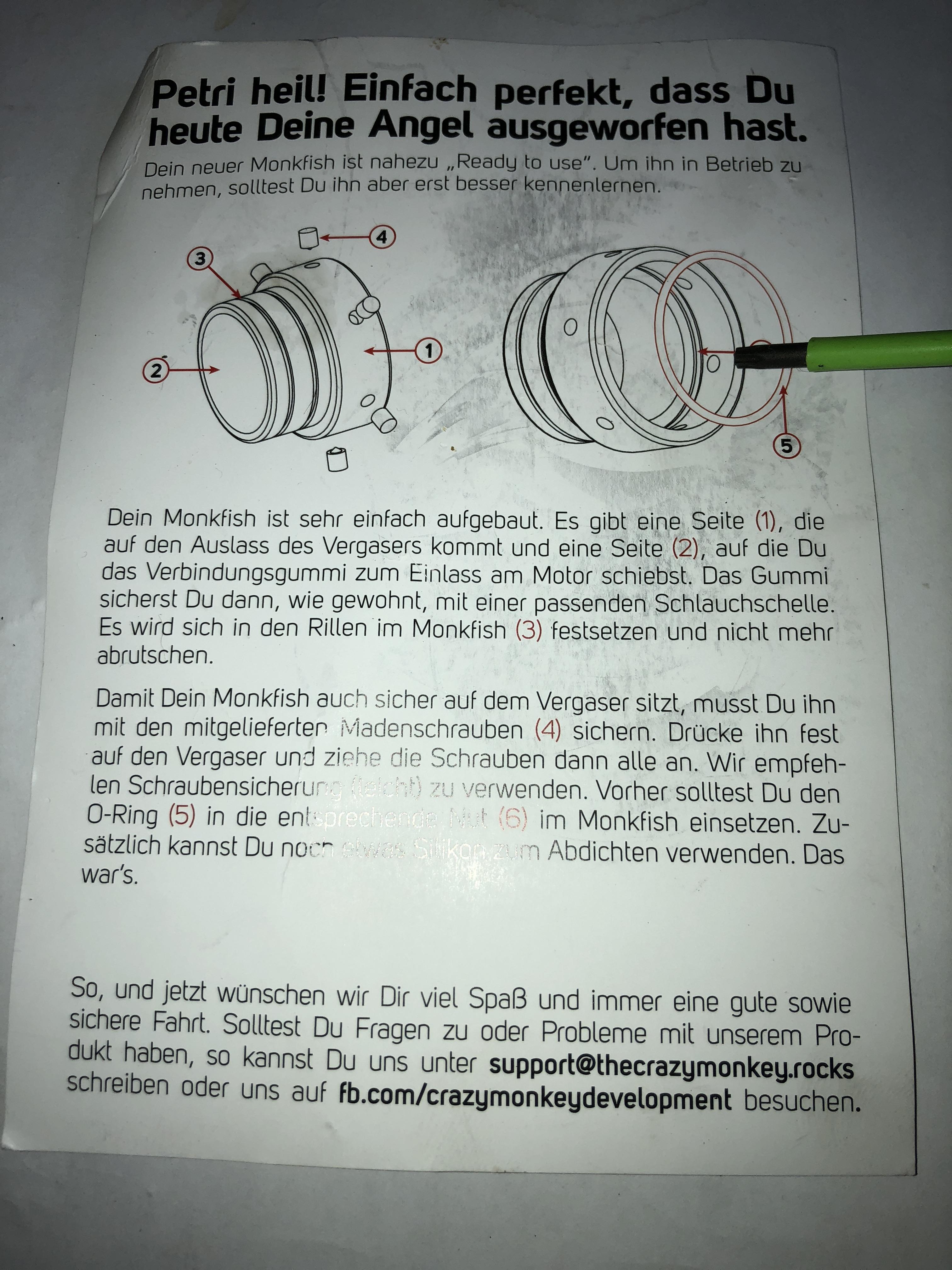
4 Punkte4 PunkteHier meine Serie 1 Li 125 Olack Mugello 200 membranisiert 30iger tmx clubman v44 Punkte3 PunkteIch, als kompletter Laie hab mir vom Falk eine Flexhonbürste für 54-61mm Bohrungen gekauft und damit schon ein paar Guss- sowie Aluzylider gehont, auch mal einen Parmakit mit 63mm (ich Schlingel) und laufen/liefen danach alle problemlos. Vorgehensweise meinerseits: im Schraubstock einspannen bei 30-45 Grad und flott mit dem Akkuschrauber und WD40 durchbürsteln. Was ich damit sagen will: das kann ein jeder Depp3 Punkte3 Punkte3 PunkteEs wurde gerade festgestellt, dass die Mikuni TM 35 Version vom Monkfish, also der Stutzenverlängerung die ich Dienstag kurz vorgestellt hatte : auch komplett kompatibel zum Polini PWK 34 ist. wer da also probleme mit abfllutschenden vergasern ( das war der eigentliche entwicklungszweck ) haben sollte, für den könnte das teil ev. ne hilfe sein. von wem das teil ist, wo man es kaufen kann usw. bitte anhand der bilder durch z.b. google ermitteln , ich lasse mich sehr ungerne als befangen bezeichnen. wer probleme mit abflutschenden vergasern hat: da gibt es was
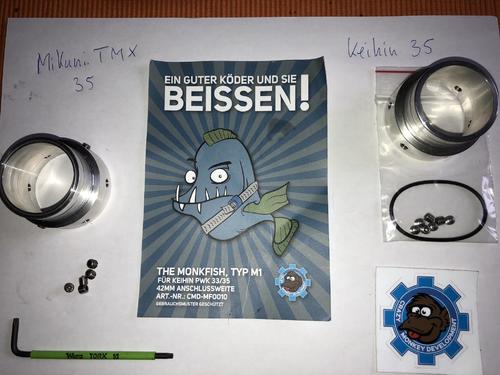
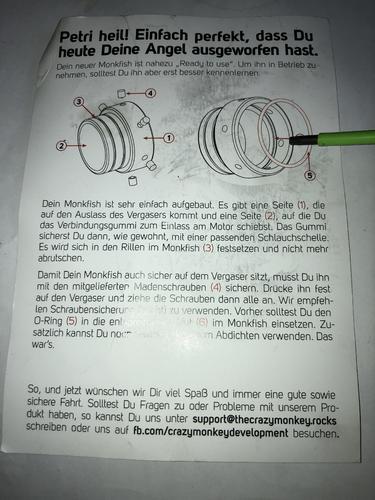
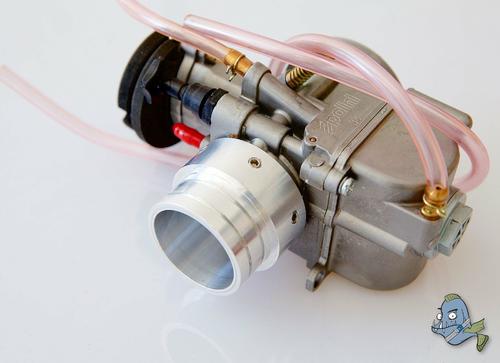 2 PunkteAlter Schwede,deine Erotischen Fantasien in aller Ehren.Aber das..........2 Punkte2 PunkteThank you for a fantastic rally. Your hospitality was amazing. We had an amazing time, and all made us home to Scotland .. We have told everyone about it... looks like more Scottish will be there next year.2 Punktedas ist mir so ziemlich latte, hier gehts doch um sachen vorstellen. ueber den kauf muss jeder selbst entscheiden. der deckel ist uebrigens ein geschenk vom pxler , weil ich ihm ne menge zeugs geschickt habe - nur mal so nebenbei.2 PunkteIn Deutschland macht das perfekt Sinn. Durch absurde Normen, die nur der Verbraucher einhalten muss, während die Industrie weiter alles versauen darf, wird unsere Scheinwirtschaft aufrecht erhalten, indem die Politik dann Anreize und Zwänge schafft, den Konsum innerhalb der Volkswirtschaft aufrecht zu erhalten. Ein Euro4 oder 5 Diesel verwandelt sich bestimmt nicht in eine Blumenwiese, wenn der nach Afrika oder in den nahen Osten verkauft wird. Und grundsätzliche verdient der Staat doch Hand in Hand mit dem Konzernen, deren Lobbyisten berechtigt sind, Gesetzesvorlagen einzureichen oder in Eigenregie zu ratifizieren. Wenn im Ergebnis mal was schief läuft, wird es sowieso auf den Steuerzahler abgewälzt. Das Motto lautet: wir schaffen das.2 Punkte1 PunktAh, lese ich jetzt erst. Danke euch beiden! Da stand der Roller tatsächlich keine 5 Tage draußen unversichert, schon war die Stadt da. Die Nachricht von Dirk hatte ich bekommen, da war noch genügend Zeit. Dennoch: Ihr seid geil!1 Punkt1 PunktMach dir doch nicht so ein Kopf wegen den Schnackern hier, mach so weiter wie bisher Ich empfinde deine Posts nicht als Werbung, ist doch völlig ok wenn einer bemüht ist Neuigkeiten zu zeigen und sich damit auseinander setzt....weitermachen!!!1 Punkt1 Punkt1 Punkt1 Punktwenn sie kurz läuft mit sprit dann ist die zündung quasi raus und es liegt ziemlich sicher an der Spritversorgung . membranplättchen z.b. oder vergaser verstopft?1 Punkt1 Punkt1 Punktja und was nun? Ich warte hier schon ewig. Ihr müsst schon auch zahlen! Ich muss auch von was leben!1 Punktyoure welcome. we're really happy with that feedback! thanks a lot! your club did a lot for the good mood of this event. but when more of you scottish guys coming.... we need a LOOOOOOOOOT more of beer.1 Punkt1 Punkto-ring zur abdichtung gegen falschluft liegt bei. schraubensicherung - maximal mittelfest besser die einfache - keinenfalls hichfest sollte man nutzen. alles erkennbar ?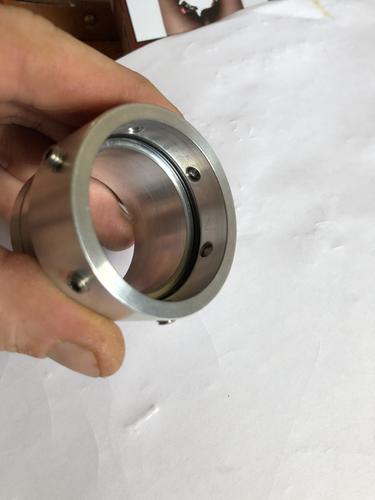
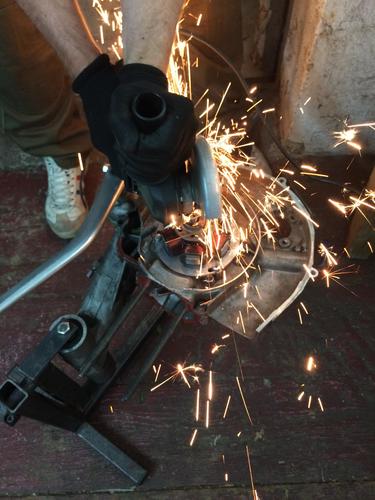
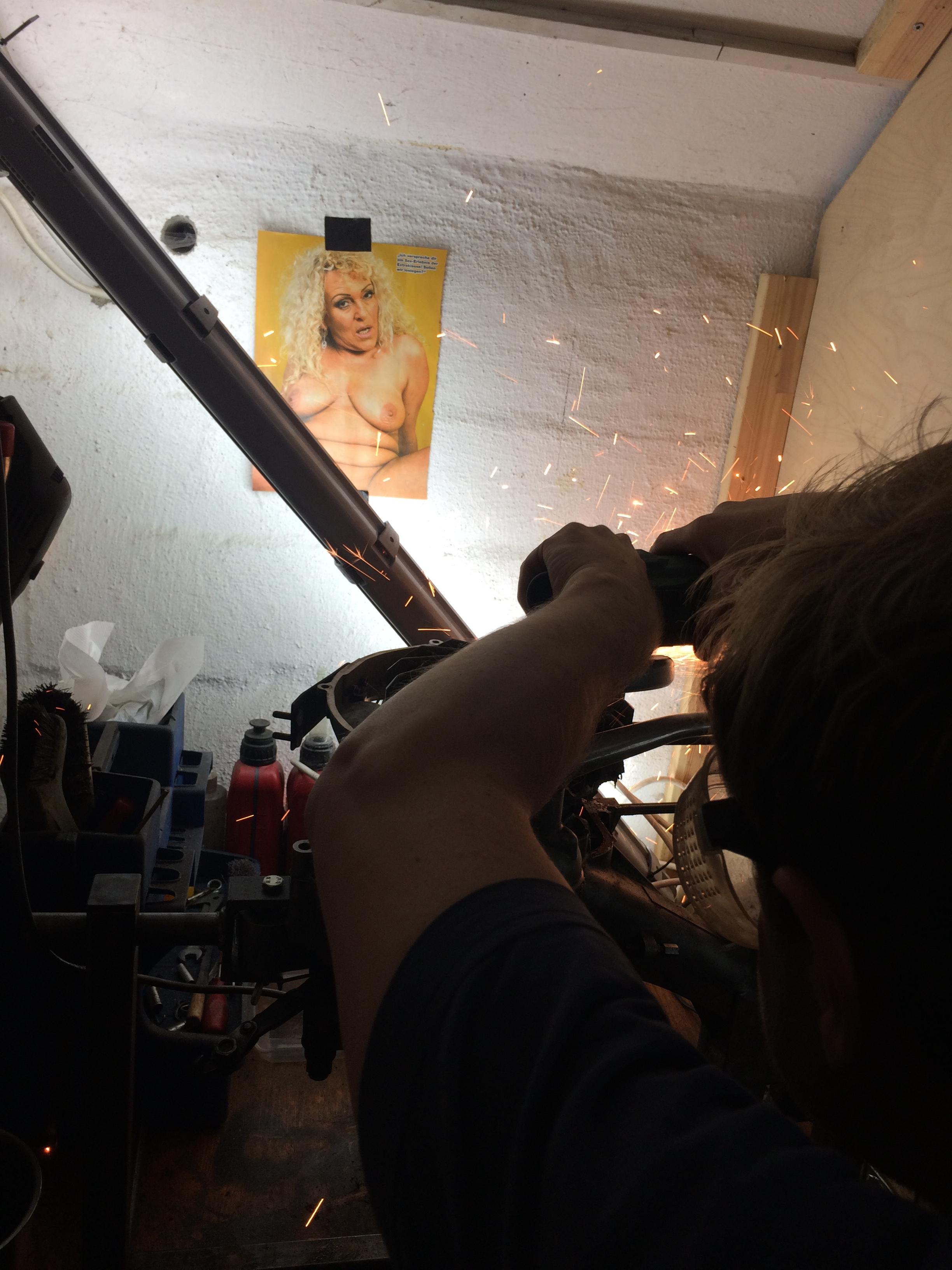
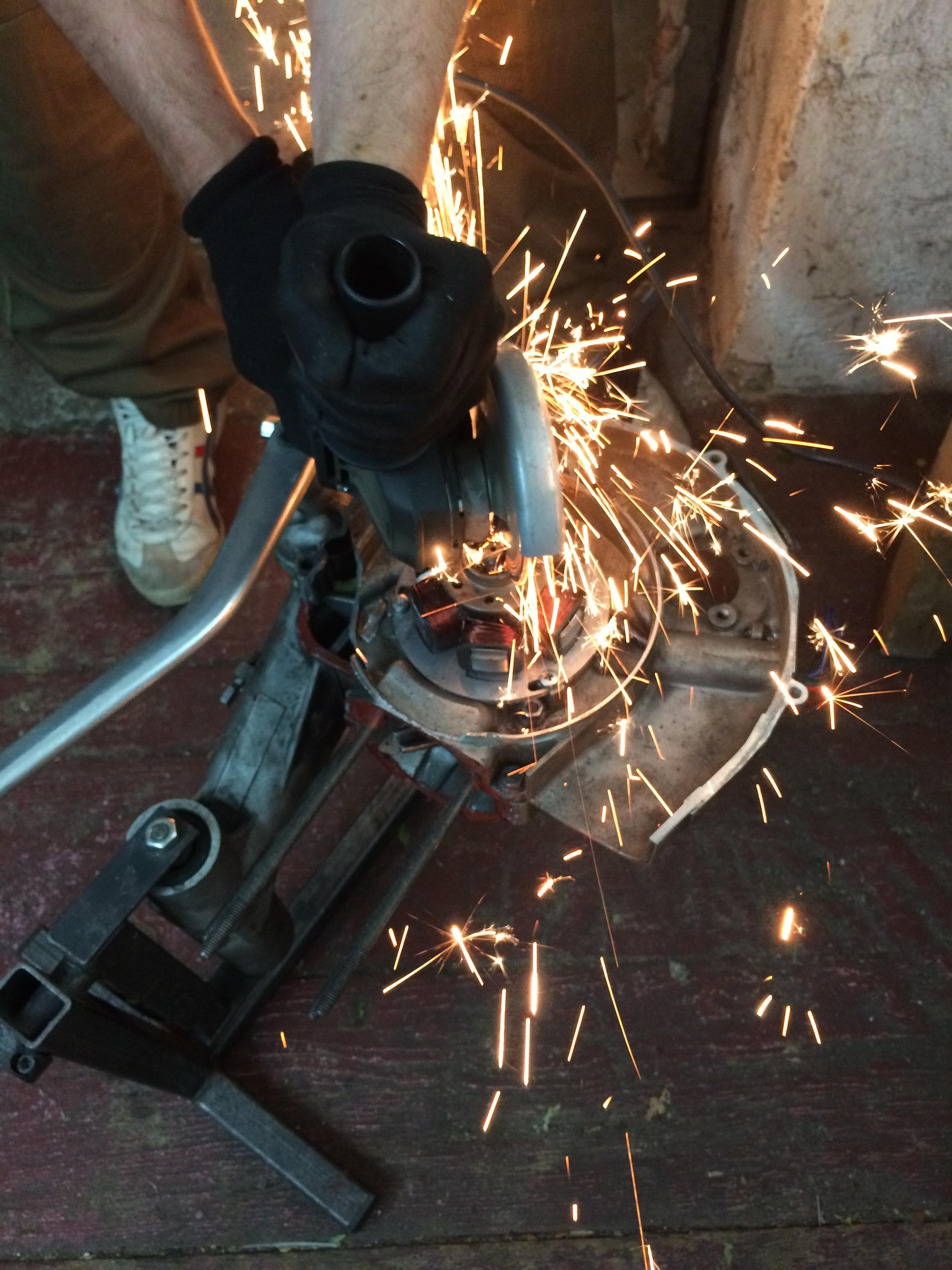
 1 Punkt1 Punkt1 Punkt1 Punkt16 Zoll umbau steht nicht zur debatte? Da gibts doch auch schicke Speiche für. Der Motor mit pötten für mehr drehzahl - sprich sanfterem einstieg - in nem mito oder rs125 rahmen wäre die ultimative Waffe1 PunktWollte euch nur eine kurze Rückmeldung geben. Neuer Kondensator ist jetzt drinnen und die ersten 10 km inkl "Dauerfeuer" sind klaglos durch. Hoffe das bleibt so, sonst kommen alle Kabel neu an die ZGP und noch eine Spule, die eher dürftig aussieht. Vielen Dank für eure Hilfe!1 Punkt1 PunktAlder, Außenbowde ist aber ein ganz schlimmes Wort, wenn das der Herr Bowden hört.. An sich hast du recht, die Außenhülle muss fest mit dem Tacho verschraubt sein. jetzt ist das aller so, dass oben an der Tachowelle (also am sich drehenden Teil) ist ja ein Absatz,ggf. mit einer Scheibe. Das dient als Axiallager der Tachowelle, und das braucht Spiel. Wenn nun der Vierkant oben zu lang ist, stößt dieser beim Festziehen der Überwurfmutter irgendwo oben im Tacho an und die die Außenhülle wird gegen das Axiallager (den Absatz) der Welle gezogen.1 PunktIch werde es jetzt auch einfach verbauen. Benelli extra kurz mit geradeverzahnter BGM Primär. Und hier noch zwei erotische Fotos vom Versuch den explodierten Motor auseinander zu bekommen. Kupplung und Polrad haben sich auf der Welle verschweißt, mit Wärme ging da nix vorwärts. Für die Flex waren dann irgendwann die Trennscheiben alle....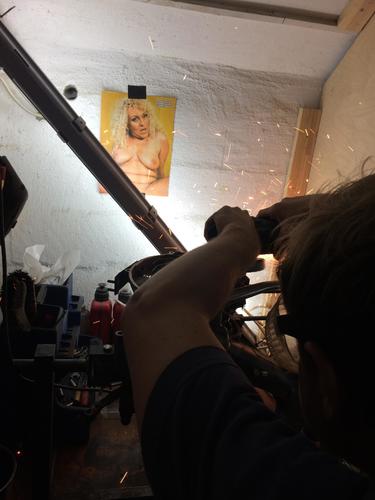
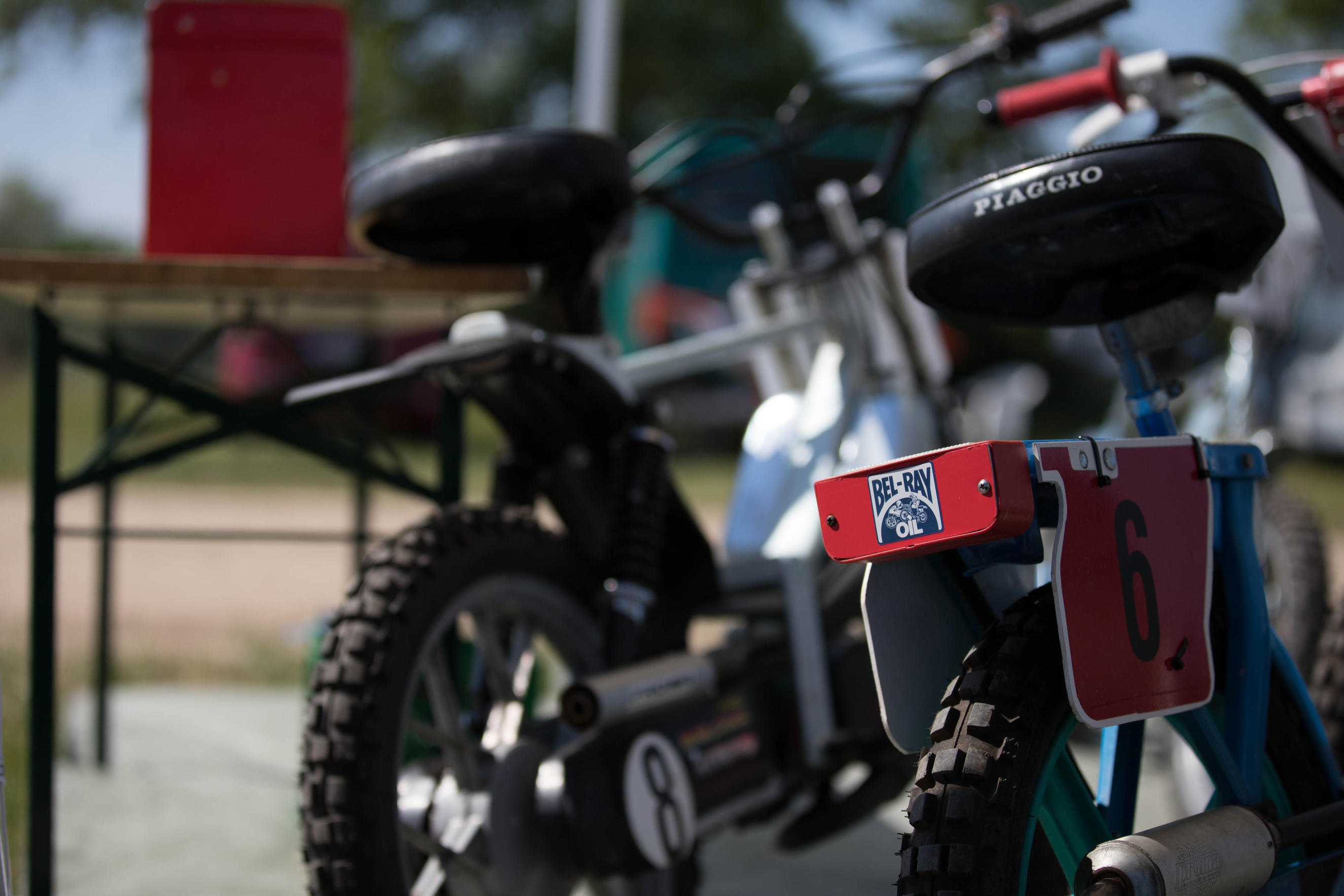
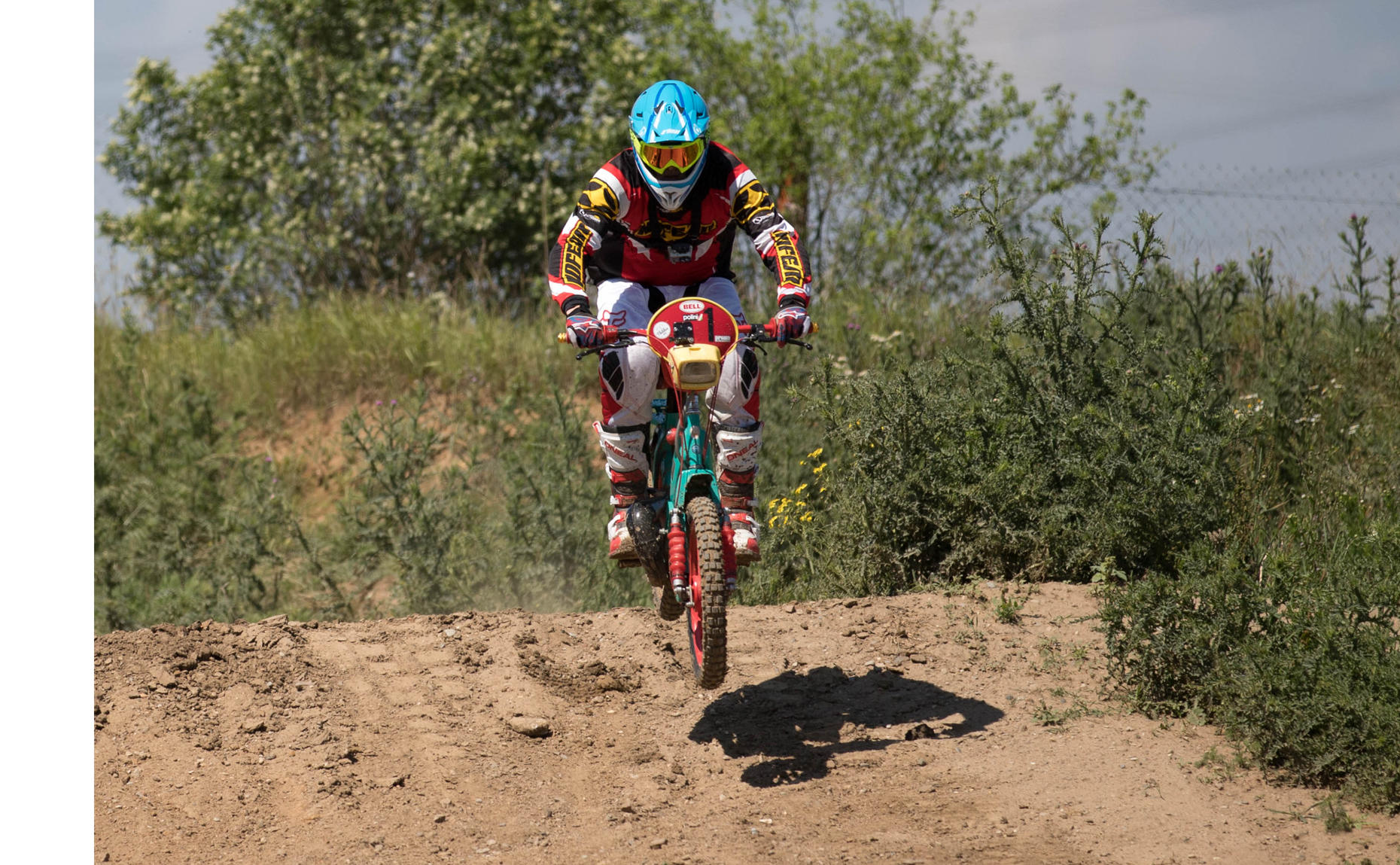
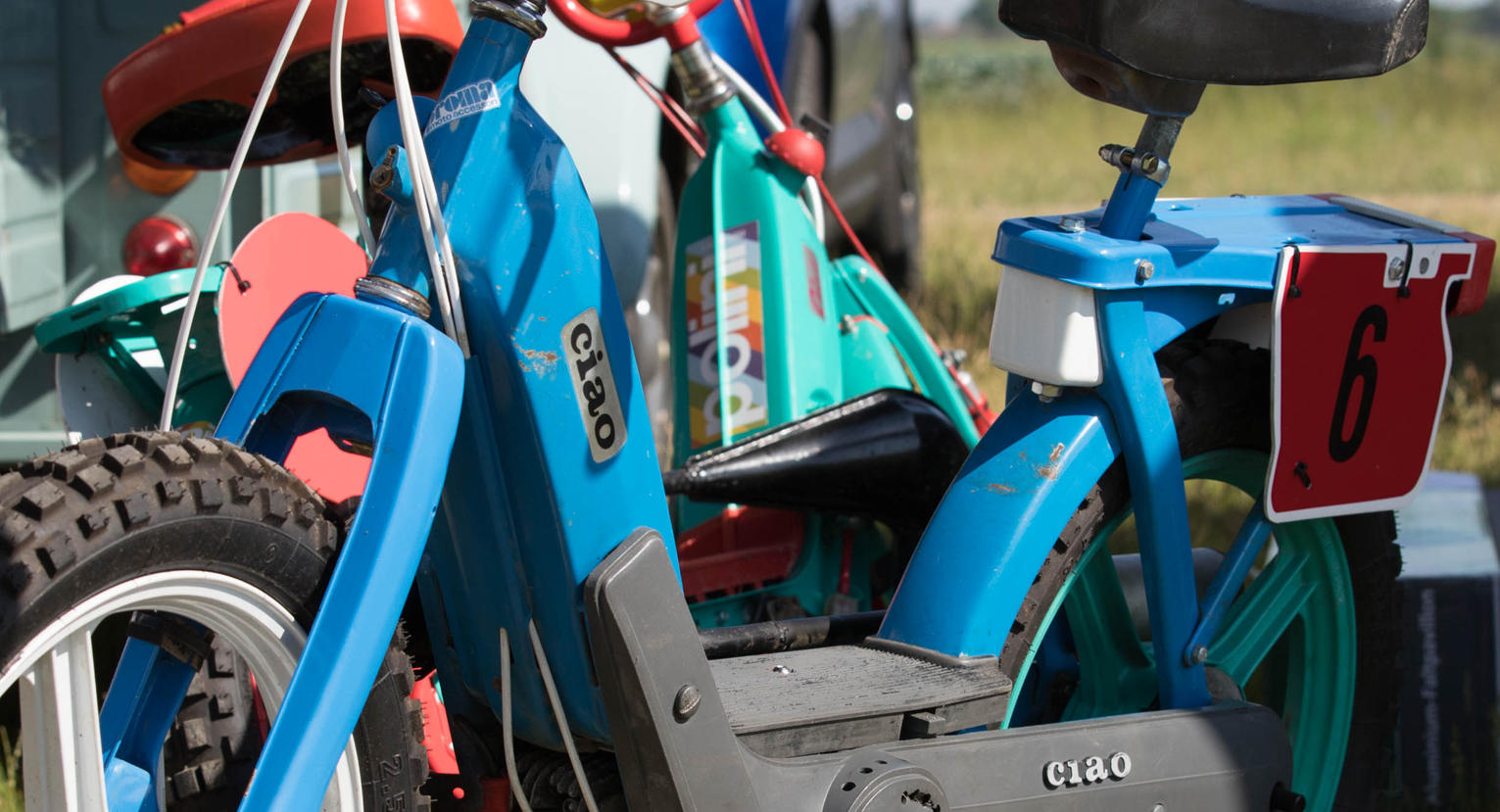
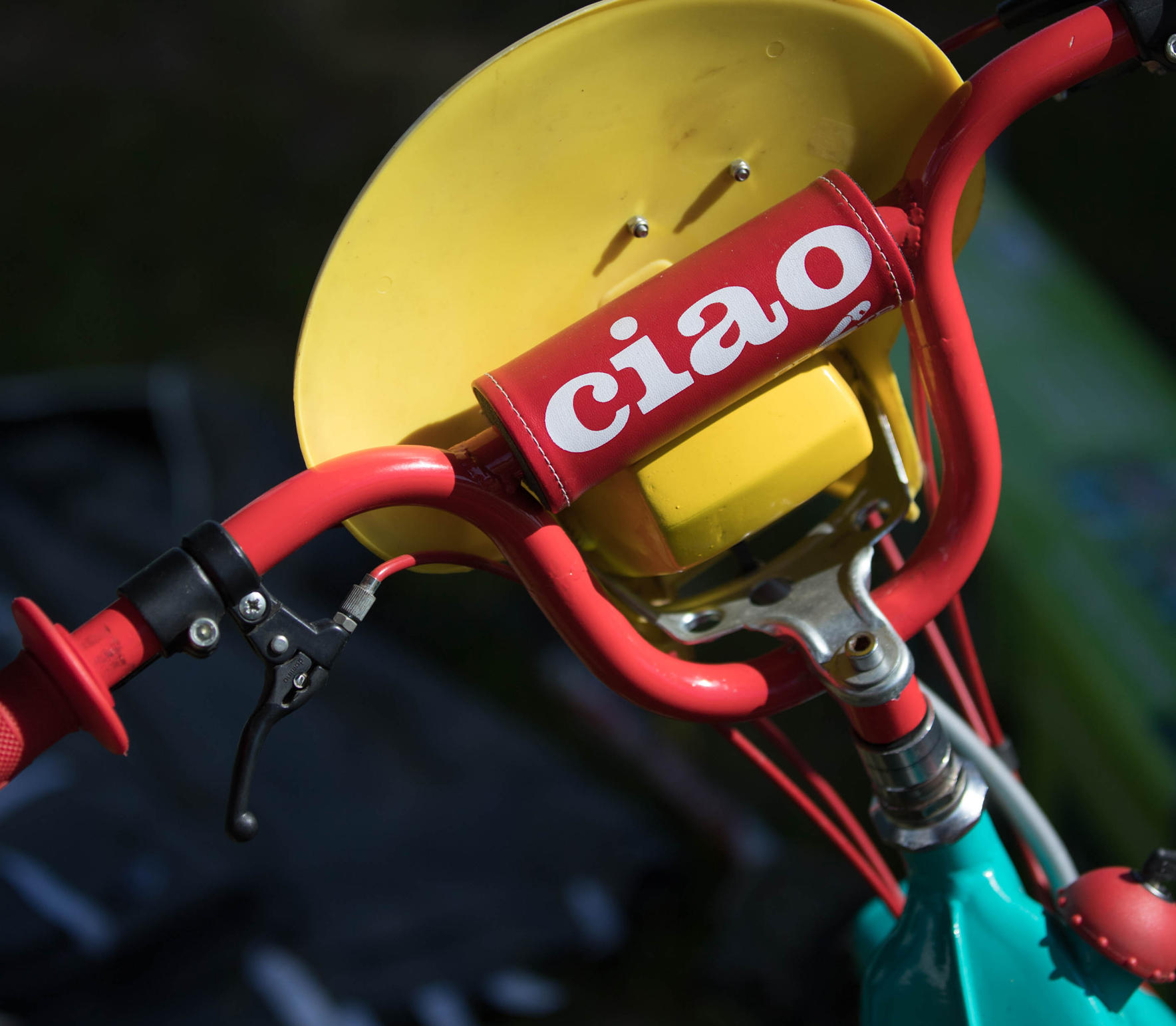
 1 PunktOhh, das hatte ich nicht berücksichtigt, mein Fehler ! Ich korrigiere : ",Und jeden Tag stehen ( Regional vielfach begrenzt ) viele dumme Hippster auf, die sich gegenseitig ueberbieten, um der hippste Hippster zu sein, mann muss nur da anbieten, wo es die meisten dieser Trottel gibt". Bin ich froh, meinen Fauxpas bereinigt zu haben !1 Punkt1 PunktDas mit den noch was gehen sollte mein ich das man am Diagramm sieht das der Hinterreifen durch geht... bevor hier was falsch rüber kommt1 Punkt1 PunktYeah! Das lässt mich gerade aufatmen! Scheißt auf den Ruß! Der Auspuff wird außen geputzt und das wars1 Punkt1 Punkt1 Punkthatte auch die ganze zeit auf mapping 8 gewartet, und als dann die meldung mapping auftauchte, wollte ich schon hochspringen, leider stand da aber dann petrux und ? und cal hat ein rennen gewonnen, setup hat gepasst, aber das mein ich ja. wenn das setup passt. und btw, setzt den australischen rentner wieder auf die duc, der gewinnt auch noch mit seiner weltmeister duc von damals1 Punktschaden sieht nach verlorenem ringpinn oder gebrochener pinüberdeckung am ring aus1 PunktSchon isses wieder rum Aber genial wars wieder !!!!!!! 3. Juni 2018: CMX2: brutale Sonne schön staubig mörder anstrengend 20 min Training, 2* 15min. Rennen super freundliche und unkomplizierte Organisation und Betreuung durch den AMC Frankenthal wir wurden wieder herzlich eingeladen für 2019, also: wer Bock hat nächstes Jahr dabei zu sein: meldet euch! Wir haben einige neue Mitstreiter gefunden, die schon am schrauben sind! so nun Bilder, die hoffentlich motivieren cheers! momo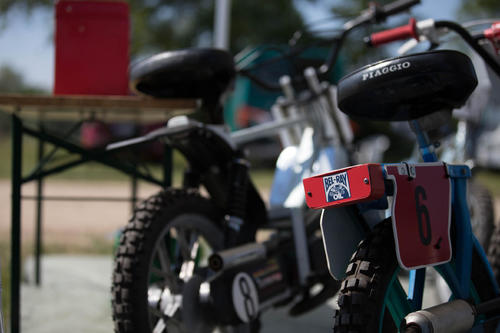




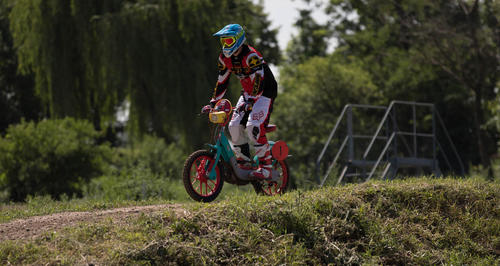


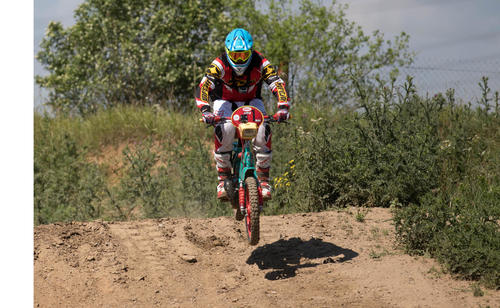


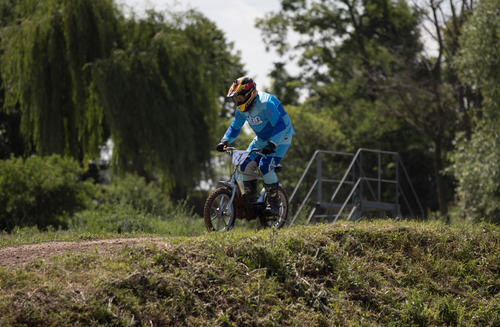
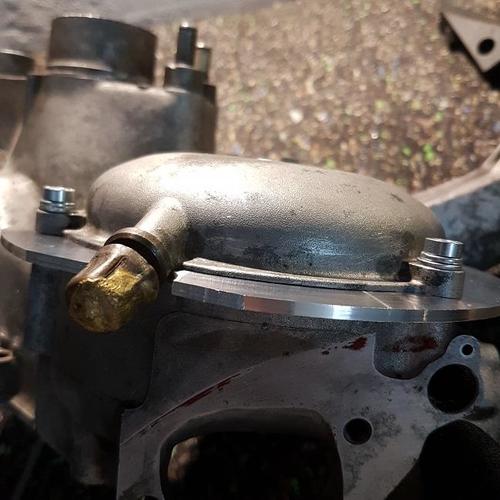
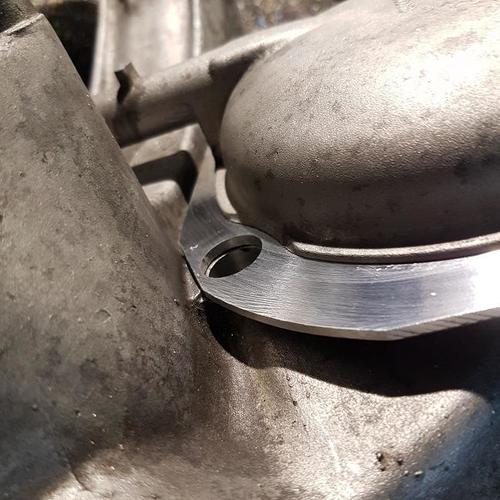
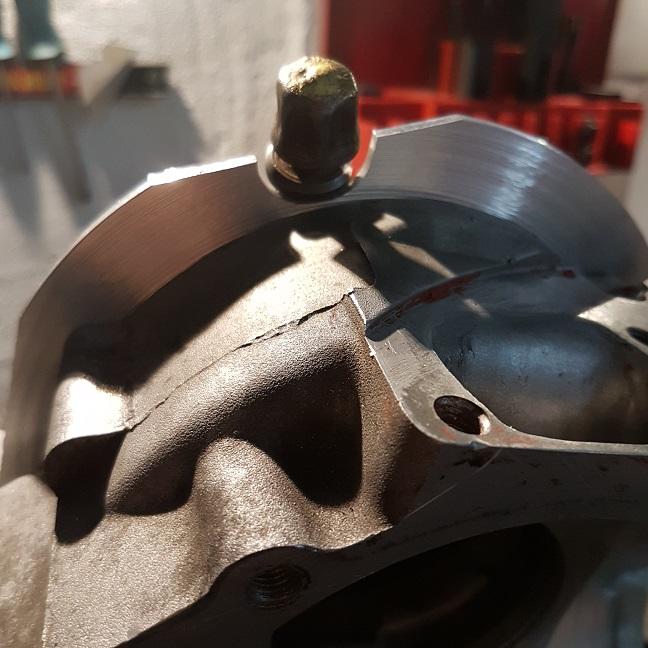
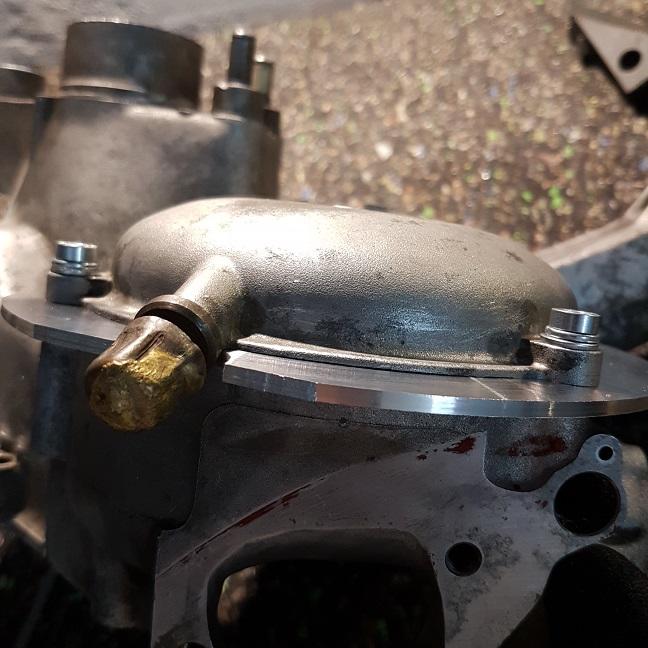
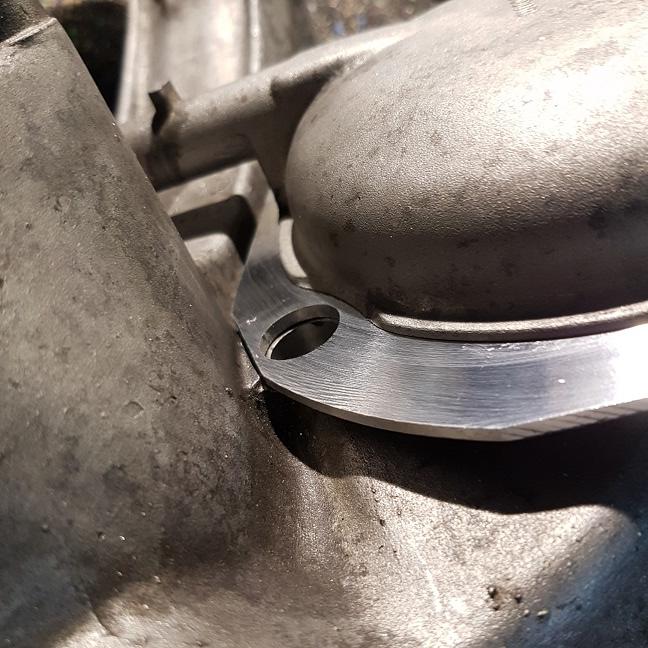
 1 PunktNach 7000km Racetour wieder zurück zum Grauguss;) Nun mit allen vier Zylinderkopfschrauben nochmal auf dem Prüfstand gewesen.Leider absolut kein Leistungswetter und ohne Zeit nur nochmal abgedrückt.Auf der Rolle haben wir’s nicht hinbekommen den Motor ohne gerotze in den Reso zu schieben;(Dabei läuft das auf der Straße ganz gut nachdem ich mir die Mühe gemacht habe ne passende Boostbottle zu basteln.Endlich gescheites Standgas und deutlich saubere Gasanhme.Vorallem aus dem Stand raus an der Ampel oder ganz untertourigem fahren in der Ortschaft.. Jetziges Setup: Tsr evo Variotronic ohne Ring Steuerzeiten: 127/189/157 Auslassbreite:67,5% tmx30 :22,5/250/60/Nadel Mitte Kopf: 1:12/1 qs 1.2 /50% Fürs nächste mal dann etwas mehr Auslassbreite und was zeit um auch an Gaser und Zündung zu drehen..1 Punkt1 Punktbei dem einen Mädel sowieso, sonst bist von dem Hinterteil enorm abgelenkt und findest die Linie nicht.1 PunktAussparung Entlüfter gesetzt, Deckel abgedreht. Mehr muss nicht vom Deckel runter und mehr ginge auch gar nicht, weil die Stelle an der Aussparung für die Nebenwellenachsenmutter sonst keine Dichtfläche mehr bietet.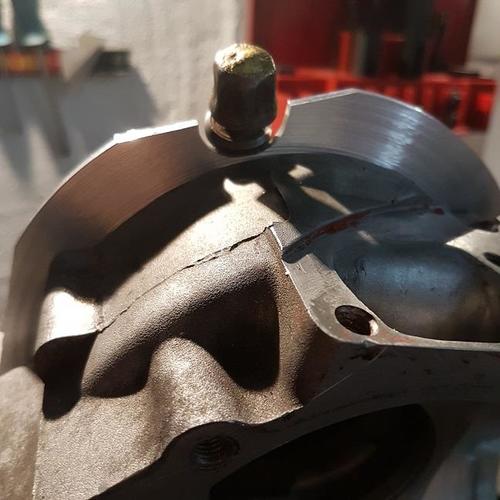
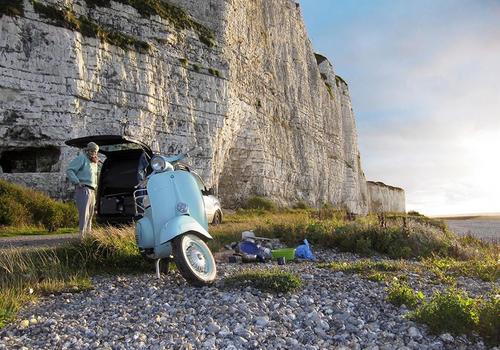
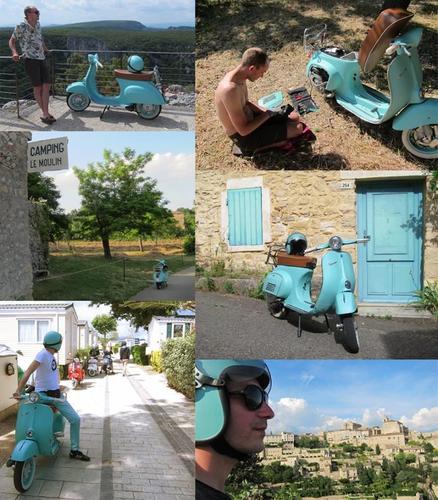
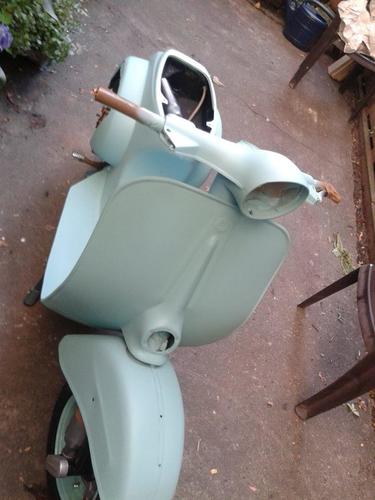
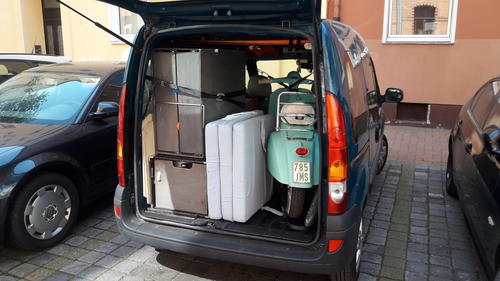
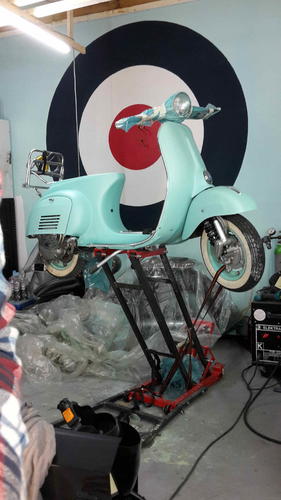
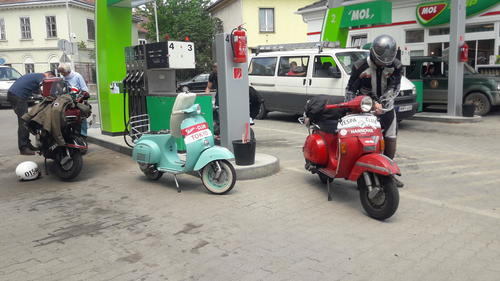
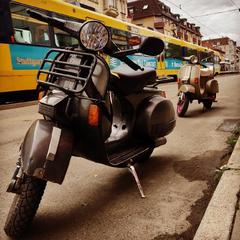
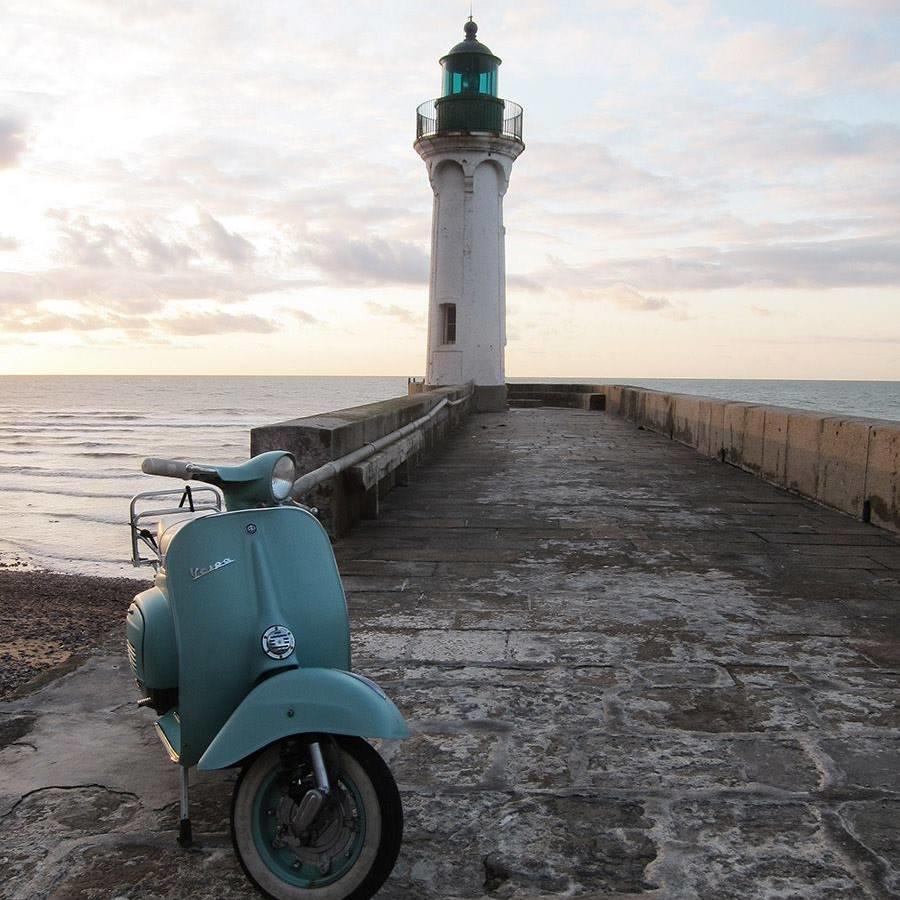
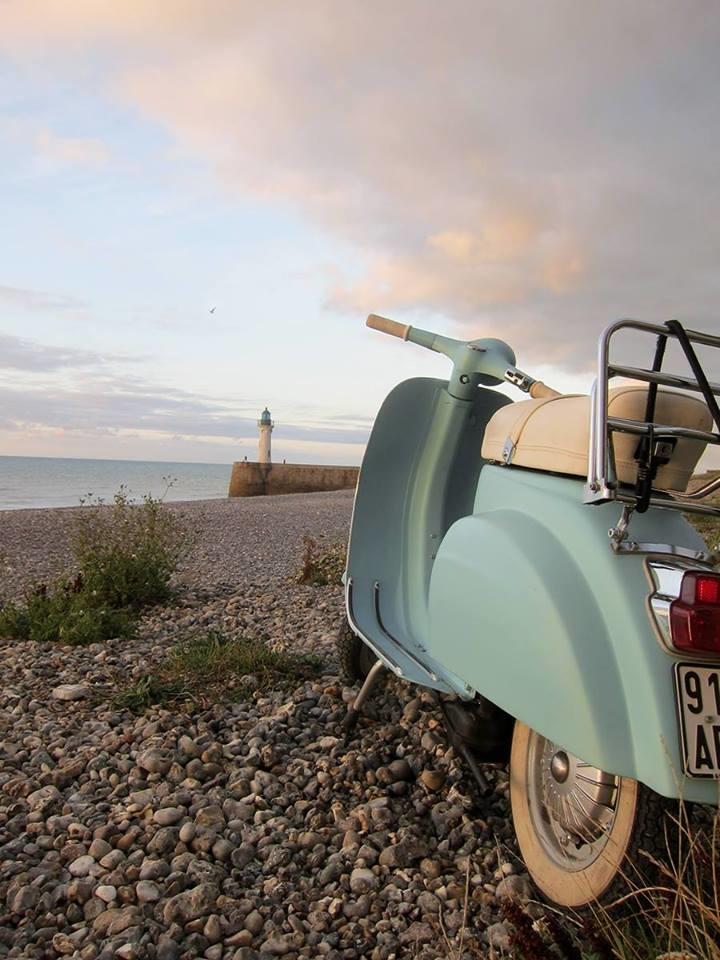
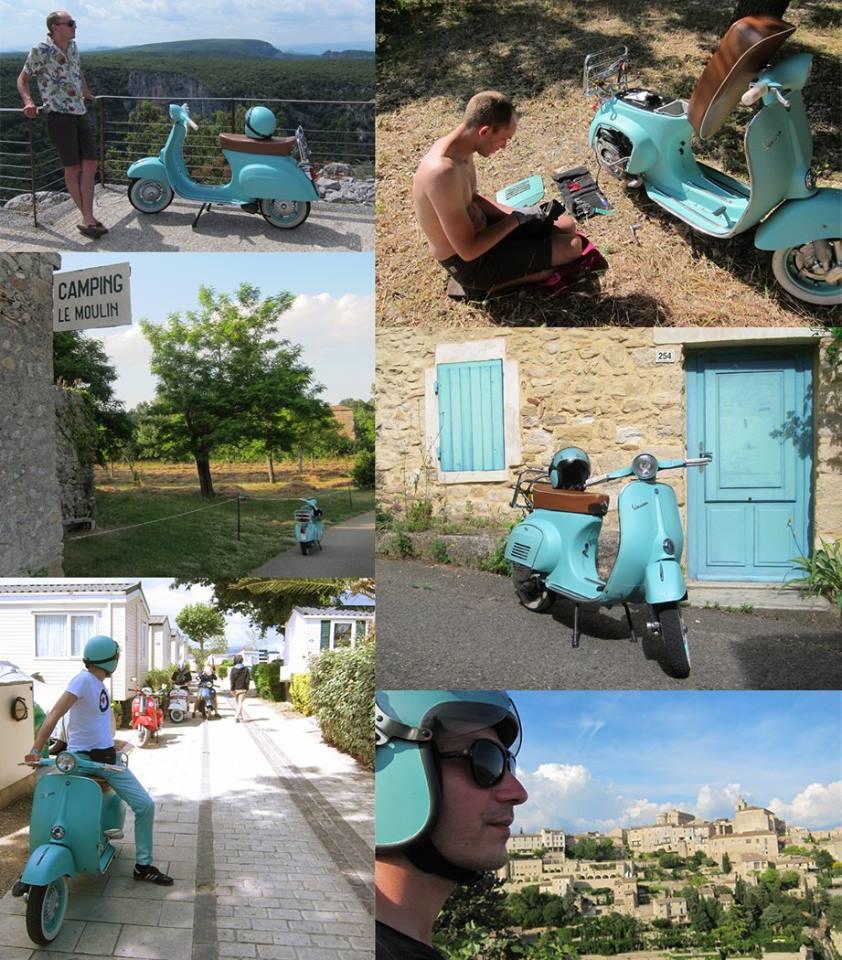
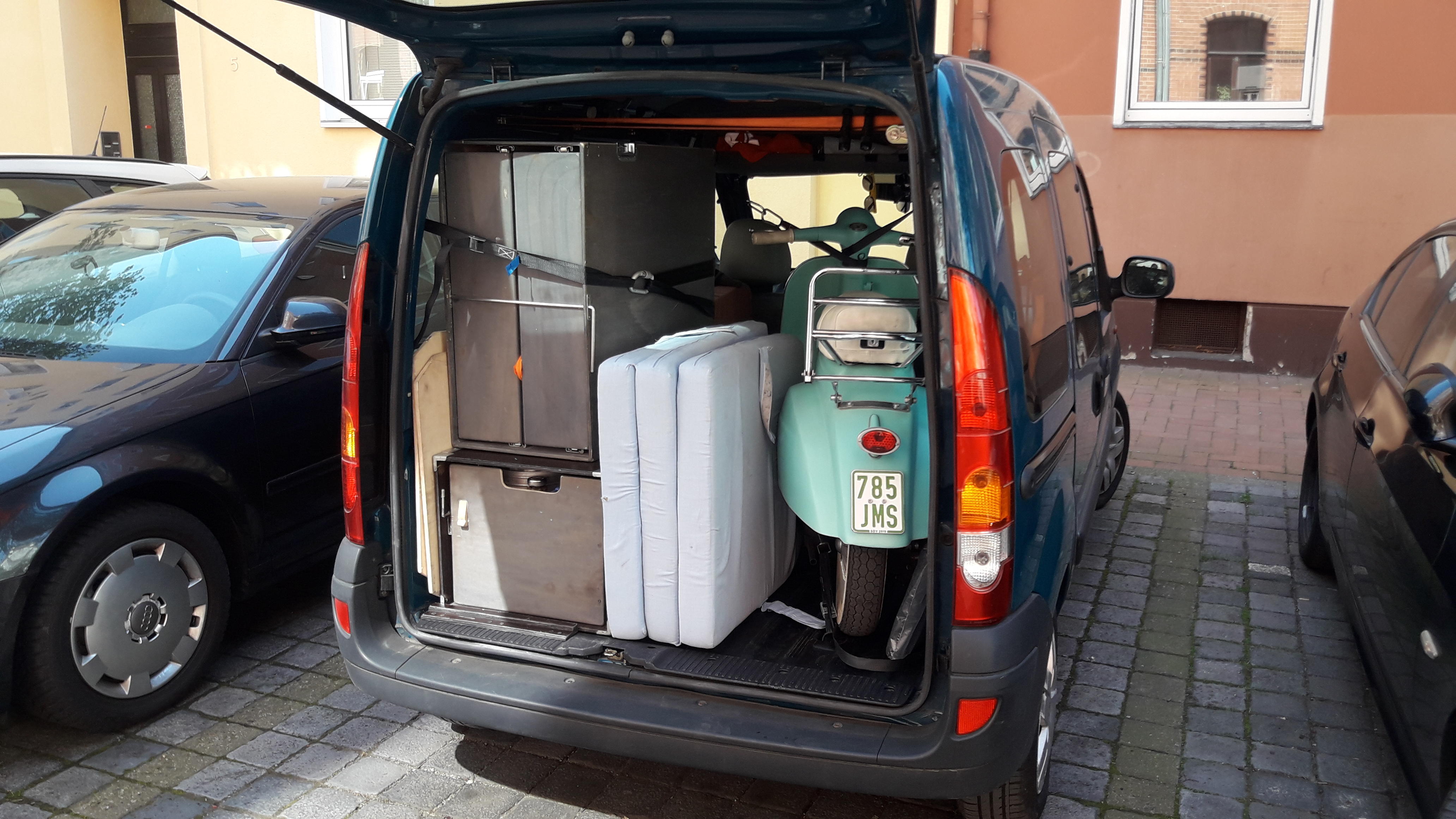
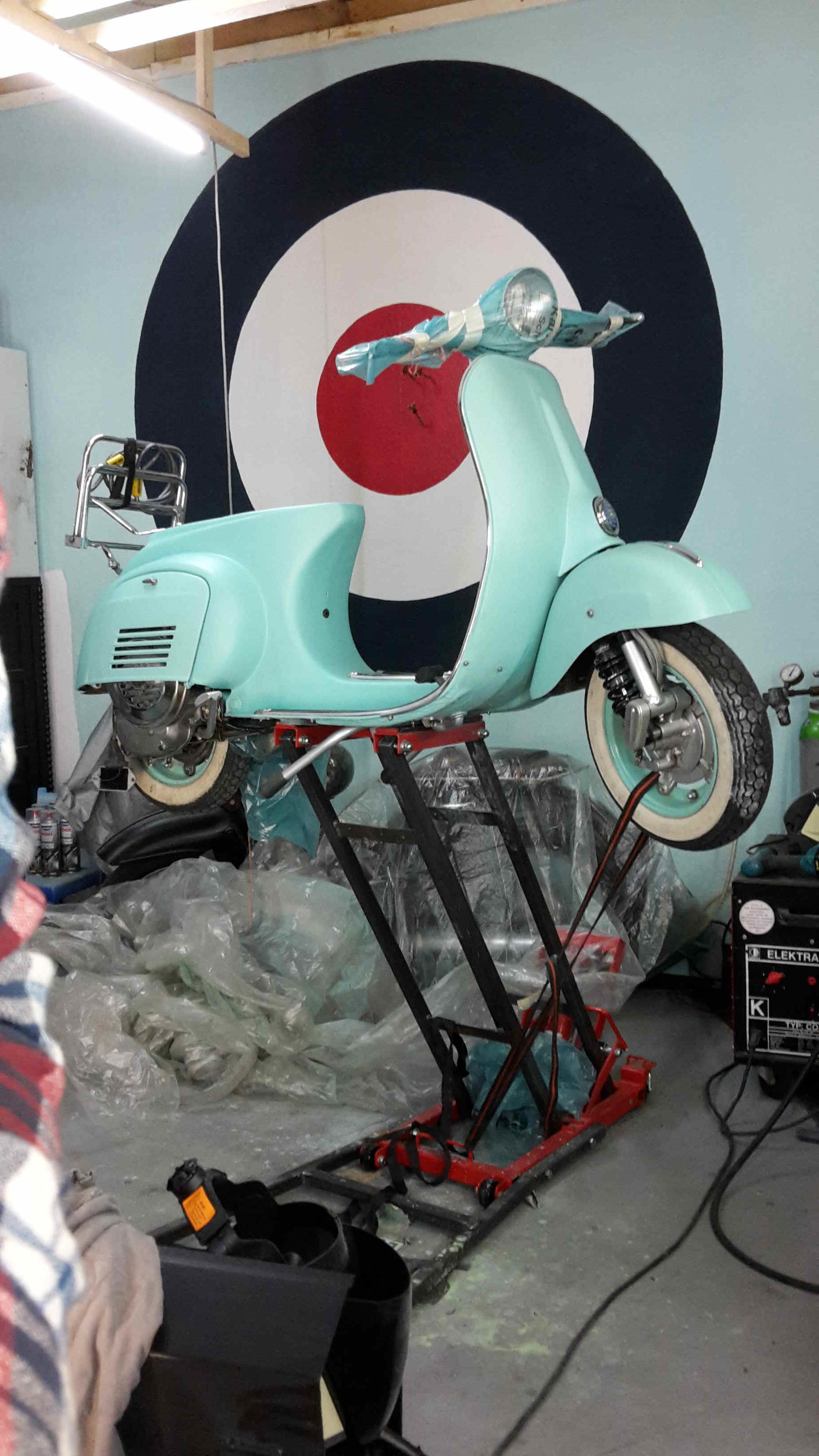
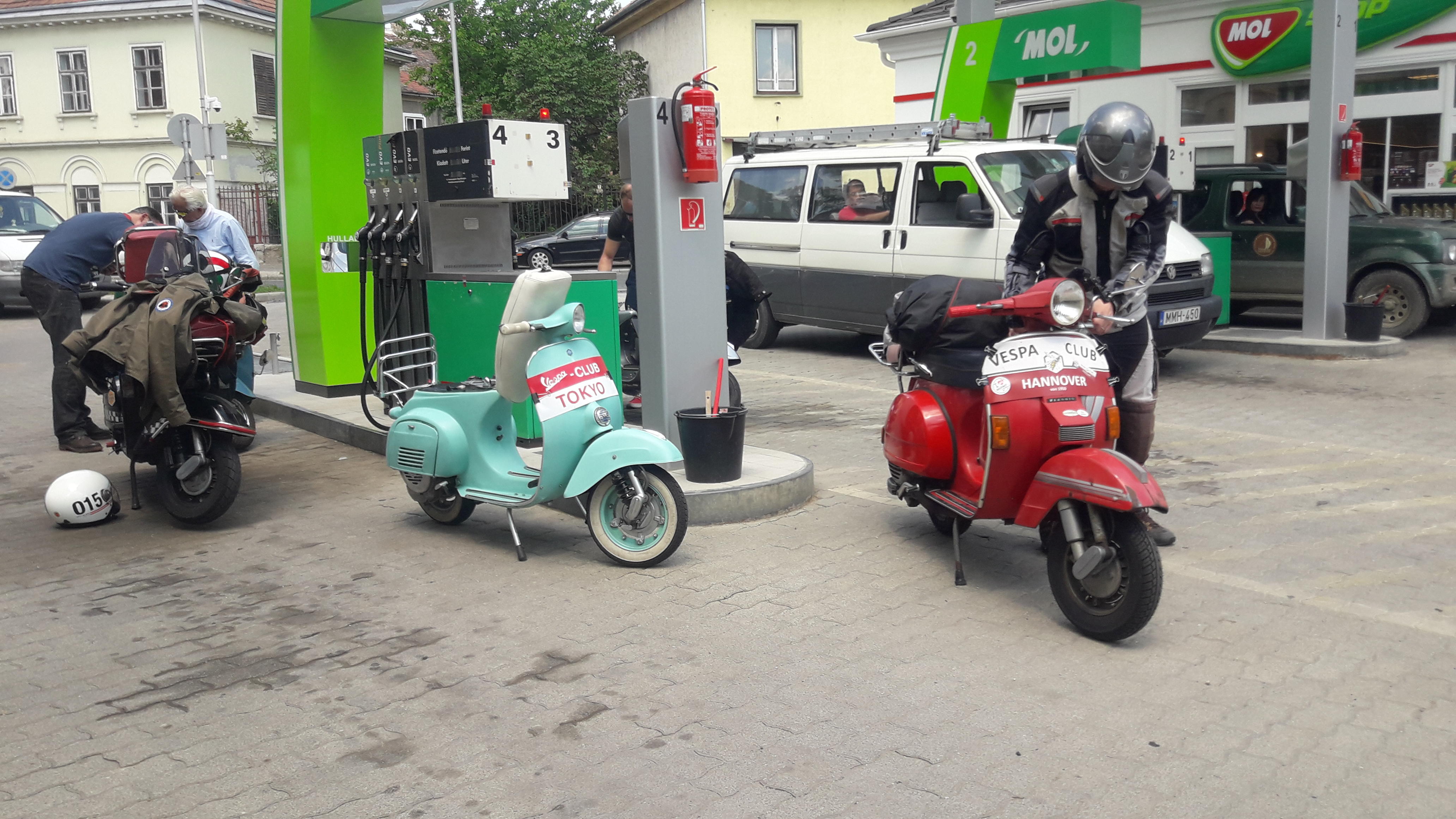
 1 Punkt1 PunktHier mein Eisdielen-Urlaubsmobil in Mintgrün-Matt Das Ding war schon mindestens 15 mal mit mir in ganz Europa unterwegs. Frankreich, Holland, Belgien, Ungarn, Tschechien, Slowakei, Östereich, Polen usw und ist ein super Urlaubsbegleiter. Passt in meinen Camping-Kangoo und lässt sich sehr bequem nachlackieren, wenn man mal wieder irgendwo angeeckt ist :) Natürlich ist alles Geschmackssache und weisse Sitzbänke und Weisswandreifen sind hervorragend geeignet um Geschmacksdiskussionen zu führen, aber sie ist eine Zierde für jede Eisdiele :D Setup: orig. V50 Motorblock 3-Gang, Primär 3,25er (65:20) schräg mit Repkit DR 85 unbearbeitet Dellorto 19.19 HD: 75 ND: 42 Mazzu Welle E-Zündung statisch (19° voT), Bosch W4AC 3-Scheiben Kupplung mit Polinifeder , MTX75W-140 Getriebeöl Sito-Plus Pott Conti Weisswand-Schönwetterreifen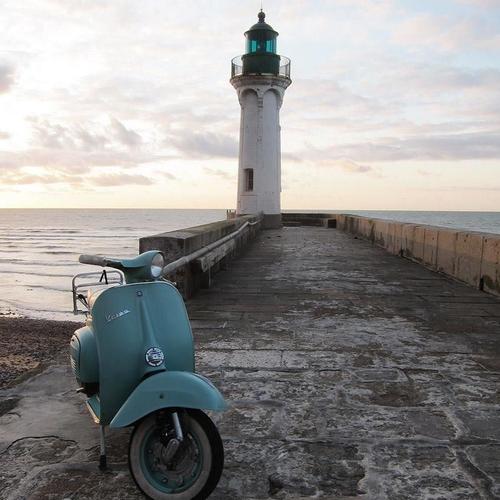
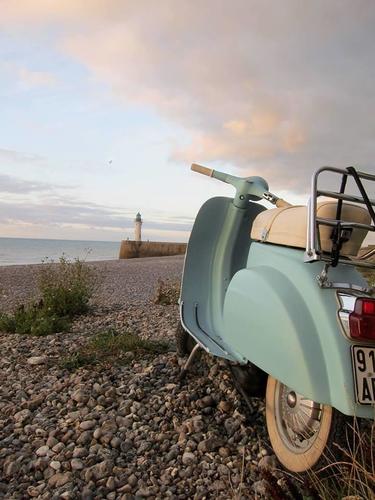
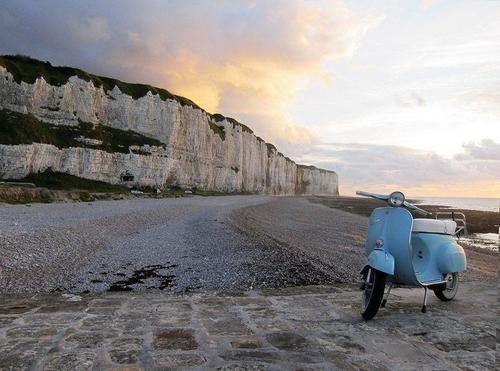

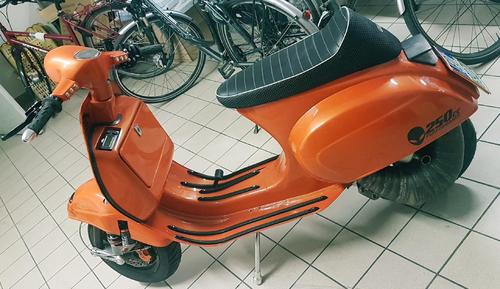
 1 Punkt1 PunktMein 2. Motor sitzt nun im Straßen Rahmen und wird ab Morgen endlich fahrbereit sein. Bin gespannt wann die ersten Gsf'ler ihre Motoren fertig haben; spätestens in 10 Tagen sollten um die 8-9 Zylinder alle am Mann sein.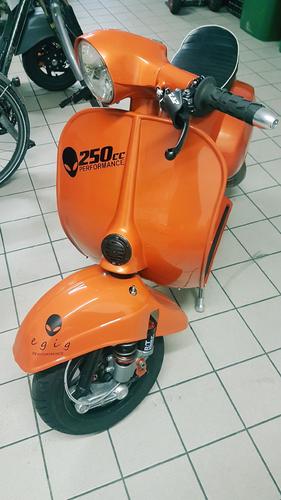
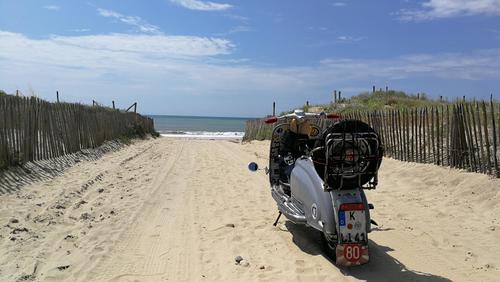
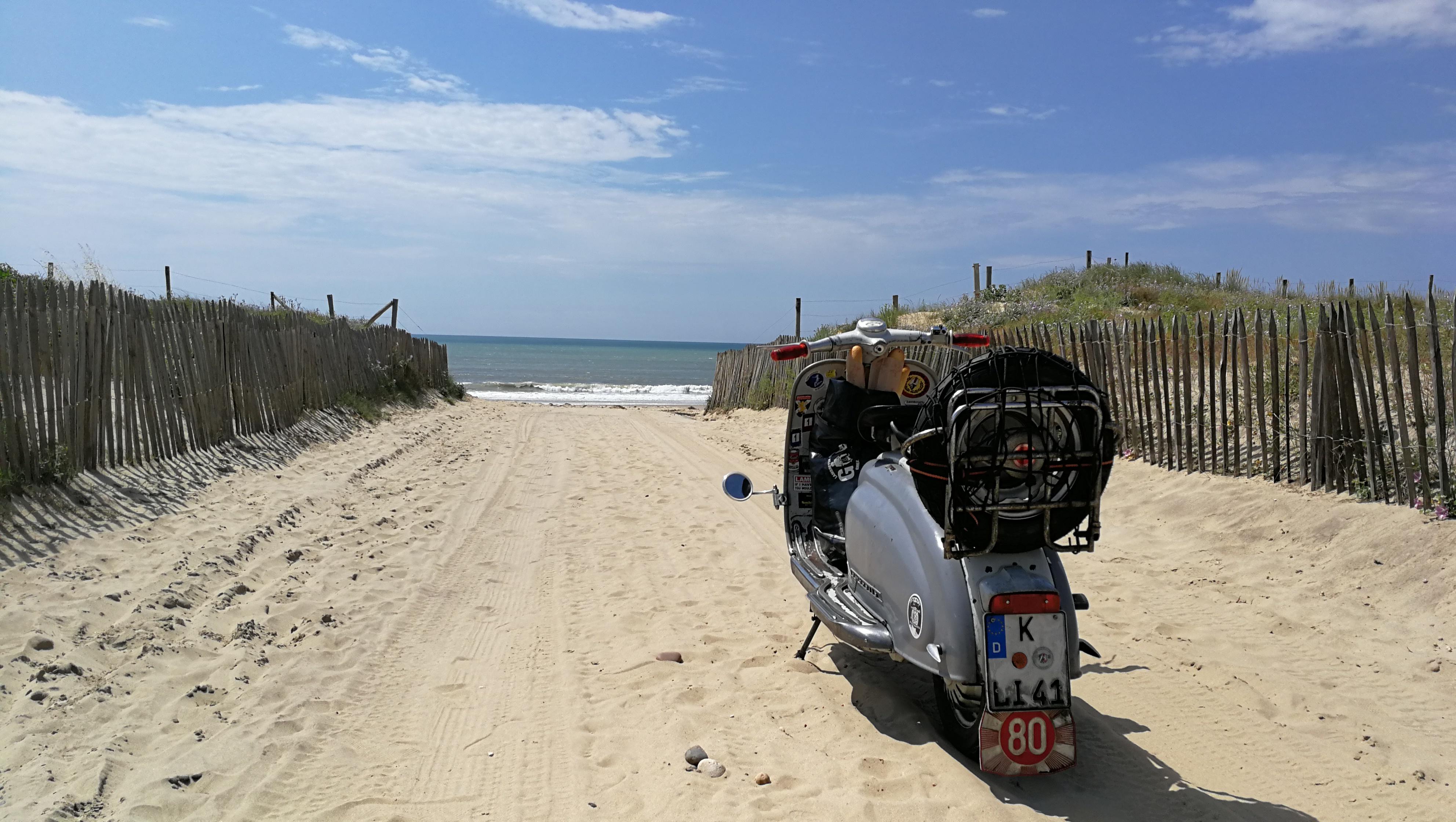
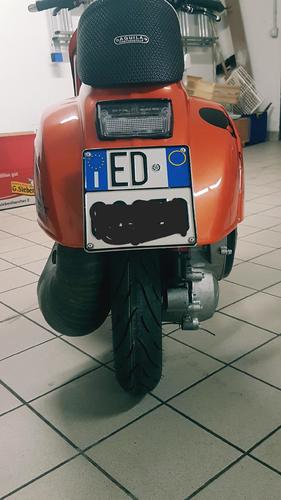 1 PunktOT beim falc getriebe ist es so, das beim zusammenbau die nut der nebenwelle zur achse der hauptwelle zeigen soll, um ein problemloses zusammenstecken der gehäusehälften zu erhalten. je nach getriebekonfiguration. naja, ich achte da nie drauf, beim zusammenstecken dreh ich immer mit einem schraubendreher die gänge(nebenwelle) so lange, bis es flutscht. ot ende1 Punkt1 Punkt1 Punkt1 PunktVWD fahre ich nicht hin. Das stimmt. Wenn dann zur Eurolambretta1 PunktIch fand es auch komplett gelungen! Super freundliche und bemühte Banausen mit extrem löblichen Verhalten an der Cocktailbar! Mein Körper fühlt sich zwar immernoch kaputt an aber das lag bestimmt eher an der A4 als am Alkohol1 Punkt1 Punkt...heute an Atlantik in Le Gurp angekommen. Rückweg vom einkaufen.
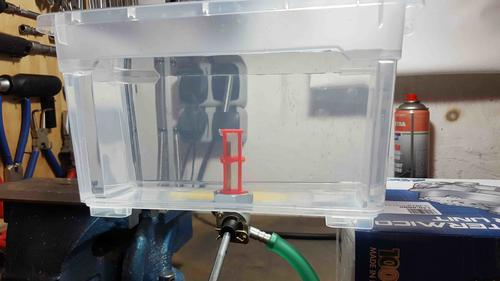
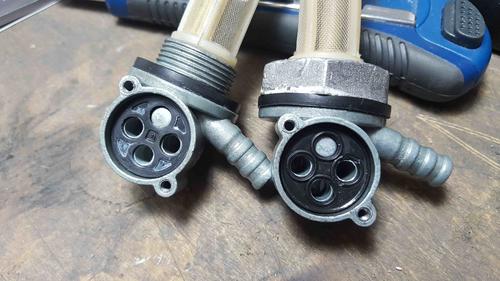
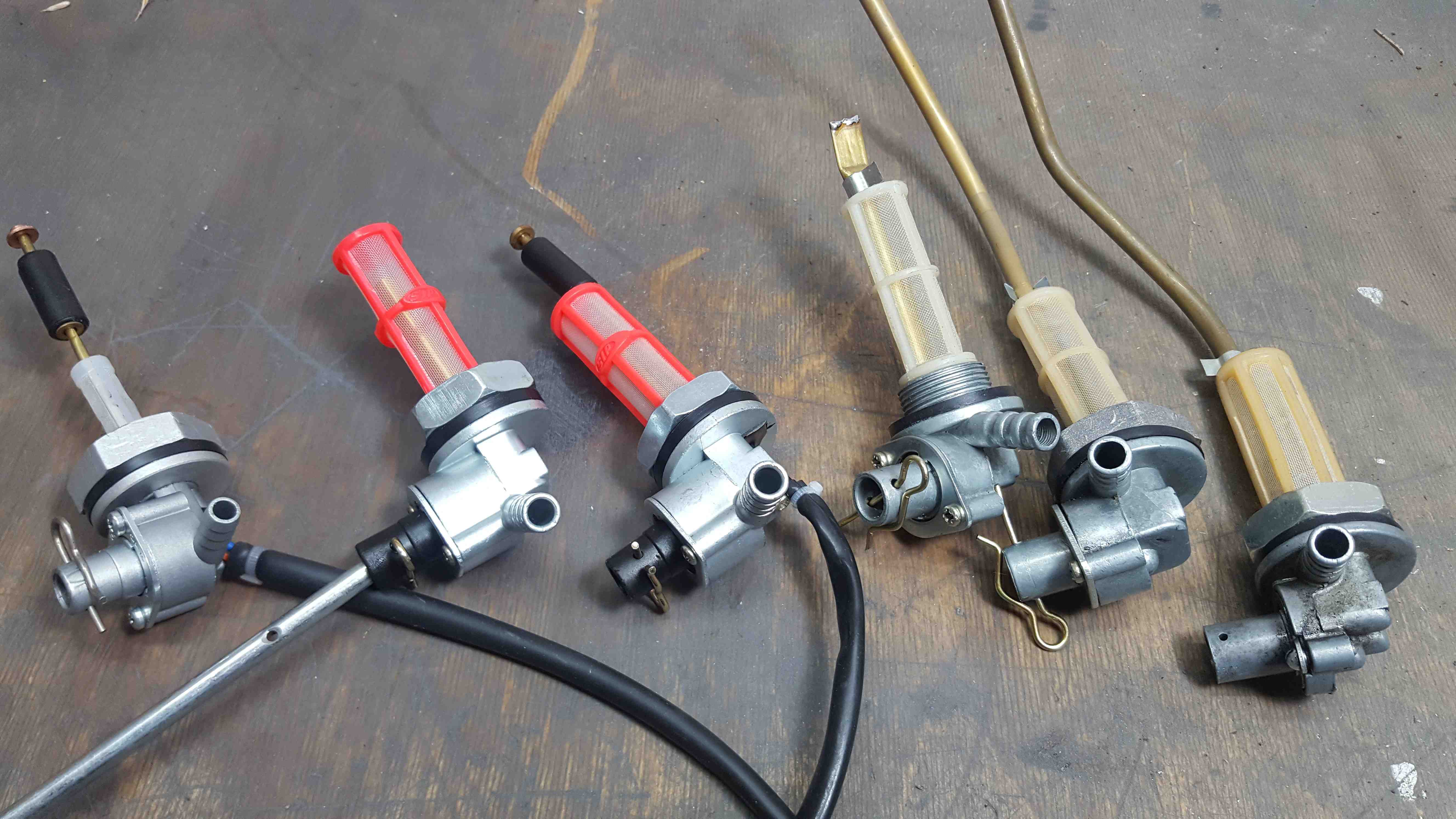
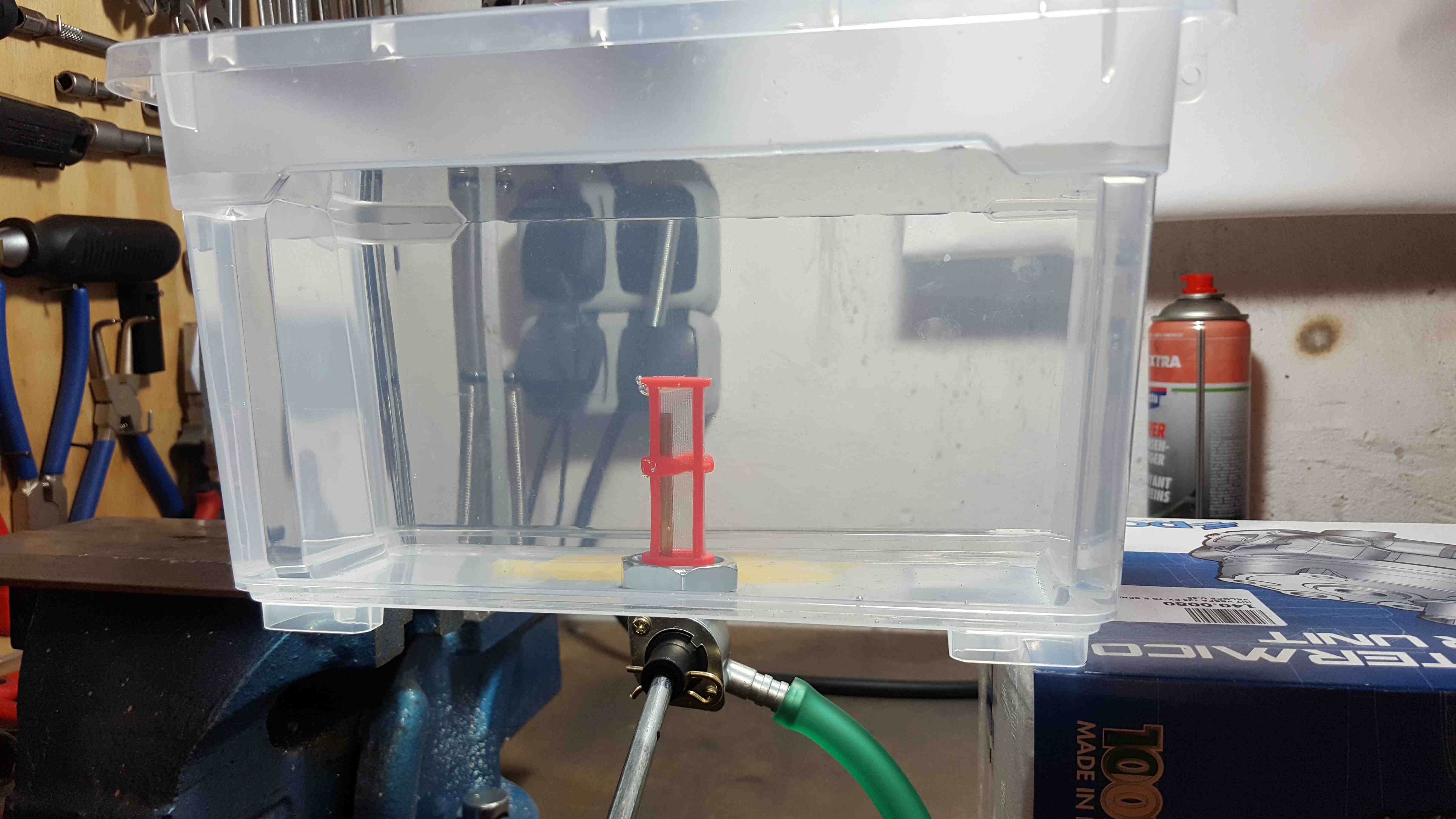
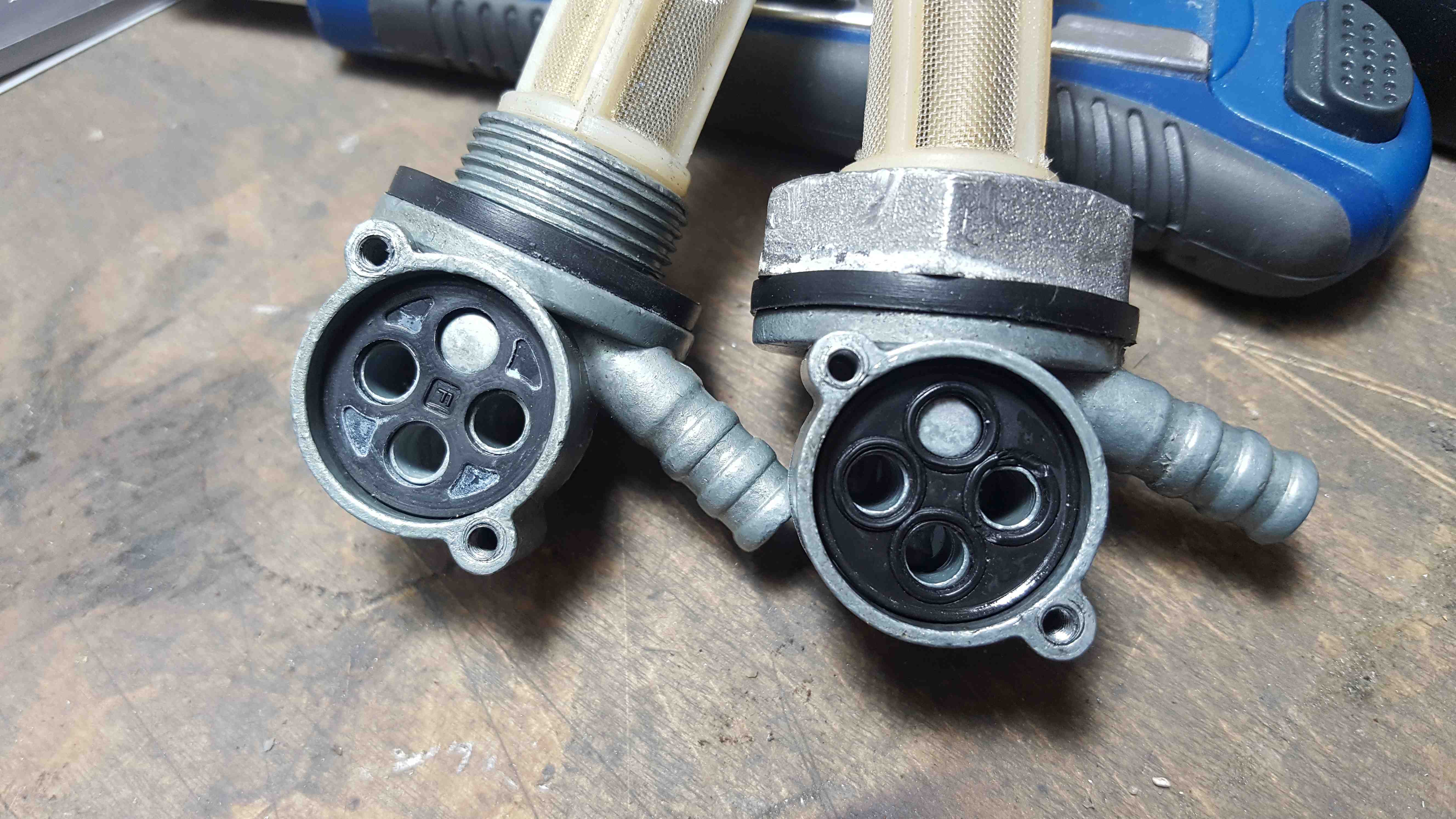
 1 Punkt1 PunktMein Name ist zwar nicht Develey, aber ich gebe hier auch mal meinen Senf dazu… Fast flow hin oder her, wollte einfach mal den Mythos „Entlüftungsröhrchen“ nachgehen. Mein Test ist einfach: Behälter wird mit Wasser gefüllt, Benzinhahn auf, Stoppuhr an. Dieser Test ist sicher NICHT unter realen Bedingungen durchgeführt worden, da kein echtes Benzin, Tank usw. Aber jeder Benzinhahn wird unter den gleichen Bedingungen getestet… Hier die Testkandidaten: BGM, SIP 2.0, SIP 2.0 elektrische Reserveanzeige, SIP 1.0 Entlüftungsröhrchen verschlossen, SIP 1.0, Piaggio, Piaggio Entlüftungsröhrchen verschlossen (nicht auf dem Bild); Hier die Platzierungen: 1. SIP 2.0 : 1:50 min 2. SIP 2.0 elektrische Reserveanzeige: 1:57 min 3. SIP 1.0 Entlüftungsröhrchen verschlossen: 2:27 min 4. Piaggio Entlüftungsröhrchen verschlossen: 2:44 min 5. BGM: 2:53 min 6. SIP 1.0: 5:05 min 7. Piaggio: 7:30 min Die große Überraschung ist der Piaggio Benzinhahn, der es mit verschlossenem Entlüftungsröhrchen (mit Zange verquetscht und gelötet) auf Platz 4 schafft. Alle Benzinhähne haben einen deutlich langsameren Durchfluss, wenn bereits die Hälfte des Benzinfilters freiliegt. Nur beim SIP 2.0 konnte ich dies nicht beobachten. Mein Fazit: Entlüftungsröhrchen IMMER dicht machen. Auch einen SIP 1.0 kann man mit dieser Maßnahme schnell machen. Nur sollte man noch die verbaute Dichtung kontrollieren und falls die alte mit den Wulsten verbaut ist, gegen eine neue Dichtung tauschen… Links neue Dichtung, rechts BÖSE…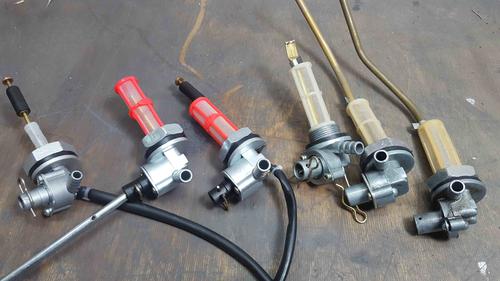
 1 Punkt1 Punkt1 Punkt@alfonso: Wie das läuft, wenn jeder sein eigenes Wunschkonzert dirigieren will ist ja im Kingwellen-Topic wunderbar demonstriert... da gab's am Ende gar nichts. Und auch wenn @Werner Amort Dir erstmal zustimmt, beschreibt er im gleichen Atemzug einen völlig anderen Wunschzylinder, der garantiert (!) auch gleich wieder als antiquiert (T5/LML)/enttäuschend/überteuert angeprangert würde... Wie soll man da einen Konsenz finden? Solche Einzelkind-Modalitäten bringen in der Gruppe erstmal gar nichts. Man kann sich die Sachen entweder kaputtreden, sich von der Industrie verraten und verkauft fühlen, weil einem (gefühlt oder gar erlebt) etwas anderes geschuldet wird... oder man kann sehen, was man hat und was man daraus macht. Da waren wir früher pragmatischer... Bis letztes Jahr waren DV-Umbauten auf der GS/SS noch eine durchaus respektable Maßnahme, da hätte niemand was dran ausgesetzt. Wenn wir jetzt diesen Zylinder wegen seines Einlasses absolut als Neuauflage des alten DV werten wollten, sind wir immer noch Meilenweit vor dem alten DV... Nicasil-Beschichtung, empirisch fundiertes Open-porting, etc. Wie gesagt sehe ich auch 20+ in diesem Zylinder, mit der Möglichkeit abseits des reinen Stecktunings die Charakteristik selbst zu bestimmen. Wenn man sich mal die Skepsis der internationalen Gemeinde (wo immer noch die meisten Exemplare unterwegs sind) ansieht, werden da ganz andere Aspekte diskutiert... Einflüsse auf die Motorcharakteristik, Verkehrssicherheit, Robustheit, Originales Erscheinungsbild... eben Leute, die mit wenig Aufwand mit vielleicht bis zu 14 PS zufrieden sind. DAS ist die Zielgruppe. Andere mögen gerne Malossi/Quatrini/Polini anschreiben, ich habe hier einen äußerst genussbetonten direktgesaugten Malossi Sport mit 18-19 PS und 23 Nm auf einer SS, braucht man nur abformen, modellieren, montieren... und sich mutmaßlich (ich bin's vorsichtig angegangen) ohne weitere Modifikationen den Motor zerreißen. Für die breite Masse finde ich diesen Zylinder einen deutlich sinnvolleren Ausgangspunkt. Und hinsichtlich der Reserven auch für viele andere. Aber bis jetzt haben wir ja noch nicht mal die Steuerzeiten...1 Punkt
Wichtige Information
Diese Website nutzt Cookies und vergleichbare Funktionen zur Verarbeitung von Endgeräteinformationen und personenbezogenen Daten. Die Verarbeitung dient der Einbindung von Inhalten, externen Diensten und Elementen Dritter. Je nach Funktion werden dabei Daten an Dritte weitergegeben. Einige dieser Verfahren sind technisch unerlässlich, andere kommen nur mit Ihrer Zustimmung zum Einsatz, eine Anpassung ist in den die Cookie-Einstellungen möglich. Für Details siehe die Datenschutzerklärung










.thumb.jpg.9b066c8bf7cde81e084ce88643f48ef7.jpg)































Account
Navigation
Suche
Configure browser push notifications
Chrome (Android)
- Tap the lock icon next to the address bar.
- Tap Permissions → Notifications.
- Adjust your preference.
Chrome (Desktop)
- Click the padlock icon in the address bar.
- Select Site settings.
- Find Notifications and adjust your preference.
Safari (iOS 16.4+)
- Ensure the site is installed via Add to Home Screen.
- Open Settings App → Notifications.
- Find your app name and adjust your preference.
Safari (macOS)
- Go to Safari → Preferences.
- Click the Websites tab.
- Select Notifications in the sidebar.
- Find this website and adjust your preference.
Edge (Android)
- Tap the lock icon next to the address bar.
- Tap Permissions.
- Find Notifications and adjust your preference.
Edge (Desktop)
- Click the padlock icon in the address bar.
- Click Permissions for this site.
- Find Notifications and adjust your preference.
Firefox (Android)
- Go to Settings → Site permissions.
- Tap Notifications.
- Find this site in the list and adjust your preference.
Firefox (Desktop)
- Open Firefox Settings.
- Search for Notifications.
- Find this site in the list and adjust your preference.