

Mike
Super Administrators
-
Benutzer seit
-
Letzter Besuch
Alle Inhalte von Mike
-
Hi! Wie kann ich bei PayPal einen Dauerauftrag einrichten? Cheers! Mike
-
|_|_|_|_|_|_|_| |_|_|_|_|_|_|_| |_|_|_|x|_|_|_| |_|_|x|o|_|_|_| |_|o|o|x|x|_|_| |_|o|x|o|x|_|_| o
-
|_|_|_|_|_|_|_| |_|_|_|_|_|_|_| |_|_|_|x|_|_|_| |_|_|x|o|_|_|_| |_|_|o|x|_|_|_| |_|o|x|o|x|_|_| weiter mit o
-
-
Gibts die Rabattaktion heuer wieder?
-
-
Manuel, ich glaub das fiel eher in den Zeitraum, in dem du dich mit deiner Studienkollegin unterhalten hast
-
Alter GENIALE PARTY! Respekt an die Stoneheads, dies es irgendwie jedesmal schaffen die Party vom Vorjahr zu toppen!!!! Immer wieder gerne!!!!
-
Fakt ist, dass sich jmd. über crus-ts Geschäftsgebaren mit nachträglichen Preiserhöungen beschwert hat. Aus diesem Grund wurde crus-t in seinem Topic darauf hingewiesen.
-
Hab was geändert, ist jetzt alles erstmal auf englisch. Gehts jetzt?
-
Ich steh absolut hinter dem Thema! Bitte mitmachen! Das zu versendende Dokumentmuss spätestens Montag bei der Post eingeworfen werden, es zählt der Poststempel!
-
Es können Videos direkt im Forum eingefügt werden von folgenden Anbietern: YouTube (www.youtube.com) GoogleVideo (video.google.com) LiveLeak (www.liveleak.com) Veoh (www.veoh.com) GameTrailers (www.gametrailers.com) iFilm (www.ifilm.com) Revver (www.revver.com) BrightCove (www.brightcove.com) MySpaceVideo (vids.myspace.com) CollegeHumor (www.collegehumor.com) vSocial (www.vsocial.com) Guba (www.guba.com) Glumbert (www.glumbert.com) Und so fügt man ein Video ein: - URL des Videos mit Videobutton einfügen (siehe Bild)
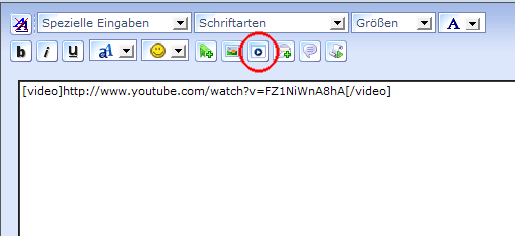 Das war zu ändern: ', 0) }; Add Above: /** * STD: * Insert video override */ this.insertvideo = function() { this.wrap_tags_lite( 'Invalid Video Link', 0) }; Save and upload jscripts\ips_text_editor.js -------------------------------------------------------------------------------- Open jscripts\ips_text_editor_lite.js (Note: it's much easier to edit the javascript files you find in the board\Development\javascript_uncompressed\jscripts folder of your IPB download) Find: /** * STD: * IPB Quote override */ this.ipb_quote = function() { var _text = this.get_selection(); this.wrap_tags( 'quote', false, _text ); }; Add Above: /** * STD: * Insert video override */ this.insertvideo = function() { var _text = this.get_selection(); var _url = prompt( ipb_global_lang['editor_enter_video'], _text ? _text : "http://" ); if( !_url || _url == null || _url == 'http://' ) { return false; } this.wrap_tags( 'video', false, _url ); }; Save and upload jscripts\ips_text_editor_lite.js -------------------------------------------------------------------------------- Open cache\lang_cache\--\lang_javascript.js Find: 'editor_enter_image' : 'Please enter the URL for this image', Add Below: 'editor_enter_video' : 'Please enter the URL for this video', Save and upload cache\lang_cache\--\lang_javascript.js Repeat the above step for each language set that you have installed on your site. Step 4: Skin Edits Log in to your ACP and go to Look & Feel -> Skins & Templates -> Skin Manager. Click on the Options button beside a skin and then click Edit Template HTML. Perform the following edits on your first skin, and then repeat for each skin you have installed: Section: Post / PM Editor Template Bit: ips_editor Find: <td><div class="rte-normal" id="{$editor_id}_cmd_insertimage"><img src="{$images_path}rte-image-button.png" alt="{$this->ipsclass->lang['js_rte_lite_img']}" title="{$this->ipsclass->lang['js_rte_lite_img']}"></div></td> Add Below: <td><div class="rte-normal" id="{$editor_id}_cmd_insertvideo"><img src="{$images_path}rte-video-button.png" alt="{$this->ipsclass->lang['js_rte_lite_video']}" title="{$this->ipsclass->lang['js_rte_lite_video']}"></div></td> Find: 'js_rte_image' : "{$this->ipsclass->lang['js_rte_image']}", Add Below: 'js_rte_video' : "{$this->ipsclass->lang['js_rte_video']}", Save Template Bit. Section: Post Screen Template Bit: inline_edit_quick_box Find: <td><div class="rte-normal" id="{$pid}_cmd_insertimage"><img src="style_images/<#IMG_DIR#>/folder_editor_images/rte-image-button.png" alt="{$this->ipsclass->lang['js_rte_lite_img']}" title="{$this->ipsclass->lang['js_rte_lite_img']}"></div></td> Add Below: <td><div class="rte-normal" id="{$pid}_cmd_insertvideo"><img src="style_images/<#IMG_DIR#>/folder_editor_images/rte-video-button.png" alt="{$this->ipsclass->lang['js_rte_lite_video']}" title="{$this->ipsclass->lang['js_rte_lite_video']}"></div></td> Save Template Bit. Section: Topic View Template Bit: quick_reply_box_open Find: <td><div class="rte-normal" id="fast-reply_cmd_insertimage"><img src="style_images/<#IMG_DIR#>/folder_editor_images/rte-image-button.png" alt="{$this->ipsclass->lang['js_rte_lite_img']}" title="{$this->ipsclass->lang['js_rte_lite_img']}" /></div></td> Add Below: <td><div class="rte-normal" id="fast-reply_cmd_insertvideo"><img src="style_images/<#IMG_DIR#>/folder_editor_images/rte-video-button.png" alt="{$this->ipsclass->lang['js_rte_lite_video']}" title="{$this->ipsclass->lang['js_rte_lite_video']}"></div></td> Save Template Bit. Repeat the above steps for each skin installed on your site. After that remember to rebuild your skin(s), Look & Feel -> Skins & Templates -> Skin Tools -> Rebuild Skin Set CacheMann war das ein Scheiss dieses Feature ins Forum einzubinden Der im Video ist übrigens Gigi Rüf...hab beim gleichen Lehrer das Snowboardfahren gelernt wie erAh jo, so machmers. Der Andy pennt am Boden. Hab ich jetzt mal so festgesetzt. Und hält mir den Brechkübel hin wenns soweit ist.Kann mich wer noch unterbringen? Evtl noch mit nem Prospect als Anhängsel? Keusche Angebote bitte per PM.Solange die Zähnezahl der Cosa-Kulu zu deinem 68er 80er Primärzahnrad passt geht das problemlos, fahr ich selber. Bei der Cosa am besten ne Originale, keine Nachbau kaufen.Moin! Der Server war von außen nicht mehr zugänglich, einzige Möglichkeit war ein harter Reset was in Folge die Datenbank etwas zerstörte So mancher wird merken dass ein oder zwei Beiträge fehlen.... Wir wissen noch nicht genau worans lag/liegt , eine Möglichkeit ist dass sich jemand auf dem Server "eingenistet" hat.Letzter Hilfeschrei! Wer kann mir einen V50 Rahmen zum Weekender mitnehmen?Von mir auch nochma nachträglich alles Jute!!!!Moin! Ich hätte hier noch was interessantes, um die zu harten Schaltvorgänge bei kaltem Motor auszumerzen:Im Schweizer Forum haben sich die Leute wahrscheinlich genauso wie im KTM Forum aufgeführt. Bitte erstmal keine Angebote mehr für Moderationstätigkeit, mein Postfach ist voll Wir lassens erst mal so wie es derzeit ist, wenn sich die ganze Geschichte nicht bewährt, dann kann man weiterdenken.
Wichtige Information
Diese Website nutzt Cookies und vergleichbare Funktionen zur Verarbeitung von Endgeräteinformationen und personenbezogenen Daten. Die Verarbeitung dient der Einbindung von Inhalten, externen Diensten und Elementen Dritter. Je nach Funktion werden dabei Daten an Dritte weitergegeben. Einige dieser Verfahren sind technisch unerlässlich, andere kommen nur mit Ihrer Zustimmung zum Einsatz, eine Anpassung ist in den die Cookie-Einstellungen möglich. Für Details siehe die Datenschutzerklärung
Account
Navigation
Suche
Configure browser push notifications
Chrome (Android)
- Tap the lock icon next to the address bar.
- Tap Permissions → Notifications.
- Adjust your preference.
Chrome (Desktop)
- Click the padlock icon in the address bar.
- Select Site settings.
- Find Notifications and adjust your preference.
Safari (iOS 16.4+)
- Ensure the site is installed via Add to Home Screen.
- Open Settings App → Notifications.
- Find your app name and adjust your preference.
Safari (macOS)
- Go to Safari → Preferences.
- Click the Websites tab.
- Select Notifications in the sidebar.
- Find this website and adjust your preference.
Edge (Android)
- Tap the lock icon next to the address bar.
- Tap Permissions.
- Find Notifications and adjust your preference.
Edge (Desktop)
- Click the padlock icon in the address bar.
- Click Permissions for this site.
- Find Notifications and adjust your preference.
Firefox (Android)
- Go to Settings → Site permissions.
- Tap Notifications.
- Find this site in the list and adjust your preference.
Firefox (Desktop)
- Open Firefox Settings.
- Search for Notifications.
- Find this site in the list and adjust your preference.